RS-1_instruction manual.pdf - 第111页
Part 1 B asic O peration Chapter 1 Overv iew of the Machine 1- 93 Updating the Drive C The machine us es the Enhanced Write Filter (E W F) t o create the driv e C , whi ch Windows u ses as ROM, in ord er to protect the O…
Part 1 Basic Operation Chapter 1 Overview of the Machine
1-92
Removing the hardware in safety
This is the function for removing a device connected to the USB connector in safety.
A removal error may occur at a USB memory device. Even in such a case, you can remove the
device unless any file is not being read or written. When the USB memory device is equipped with
the access lamp, check the access lamp to make sure that the device is not being accessed before
removing the device.
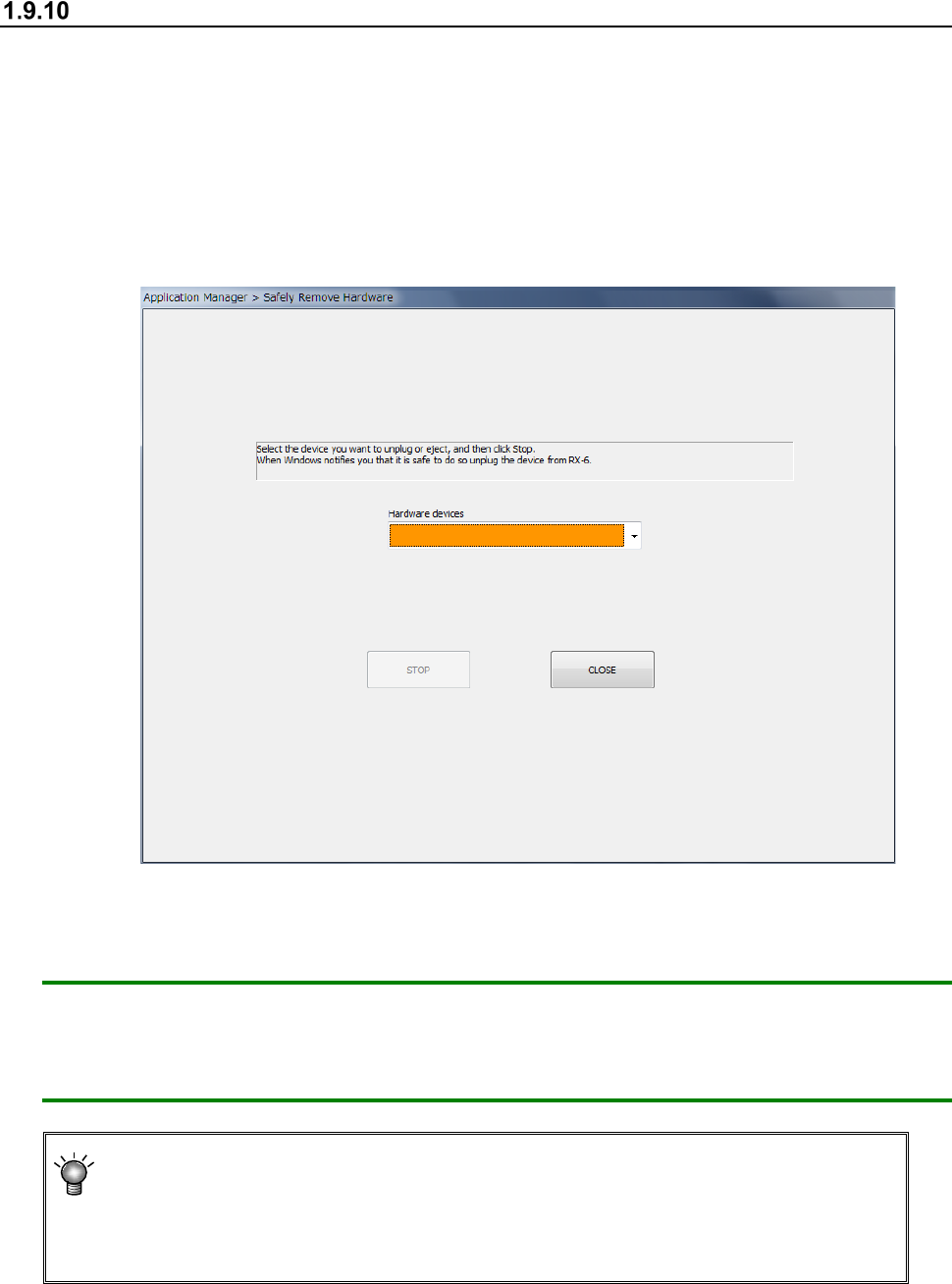
(1) Select the [Safely Remove Hardware] command from the “Startup” menu.
The following “Safely Remove Hardware” dialog box appears on the screen.
(2) Click the <Stop> button.
The system allows you to remove the device in safety automatically.
CAUTION: When you want to remove a device connected to the USB connector although the
machine is turned on, be sure to stop the function of the device on the “Safely
Remove Hardware” dialog box before removing it. (Do not connect any device to
the USB connector during PWB production.)
When you connect a device to the USB connector, the “Find new hardware” dialog
box may appear on the screen.
Although the system asks you to restart the machine depending on the device you
connected, you have to restart it only after updating the drive C (see Section 1.10).
Part 1 Basic Operation Chapter 1 Overview of the Machine
1-93
Updating the Drive C
The machine uses the Enhanced Write Filter (EWF) to create the drive C, which Windows uses as
ROM, in order to protect the OS.
Therefore, to change the information of the OS, update the dive C by following the instructions
below.
Be sure to perform this operation after you add the function requiring a driver such as a printer or
after you set up the network.
If you happen to turn off the machine even though you have not performed this operation, the
information you set is erased.
(1) Start up the command prompt.
(Start up the command prompt from Explorer, by executing
“C:¥Windows¥System32¥cmd.exe”).
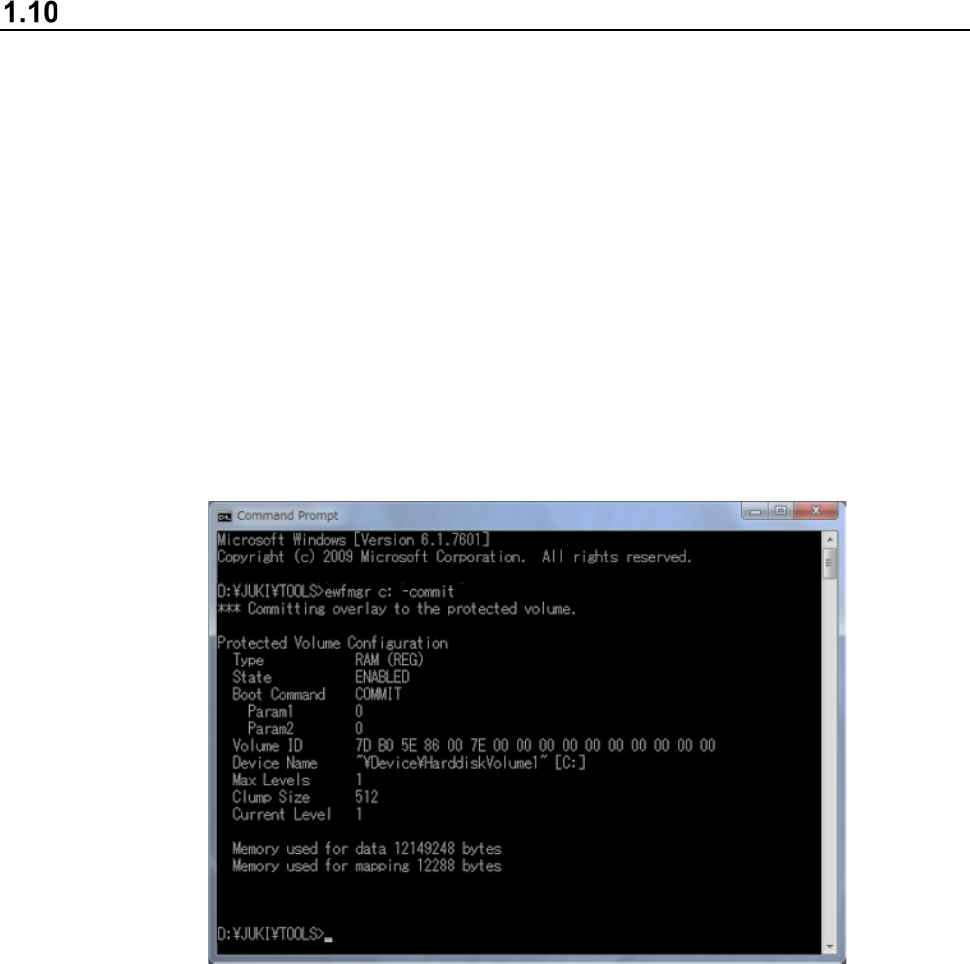
(2) Enter “ewfmgr C: -commit” on the console window (DOS screen).
The screen like the one shown below appears.
(3) Shut down Windows, and then start up the machine again.
Information emulated with the main memory during the shutdown process is written onto the
drive C.
Part 1 Basic Operation Chapter 2 Production
2-1
Chapter 2 Production
2.1 Flowchart for production
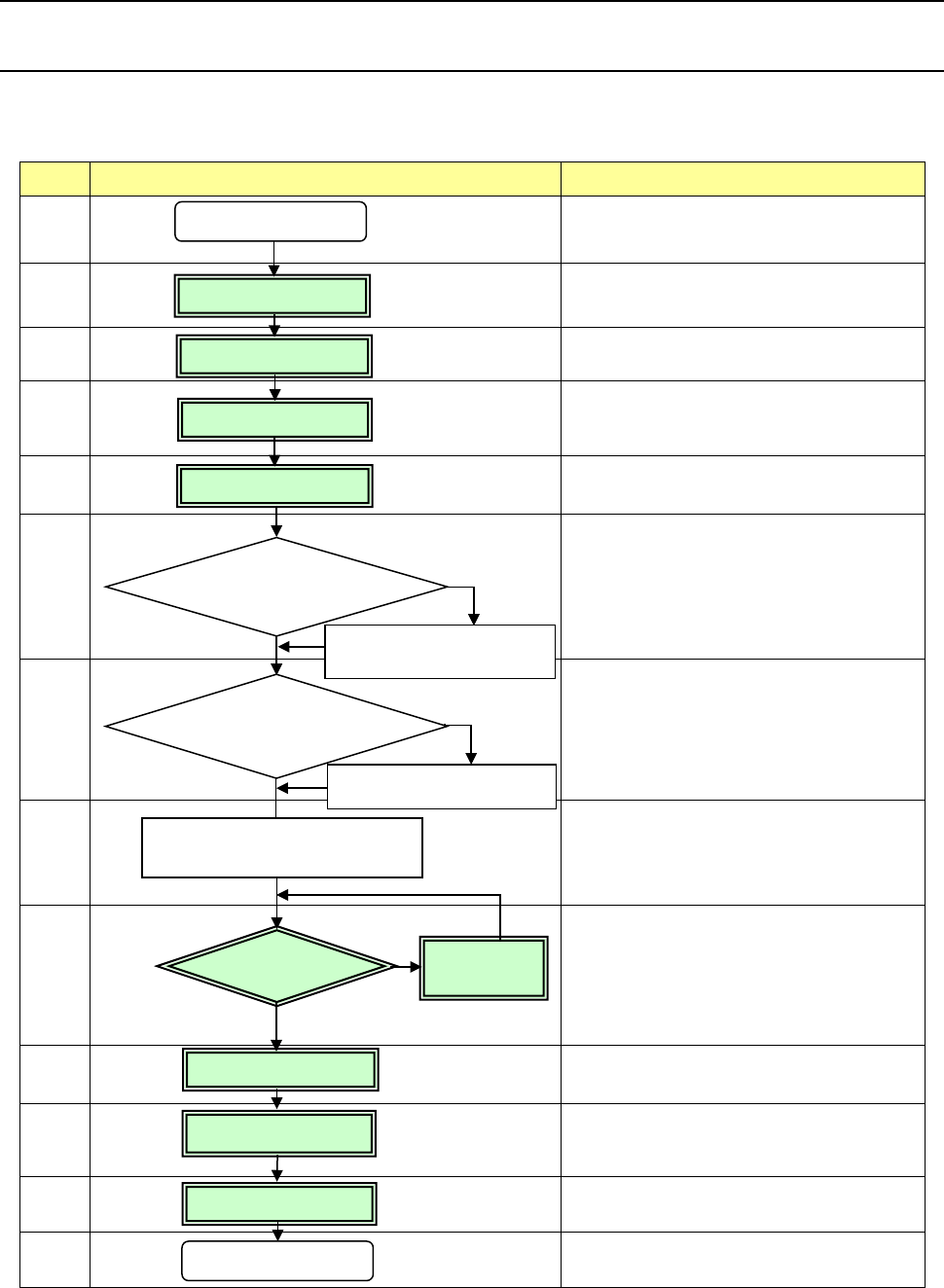
This chapter describes the operations marked with the numbers from 2 to 5, and 9 to 12 in the
flowchart below.
No Flowchart Comment
1
Perform routine inspection including an
ATC-related check.
2
Check the main air pressure (0.5 MPa).
3
Check to see if there is no foreign substance
inside the machine before production.
4
Be sure to warm up the system after holidays or in
cold climates (it takes approximately 10 minutes).
5
6
Change the settings on the “Machine setup” menu
if you clean the nozzle and you have to change
the initial setup after you perform the daily
inspection or set a PWB.
(See Chapter 8 “Machine Setup.”)
7
See Chapter 5 “Database.”
8
9
If any problem occurs during PWB placement:
for example, the PWB position is shifted from the
regulated position or the centering function fails,
correct the production program on the “Program
Editor” menu. You can correct a part of
component data on the “Production” menu also.
10
11
12
13
Perform the daily inspection periodically.
(See Chapter 3 “Daily Maintenance.”)
No
Yes
Change the desired settings
on the Machine setup menu.
Create component data on
the “Database” menu.
Power ON
Inspection of system
Origin return
Warm-up
PWB setting
Create the component
database?
Production
Power OFF
No
PWB placement
confirmation
No problem
Daily inspection
Correct the
program.
Problem
Yes
Creation/Edition of
your production program
Change the machine
setup conditions?
End of production