RS-1_instruction manual.pdf - 第205页
Part 1 B asic O peration Chapter 2 Pr oduction 2- 94 Conveyor Control When you pres s the < Conveyor Co ntrol > butt on, the s ystem disp l ays the c ondition of the conveyor path. Operate the conve yor and cont ro…
Part 1 Basic Operation Chapter 2 Production
2-93
Operation
step
What to prepare Detailed operation Description
7 Data check
Laser check
Checks to see if the laser height for a component is
appropriate or not.
Measure Height of PWB
Measure the placement position height of the PWB
surface with HMS.
8
Check of
component supply
GNRL. Vision All Check
Makes a general-purpose vision component
direction continuous inspection.
(2) Axis Escape
These buttons allow you to move the head to the position appropriate for preparation.
Menu item
Button
Description
Axis Escape
Position to be applied when the rear side
is operated
Axially moves the head unit to the position set at
“Position to be applied when the rear side is operated”.
For the setting of “Position to be applied when the rear
side is operated”, see Section 8.3.4.3 “Head Wait
Position” in Chapter 8 “Machine Setup”.
Position to be applied when the front side
is operated
Axially moves the head unit to the position set at
“Position to be applied when the front side is operated”.
For the setting of “Position to be applied when the front
side is operated”, see Section 8.3.4.3 “Head Wait
Position” in Chapter 8 “Machine Setup”.
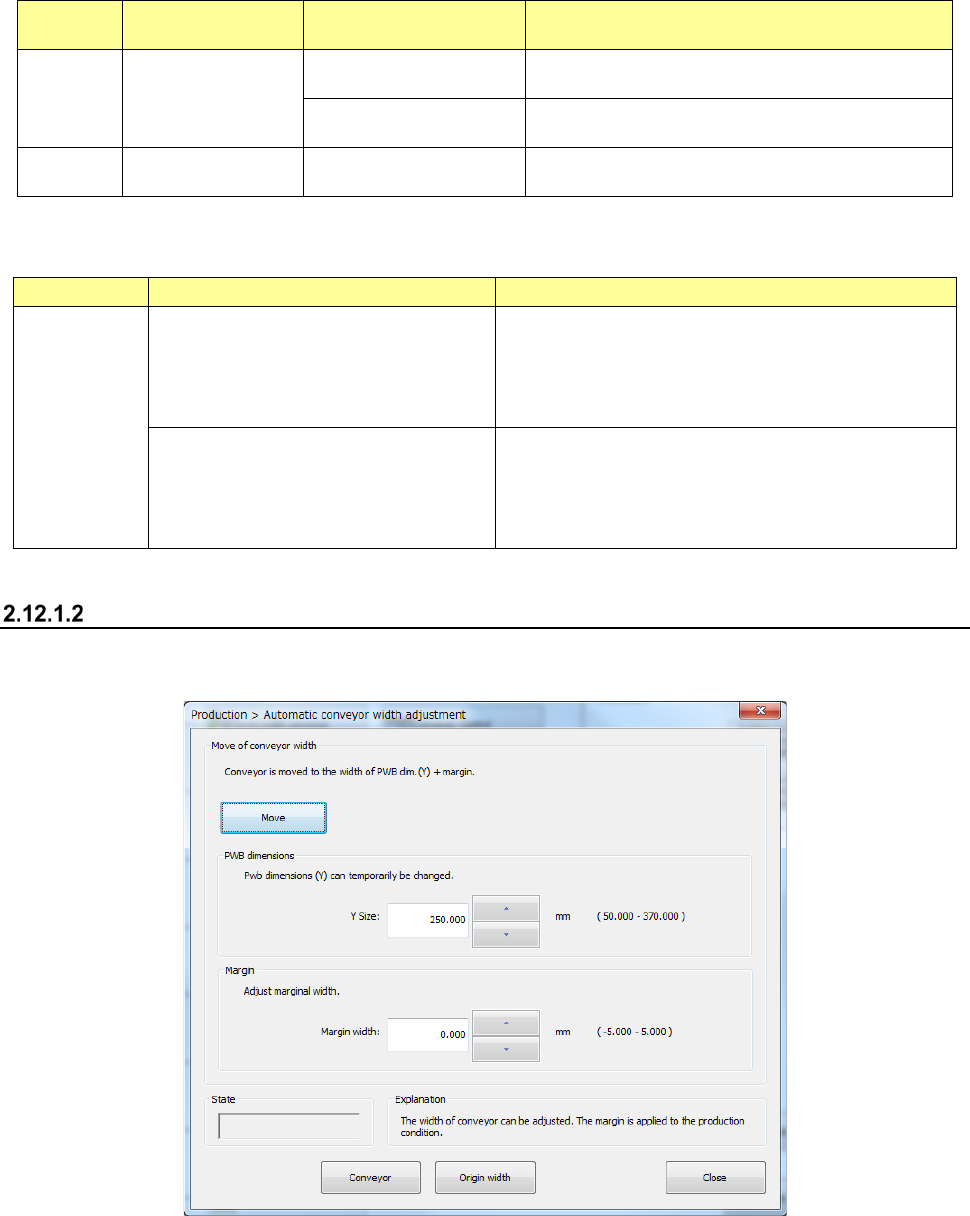
Automatic PWB width adjustment
The system allows you to adjust the PWB transport width.
- Automatic PWB width adjustment
See Section 4.5.2.6 “Automatic board width adjustment” of Chapter 4 “Creating a Production
Program” for details.
Part 1 Basic Operation Chapter 2 Production
2-94
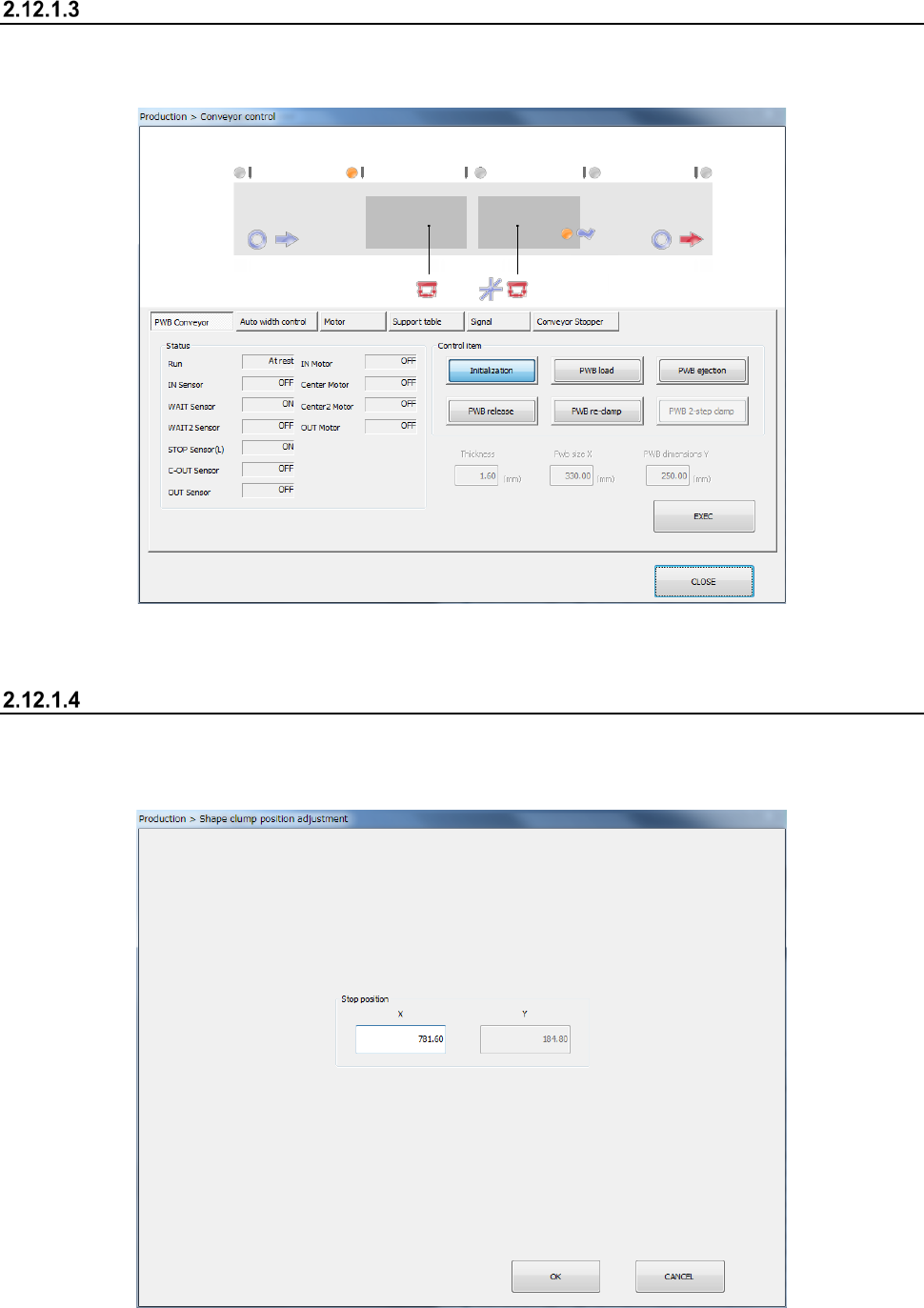
Conveyor Control
When you press the < Conveyor Control> button, the system displays the condition of the conveyor
path. Operate the conveyor and control the motor and the support table.
See the descriptions of Section 9.4.1 “PWB conveyor” of Chapter 9 “Manual Control.”
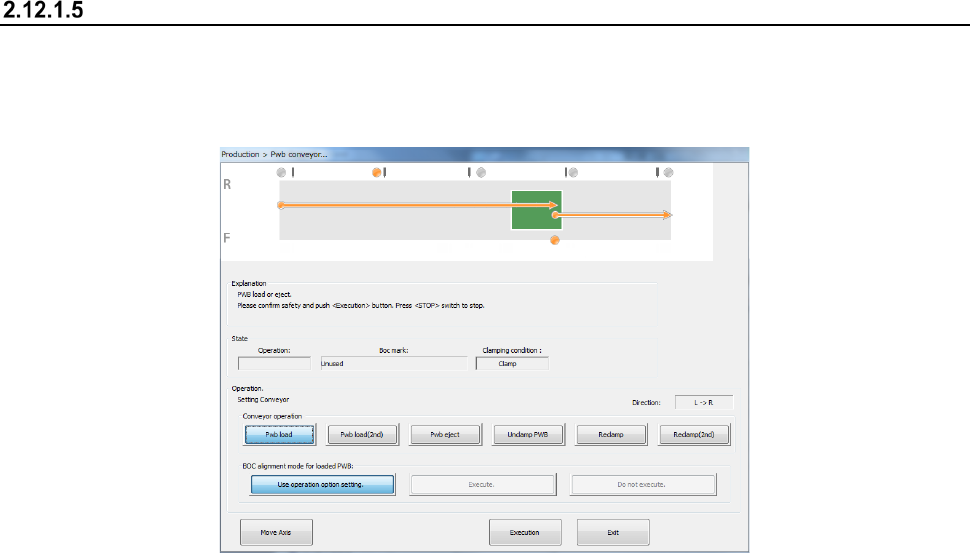
Shape clamp position adjustment
Adjust the shape clamp reference position.
- Shape clamp position adjustment
Part 1 Basic Operation Chapter 2 Production
2-95
PWB conveyor
When you select the <PWB conveyor> button, the state of each sensor is displayed on the screen.
Adjust the board transport operation while loading a board, ejecting a board, releasing a fixed board,
controlling each part independently and automatically adjusting the board transport width of the
conveyor.
(1) Operation
① Conveyor operation
You can select a board transport operation with selecting one of the following buttons:
<Pwb load>, <Pwb eject>, <Unclamp PWB> <Reclamp>and <Reclamp(2nd)>.
When the machine starts up, the <Pwb load> button is selected.
② Board transport operation graphics
The board transporting condition varying depending on the specified board transport
operation and the station being operated is shown as the graphics.
③ BOC alignment mode for loaded PWB
Select whether to perform BOC alignment operation immediately after a board is loaded to
the machine.
<Use operation option setting>: The system determines whether to recognize a BOC mark
or not according to the setting of the corresponding operation option.
<Execute> : The machine always recognizes a BOC mark.
<Do not execute> : The machine does not recognize any BOC mark.
④ State
This menu item displays information obtained during board transportation.
The board transport direction, the BOC mark information and the clamping condition are
displayed here.
⑤ Move Axis
This button moves the axis to the waiting position.
⑥ Execution
When you press this button, the system executes the operation corresponding to each of the
buttons: <Pwb load>, <Pwb eject>, <Unclamp PWB> and <Reclamp>.
⑦ Exit
This button quits the “Pwb conveyor” screen.
To transport a board, press the <START> switch (or the <Execution> button).
To finish the operation, press the <Exit> button.
To abort the operation for some reason while a board is being transported, press the
<STOP> switch.