RS-1_instruction manual.pdf - 第787页
Part 2 D etaile d Descript ion of E ach Functi on Chapter 9 M anual Control 9- 15 Y ou can select a control t ab by using a pu shbutton in the center of the screen. Their deta ils will be desc ribed later . Refer to “ 9.…
Part 2 Detailed Description of Each Function Chapter 9 Manual Control
9-14
9.4 Conveyor
9.4.1 Conveyor control
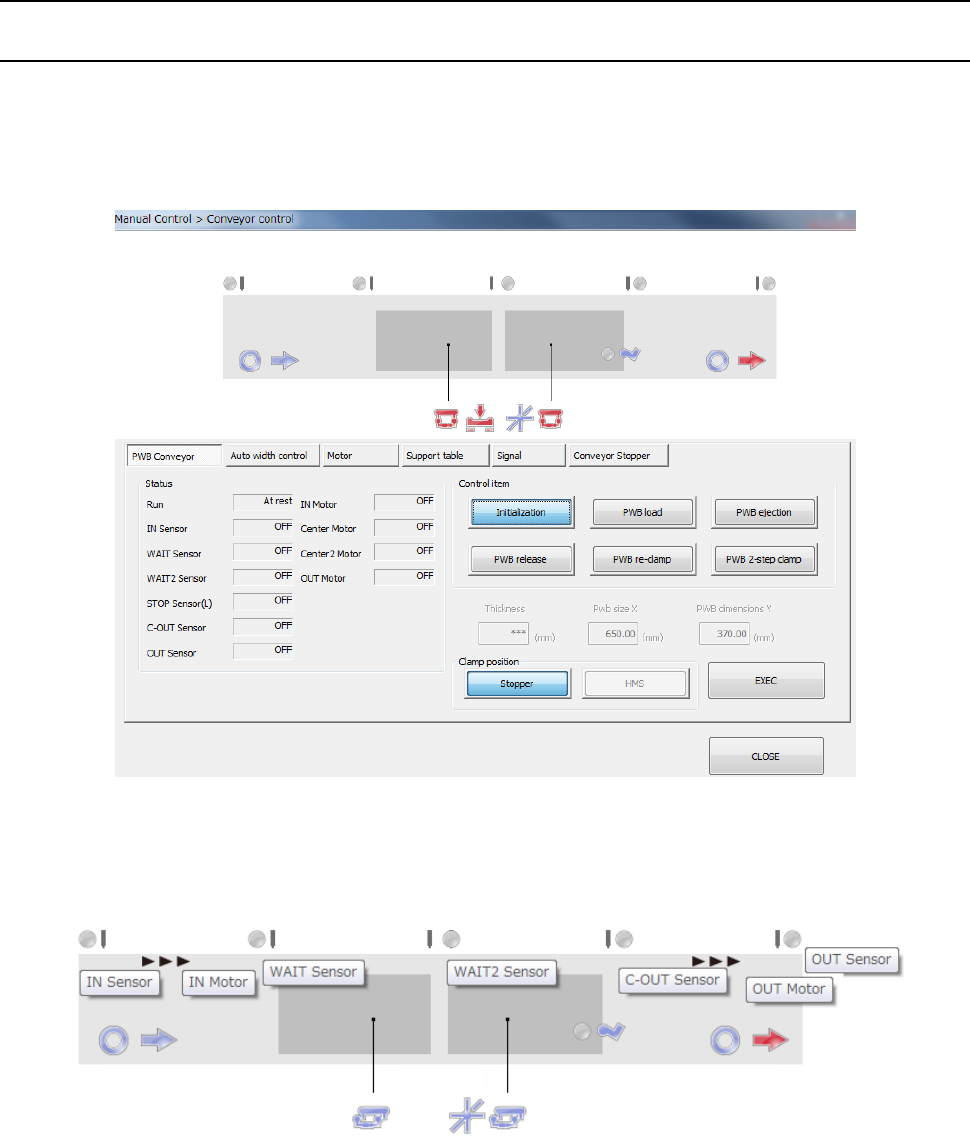
When you select [Conveyor (C)] - [Conveyor control (V)] form the pull-down menu, or when you
select the [Conveyor control] command button, the “Conveyor control” screen appears.
When you select [Conveyor] → [Conveyor control] in the menu, the conveyor control dialog is
displayed.
The status of each conveyor sensor/conveyor motor is displayed in the upper part of the screen.
The conveyor stopper and stopper sensor on the IN side are displayed when the option stopper is
valid.
The tool hint is displayed by putting the cursor on the sensor display figure. The above figure
displays each stop sensor/motor sensor.
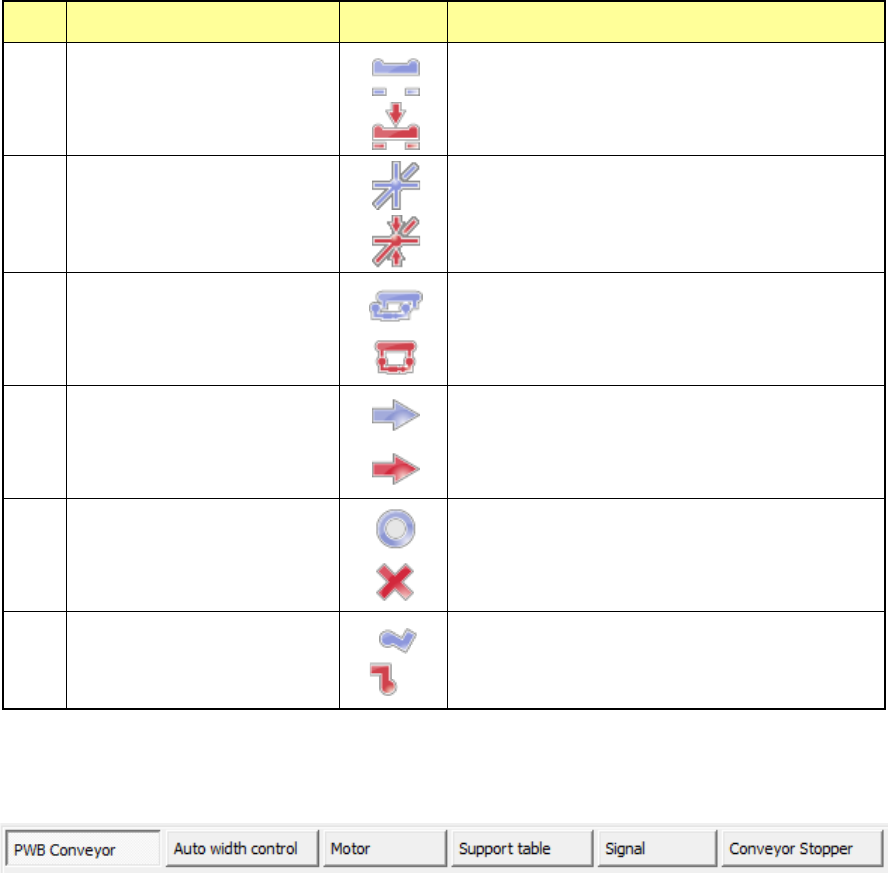
For the display figure of each sensor, refer to the table on the next page.
Part 2 Detailed Description of Each Function Chapter 9 Manual Control
9-15
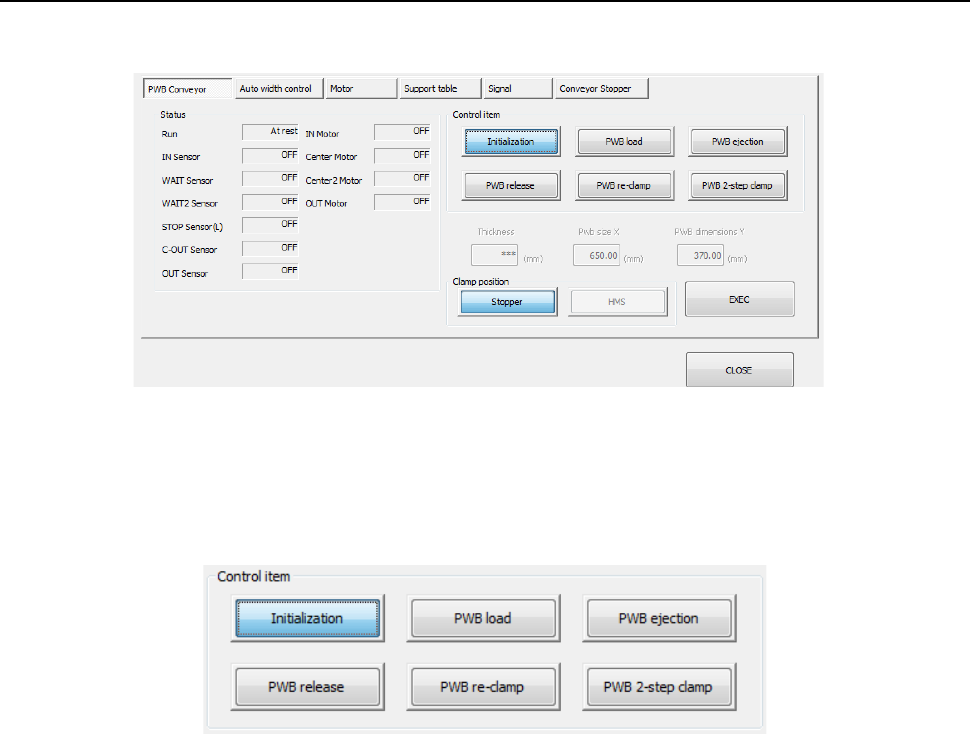
You can select a control tab by using a pushbutton in the center of the screen.
Their details will be described later. Refer to “9.4.1.1 Control tab: PWB conveyor or later.
No. Display item Symbol Description
1
Support table stopper
The support table stopper is set to OFF.
Support table stopper is set to ON.
2
Support table origin sensor
The support table origin sensor is set to OFF.
The support table origin sensor is set to ON.
3
IN buffer selector/OUT buffer
selector
The IN/OUT buffer selector is set to OFF.
The IN/OUT buffer selector is set to ON.
4
Ready IN/Ready OUT
The ready IN/ready OUT signal is set to OFF.
The ready IN/ready OUT signal is set to ON.
5
Board available IN/Board
available OUT
The board available IN/OUT signal is set to OFF.
The board available IN/OUT signal is set to ON.
6
Conveyor stopper
The conveyor stopper is set to OFF.
The conveyor stopper is set to ON.
Part 2 Detailed Description of Each Function Chapter 9 Manual Control
9-16
9.4.1.1 Control tab: PWB Conveyor
When the <PWB Conveyor> button is pressed, the following screen appears.
(1) Status
The status of each conveyor motor/sensor, ON or OFF, is displayed here.
(2) Control item
Select a control item by radio button.
When you press the <EXEC> button, control for the selected item is started.
1) Initialization
This button initializes the conveyor.
2) PWB load
A board is loaded according to the “Board stop setting” selected on the “PWB conveyor 2”
tab of the “PWB” data screen.
When a value set in the “Pwb size X” supports a long-sized board, you can select the
positon from which the board is loaded with each of the <Clamp position> buttons displayed
below.
3) PWB ejection
This button ejects a board.
4) PWB release
This button releases the clamped board.
5) PWB re-clamp
A board on the transfer path is clamped again according to the “Board stop setting” selected
on the “PWB conveyor 2” tab of the “PWB” data screen.
When a value set in the “Pwb size X” supports a long-sized board, you can select the
positon from which the board is re-clamped with each of the <Clamp position> buttons
displayed below.
6) PWB 2-step clamp
This button loads a board to the second clamping position of a long-size board.
This function cannot be used with a machine designed for an extra-large board.