RS-1_instruction manual.pdf - 第461页
Part 1 B asic O peration Chapter 4 Cr eating a Produc tion Progra m 4- 126 4.3.7 Checking the st atus of dat a completion Now we are ch ecking how data has been com pleted. Incomplete data does n ot allow optimizati on. …
Part 1 Basic Operation Chapter 4 Creating a Production Program
4-125
(7) Status (Used)
Specify whether or not to use this feeder unit when production.
“Used” is selected as the initial setting.
If there are two or more feeder units, specify the unit that is actually used for production with this
machine.
A feeder unit whose “Status” is “Not Used (No)” cannot be used as an alternate feeder even
though there are two or more feeder units.
(8) Remain
Specify the number of the remaining components. You have to enter this value for components
supplied in a tray.
You cannot set any value for components supplied with a feeder.
Part 1 Basic Operation Chapter 4 Creating a Production Program
4-126
4.3.7 Checking the status of data completion
Now we are checking how data has been completed. Incomplete data does not allow
optimization.
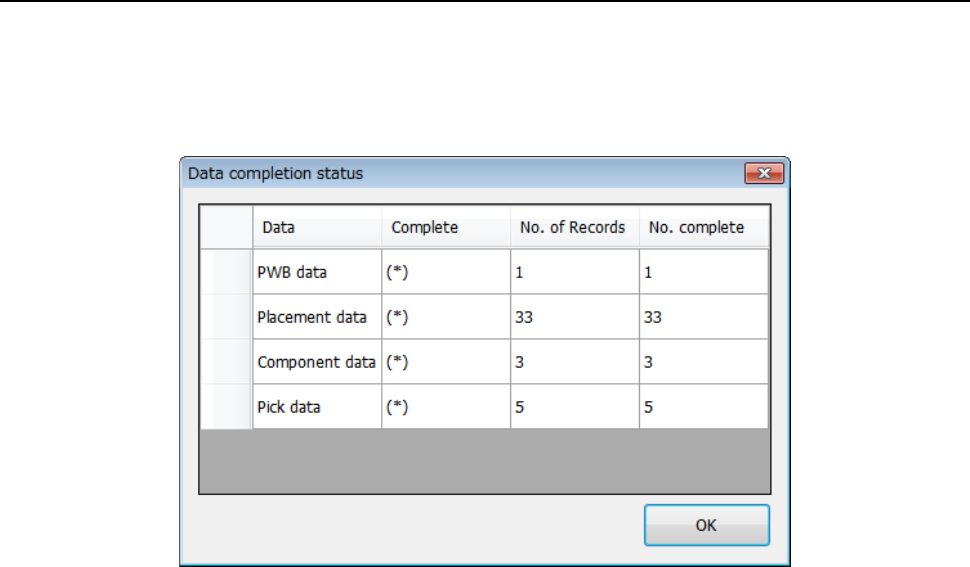
When you select the [Data]-[Data completion status] commands from the menu bar, the following
screen appears.
When the total number of record (“No. of Records”) is equal to the number of completed records
("No. complete"), data has been completed, and an asterisk "*" is inserted between the
parentheses "( )" of the "Complete" field. For the "Pick data" or any other data whose "No. of
Records" field is zero (0), that item is considered to have been completed although an asterisk "*"
is not displayed.
If you find any incomplete item, make it complete.
Part 1 Basic Operation Chapter 4 Creating a Production Program
4-127
4.3.8 Line coherence check
This section describes the check of the prepared program for inconsistency with the settings in the
"Machine setup" menu or for inconsistency in the program itself.
When you use an electric feeder, the system additionally performs electric feeder coherence
check to check to see if there is not any inconsistency between a production program and the
electric feeder. However, the system does not perform the electric feeder coherence check in the
following cases:
- An electric feeder is not used.
- There is a record for specifying “Auto” in the Pick data.
- Pick data for using an electric feeder is not created completely.
- The <Auto assign all data.> button is selected in the “Pick data” column of the “Assignments”
tab described under Section 4.4.1.3 “Setting the optimization conditions.”
(1) Exciting the coherence check
When you select the [Data] ― [Line coherence check] commands on the menu bar, the
system executes the coherence check.
(2) Reporting the coherence check
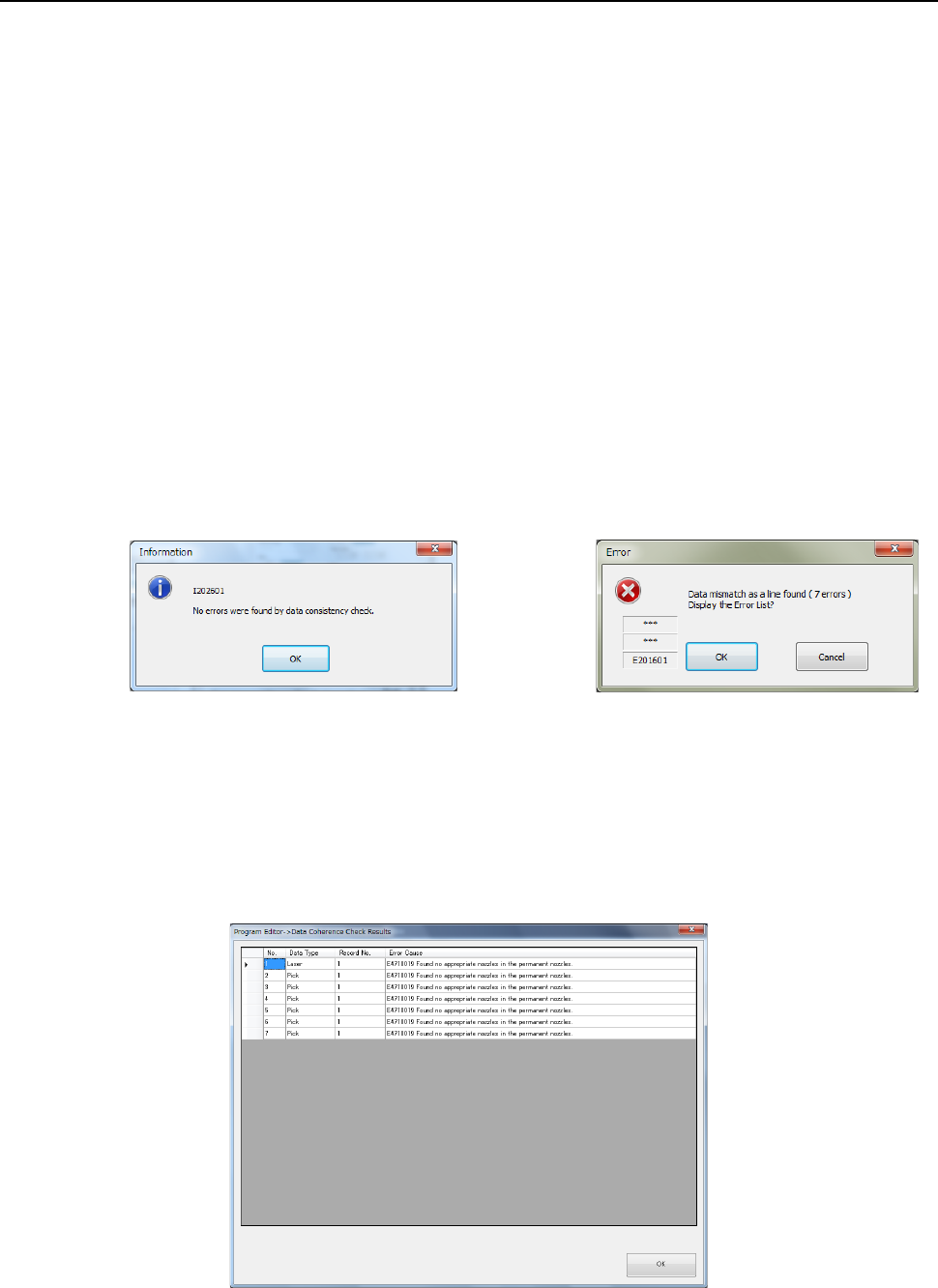
After the system finishes the coherence check, one of the following messages appears on
the screen.
1) No error was found. 2) Error(s) was(were) detected.
If you select the <OK> button when an error is detected, the detailed information on the error
appears
(3) Information on an error
The screen shows information on the detected error in the following order: the data type
(“Data Type”), the record number (“Record No.”), the name of the error item and the cause
of the error (“Error Cause”).