RS-1_instruction manual.pdf - 第232页
Part 1 B asic O peration Chapter 2 Pr oduction 2- 121 to.” 2) Returns every tim e The system r eturns a co mpone nt to its orig inal positi on. 3) Inquires every tim e The “Quest ion” screen a ppears every time t he syst…
Part 1 Basic Operation Chapter 2 Production
2-120
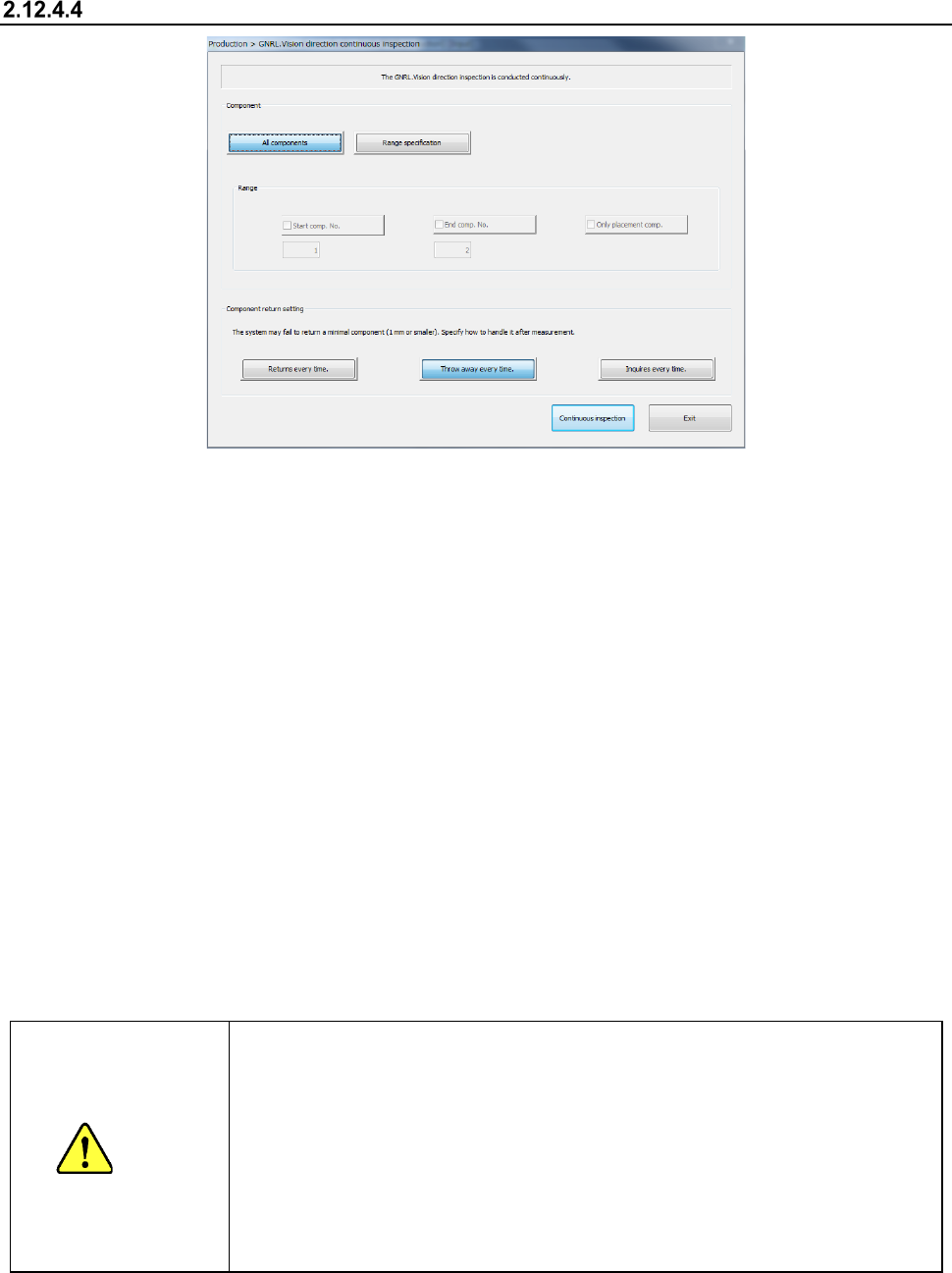
GNRL. Vision direction continuous inspection
(1) Component (to be inspected)
Specify whether to check only components that satisfy a certain requirement(s) among
components whose data is stored in Component data.
1) All components
Among all the component data, SOT components or general-purpose vision components
will be checked..
2) Range of specification
Check this check box if you want to check the components whose numbers are specified
here among the components that satisfy the requirement(s) specified at the “component”
column.
When you check this check box, you can specify the following items.
• Start comp. No.
Enter the number of the first component to be checked here.
The system performs a verify check and changes the value in the “Start comp. No.”
(start component number) edit box.
• End comp. No.
Enter the number of the last component to be checked here.
The system performs a verify check and changes the value in the “End comp. No.”
(end component number) edit box.
• Only placement comp.
Check this check box if you want to check only components whose data is stored in
Placement data also.
CAUTION
Immediately a
fter you press the<Continuous inspection>button, the head
starts moving and the system starts inspection.
To avoid injuries, do not put your hands inside the machine or keep your face
or head away from the machine.
Before pressing the <Continuous inspection> button, check to see if there is no
one who is working the internal parts of the machine.
Before pressing the <Continuous inspection> button, check to see if there is no
one who is near the machine and may be injured.
Before pressing the <Continuous inspection> button, check to see if there is no
obstacle such as an adjustment tool that is located or attached inside the
machine and may prevent the
machine from operating normally.
(2) Component return setting
Select how to handle a minimal component after checking it.
1) Throw away every time
The system discards a component according to the setting of the menu item “Compo Reject
Part 1 Basic Operation Chapter 2 Production
2-121
to.”
2) Returns every time
The system returns a component to its original position.
3) Inquires every time
The “Question” screen appears every time the system finishes checking one SOT
component.
(3) < Continuous inspection > button
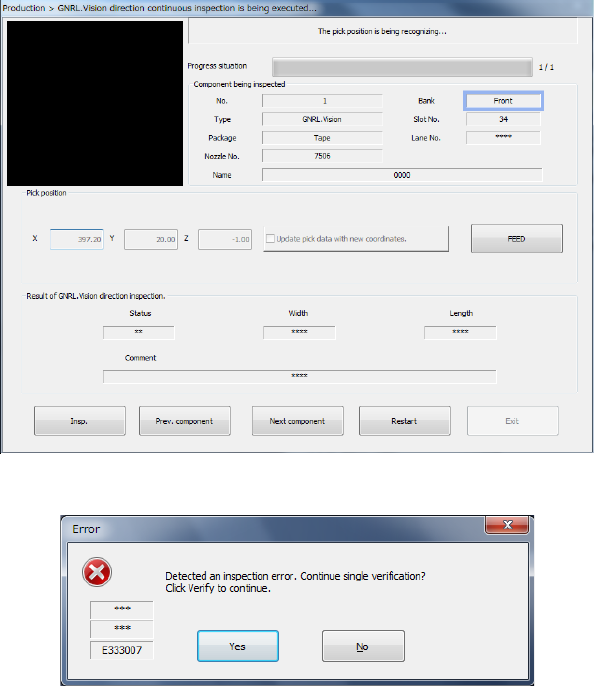
When you press this button, the following screen appears on the screen, and the system
starts inspecting SOT components continuously.
Data displayed on the screen is the same as that on the “SOT direction single inspection”
dialog box.
1) If an error occurs
If an error occurs during continuous inspection, the following message is output.
To check the next component, press the <No> button.
The system restarts checking SOT components continuously.
To separately check an SOT component at which an error has occurred, press the <Yes>
button.
You can separately check a component that caused a check error.
(See the previous section.)
When you press the <Yes> button on the continuous check error screen, each button on the
“SOT direction continuous inspection is being executed” screen is enabled, and you can
operate it.
① Pick position
The coordinates from which a component is to be picked up are displayed here. If
teaching operation is possible and you check the check box “Update pick data with new
coordinates,” the teaching coordinates are loaded into the Pick data. If you do not
check this check box, only the component pick-up coordinates for this operation are to
be inspected.
To teach the XY coordinates, align the focus to either the “X” edit field or the “Y” field,
and then press the <Teach> button displayed on the function bar. To teach the Z
Part 1 Basic Operation Chapter 2 Production
2-122
coordinate, align the focus to the “Z” edit field, and then press the <Teach> button
displayed on the function bar.
② <Insp.> button
For the specified component, SOT/general-purpose vision component direction
inspection is executed independently.
③ Prev. component/Next component
These buttons change the component to be inspected to the alternative component.
④ <FEED> button
This button instructs the system to feed the pick-up position of a component to be
inspected.
⑤ <Restart> button
This button allows the system to restart continuous inspection from the component next
to the component whose inspection was aborted due to an error.
⑥ <Stop> button
Press this button when you do not want to restart continuous inspection. The previous
screen (“GNRL. Vision direction continuous inspection” screen) reappears.
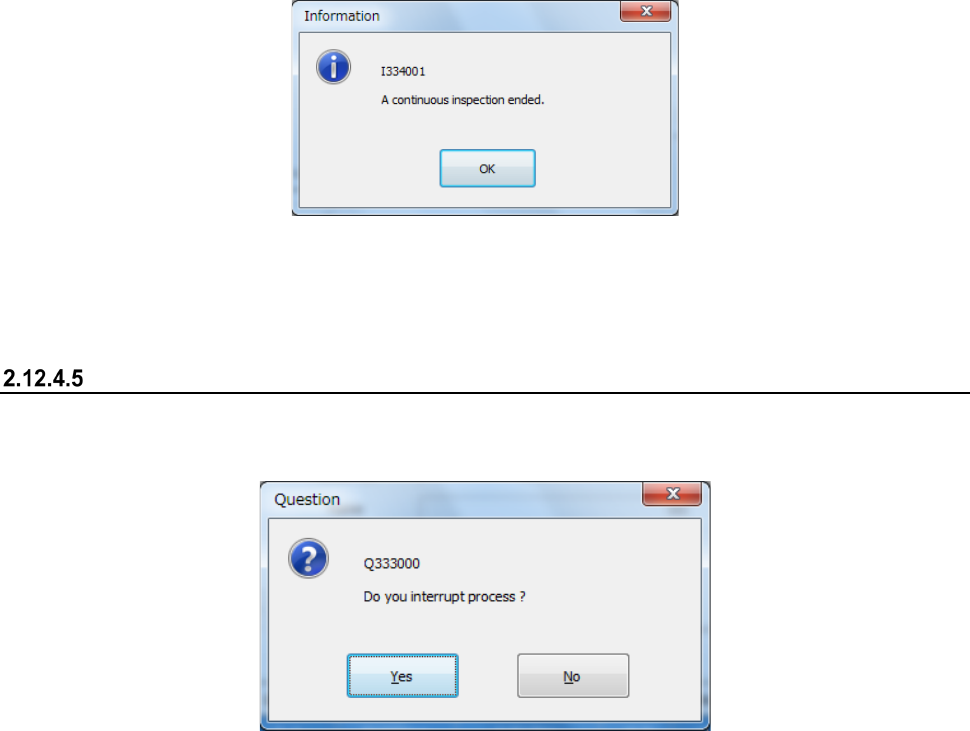
2) End of inspection
When the system finishes checking SOT components continuously, it outputs the following
message, and then returns to the previous screen (“GNRL. Vision direction continuous
inspection” screen).
(4) <Exit> button
When you press this button if a nozzle is attached on the head, the system returns the nozzle
and each unit moves to the waiting position.
Then, the previous screen appears.
Aborting a check
To stop a check forcibly, press the <STOP> button. The following message appears on the screen.
To finish the current check, select the <Yes> button.