RS-1_instruction manual.pdf - 第587页
Part 1 B asic O peration Chapter 4 Cr eating a Produc tion Progra m 4- 252 Displayed it em Descripti on Distan ce If the dis tance betw een cons ecutive element groups of a ge neral - purpo se visio n component i s quite…
Part 1 Basic Operation Chapter 4 Creating a Production Program
4-251
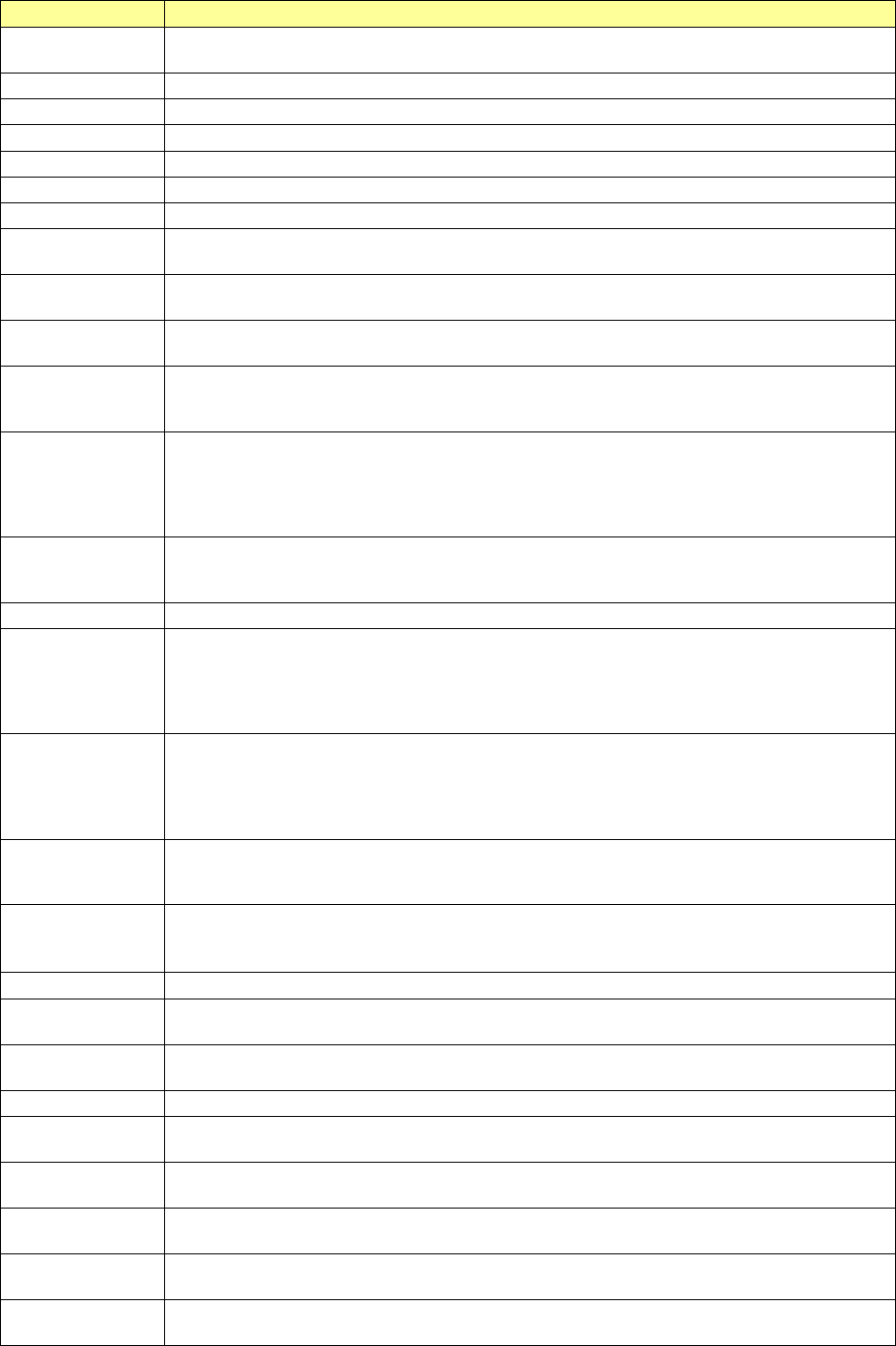
Each item of the detailed image recognition error information is described in the table below.
Displayed item
Description
Total part recog.
count
Number of times the machine recognized a component
Page
Page number of the displayed image recognition information
Head information
Head number
Name
Component name specified in Component data
No.
Number specified in Component data
Error Code
Actual image recognition error code
Result
Unprocessed character string of the result
X
Recognition result (Offset for the center of the screen in the X direction)
The right direction of the VCS monitor is positive.
Y
Recognition result (Offset for the center of the screen in the Y direction)
The upper direction of the VCS monitor is positive.
Angle
Recognition result (Offset for the center of the screen in the θ direction)
The anticlockwise direction of the VCS monitor is positive.
Side
Side at which an error was detected (Up/down/left/right)
This is not the side displayed on the monitor but the side of the Top-View specified in Vision
data.
Lead No.
Number of a lead at which an error was detected (from 1).
Lead number specified anticlockwise in the Top-View specified for a missing lead
If two or more error occurs, the number of a lead at which the machine detected an error for
the first time is displayed here. For a general-purpose vision component, the lead (ball)
number counted from the first element is displayed here.
Level
If a lead bending error occurs, the lead bending ratio to the lead pitch (%) is displayed here.
If a ball is deformed or if a ball diameter error occurs, the deformation ratio to the ball
diameter (%) is displayed here. (in increments of 0.1 %)
Lead Num.
Total number of leads detected actually
BGA row
Row number of a ball of an area array component at which an error was detected
This is a line number displayed on the VCS monitor not related to the Vision data. (That is,
a line number sequentially assigned from 0 and counted from the top of the VCS monitor to
the bottom.) If two or more error occurs, the row number of a ball at which an error is
detected first is displayed here.
BGA column
Column number of a ball of an area array component at which an error was detected
This is a column number displayed on the VCS monitor not related to the Vision data.
(That is, a column number sequentially assigned from 0 and counted from the left of the
VCS monitor to the right.) If two or more error occurs, the column number of a ball at
which an error is detected first is displayed here.
Lead pitch
Actual lead (ball) pitch of a component that caused a lead (ball) pitch error
This is output only for a component whose actual lead (ball) pitch is detected with the
machine. (in increments of 0.1 μm)
Ext. recog. details
error
5-digit character string indicating error information of an outline recognized component
“XX” of “XXYYY” indicates where the error occurred, and “YYY” indicates the cause of the
error.
Main error
Main error code of a general-purpose vision component (including some BGA components)
Sub error
Sub error code of a general-purpose vision component (including some BGA components)
This sub code indicates a specific internal event.
Detail error
Detailed error code of a general-purpose vision component (including some BGA
components)
The electrode
Number of leads of an extended-lead connector component specified in Vision data
Detect.
Total number of leads of an extended-lead connector component that were able to be
detected actually
Ball diameter
Actual diameter of a ball whose diameter and deformation were detected (in increments
of 0.1 μm)
Element
Number of an element group of a general-purpose vision component at which an error
occurred
Divide horizontal
If the division recognition pitch (in the horizontal direction) specified in a production
program is different from the actual movement distance, this difference is output here.
Divide vertical
If the division recognition pitch (in the vertical direction) specified in a production program
is different from the actual movement distance, this difference is output here.
Part 1 Basic Operation Chapter 4 Creating a Production Program
4-252
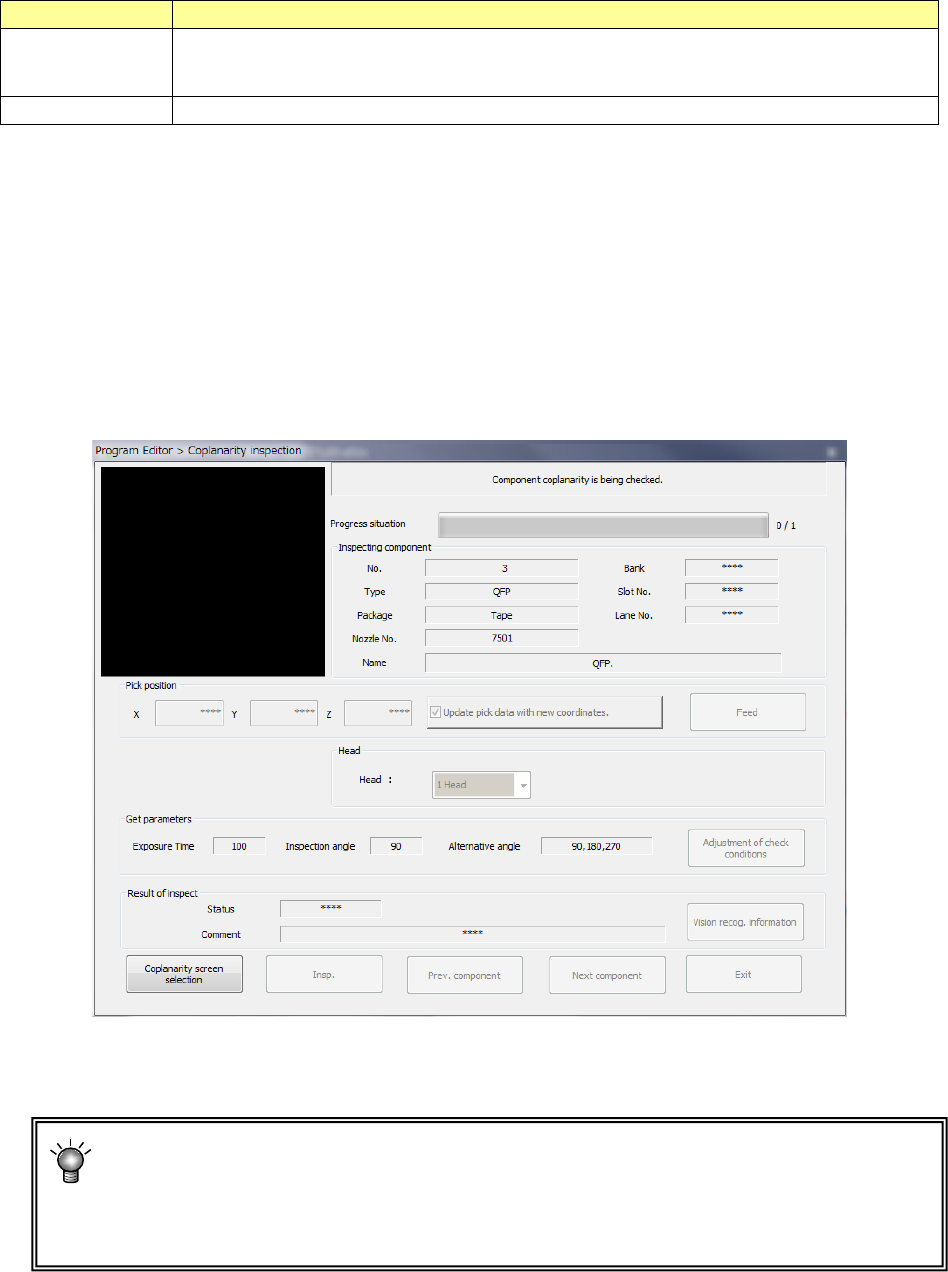
Displayed item
Description
Distance
If the distance between consecutive element groups of a general-purpose vision
component is quite different from the dimension specified in a production program, the
difference is output here.
Side Angle
Angle difference of the detected angle error
6) <Coplanarity screen selection> button
This button displays the coplanarity screen.
7) <Insp.> button
This button runs a coplanarity check.
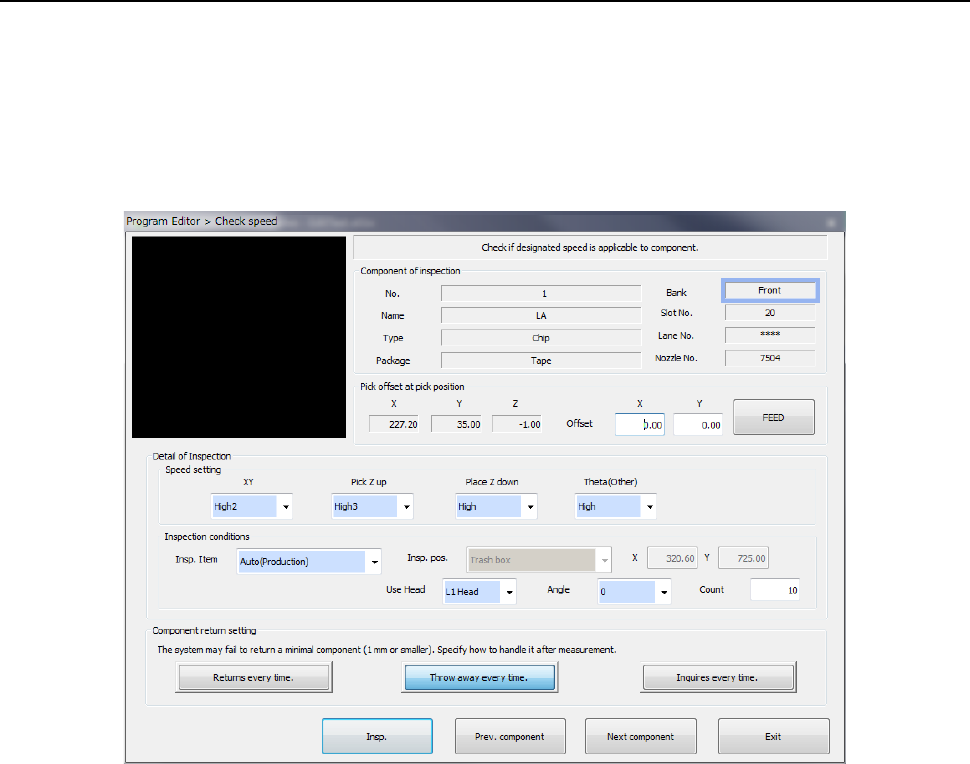
The screen like one shown below is displayed while the machine is running a coplanarity
check.
Data on a component being checked and its pick-up position are displayed on the screen,
and the process being executed is displayed sequentially also.
8) <Exit> button
This button finishes a coplanarity check, and then redisplays the previous screen.
If a terminal number error occurs, measure the component height again or change the
exposure time within a range of 150 to 300.
If a coplanarity error or a colinearity error occurs, check another component or adjust the
threshold value.
Part 1 Basic Operation Chapter 4 Creating a Production Program
4-253
4.5.7.5 Verify speed
This command performs pseudo operations: pick-up, recognition and placement of components
to check an error of each axis, X, Y and θ, and then decides whether the speed specified with a
production program is appropriate or not.
(1) Setting the conditions for checking the speed
When you select the [Meas/Insp] command from the Program Editor menu, and then the [Verify
speed] command, the following “Check speed” conditions setting screen appears.
1) Component of inspection
The data on a component to be inspected appears here.
2) Pick offset at pick position
The data on a component pick-up position appears here. You can change the pick-up
position to that of the previous alternative component or the next alternative component also.
If there is no Pick data created, each menu item is not displayed. So, you cannot change
the component pick-up position, feed the component, or perform the teaching operation.
• Offset
Set this item if you want to shift the component pick-up coordinates.
You can use the teaching function to perform a teaching operation also. You can enter
the pick-up coordinates to change them manually also. However, this setting is not
reflected in the Pick data.
• FEED
Every time you press this button, the system knocks the feeder once to feed the
component (not available with a 32-mm paper tape).