RS-1_instruction manual.pdf - 第250页
Part 1 B asic O peration Chapter 2 Pr oduction 2- 139 Checking the re - clamping operation When you pres s the <ST ART> s w itch at the b oard re - clampi ng position, the syst em perform s a check for co ntinu ous…
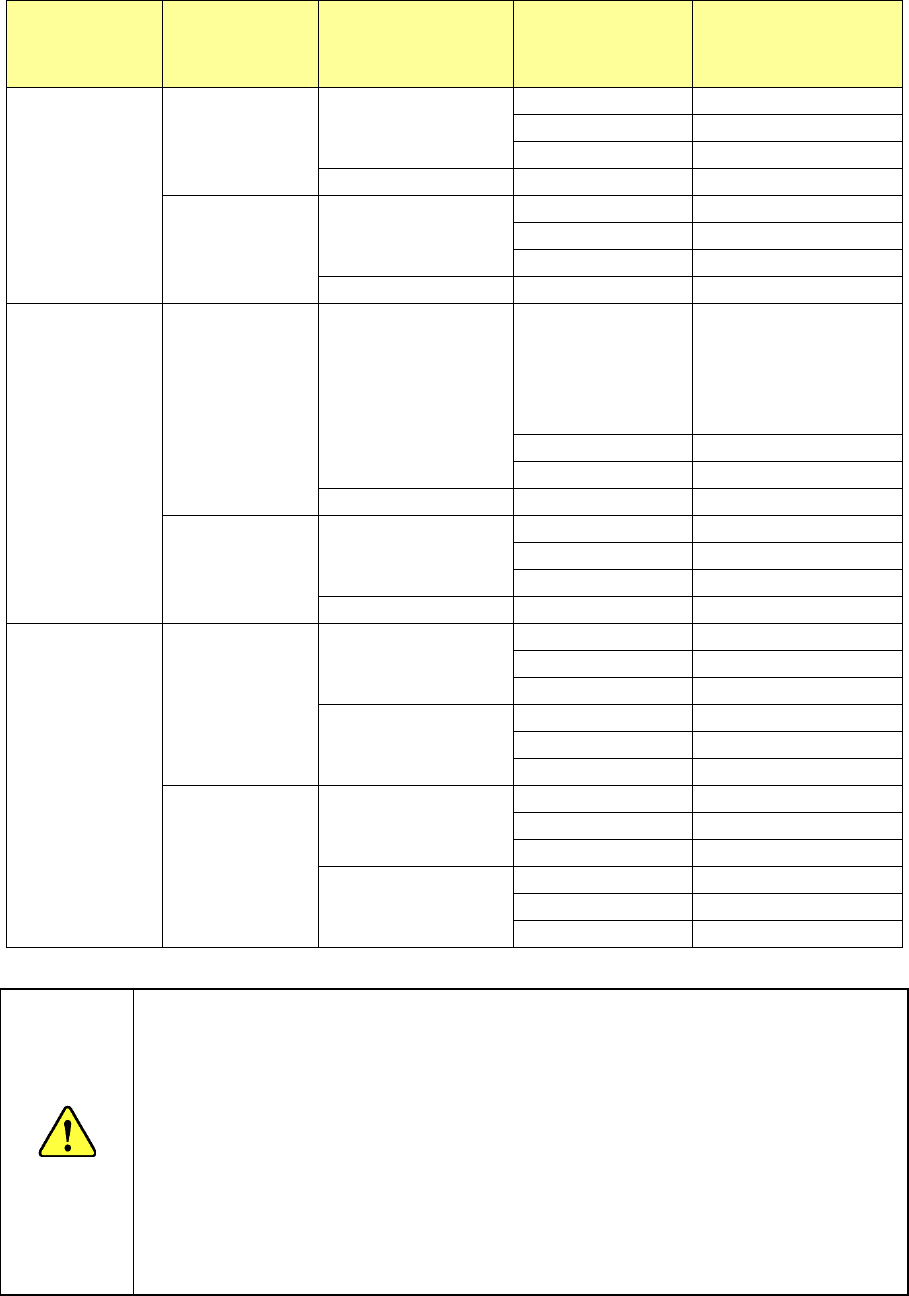
Part 1 Basic Operation Chapter 2 Production
2-138
Continuous
production
Operation for
production
Information on the
board transport
path of the
conveyor
Continuous
production data
Operation to be
performed
Yes
Re-clamp PWB A board exits.
A board exits.
②
No board
Not selectable
No board
③
* See Caution 1.
No board
-
①
, Error
Load PWB A board exits.
A board exits.
Not selectable
No board
⑤
No information
⑥
* See Caution 2.
No board
-
①
No
Re-clamp PWB A board exits. A board exits.
Not selectable
(Continuous
production)
③ (Production is
resumed.)
*See Requirement 1.
No board
③
* See Caution 1.
No information
③
* See Caution 1.
No board
-
①
, Error
Load PWB A board exits.
A board exits.
⑥
* See Caution 2.
No board
⑥
* See Caution 2.
No information
⑥
* See Caution 2.
No board
-
①
No data
Re-clamp PWB A board exits.
A board exits.
②
No board
Not selectable
No information
③
* See Caution 1.
No board
A board exits.
④
, Error
No board
①
, Error
No information
Normal production
Load PWB A board exits.
A board exits.
Not selectable
No board
⑤
No information
⑥
* See Caution 2.
No board
A board exits.
①
No board
①
No information
Normal production
CAUTION
Note 1: Since there is no information on how the conveyor was when production is
interrupted, some components may be missing or may be placed on wrong
positions when the system produces a PWB after re-clamping the board.
Be careful to decide whether to re-clamp a board
Note 2: Since there is no information on how the conveyor was when production
was interrupted, the system operates supposed that there is a board
produced with the previous production on the conveyor. Be careful to
check the ejected PWB because some components may be missing.
Requirement 1: You cannot select “Start New” as “Continuous production” and
“Re-clamp PWB” as “Processing before production begins” at the
same time. When you select “Resume,” you can select
“Re-clamp PWB,” but there is no information obtained when
production was interrupted. Therefore, “Note 1” is applied to the
system operation.
Part 1 Basic Operation Chapter 2 Production
2-139
Checking the re-clamping operation
When you press the <START> switch at the board re-clamping position, the system performs a
check for continuous PWB production.
CAUTION
- When you resume production without loading a new board into the
machine after loading a production program to the machine again or
after quitting the production screen, the system does not know how
the conveyor was when the production was interrupted. Therefore,
some components may be missing or may be placed at wrong
positions.
- When the system re-clamps a board without loading a new board, it
may fail to re-clamp the board if the board is heavy. (If the board is
very big or many components are already placed on the board)
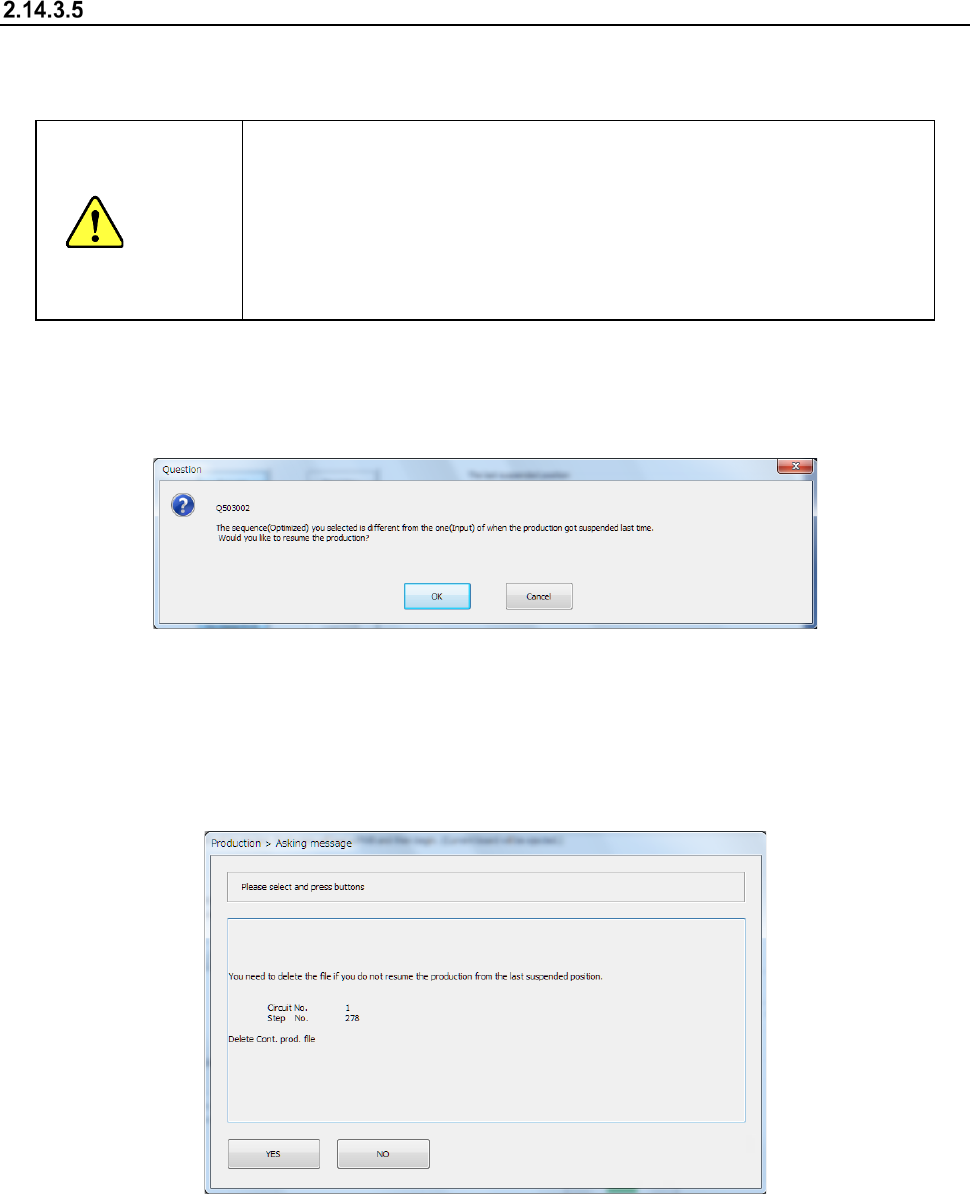
(1) If the sequence (input order/optimized order), one of the production conditions, which was
applied when the last production finished, is different from one to be applied when the current
production is started, the confirmation message for changing the sequence appears on the
screen.
When you press the <OK> button, the system starts continuous production.
When you press the <Cancel> button, the “Re-clamp” dialog box reappears.
(2) When you select the <Start New> button as the “Continuance Production” although the system
can perform continuous production, the confirmation message for deleting a continuous
production file appears on the screen.
When you press the <YES> button, the system deletes the continuous production file, and you
cannot perform the continuous production for the suspended production.
When you press the <NO> button, the continuous production file is not deleted.
However, if the current PWB production is suspended, the continuous production file is
overwritten.
Part 1 Basic Operation Chapter 2 Production
2-140
Message for re-clamping a board
When you press the <START> switch on the “Re-clamp” dialog box to start PWB production, the
system performs each type of check.
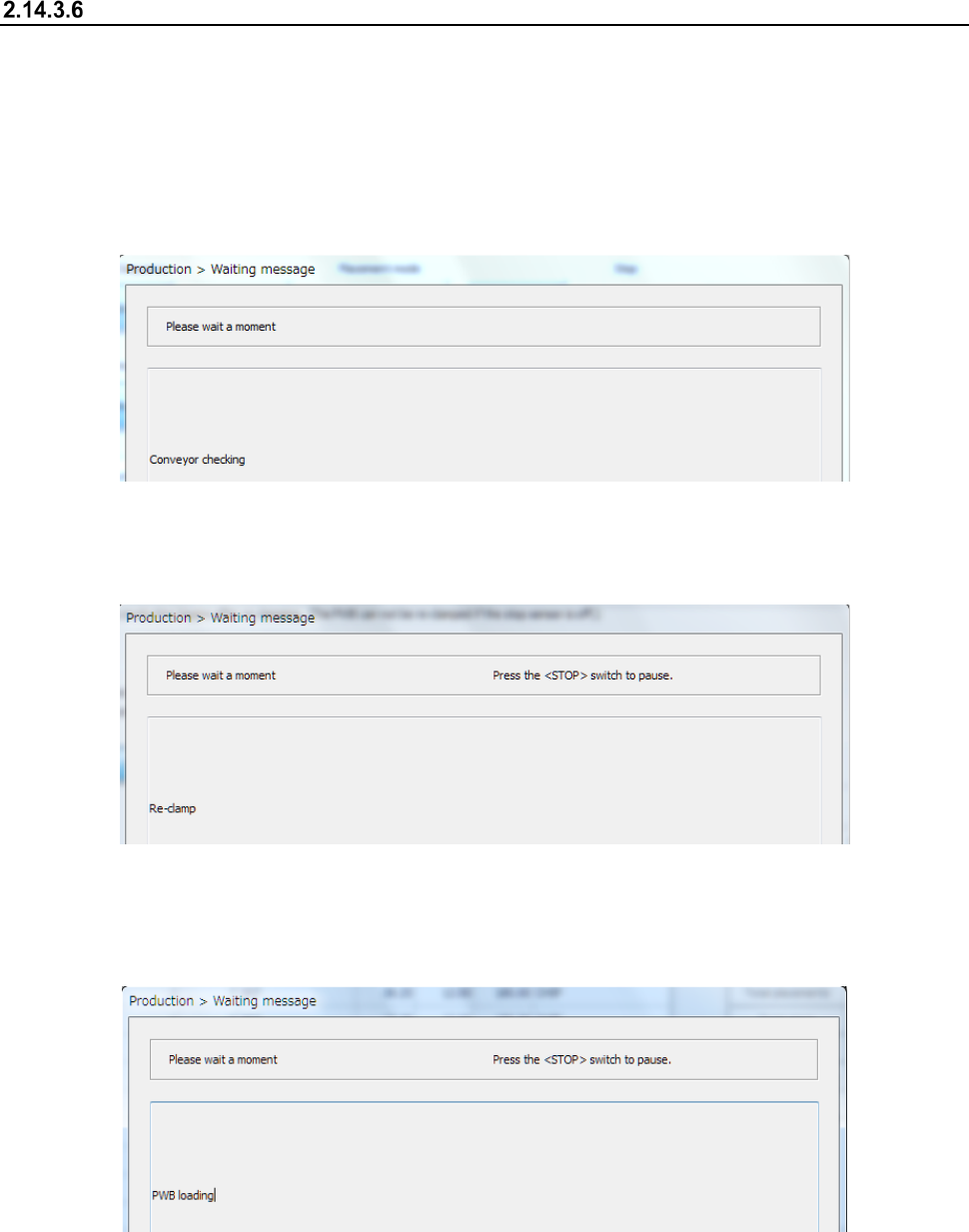
(1) The system checks to see if there is any board on each transport path (IN, WAIT, WAIT2,
C-OUT and OUT) before re-clamping or ejecting a board or before starting new production. At
the same time, the system displays the message for indicating that you have to wait while it is
performing a board transport path check.
(2) When you select the <Re-clamp PWB> button in the “Processing before production begins”
field of the “Re-clamp” screen, the system displays the message indicating that you have to
wait while it is re-clamping a board.
(3) When you press the <Move PWB> button in the “Stop sensor status” field of the “Re-clamp”
dialog box, the system sets a board that is located at the upstream position viewed from the
clamping position at the position where it can re-clamp the board. At the same time, the
system displays the message for indicating that you have to wait while it is setting the board.