RS-1_instruction manual.pdf - 第259页
Part 1 B asic O peration Chapter 2 Pr oduction 2- 148 position. Y ou can enter a component pl acement position as a va lue directly als o. When you enter a co mponent pi ck - up positi on and press the <E NTER> key…
Part 1 Basic Operation Chapter 2 Production
2-147
CAUTION
- Check to see if there is no one who is operating the insides of the machine.
- Check to see if there is no one who is near the machine and may be injured.
- Check to see if there is no adjustment tool that may prevent each operation of the insides
of the machine is attached or placed to/in the machine.
- To prevent any accident causing injuries, never put your hand in the machine or never
bring your face or head close to the machine while it is operating.
Manual
When you select “Manual” as the menu item “Place tracking,” the camera moves to the first
component placement position after a component is placed on a board. Then, the system displays
the monitored image on the screen, and pauses temporarily.
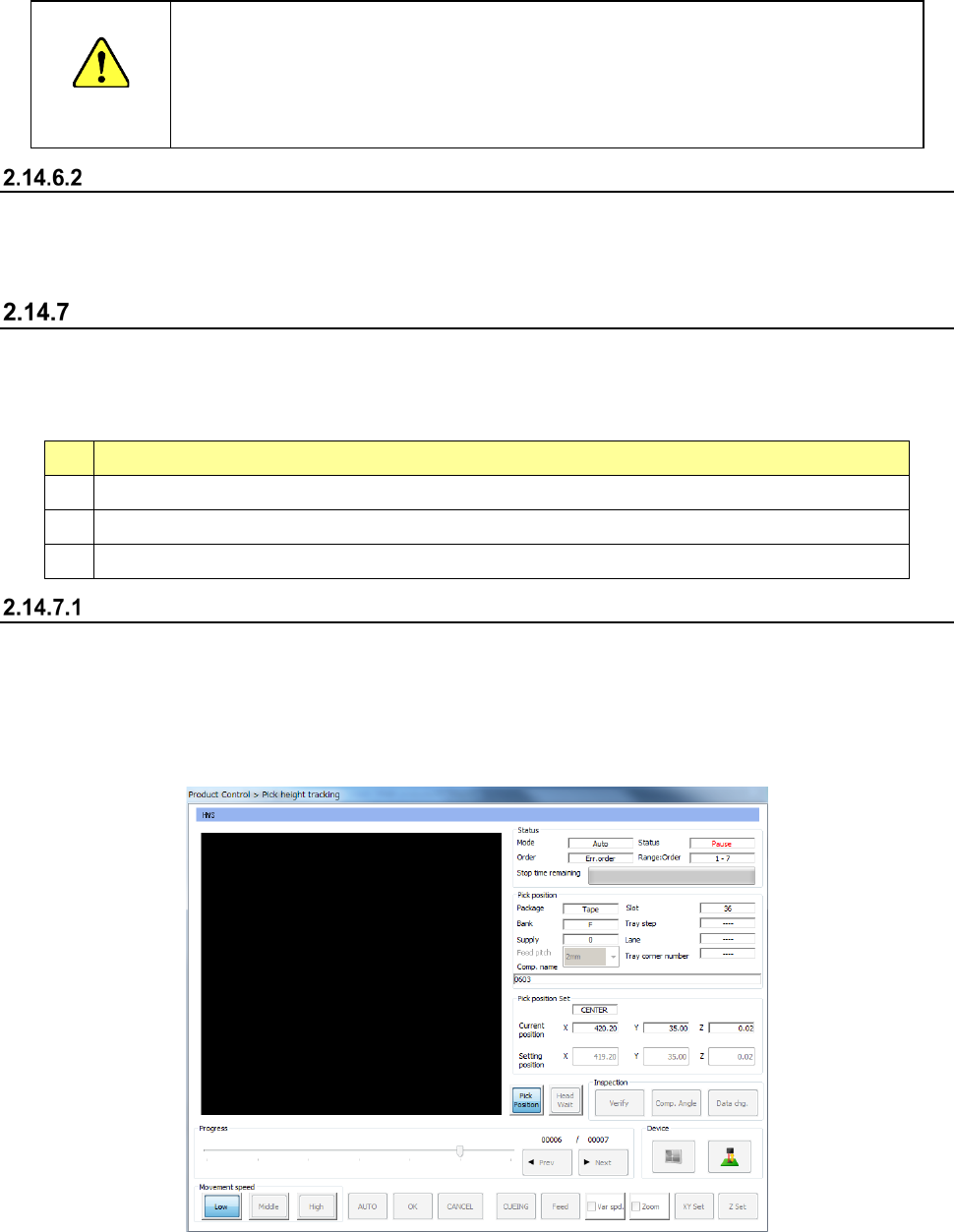
Tracking a component pick-up position with a camera
You can use a camera to track a component pick-up position before the system places a component
on a board. You can track a component pick-up position in the following cases described in the
table below.
See Section 4.5.6.5 Pick-up position/Pick-up height” of Chapter 4 “Creating a Production Program”
No.
Case
1
Tracking of a component pick-up position with a camera during Trial production or Dry run production
2
Tracking of a component pick-up position from the Retry list
3
Tracking of a component pick-up position from the “Error” screen or the “Stop” screen
Automatic
When you select “Automatic” as the menu item “Pick tracking,” the camera moves to the first
component pick-up position before a component is placed on a board.
The system displays the “Pick position tracking” screen and then the monitored image on this
screen.
After the camera stops at the position for the time specified in the “Tracking” field, it moves to the
next component pick-up position automatically.
• To stop automatic tracking component pick-up positions with a camera temporarily, press
the <STOP> switch of the operation panel.
If you press the <STOP> switch while the camera pauses temporarily, it stops at the current
component pick-up position. If you press the <STOP> switch while the camera is moving,
it stops at the next component pick-up position.
• When you press the <Teaching> button of the function bar while the camera pauses during
tracking of a component pick-up position, the system can teach the component pick-up
Part 1 Basic Operation Chapter 2 Production
2-148
position. You can enter a component placement position as a value directly also. When
you enter a component pick-up position and press the <ENTER> key, the head starts
moving.
• When you press the <NEXT> button or the <PREV> button in the “Progress” column, you
can change a component pick-up position to be taught.
When you press the <START> switch, the system resumes automatic tracking of a
component pick-up position with a camera.
When you press the <START> switch at the last component pick-up position, the system
displays the confirmation message for starting production.
When you press the <STOP> switch, the system displays the dialog box for asking you
whether to abort tracking operation, and then aborts tracking of a component pick-up
position with a camera. Since the system replaces nozzles even though you press the
<STOP> switch, the XY-axes, nozzles and heads continue moving.
CAUTION
- Check to see if there is no one who is operating the insides of the machine.
- Check to see if there is no one who is near the machine and may be injured.
- Check to see if there is no adjustment tool that may prevent each operation of the insides
of the machine is attached or placed to/in the machine.
- To prevent any accident causing injuries, never put your hand in the machine or never
bring your face or head close to the machine while it is operating.
Manual
When you select “Manual” as the menu item “Pick tracking,” the camera moves to the first
component pick-up position after a component is picked up.
Then, the system displays the monitored image on the screen, and pauses temporarily.
Automatic teaching the component pick-up position
This automatic component pick-up position teaching function allows you to teach the component
pick-up position automatically when necessary.
To use this function, you have to enable the corresponding operation option (check the “Auto-teach
at pick position” option).
Note that only the pick-up position of a component whose “auto-teaching” menu item is enabled on
the “Component data” screen can be automatically taught.
When you track a component pick-up position on a component supply unit where components run
out at start or restart of PWB production, the system automatically teaches the component pick-up
position.
WARNING
When you check the “Yes” radio button of “Auto teaching,” the head moves.
• To avoid injuries, do not put your hands inside the machine or keep your face or head
away from the machine.
• If the machine does not recognize a feeder bank yet, the head moves across the feeder
when you perform a teaching operation (immediately after the axes return to their home
positions or immediately after the bank moves up). Do not put your hands inside the
machine or keep your face or head away from the machine.
• When you use the HMS, be careful to prevent any laser beam from entering your eye
directly or with reflected from a mirrored surface.
Part 1 Basic Operation Chapter 2 Production
2-149
2.15 Error Handling and Pause during PWB Production
This section describes how to handle an error that occurs during PWB production and the process
to be performed when the system pauses.
If an error occurs
When you check the option “Stop system on any error” on the “Operation option” screen, the system
stops the current PWB production temporarily if any targeted error occurs, and then displays the
“Pause” screen.
At this time, an error displayed on the “Retry list” causes the system to pause.
This section describes types of errors that may occur and the conditions under which the system
pauses.
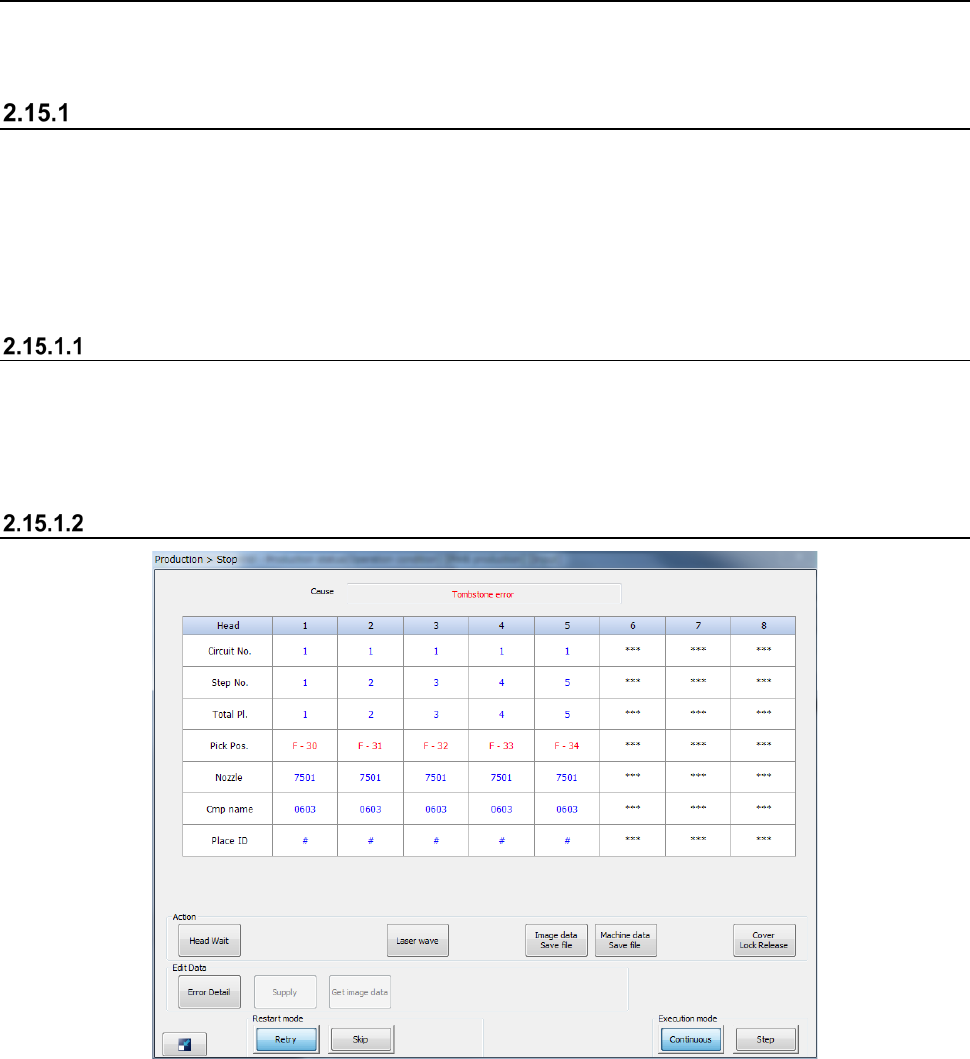
Overview of errors and pause
The following screen appears if an error occurs or the system pauses.
- When you press the <START> switch, the system restarts PWB production.
- When you press the <STOP> switch, the system displays the “Question” dialog box to start
aborting the production.
Displayed screen