RS-1_instruction manual.pdf - 第635页
Pa r t 2 D et ai l ed Des c r i pt i o n of Ea c h F unc t i o n Chapte r 6 G e neral - Purpose Vision Co mpone nt 6-4 Data En tr y Item s 6.2 W hen a c om p onent is set as a g ener al - pur p ose comp onent on the “ Co…
Part 2 Detailed Description of Each Function Chapter 6 General-Purpose Vision Component
6-3
Procedure for Creating Data on a General-Purpose Vision Component 6.1.3
To create data on a general-purpose vision component, create data on each element group.
To create data on each element group, enter:
① Element information (such as whether an element is a lead or a ball, and size and shape of an
element)
② Number of elements and pitch between two consecutive elements
③ Distance between the component recognition center and the first element*
* The first element is defined as shown below:
− For a ball component: the first element is a ball located at the bottom left corner of an element group.
− For a lead component: the first element on the bottom side is located at the leftmost position, that on the
right side is located at the lowest position, that on the top side is located at the rightmost position, and that
on the left side is located at the top position.
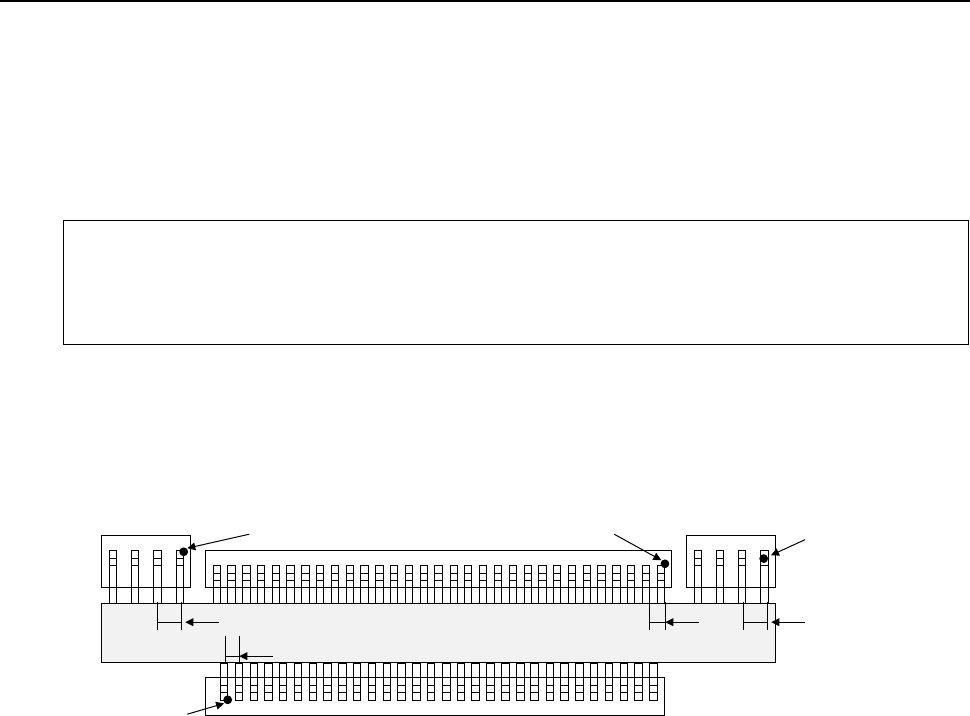
Example: For the following general-purpose component, create data on four element groups (in
mm).
How to enter “1 Element information” is not described here. See the next page for
the detail on how to enter data.
• First element group
− Number of elements and pitch between two consecutive elements ⇒
Number: 30, Pitch: 1
− Distance of the center of a component to be recognized to the first element ⇒
X: - 14.5, Y: -4
• Second element group
− Number of elements and pitch between two consecutive elements ⇒
Number: 4, Pitch: 1.5
− Distance of the center of a component to be recognized to the first element ⇒
X: 21.5, Y: 4
• Third element group
− Number of elements and pitch between two consecutive elements ⇒
Number: 31, − Pitch: 1
− Distance of the center of a component to be recognized to the first element ⇒
X: 15, Y: 4
• Fourth element group
− Number of elements and pitch between two consecutive elements ⇒
Number: 4, − Pitch: 1.5
− Distance of the center of a component to be recognized to the first element ⇒
X: - 17, Y: 4
When you enter information described above, data on a general-purpose vision component is
created completely.
Fourth element group
Third element group
Second element group
First element group
+ Center of a component to
be recognized (0, 0)
* Numeric values in
parentheses indicate the
distance from the center of a
component to be recognized.
1
(-17.4)
(-114.5, -4)
(15.4)
1.5 1.5
1
(21.5,4)
Part 2 Detailed Description of Each Function Chapter 6 General-Purpose Vision Component
6-4
Data Entry Items 6.2
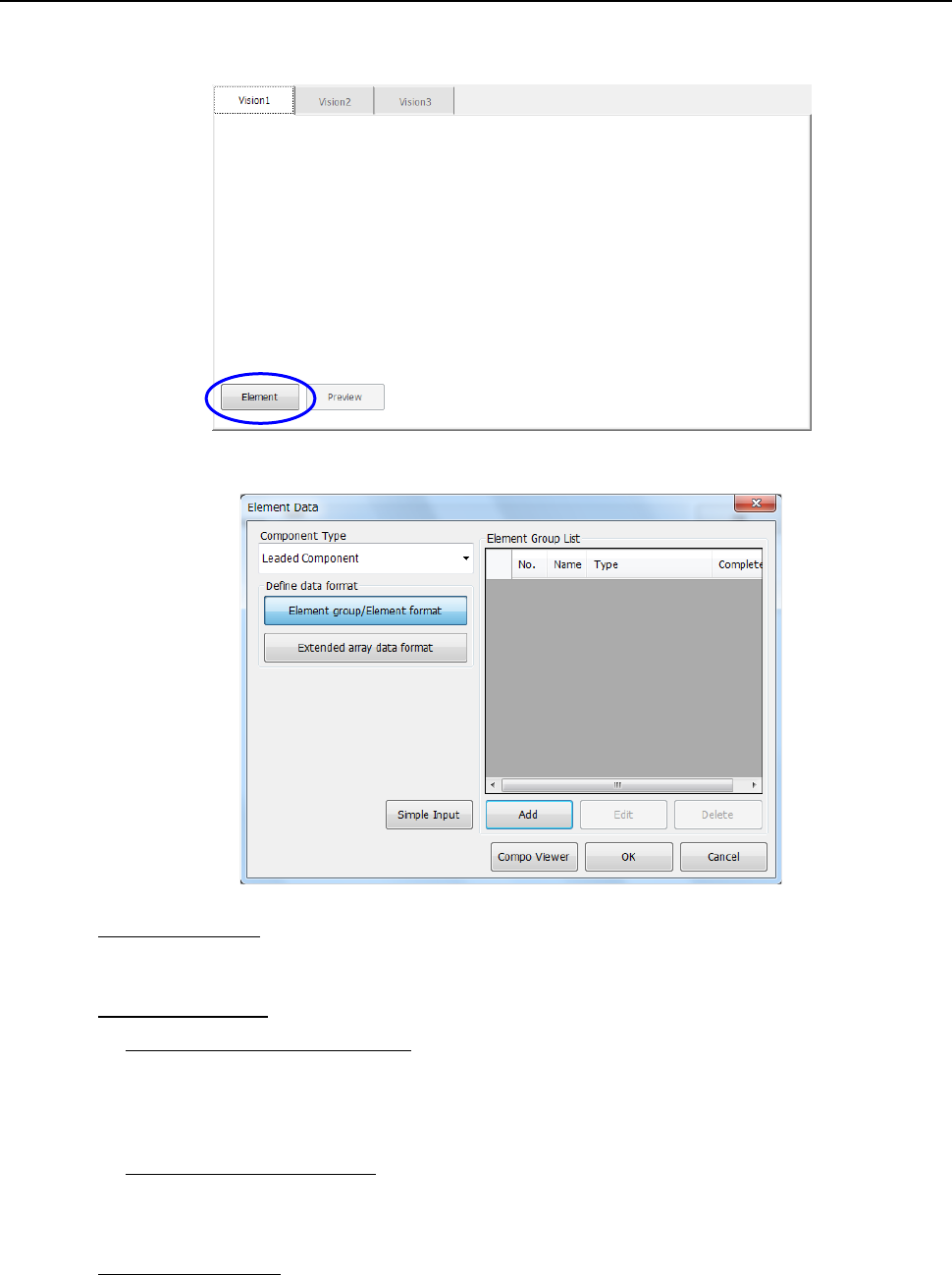
When a component is set as a general-purpose component on the “Component” data screen, the
<Element > button appears on the “Form” screen invoked from the “Vision” data screen.
When you touch the <Element > button, the following “Element Data” screen appears.
• Component Type:
Select a component type among a lead component such as a QFP, a ball component such as
a BGA and an outline recognition component.
• Define data format
− Element group/Element format:
Checking this check box allows you to specify an element to be recognized such as a lead
and ball, define the element group (consisting of the same elements); pitch and quantity,
and specify the orientation and position of the group. Check this box when you are to
create data on a “multi-lead component” or “complex array component.”
− Extended array data format:
Checking this check box allows you to define data by specifying the X and Y coordinates of
an element to be recognized such as a ball or land one by one. Check this box when you
are to create data on a “random component.”
• Element Group List:
The element group you created appears here.
To create a new element group, touch the <Add> button.
To edit the existing element group, touch the <Edit> button.
Part 2 Detailed Description of Each Function Chapter 6 General-Purpose Vision Component
6-5
Creating an Element group/Element format 6.2.1
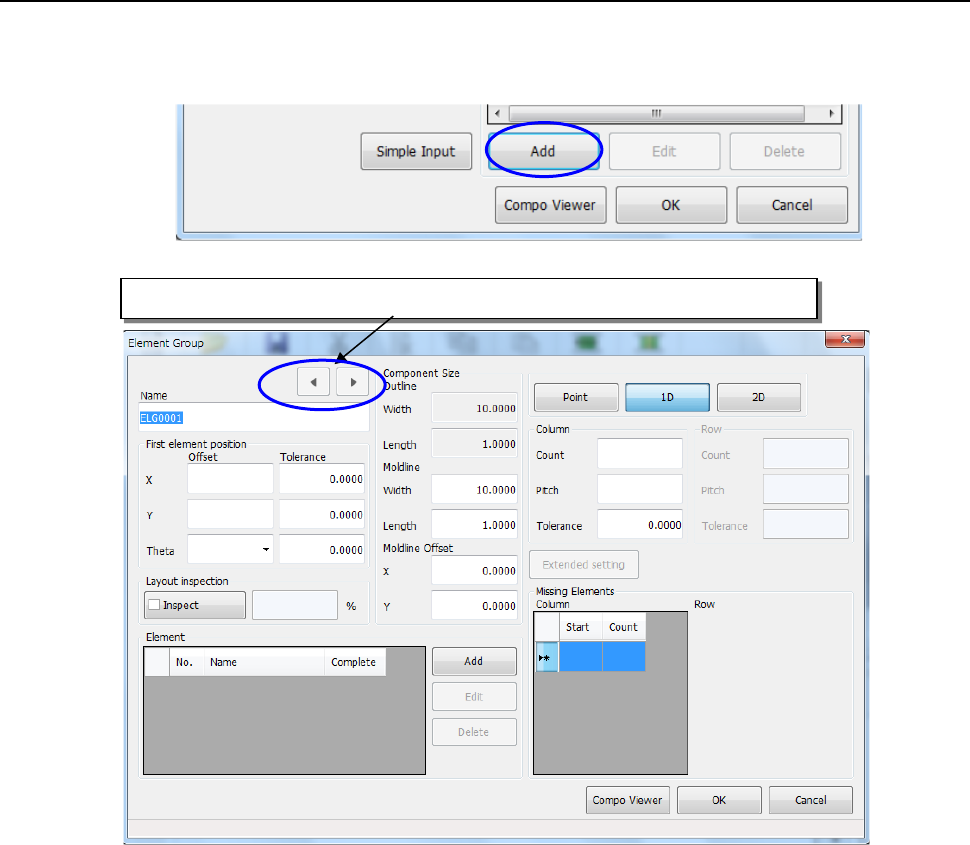
When you touch the <Add> button on the “Element Data” setting screen, the “Element Group”
creation screen appears.
(1) Name:
Enter up to 32 alphanumeric characters to specify the name of an element group.
(2) First element position:
Enter the distance between the center of a component to be recognized and the first
element.
• Offset
− X, Y: For a multi-lead component, enter the distance between the component center
position and the center of the tip of the first element. For a complex-array
component, enter the distance from the component center position to the center
of the first element.
* Be sure to enter the dimensions correctly. If an error of the distance
between element groups exceeds ± 0.05 mm, the system may not recognize
the element groups.
− Theta: Enter this field for a multi-lead component only. When a lead is located on the
bottom side, enter “0°.” For the right side, enter “90°,” for the top side, enter
“180°” and for the left side, enter “270°.”
• Tolerance:
Although you can specify the tolerable range of value to be set, do not change the
initial value “0.” Be sure to use “0” for all “Tolerance” fields of the element group.
Clicking either of these buttons displays the previous or next element group data.