RS-1_instruction manual.pdf - 第77页
Part 1 B asic O peration Chapter 1 Overv iew of the Machine 1- 59 (7) Grid control This contro l metho d is to be used to hand l e bul k data in the m atrix for mat. When you selec t a cell to be edited, the selecte d ce…
Part 1 Basic Operation Chapter 1 Overview of the Machine
1-58
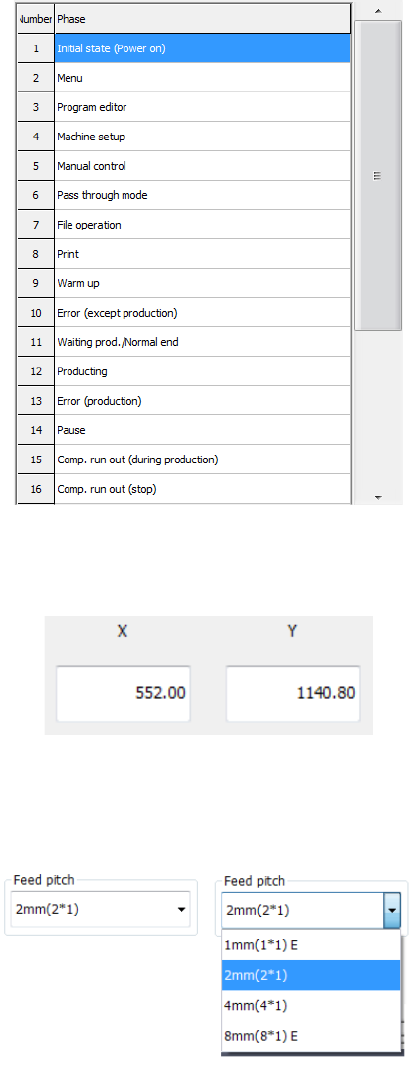
(4) List box
A list box allows you to select one among the items displayed on the list.
When the input focus moves to the list box, the selected item is highlighted.
If all items cannot be displayed on the list box at a time, the scroll bar appears on the right side
of the list box. When you move the scroll bar up or down, items displayed within the list box
are moved accordingly.
If the desired item is not displayed in the initial state, move the scroll bar to display it, and then
select it.
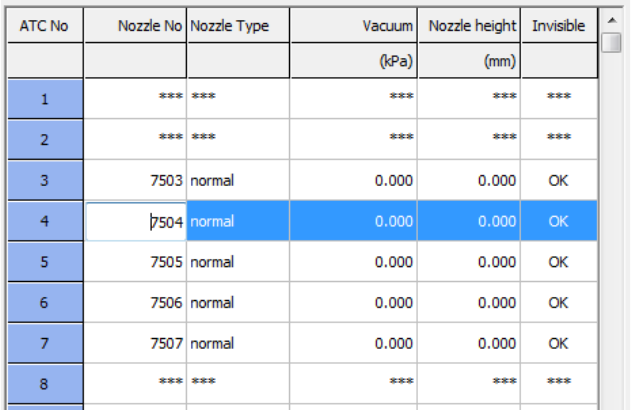
(5) Edit boxes
An edit box allows you to enter a numeric value or character string.
You can edit the value or character string already entered in an edit box also.
(6) Combo boxes
A combo box is a combination of an edit box and a list box. Normally, only an edit box is
displayed as a combo box on the screen. When you select the “▼” button displayed on the
right frame of a combo box, a list box appears on the screen as a pull-down menu.
Part 1 Basic Operation Chapter 1 Overview of the Machine
1-59
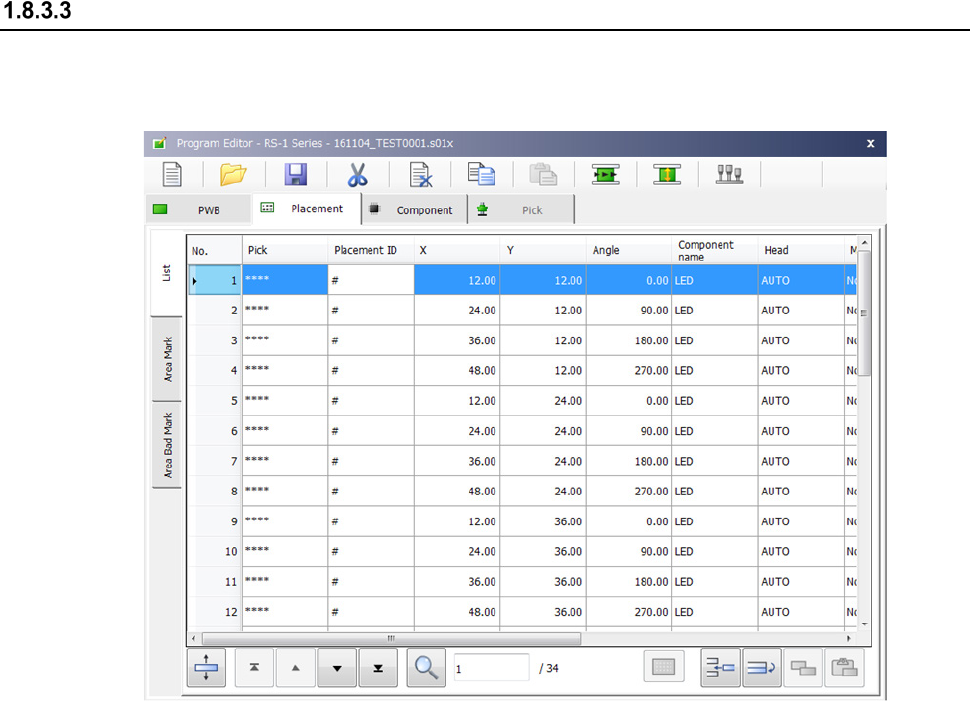
(7) Grid control
This control method is to be used to handle bulk data in the matrix format.
When you select a cell to be edited, the selected cell is highlighted. Note that an item you
cannot edit is not highlighted even though you try to select it.
Part 1 Basic Operation Chapter 1 Overview of the Machine
1-60
Editing
This section describes the keyboard operations ([Page Up]/ [Page Down], [Home]/ [End] and
[|←] / [→|] keys operation).
① [Pg Up], [Pg Dn]
When data are displayed over two or more screens, the [Pg Up] key allows you to display
the next screen, while the [Pg Dn] key allows you to display the previous screen.
② [Home], [End]
When the information covers two or more screen pages, the [Home] key moves the cursor
to the beginning of the line and [End] key does to the end of the line.
③ Scroll ([↑], [↓], [←], [→] )
- If the [↑] key is pressed when you are on the top line of a screen page and if there is
more information vertically before it, the key scrolls the information down one line.
- If the [↓] key is pressed when you are on the bottom line of a screen page and if there
is more information vertically after it, the key scrolls the information up one line.
- If the [←] key is pressed when you are at the beginning of the line and if there is more
information to the left, the key scrolls the information one field to the left.
- If the [→] key is pressed when you are at the end of the line and if there is more
information to the right, the key scrolls the information one field to the right.