RS-1_instruction manual.pdf - 第143页
Part 1 B asic O peration Chapter 2 Pr oduction 2- 32 スライドプレート② ATCブラケット① スライドプレート②が開いた状態 ノズル⑨ 平部 Slide plate ② A TC bracket ① When the slid plate ② is open ed N ozzle ⑨ Flat porti on <Procedur e for mou nting/dism oun…
Part 1 Basic Operation Chapter 2 Production
2-31
Preparation of the ATC
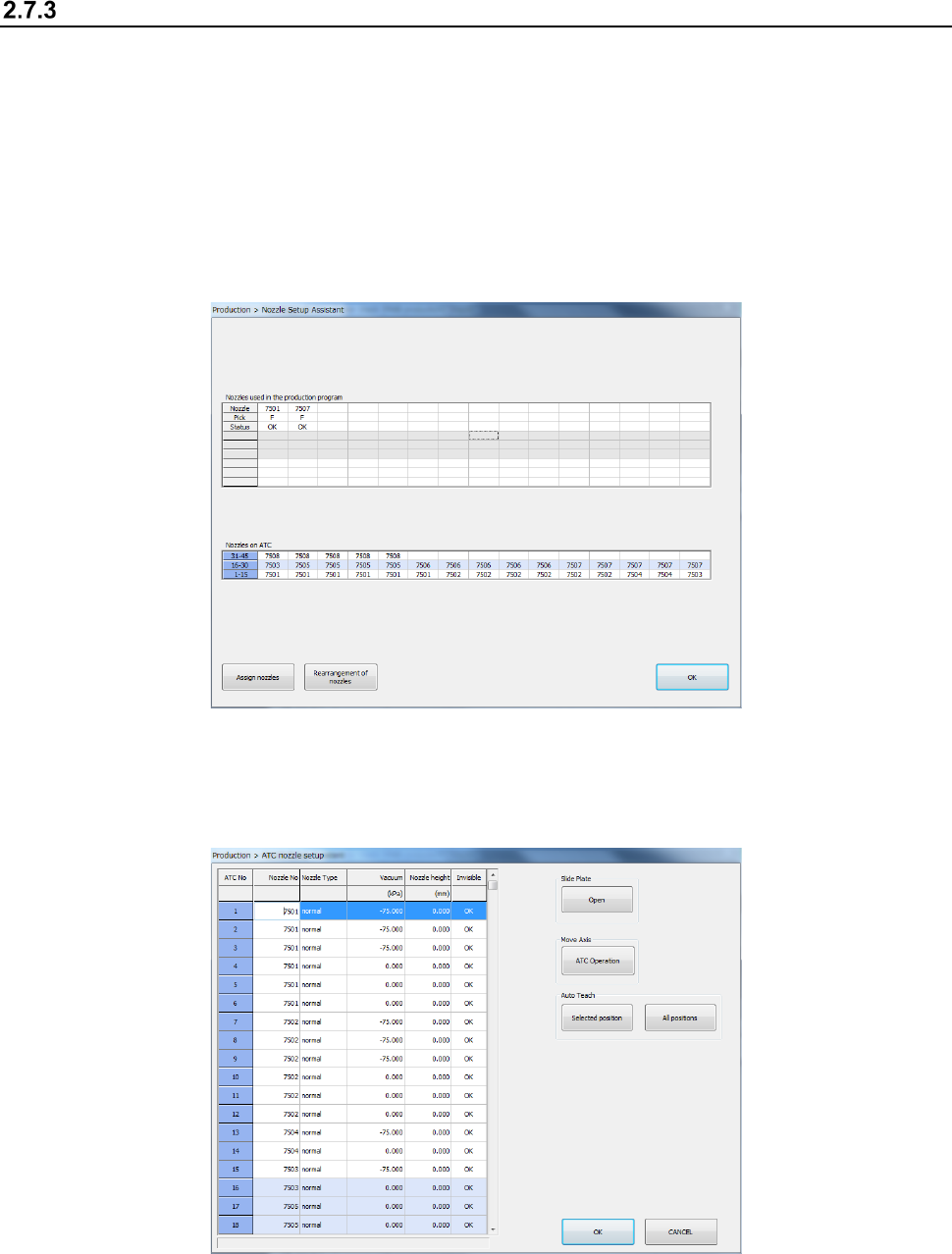
Check to see if the nozzle number set on the “Machine setup” screen matches that set on the ATC.
<Procedure>
① Select the [Plan support] command from the “Product” menu.
Press the <Nozzle Setup Assistant> button.
The following “Nozzle Setup Assistant” screen appears.
This screen shows the nozzle assignment specified in the production program and the nozzles
actually assigned on the ATC.
If there is any difference between them, it is displayed in red. In such a case, assign a
nozzle(s) by following the descriptions of the next section.
* See Section 2.12.1.11 “Nozzle Setup Assistant” for details of the “Nozzle Setup Assistant”
function.
② Select the <Assign nozzles> button on the “Nozzle Setup Assistant” screen.
You can assign a nozzle on the ATC.
* See Section 8.3.2.3 “ATC nozzle setup” for details of how to set up nozzles on the ATC.
Part 1 Basic Operation Chapter 2 Production
2-32
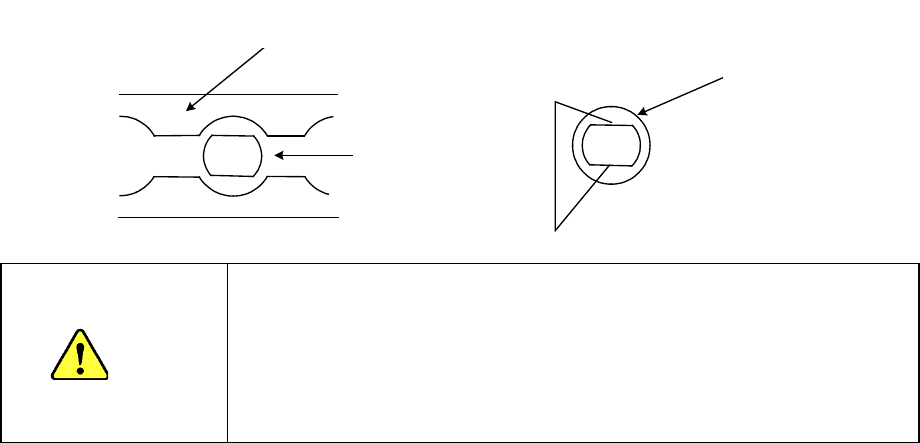
スライドプレート②
ATCブラケット①
スライドプレート②が開いた状態
ノズル⑨
平部
Slide plate ②
ATC bracket ①
When the slid plate ② is opened
Nozzle ⑨
Flat portion
<Procedure for mounting/dismounting nozzles on the ATC>
1. Press the <Open> button to open the slide plate 2.
2. Mount or dismount the nozzle ⑨ on/from the ATC while aligning the flat portion of the
nozzle ⑨ with the long hole of the ATC bracket ①.
CAUTION
- Replace the nozzle to the position at which it was used to be
located. If you have replaced the nozzle with another one, change
the settings of the “ATC nozzle setup” menu of the “Machine setup”
utility.
- Do not attach the nozzle onto the head directly. (Or the contact
surface with laser gets stained and it may cause an error.)
Part 1 Basic Operation Chapter 2 Production
2-33
2.8 Production Screen
Starting up the Production screen
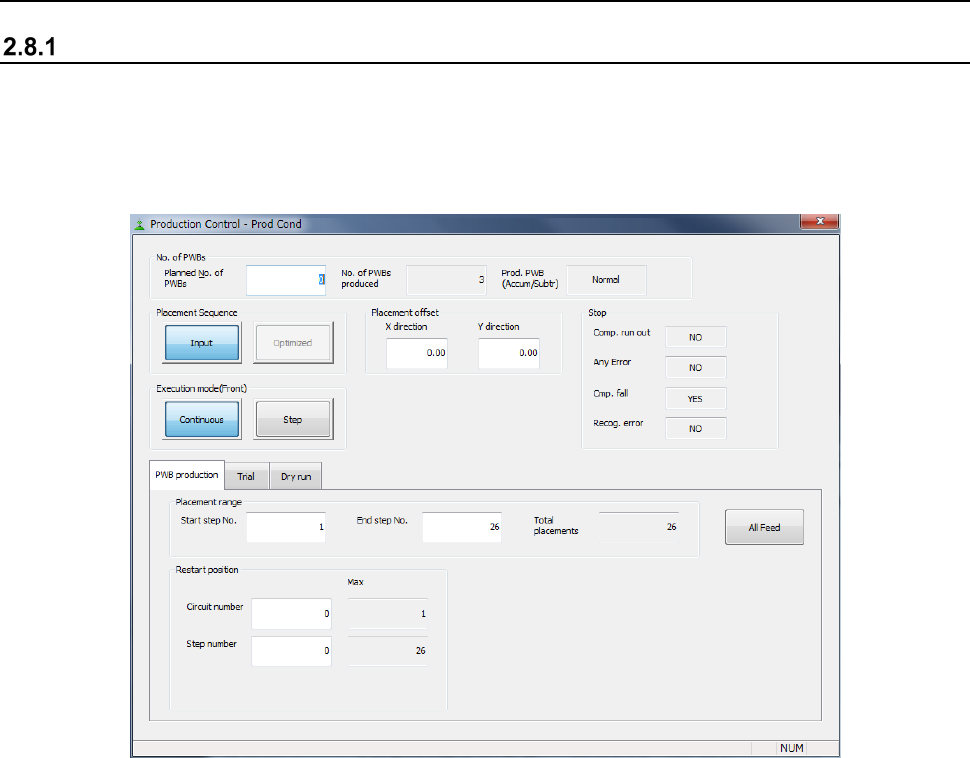
When you select the “Product” button from the menu of the main screen, and then the [PWB
Production] command or when you select the “PWB Production” button on the Application shortcut
tab, the following production requirements screen appears.
Specify the desired production requirements on this screen (see Section 2.8.2 “Production
requirements screen”).