RS-1_instruction manual.pdf - 第824页
Pa r t 2 Det ai l ed Des c r i pti on o f Ea c h Fu nc ti on Chapter 10 M ach i ne Manage m e nt Infor m ation 10 - 11 (3) Exc hang e f req uency set up W hen you p res s the < Ex cha ng e f req uency setup > b utt…
Part 2 Detailed Description of Each Function Chapter 10 Machine Management Information
10-10
2) <Exchange frequency setup/Warning/Error level settings> button
These buttons are described in the sub-sections later.
3) <Reset> button
This button is described in the sub-section later.
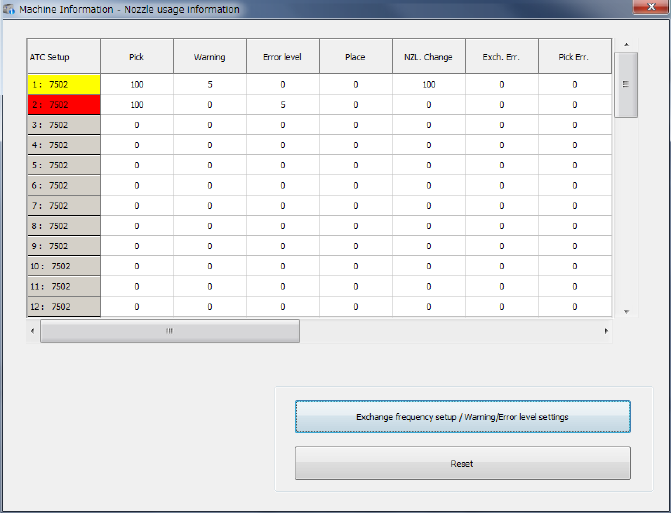
(2) Screen displayed when a warning is issued or an error occurs
When a value in the “Pick” cell exceeds that in the “Warning” cell, the nozzle is displayed in
yellow. When a value in the “Pick” cell exceeds that in the “Error level” cell, the nozzle is
displayed in red.
The signal light lighting condition does not change.
Part 2 Detailed Description of Each Function Chapter 10 Machine Management Information
10-11
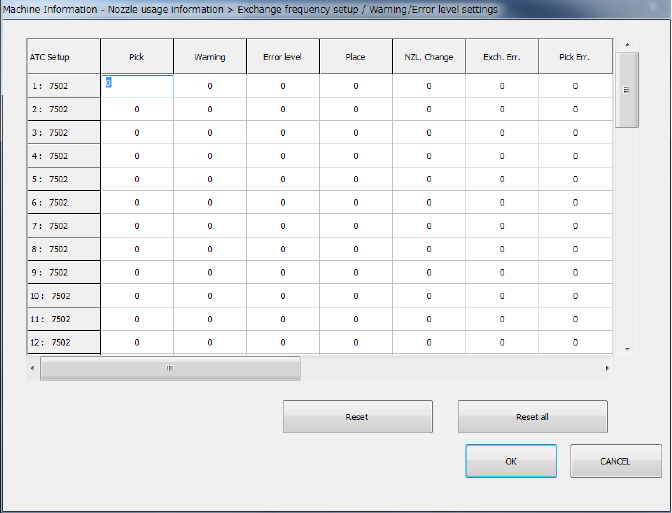
(3) Exchange frequency setup
When you press the <Exchange frequency setup> button or select [Set] – [Setting – Nozzle
usage information] in the menu, the exchange frequency setup screen appears. When the
STC nozzle arrangement was changed, it is possible to change the data on each nozzle.
The setting can be executed when the user level is set to Serviceman.
1) Press the item to be updated or press a number key after moving the cursor by the
direction key of the software keyboard, and the target cell will be active so that it can be
edited.
2) If you press the <ESC> key when the cell is active, the data being changed is cancelled.
3) If you press the <ENTER> key or the <TAB> key when the cell is active, a value you
have entered in the cell is validated.
4) Press the <OK> button to check data and close the exchange frequency setup screen.
5) Press <CANCEL> to revert nozzle usage information to the original and close the
exchange frequency setup screen.
Part 2 Detailed Description of Each Function Chapter 10 Machine Management Information
10-12
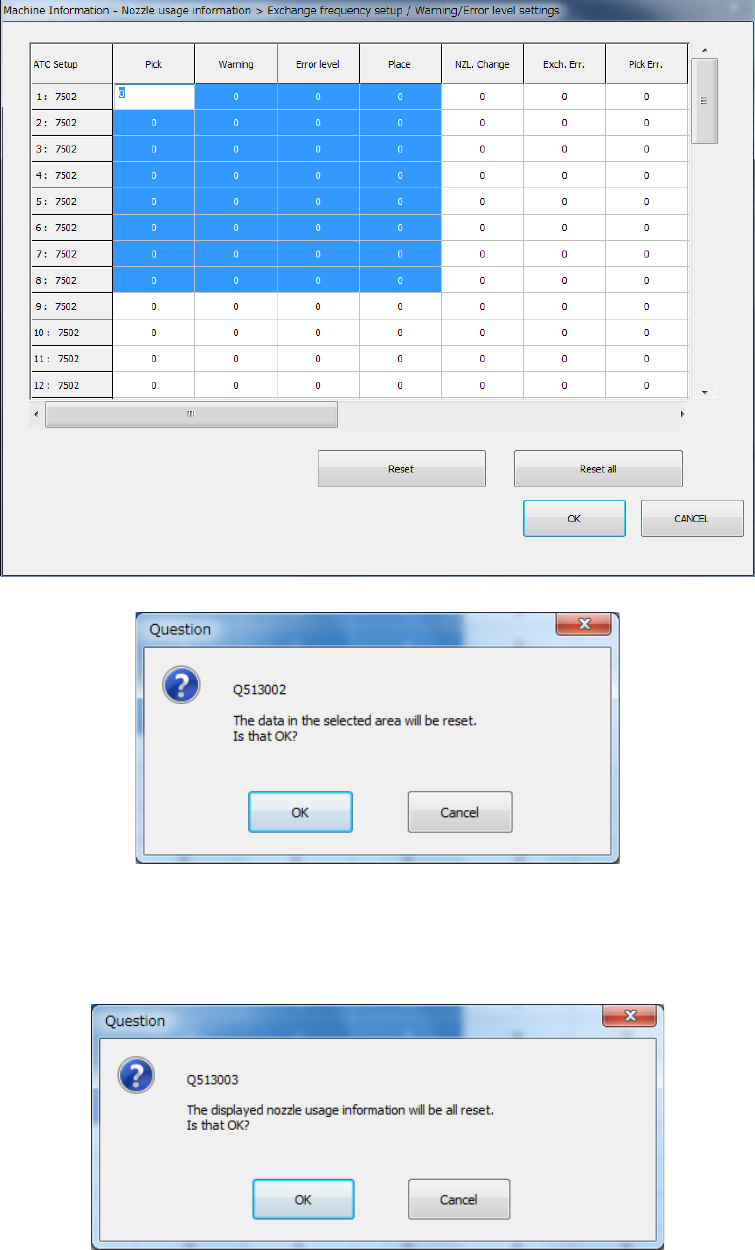
6) Select data you wish to reset with the keyboard or mouse, press the [Reset] button, and
reset processing of the data is carried out. Press <OK> in the question message and
reset the selected domain.
7) Press the <Reset all> button and reset processing of all data is carried out. Press <OK>
in the question message and reset the selected domain.