RS-1_instruction manual.pdf - 第552页
Part 1 B asic O peration Chapter 4 Cr eating a Produc tion Progra m 4- 217 (4) Operation during tr acking While the sy stem is track ing a component pla cement position, y ou can use t he follo wing switche s and/or butt…
Part 1 Basic Operation Chapter 4 Creating a Production Program
4-216
3) Light Set
Select an OCC lighting type to be turned on.
You can select [Incin Lt] [Vert Lt] or [OuterRing].
The [outer ring] button is displayed only when "Solder print recognition placement position
correction (option)" is set.
4) Placement position Set
The “Current position” indicates the coordinates of the component position being tracked.
The “Setting position” indicates the coordinates of the component placement position set
with the production program.
You can manually enter or teach the coordinates of the component placement position
shown in the “Setting position” column to change them.
5) Var spd.
When you check off the [Var spd.] check button, the axis moving speed is increased if you
continue to press the Move button continuously at teaching.
6) Zoom
When you check the <Zoom> check button, you can enlarge the image shot with the camera
and superimposed on the screen if you enable the option “Enable digital zoom teaching” on
the “Operation option” screen.
When the length of the longer side of the component outer dimensions is 2.26 mm or more,
the system does not enlarge any image shot with a camera regardless of the setting of the
“Operation option” screen.
When “the placement angle” + “the circuit angle” is not any of 0, 90, 180 and 270 degrees,
the system does not enlarge any image. The system switches the enlargement factors as
shown below depending on the outer dimensions of a component:
• 4x zoom (The option “Enable 4× zoom” has to be checked on the “Operation option”
screen.)
When the length of the longer side of a component is from 1.11 mm to 2.25 mm: the
displayed image is doubled in size.
When the dimension of the longer side is from 0.01 mm to 1.10 mm, the displayed image
is quadrupled in size.
• Without 4x zoom
When the length of the longer side of a component is from 0.01 mm to 2.25 mm, the
displayed image is doubled in size.
7) OK/CANCEL
These buttons are enabled only after you manually enter coordinates or change them by
teaching operation.
When you press the <OK> button, XY coordinates are applied to the placement data.
If you do not want to apply the changed value, press the <Cancel> button.
If the coordinates are already shifted by teaching when the <Cancel> button is pressed, the
coordinates are returned to the original position.
8) Progress
The progress bar advances one by one according to the position to be tracked. When you
move this progress bar while the system is stopping, you can move the camera to the
previous point or the next point. When you press the <Prev> button, the camera moves
back to the previous component pick-up position. When you press the <Next> button, the
camera moves to the next component pick-up position.
Part 1 Basic Operation Chapter 4 Creating a Production Program
4-217
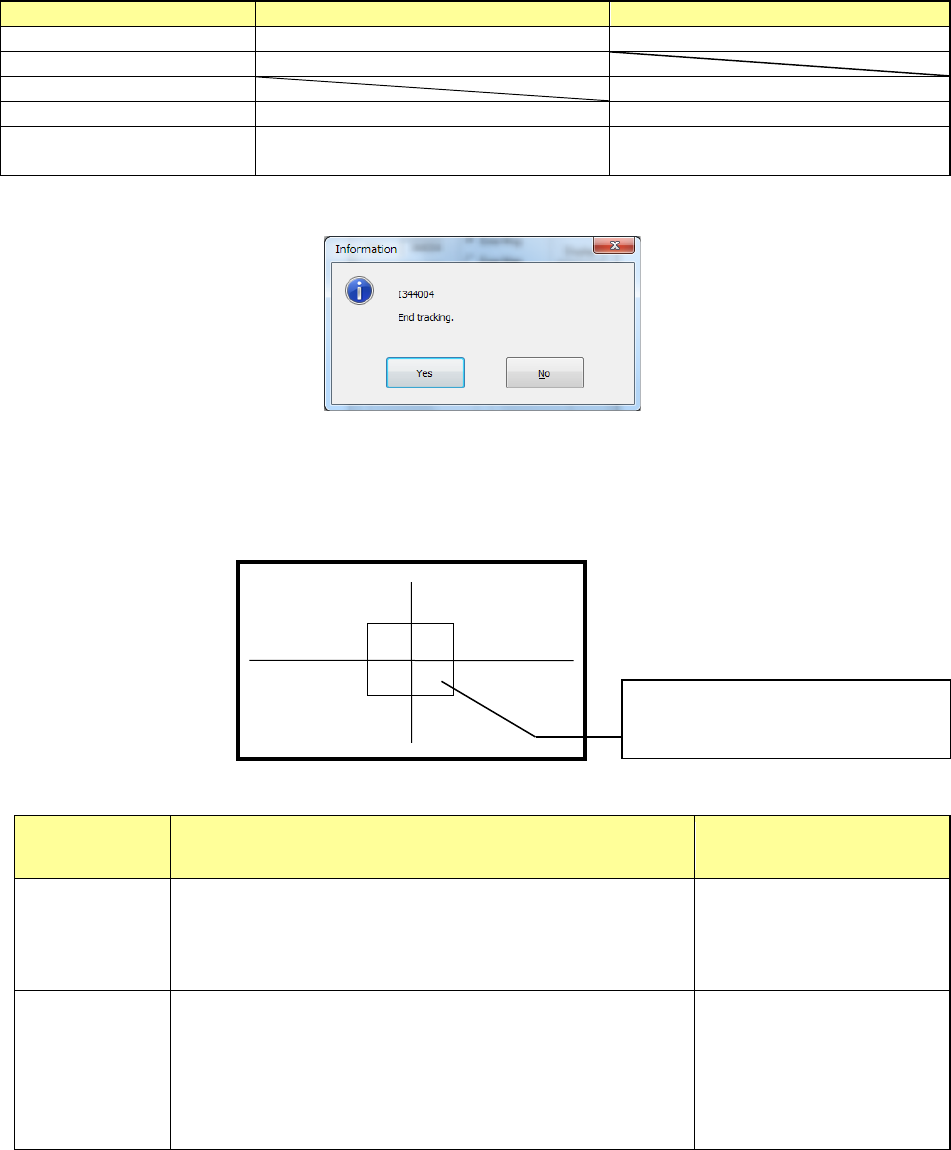
(4) Operation during tracking
While the system is tracking a component placement position, you can use the following switches
and/or buttons to control the tracking operation.
Operation
Operation panel
Button on the screen
Start of tracking
<START> switch
<EXEC> button
Stop of tracking
<STOP> switch
Moving to the previous point
<Prev> button
Moving to the next point
<START> switch
<Next> button
End of tracking
Press the <STOP> switch when the
system stops.
Press the <CANCEL> button when the
system stops.
If you terminate the tracking operation with performing the operation above, the following message
appears on the screen.
(5) Displaying the superimpose screen
While the system is tracking a component placement position, it displays the component frame
whose size is appropriate for a component on the superimpose screen.
When the system is tracking a big component, it does not display this component frame but four
corners and the center position of the component one by one with a camera.
Display of the center and four corners of a component varies depending on the component size as
described below.
Component
size
Four corners of a component Center of a component
Component
whose shorter
side is 4.5 mm
or less
The window frame displayed on the screen indicates four
corners of a component.
A placement position whose angle was set is displayed by
rotating the window frame itself.
Center of the point at which
lines are crossed.
Other
components
(large
components)
The camera moves to each set of coordinates of four corners:
[TOP-L], [TOP-R], [BTM-R] and [BTM-L] in this order. For a
component placement position whose angle was set, the
camera moves to the coordinates obtained by rotating four
corners.
After the camera moves to
all of four corners,
[CENTER] is displayed on
the monitor. The camera
moves to the center of a
component.
(6) Teaching coordinates during tracking
In case the tracked coordinates are different from the actual ones, teaching can be performed by
touching on the superimpose screen of the touch panel.
The coordinates can be shifted in the 8 directions of up/down, left/right, and oblique.
The moving speed can be switched with the following buttons: <Low>, <Middle> and <High>.
When you press the <OK> button, the coordinates of the current position are fetched and
incorporated into the production program.
The center of a component or the frame
indicating four corners of the component is
displayed on the screen.
Part 1 Basic Operation Chapter 4 Creating a Production Program
4-218
4.5.6.5 Pick position/Pick height
These commands use the camera to track the component pick-up position.
You can see the component placement position displayed on the monitor, so you can use the HOD
to teach the placement position if the entered coordinates are not appropriate.
When you use the HMS, the system can track the component pick-up height also. In this case,
the system displays the values detected with the HMS on the screen sequentially.
If the tracked height is quite different from the specified one, teach the height as well as the
coordinates.
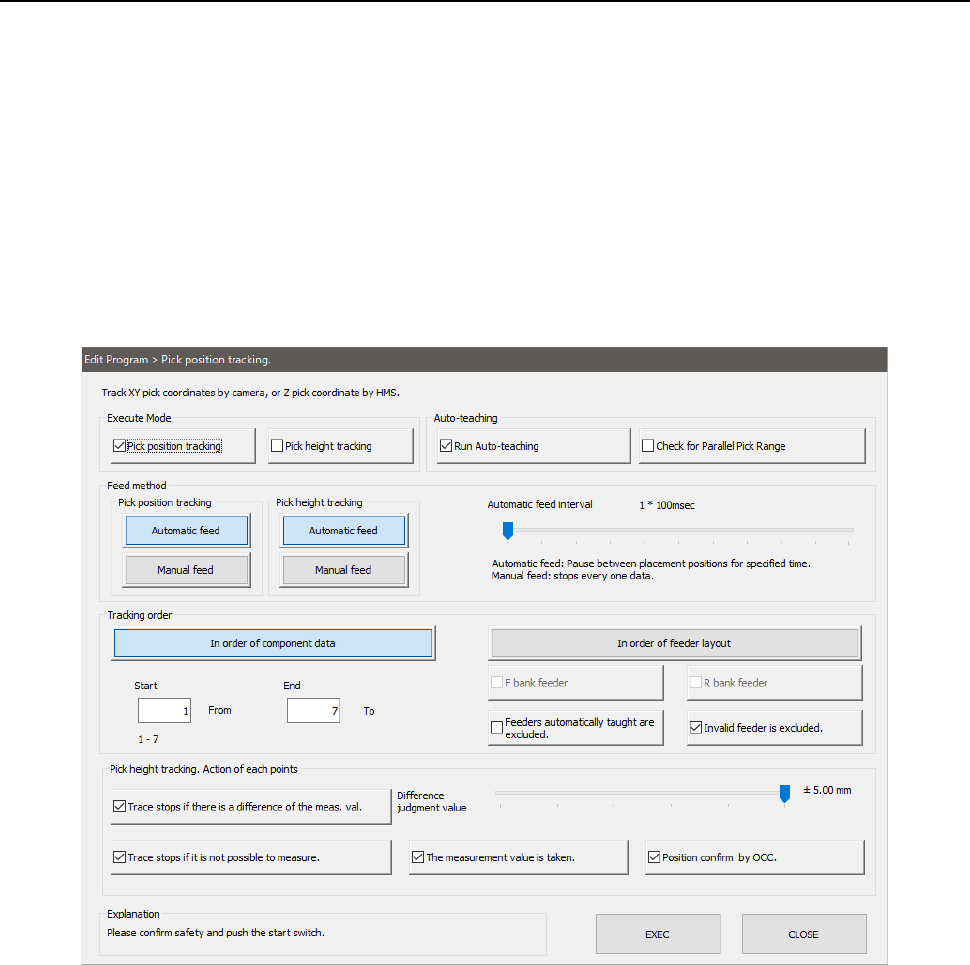
(1) Setting the tracking conditions
When you select the [Machine operation] command from the Program Editor menu, and
then the [Pick position] command, the following screen appears.
When you select the [Machine operation] command from the menu, and then the [Pick
height] command, the screen shown above appears on which the “Pick height tracking”
check box is checked off.
1) Execute Mode
a) Pick position tracking
The system tracks a component pick-up position with a camera.
b) Pick height tracking
The system tracks a component pick-up height.
* When both check boxes are checked off, the system tracks the pick-up height after
tracking the pick-up position with the camera.