RS-1_instruction manual.pdf - 第138页
Part 1 B asic O peration Chapter 2 Pr oduction 2- 27 Adjusting the shape clamp reference position When the sto pper posit i on has bee n adjusted, it is necess ary to reset the shape cla mp reference position as sho wn b…
Part 1 Basic Operation Chapter 2 Production
2-26
Adjusting the shape clamp reference
<How to change the position>
(1) Select the “Product” button from the main menu, the [Support] command, and then the [Plan
support] command.
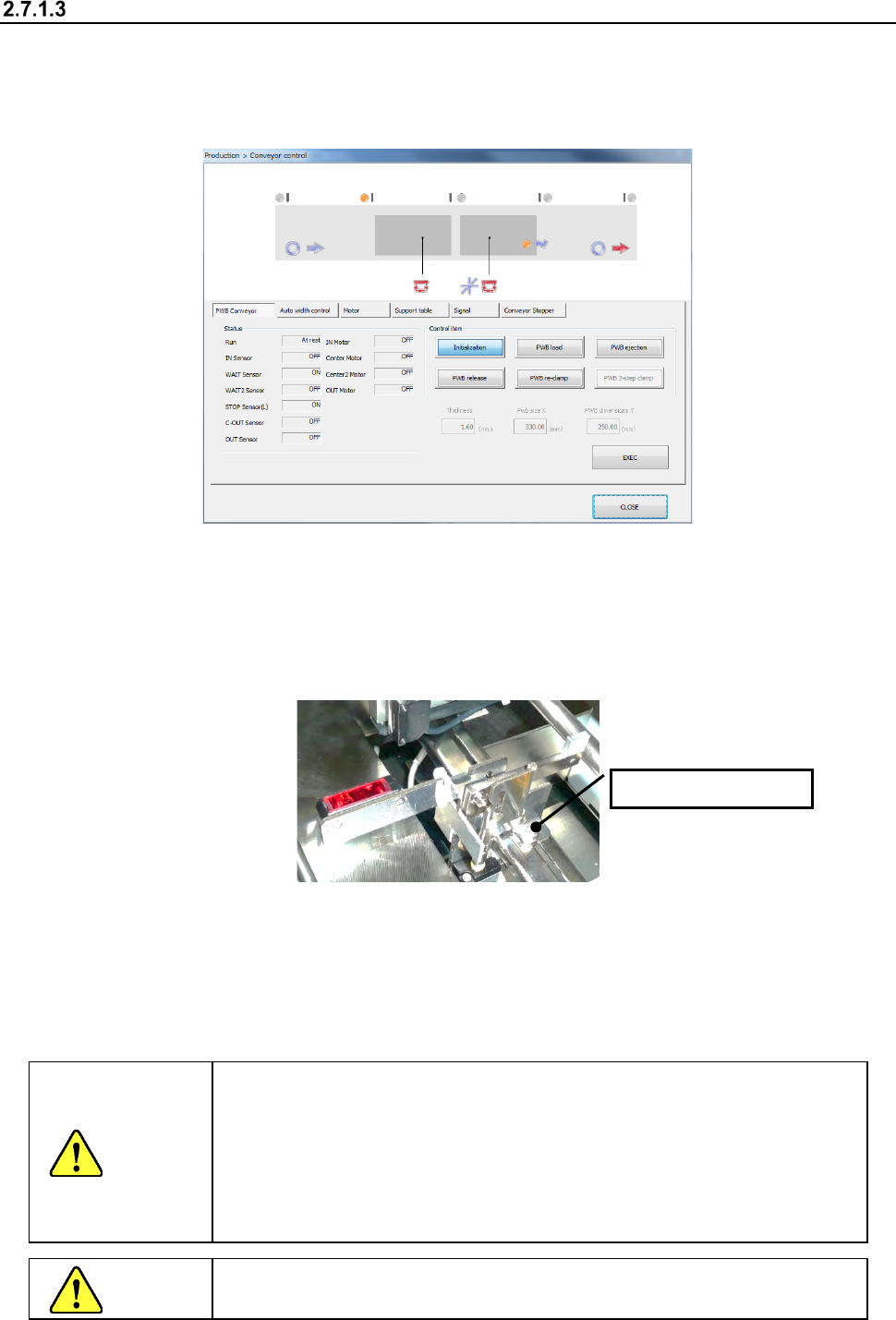
When you press the <Conveyor control> button, the “Conveyor control” screen appears.
(2) Turn the stopper ON.
Select “Conveyor Stopper” and press the <ON> button.
(3) Push the PWB to be produced until it comes in contact with the stopper.
If the PWB has a notch, etc. at the contact point and the contact status is unstable, make
adjustment by loosening the two screws at the root of the stopper and moving the stopper by
hand.
(4) Arrange the support pins.
Place the support pins on the support table suitably according to the PWB to be produced. Placing
support pins under a QFP and other components which require high precision of placement
improves the precision.
(5) After adjustment, press the <CLOSE> button on the “Conveyor control” screen to finish
conveyor control.
CAUTION
The shape clamp reference position is the origin (i.e. a reference point) of
the PWB coordinates of the program data.
Consequently, when the stopper position has been adjusted, make sure
to reset it following Section 2.7.1.4 “Adjusting the shape clamp reference
position”.
The PWB origin can be changed by the “PWB data” in the production
program. (See Section 4.3.3. “PWB data” of Chapter 4).
CAUTION
While the machine is operating, NEVER insert your hand, head, etc.
inside the machine.
Loosen the screw.
Part 1 Basic Operation Chapter 2 Production
2-27
Adjusting the shape clamp reference position
When the stopper position has been adjusted, it is necessary to reset the shape clamp reference
position as shown below.
<How to change the position>
(1) Select the “Product” button from the main menu, the [Support] command, and then the [Plan
support] command.
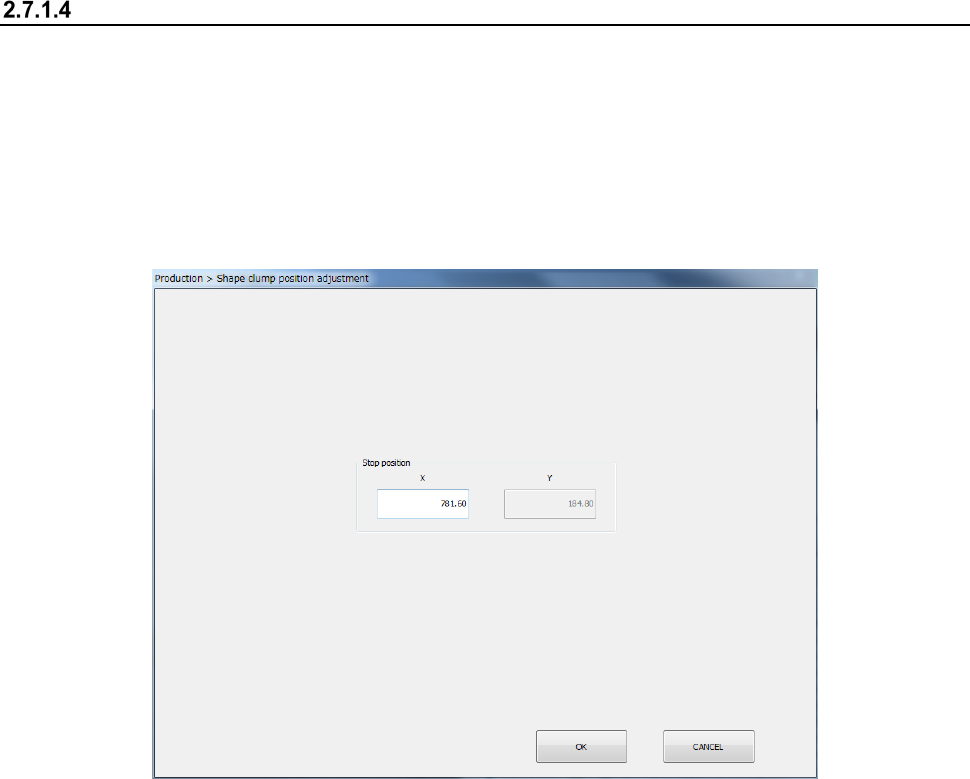
When you press the <Shape clamp position adjustment> button, the “Shape clamp position
adjustment” screen appears.
- See Section 8.3.3.3 “Shape clamp position adjustment” for detailed setup procedures.
Part 1 Basic Operation Chapter 2 Production
2-28
Other adjustments
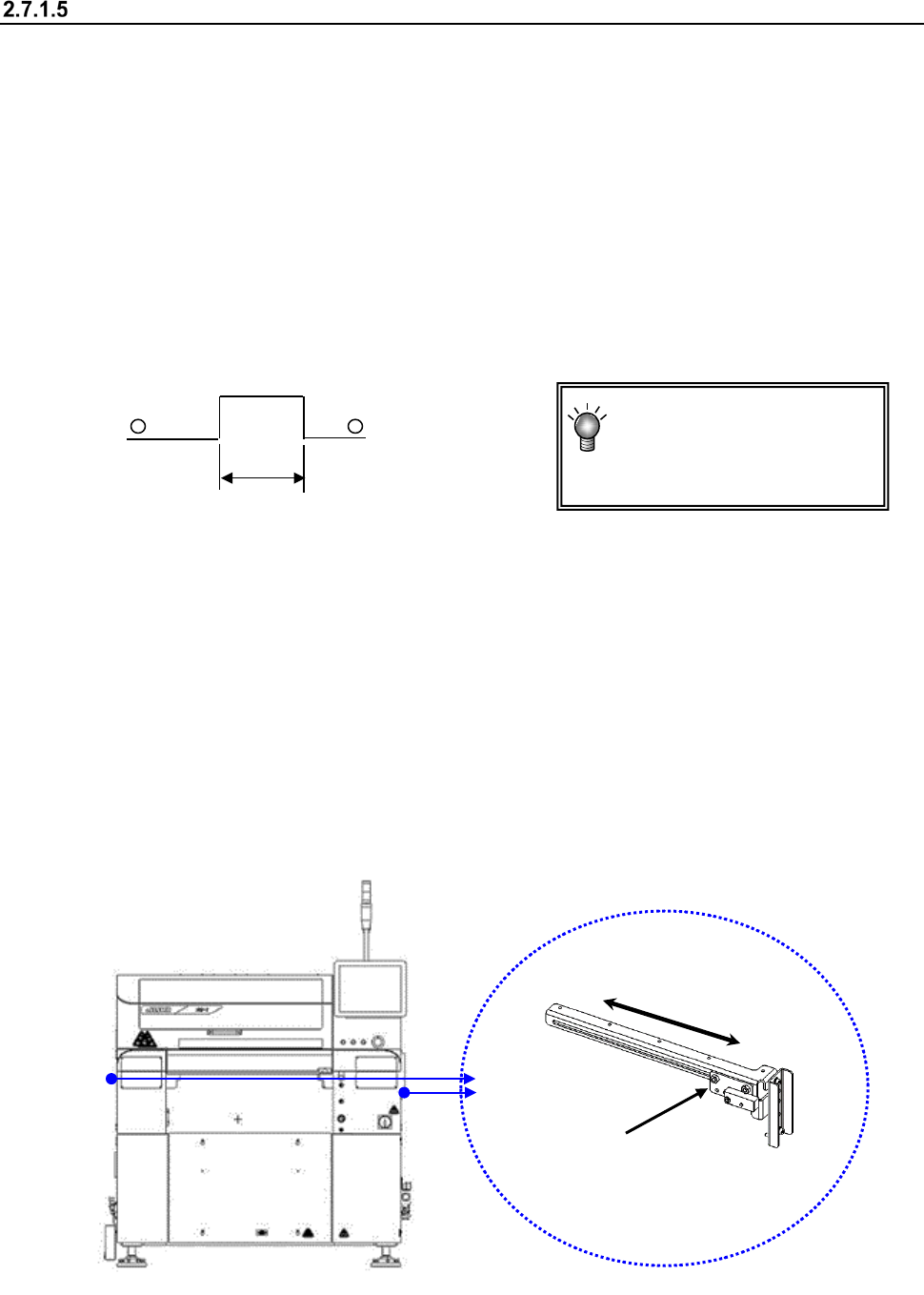
A board having a notch may cause the PWB sensor to activate incorrectly.
Therefore, enter the PWB transport sensor delay time depending on the size of a notch.
You can change the position of the stopper on the reference rail side ⑩ and that of the PWB
sensor (Y direction) also for an irregularly shaped board.
(1) PWB transport sensor delay time
<Procedure>
① Select “Program Editor - PWB data” or select the [Conveyor] command from the
“Machine Setup” menu, and the [Conveyor setup] command.
② Enter the delay time that is appropriate for the length of the notch of a board, or the
length of the notch with a keyboard.
(See Section 8.3.3.1 “PWB Transport.”)
(2) Stopper
If the PWB has a notch, etc. at its front end and the centering of the PWB is unstable, move the
stopper to another position.
See Section 2.7.1.3 “Adjusting the shape clamp reference” for the moving operation.
When the stopper assembly has been moved, reset the “Shape clamp position” in the Machine
setup.
(3) Board sensor
<Procedure for changing the board sensor position>
Hold the sensor bracket 1 to move it along the elongate hole in the direction “A.”
Check to see if a board is set with the “Conveyor” menu of the “Manual Control” utility or the
“Transport” menu of “Program Editor.”
A: Length of a notch
A
You do not have to enter the
delay time if the notch
cannot be located at any
PWB sensor.
①
A