RS-1_instruction manual.pdf - 第179页
Part 1 B asic O peration Chapter 2 Pr oduction 2- 68 Menu item Description User level PWB thic knes s Enter the th ickness of a board . Programm er Back height Ent er the he ight of t he rear s ide of a boar d. Programm …
Part 1 Basic Operation Chapter 2 Production
2-67
3
Feeder
Replenishes components that are selected on the “Parts no.
setup” screen.
(5) <OK>/<CANCEL> buttons
No.
Button
Description
1
OK
Updates your change and quits the “Parts no. setup” screen to return to
the previous screen.
2
CANCEL
Discards your change and quits the “Parts no. setup” screen to return to
the previous screen.
Edit Data
Select the [Program] command on the “Product” menu, and then the [Change data] command, or
select the <Edit Data> button of the “Edit Data” group displayed on the “Retry list.” The “Change
Data” screen appears.
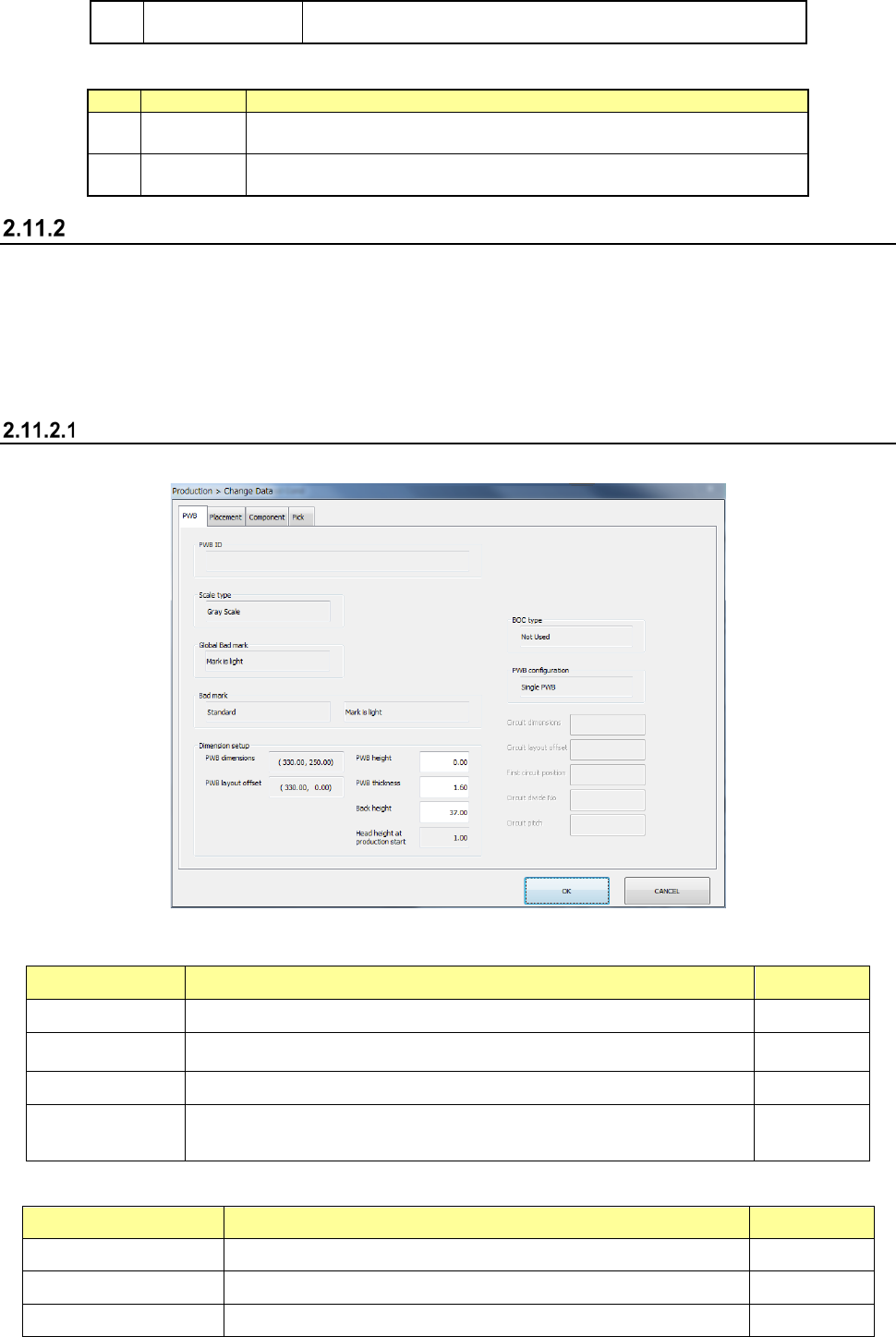
If an error such as a laser recognition error occurs during PWB production, this screen allows you to
change or recheck data on the “PWB” data screen, “Placement” data screen, “Component” data
screen or “Pick” data screen.
PWB data
Select the “PWB” tab displayed on the top of the screen.
(1) Basic settings
The basic settings are performed on the upper left section of the screen.
Menu item Description User level
PWB ID Displays the comment on the board. -
Scale type Allows you to select the gray scale pattern of the recognized mark image. Programmer
Global Bad mark Displays the detecting operation of a global bad mark. -
Bad mark Displays which bad mark type is used, Standard or Extended, and bad
mark is detecting operation.
-
(2) Dimension setup
Menu item Description User level
PWB dimensions Displays the outside dimensions of a board. −
PWB layout offset Displays the board layout offset. −
PWB height. Enter the height of a board Programmer
Part 1 Basic Operation Chapter 2 Production
2-68
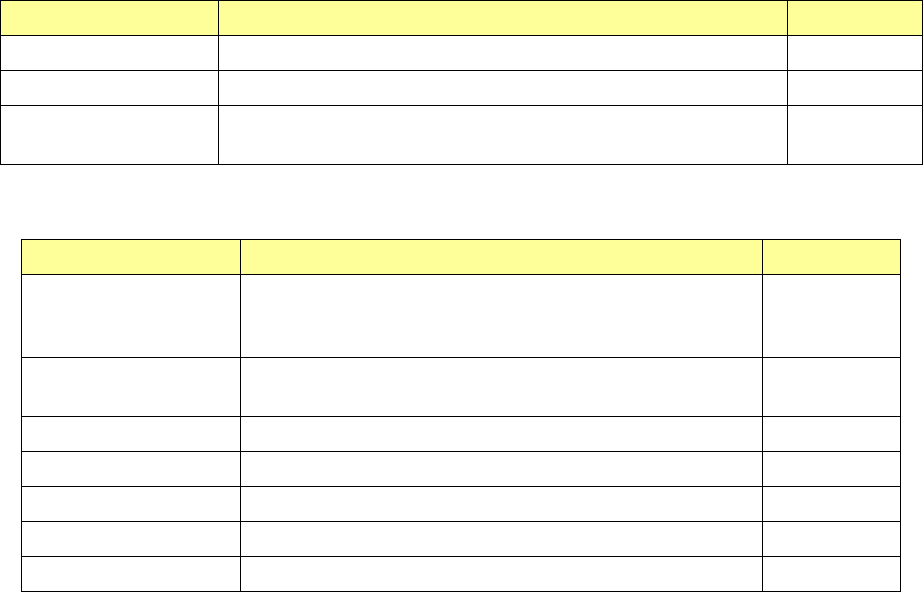
Menu item Description User level
PWB thickness Enter the thickness of a board. Programmer
Back height Enter the height of the rear side of a board. Programmer
Head height at
production start
Displays the head height at the time of production start. −
(3) PWB surface
The following table shows the contents of PWB surface settings on dimension settings.
Menu item Description User level
BOC type Displays the BOC mark type.
(“Not Used,” “PWB marks/ref. ckt marks are used,” or “Circuit
marks are used”)
−
PWB configuration Displays the circuit configuration of a board. (Single PWB,
Matrix circuit and so on)
−
Circuit dimensions Displays the outside dimensions of a circuit. −
Circuit layout offset Displays the circuit layout offset. −
First circuit position Displays the position of the first circuit on a board. −
Circuit divide No. Displays the number of circuits on a board. −
Circuit pitch Displays the distance between two consecutive circuits. −
Part 1 Basic Operation Chapter 2 Production
2-69
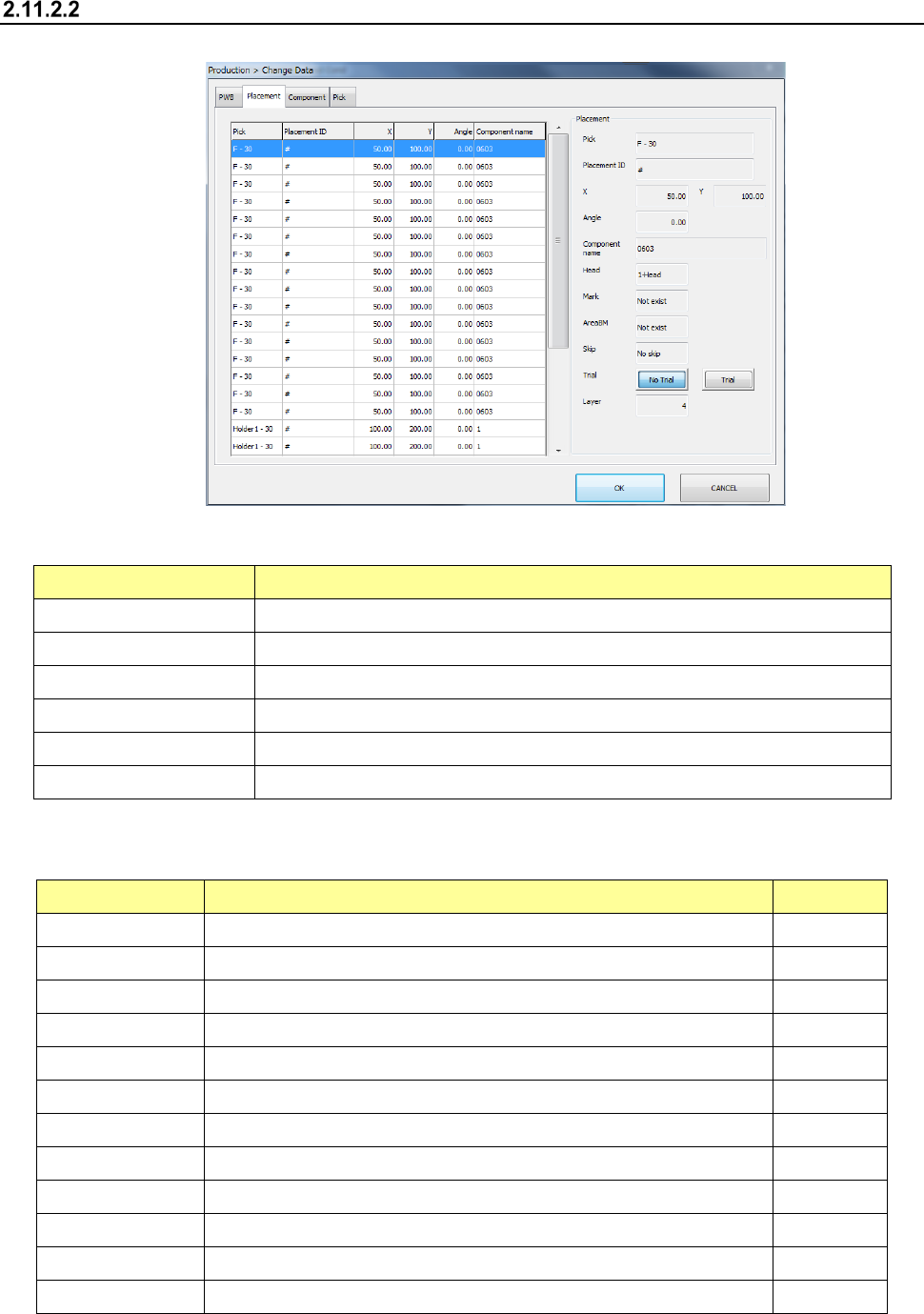
Placement data
Select the “Placement” tab displayed on the top of the screen.
(1) List of the menu items
The menu items displayed on the left plane of the screen are described in the table below.
Menu item Description
Pick Displays the supply position of a component to be placed on a board.
Placement ID Displays a placement ID of the current placement operation.
X Displays an X coordinate of a component placement position.
Y Displays a Y coordinate of a component placement position.
Angle Displays the angle of a component to be placed on a board.
Component name Displays the name of a component to be placed on a board.
(2) Placement
The descriptions of the selected menu item on the left plane of the screen are displayed on the
right plane.
Menu item Description User level
Pick Displays the supply position of a component to be placed on a board.
Placement ID Displays a placement ID of the current placement operation
X Displays an X coordinate of a component placement position.
Y Displays a Y coordinate of a component placement position.
Angle Displays the angle of a component to be placed on a board.
Component name Displays the name of a component to be placed on a board
Head Displays a head to be used to place a component on a board.
Mark Displays whether to use an area mark or not.
AreaBM Displays whether to use an area bad mark or not.
Skip Allows you to select whether to skip placement operation or not. Programmer
Trial Displays whether to place a component on a board during trial operation
Layer Displays a placement layer.