RS-1_instruction manual.pdf - 第466页
Part 1 B asic O peration Chapter 4 Cr eating a Produc tion Progra m 4- 131 (1) “Assignments” opt ion Set "Nozzl e layout" an d "Feeder l ayout" inten ded for dividing (opt imizin g) the program data. …
Part 1 Basic Operation Chapter 4 Creating a Production Program
4-130
4.4.1.2 Setting the optimization conditions
The optimization result may vary depending on the settings on the “Component supply count”
dialog box described above and those on the “Optimization” dialog box described below. Set
the optimization conditions of a production program only after understanding the descriptions
below well.
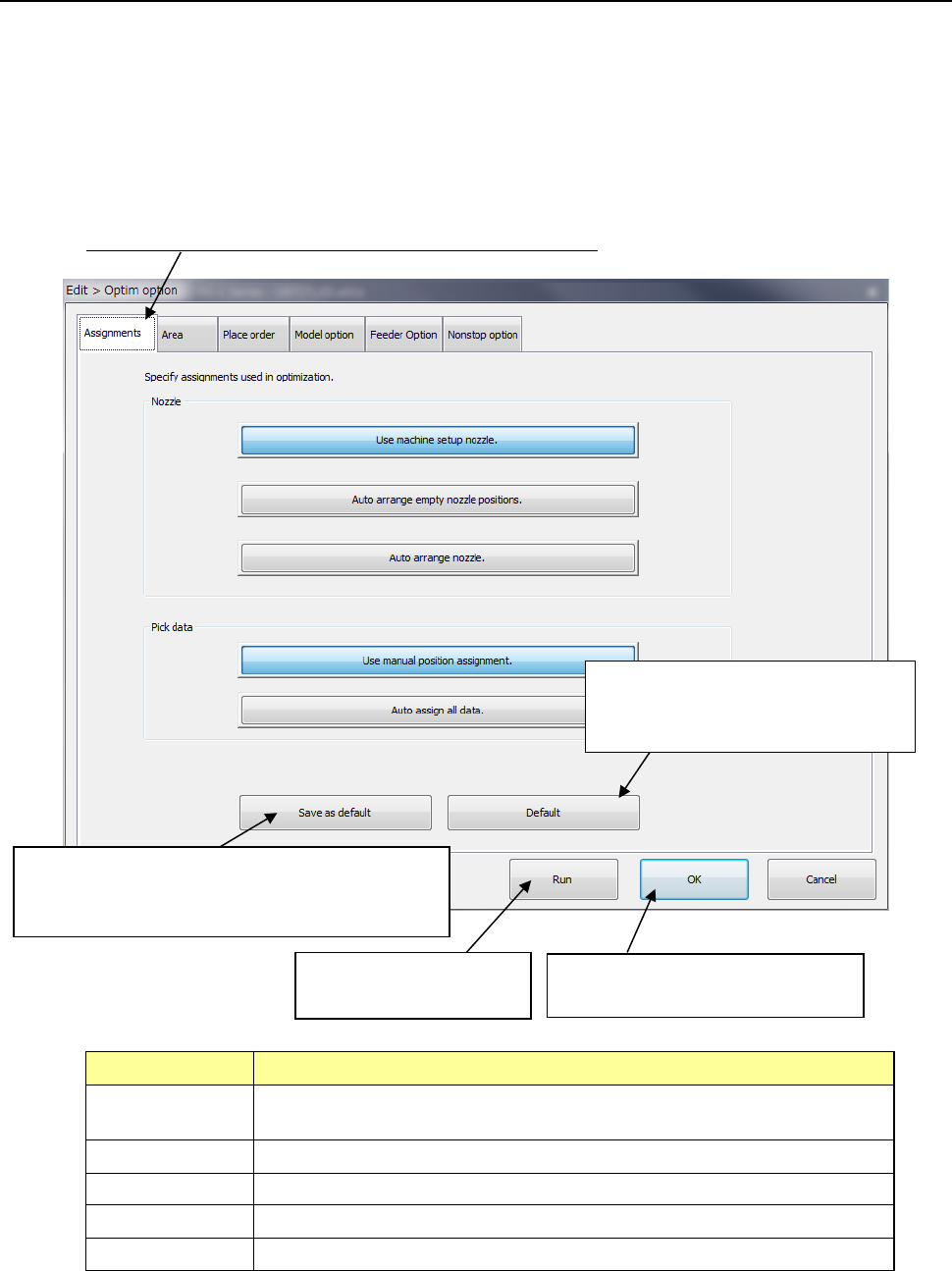
When you select the [Optimization] – [Optimization] commands, the “Optim option”
(optimization option) dialog box appears on the screen.
Set the six categories of conditions including the “Assignments” option.
Select this tag to change the screen for the corresponding option.
Option Description
Assignments Specifies the option to be checked with the Optimization utility when it assigns a
nozzle or Pick data.
Area Specifies the area to which a feeder can be assigned.
Place order Specifies the option to be used for changing the component placement order.
Model option Specifies the option unique to the model.
Feeder option Specify the options related to the feeder layout.
This button registers new settings as the initial values.
The new settings will be displayed in the beginning
when the system is booted the next time.
This button invalidates your registered
settings and restores the standard
settings (initial values of the machine).
This buttons executes the
optimization function.
This button stores your settings, and
closes this screen.
Part 1 Basic Operation Chapter 4 Creating a Production Program
4-131
(1) “Assignments” option
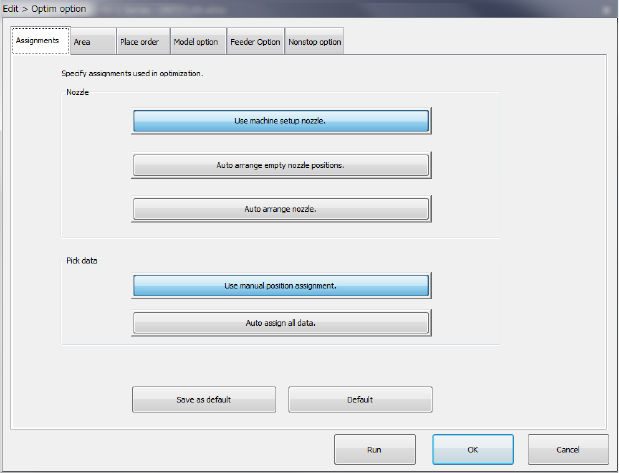
Set "Nozzle layout" and "Feeder layout" intended for dividing (optimizing) the program data.
1) Nozzle
Select which nozzle layout you want to use, the nozzle layout set on the "Machine setup"
menu or the optimized nozzle layout.
a) Use machine setup nozzle:
The nozzle settings on the "Machine setup" menu are used as they are. The current
nozzle layout can be used as it is. This option does not need any changeover time, and thus
select this option for flexible manufacturing.
b) Auto arrange empty nozzle positions:
The permanent nozzles set on the “Machine setup” menu are used as they are, and the
nozzles required as the result of optimization are assigned to the empty area of the ATC. If
your system has enough nozzles to do this operation, select this option. Note that you
have to change the settings on the “Machine setup” menu to set the additionally assigned
nozzles if you select this option.
c) Auto arrange nozzle.
The nozzle layout is optimized with ignoring the settings of the nozzles made on the
“Machine setup” screen.
In this case, the production tact becomes speedier but nozzle re-layout and machine setup
setting changes are required. Accordingly, preparation may take more time.
d) Rearrange already assigned nozzles
The permanent nozzles set on the “Machine setup” screen are used to optimize the nozzle
layout.
You are supposed to use this setting to rearrange the nozzle layout without changing the
current number of nozzles. Note that preparation may require more time because the
nozzle re-layout and/or change of the settings of the Machine Setup items are (is) required.
2) Pick Data
Specify whether to assign feeders according to a feeder layout specified in the “Side” field
on the “Pick” data screen or optimize the feeder layout with ignoring this layout.
a) Use manual position assignment:
Perform the specified feeder layout as specified and optimize only the feeder layout set to
"Auto selection."
Part 1 Basic Operation Chapter 4 Creating a Production Program
4-132
b) Auto assign all data:
Ignore the specified feeder layout and optimize the whole feeder layout.
Once you execute the optimization function, its result will be reflected in the “Side” filed of
the “Pick” data screen also. To retry optimization from the beginning after data editing is
finished after this, select "Distribute all." To perform additional layout for only changed
portions, select "Distribute items in the "Auto selection" status."
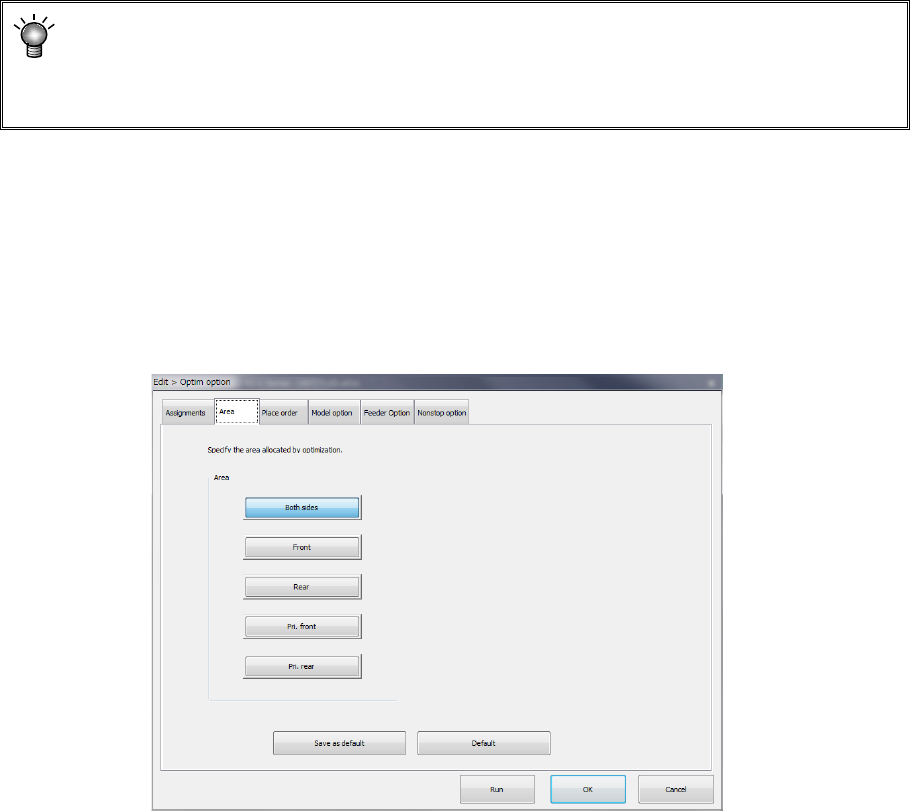
(2) "Area" option
Specify the area for the feeder layout.
The default selecting state and the area you can select vary depending on existence of a “rear
component supply device” option.
<Rear component supply device option>
Enabled: All buttons from the <Both sides> to <Prf. Rear> can be selected. (Default: <Both
sides>)
Disabled: Only the button <Front> can be selected. (Default: <Front>)
Area
1) Both sides:
Feeders are arranged into the feeder banks of all areas. For ordinary production, select
this. Because there is no limitation on optimization, the layout is advantageous to the tact.
2) Front:
Feeders are arranged in only the feeder bank on the front side.
3) Rear:
Feeders are arranged in only the feeder bank on the rear side.
All feeders can be arranged on only the front side or rear side.
If feeders are provided in the overall change table in advance, the time up to the next start of
production can be shortened. This makes a layout that makes much of the workability. In
case all the number of feeders to be used cannot be put in the bank of one side, this item
cannot be used.
4) Pri: front:
The feeders are arranged giving priority to the feeders on the front side.
5) Pri: rear:
The feeders are arranged giving priority to the feeders on the rear side.