RS-1_instruction manual.pdf - 第618页
Part 1 B asic O peration Chapter 4 Cr eating a Produc tion Progra m 4- 283 4.6 S ave to file When you se lect the “Fil e” butt on from the m enu, and t hen the [Save t o file] comm and, the “T ext file output” main dialo…
Part 1 Basic Operation Chapter 4 Creating a Production Program
4-282
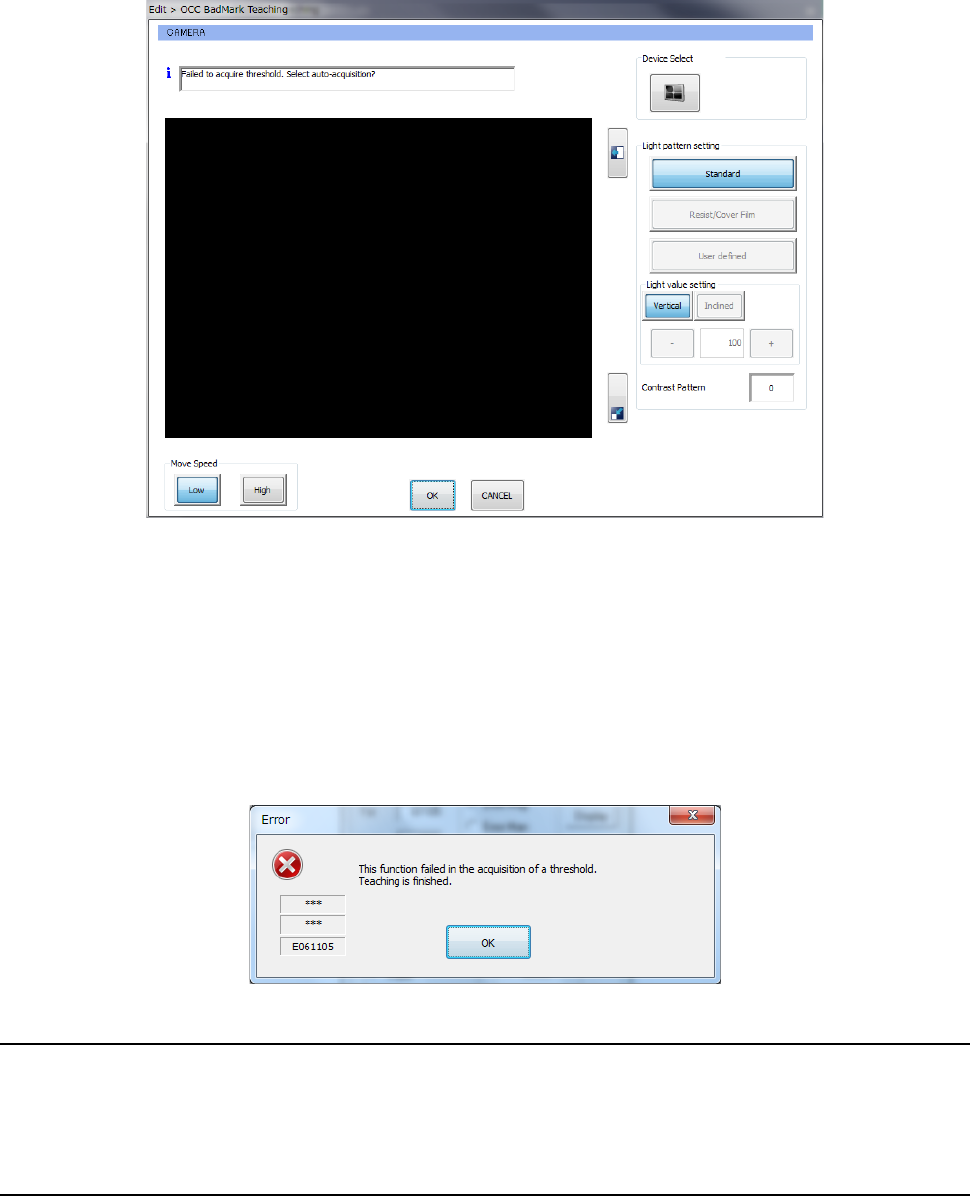
7) Recognizing a bad mark with the OCC (if the system fails to obtain a threshold value)
If the system fails to obtain a threshold value during teaching to recognize a bad mark with
the OCC, the message “Failed to acquire threshold Select auto-acquisition?” appears on
the screen.
① When you press the <OK> button, the system tries to obtain a threshold value
again.
② When you press the <CANCEL> button, the system finishes obtaining a threshold
value.
8) If the system fails to recognize a bad mark with the OCC (to obtain a threshold value
automatically)
If the system fails to recognize a bad mark to obtain a threshold value automatically
during teaching, the following message appears on the screen.
4.5.7.8 Single verification (option)
This command attaches the specified component on the head and compares information on the
resistor, the capacitor and the polarity set in a program (Component data) with the actual one to
check them. See Section 2.12.3 “Verify check (optional)” for details.
4.5.7.9 Continuous verification (option)
This command attaches the component that satisfies the specified conditions on the head and
compares information on the resistor, the capacitor and the polarity set in a program (Component
data) with the actual one to check them. See Section 2.12.3 “Verify check (optional)” for details.
Part 1 Basic Operation Chapter 4 Creating a Production Program
4-283
4.6 Save to file
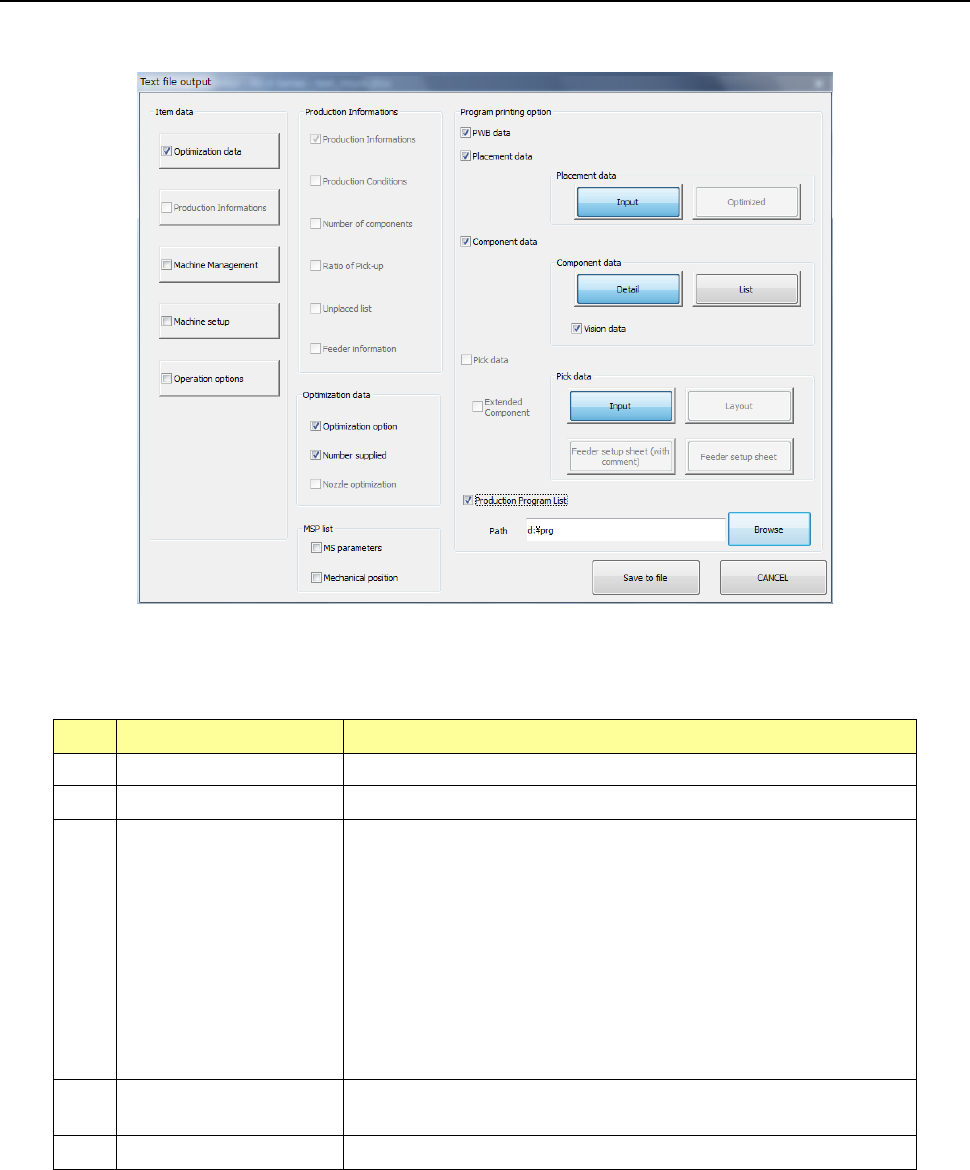
When you select the “File” button from the menu, and then the [Save to file] command, the “Text
file output” main dialog box opens.
(1) Item data
Select item data to be output with checking the corresponding button.
No. Item Description
1 Optimization data Outputs optimization data.
2 Production Information Outputs the production management information.
3 Machine Management
Outputs the operation condition of the following devices:
- Machine operation information
- Each nozzle operation information
- Each head operation information
- Light operation information
- Other devices operation information
- Application operation information
- Recognition/inspection information
4 Machine setup
Outputs information on the setting made with the machine
independently.
5 Operation options Outputs the settings of the Operation options.
Part 1 Basic Operation Chapter 4 Creating a Production Program
4-284
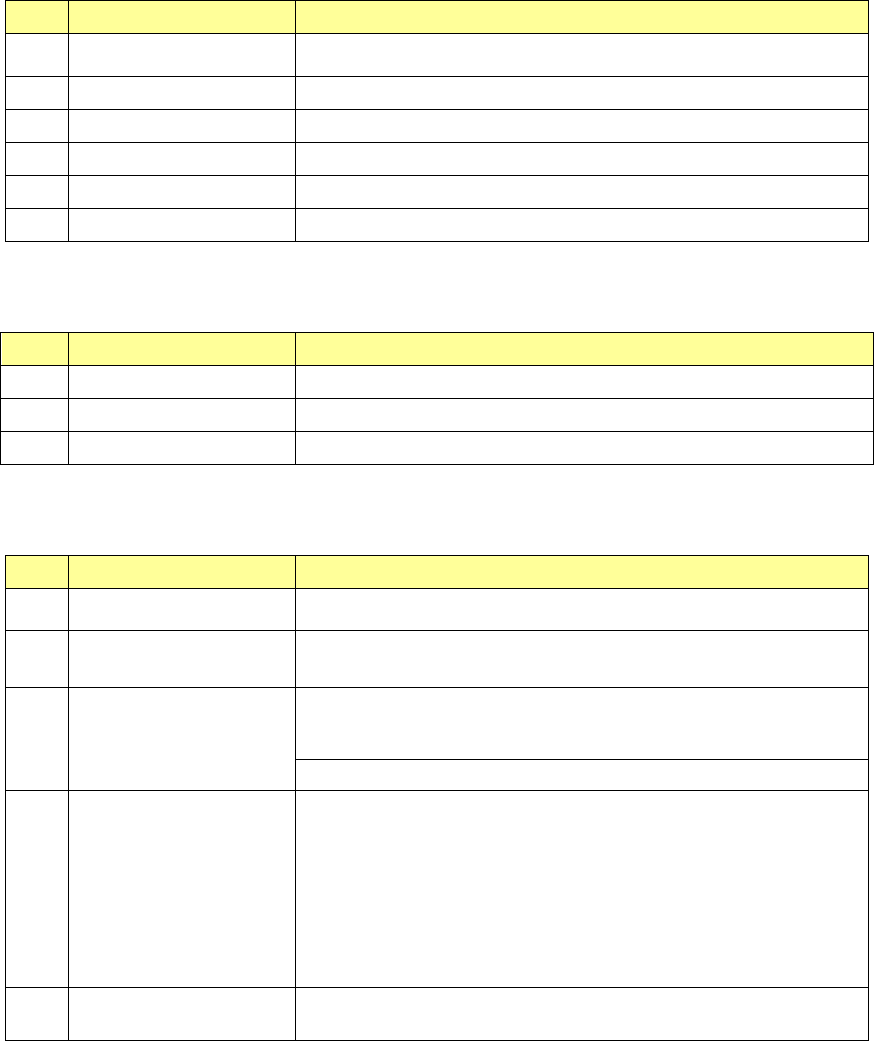
(2) Production Information
Select data on the production management information to be output.
No. Item Description
1 Production Information Outputs management information obtained during PWB production.
2 Production Conditions Outputs the production conditions.
3 Number of components Outputs the number of components.
4 Ratio of Pick-up Outputs each component pick-up ratio.
5 Unplaced list Outputs the list of unplaced feeders.
6 Feeder information Outputs information on feeders.
(3) Optimization data
Select data on optimization to be output.
No.
Item
Description
1 Optimization option Outputs a list of the optimization options.
2 Number supplied Outputs the number of each type of supplied components
3 Nozzle optimization Outputs the nozzle arrangement condition.
(4) Program printing option
Set the detailed data of a production program to be output.
No. Item Description
1 PWB data
Outputs the PWB data.
2 Placement data
- Input: Outputs the Placement data in input order.
- Optimized: Outputs the Placement data in optimized order.
3 Component data
- Detail: Outputs Component data in the detailed format.
- List: Outputs the Component data in tabular format.
- Vision data: Outputs the Vision data
4 Pick data
- Input: Outputs the Pick data in input order.
- Layout: Outputs the Pick data in the layout form.
- Feeder setup sheet (with comment):
Outputs the Pick data in the format of a feeder setup sheet (with
a comment).
- Feeder setup sheet
Outputs the Pick data in the format of a feeder setup sheet
(without a comment).
5 Production Program List
Outputs a list of production programs in the folder specified with the
path.
When you press the <Save to file> button after selecting the output conditions, you can save the
selected information as a text file in the specified folder with naming it. To cancel the saving
operation, press the <CANCEL> button.