RS-1_instruction manual.pdf - 第341页
Part 1 B asic O peration Chapter 4 Cr eating a Produc tion Progra m 4-6 4.3 Pre para tio n of a P roduction P rogram T o produce a PWB, pre pare the pr oduction pro gram data. T o prepare or edit the product ion progr am…
Part 1 Basic Operation Chapter 4 Creating a Production Program
4-5
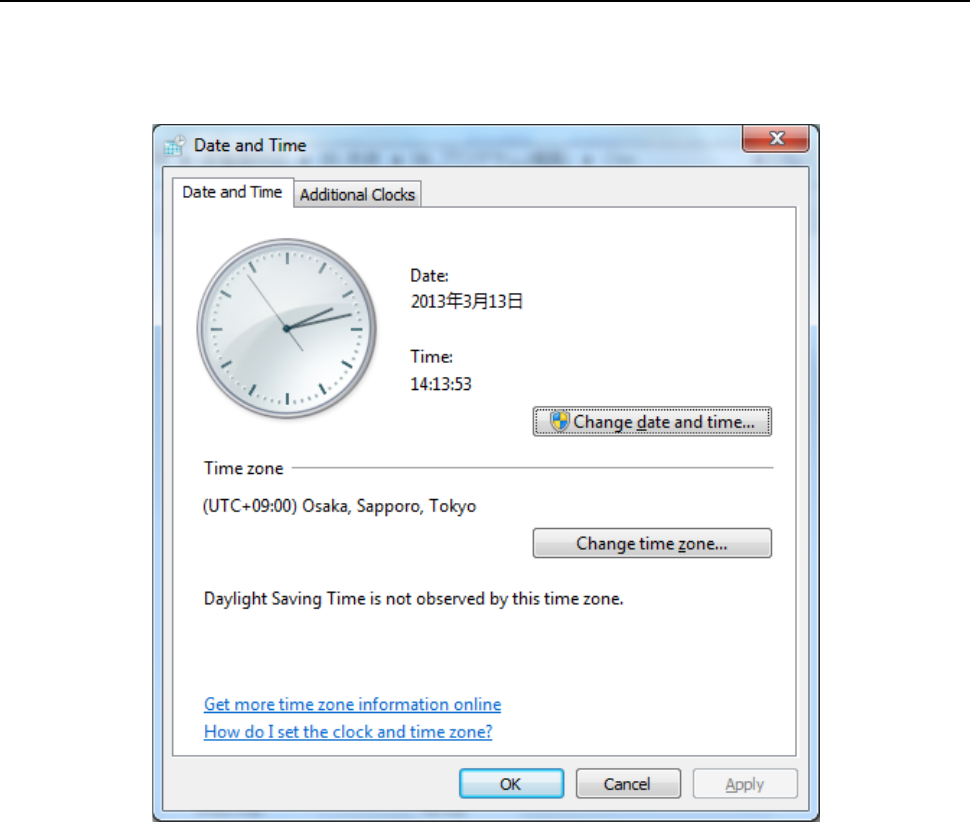
4.2.3 Date and Time Setting
A user whose user level is “Manager” or higher can execute this function.
Select the “Startup” button on the desktop screen, and then the [Date and Time Setting] command.
The date and time can be adjusted.
Part 1 Basic Operation Chapter 4 Creating a Production Program
4-6
4.3 Preparation of a Production Program
To produce a PWB, prepare the production program data.
To prepare or edit the production program data, start up the Program Editor.
4.3.1 Starting up the Program Editor
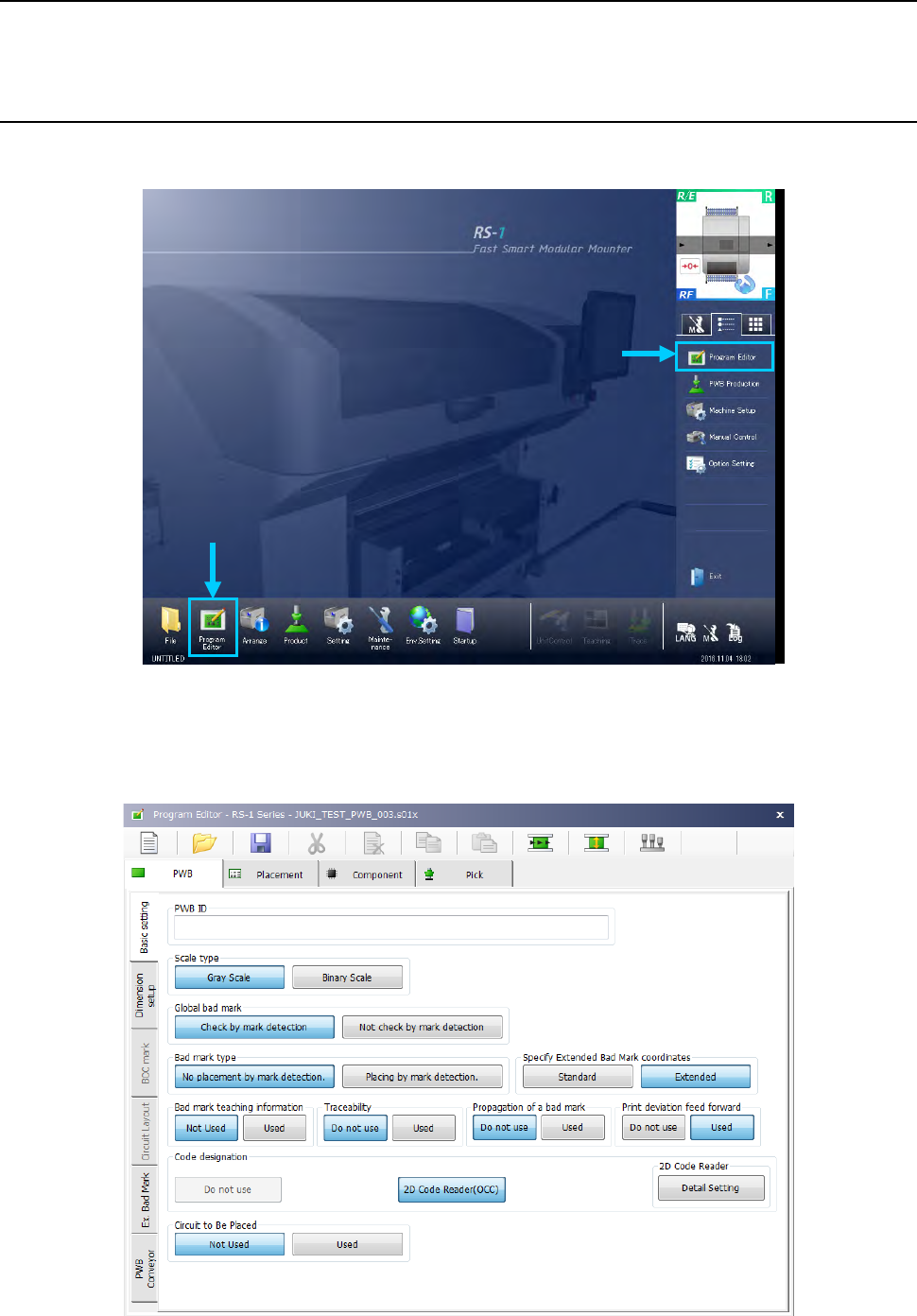
Start up the Program Editor on the following desktop screen.
Select the “Program Editor” button in the Operation area or that in the Information area.
When you start up the Program Editor, the name of the loaded program is displayed on the right
side of the title bar, and the PWB ID is displayed on the status bar.
When you try to create a new production program, “UNTITLED” is displayed as the program name,
and the “PWB ID” field becomes blank.
Part 1 Basic Operation Chapter 4 Creating a Production Program
4-7
4.3.2 Procedure for creating a production program
A production program consists of four items: “PWB data,” “Placement data,” “Component data”
and “Pick data,” and the tabs displayed on the upper section of the screen correspond to these
types of data respectively.
Create a production program in the following order: “PWB data” -> “Placement data” ->
“Component data” -> “Pick data.”
Note that only half-sized alphanumeric characters can be entered with a soft keyboard.
Type of data Description
PWB This covers overall PWB data such as PWB outer dimensions and the coordinates of Board
Offset Correction (BOC) mark position.
Placement This covers coordinates of the placement position, component names to be placed and others.
Component The data including component dimensions and packaging style required for laser and vision
centering is handled.
Pick This covers the data on positions of components supplied by a tape feeder, tray, etc.
You cannot open the next data screen until you completely create the data you are
supposed to create first: for example, you cannot open the “Placement” data screen if
you have not created “PWB data” completely.
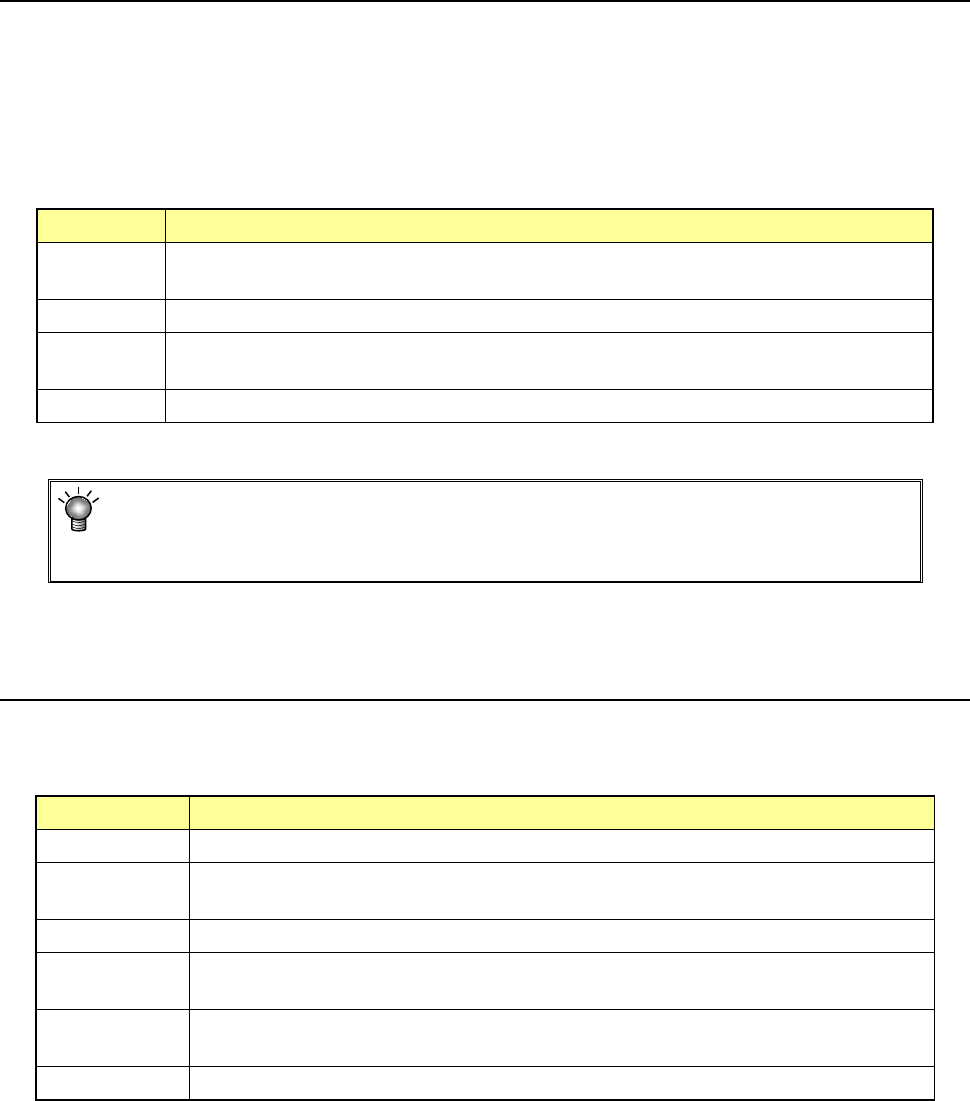
4.3.3 PWB data
PWB data consists of five items: “Basic setting,” “Dimension setup,” “BOC mark,” “Circuit layout,”
“PWB Conveyor” and “Ex. Bad Mark”.
Setting Overview
Basic setting Enter the basic PWB configuration here
Dimension setup
Enter the detailed dimensions of a PWB. This item can be selected only when “Multi-circuit
non-matrix” is set in “Dimensions setting.”
BOC mark Enter the coordinates of BOC marks.
Circuit layout
Enter the position and angle of a circuit. You can enter these items only if you select
“Non-matrix circuit” as the “PWB configuration” on the “Basic setting” screen.
Ex. Bad Mark
Enter the coordinates of a bad mark on each circuit when you are to use an extended bad
mark.
PWB Conveyor Make the detailed settings of the conveyor and the support table