RS-1_instruction manual.pdf - 第951页
Part 2 D etaile d Descript ion of E ach Functi on Chapter 12 Handling th e Optional Device s 12 - 67 ④ D etail ed setting Detailed set ting for sol der recognition can be m ade with the [S older Reco gni t ion Paramet er…
Part 2 Detailed Description of Each Function Chapter 12 Handling the Optional Devices
12-66
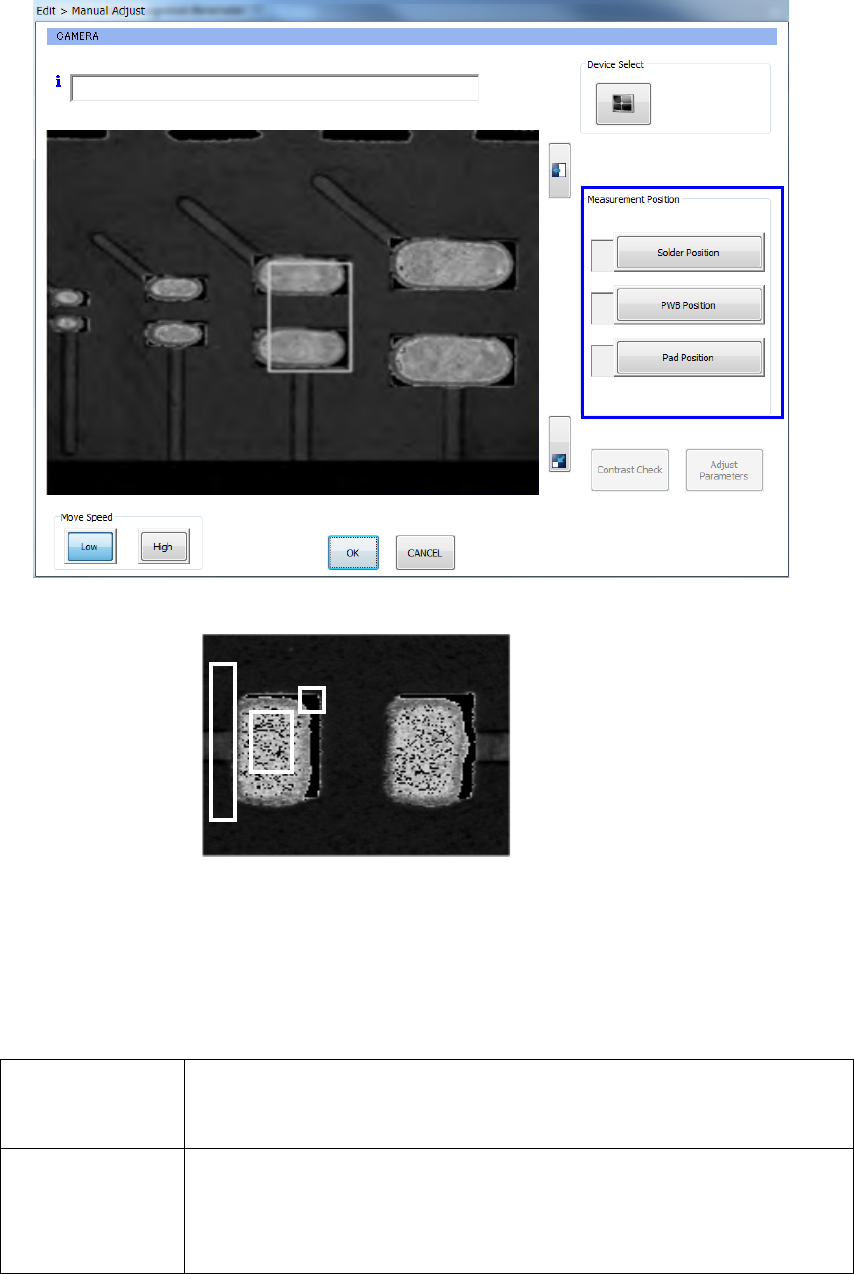
③ Manual adjustment
From the [Solder Recognition Parameter Setting] screen select [Manual Adjustment] to
manually adjust settings for solder, pads, resist and so on as well as adjustments to contrast
recognition and parameters.
- These images are stored in the same manner as the recognized images.
Teach each position: solder, PWB (especially wiring section) and pad in the “Measurement
Position” column. Align the cursor with the edit box corresponding to the position to be
taught, and use the HOD to teach it. When the system finishes teaching the position, *
(asterisk mark) appears in the corresponding edit box.
You may not be able to set the pad position. If so, proceed to the next step (using the
<Contrast Check> button and the <Adjust Parameters> button).
Contrast Check
The system measures the brightness of each area according to the parameters
currently set, and displays whether the obtained contrast is enough or not on the
screen.
Adjust Parameters
The system measures the brightness of each area while changing the recognition
parameters such as the light parameter to adjust the parameters so that enough
contrast can be obtained. The adjustment result is displayed on the
“Auto-adjusted Results” screen. If the system cannot obtain enough contrast
and cannot adjust the parameters, set the positions to be recognized again.
Part 2 Detailed Description of Each Function Chapter 12 Handling the Optional Devices
12-67
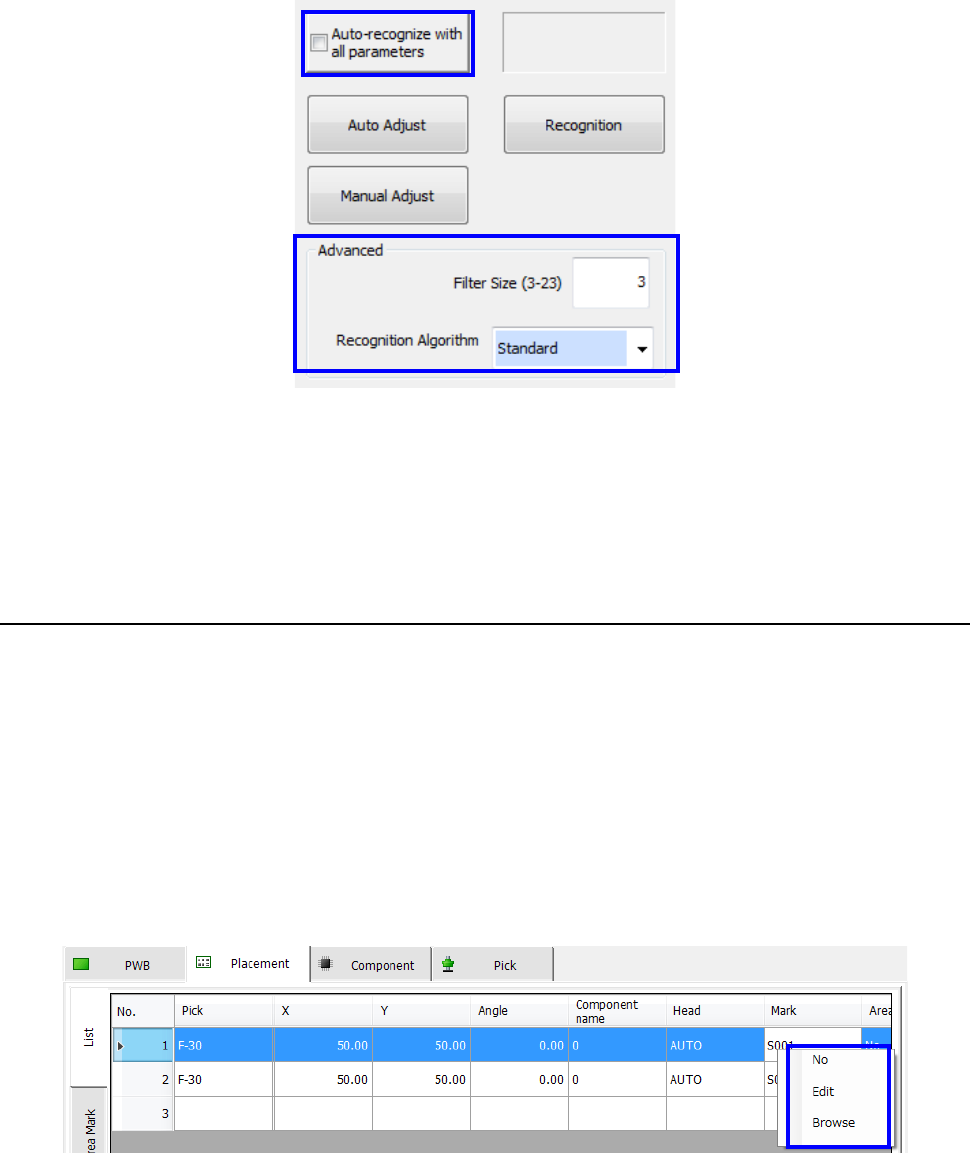
④ Detailed setting
Detailed setting for solder recognition can be made with the [Solder Recognition Parameter
Setting] screen.
When you check the “Auto-recognize with all parameters” check box, the system changes all
of the parameters; lights, thresholds, and contrast pattern during automatic adjustment to
recognize solder with combinations of all patterns in order to adjust all parameters
automatically. Check this check box if the system cannot recognize solder stably even after
you select the <Auto Adjust> button on the “Set Solder Recognition Parameter” screen.
12.11.7.4 Setting the component placement position to be corrected
Select [Edit] or [Browse] in the menu displayed when you adjust the cursor to the [Mark] at the
placement point that requires solder print mis-alignment correction.
Select the [Edit] command or the [Browse] command on the displayed menu. Since the current
screen is switched to the area fiducial screen, align the cursor with the line of the solder mark that
has been taught and select it, and select the [Set] button. The mark ID to be used for correction
is displayed at the mark position of a component placement point whose misalignment correction
has been finished.
* When you want to set two or more component placement points to correct them at the same
time, align the cursor with the “Mark” column displayed on the “Placement” data screen and
drag all component placement points together to select them.
Part 2 Detailed Description of Each Function Chapter 12 Handling the Optional Devices
12-68
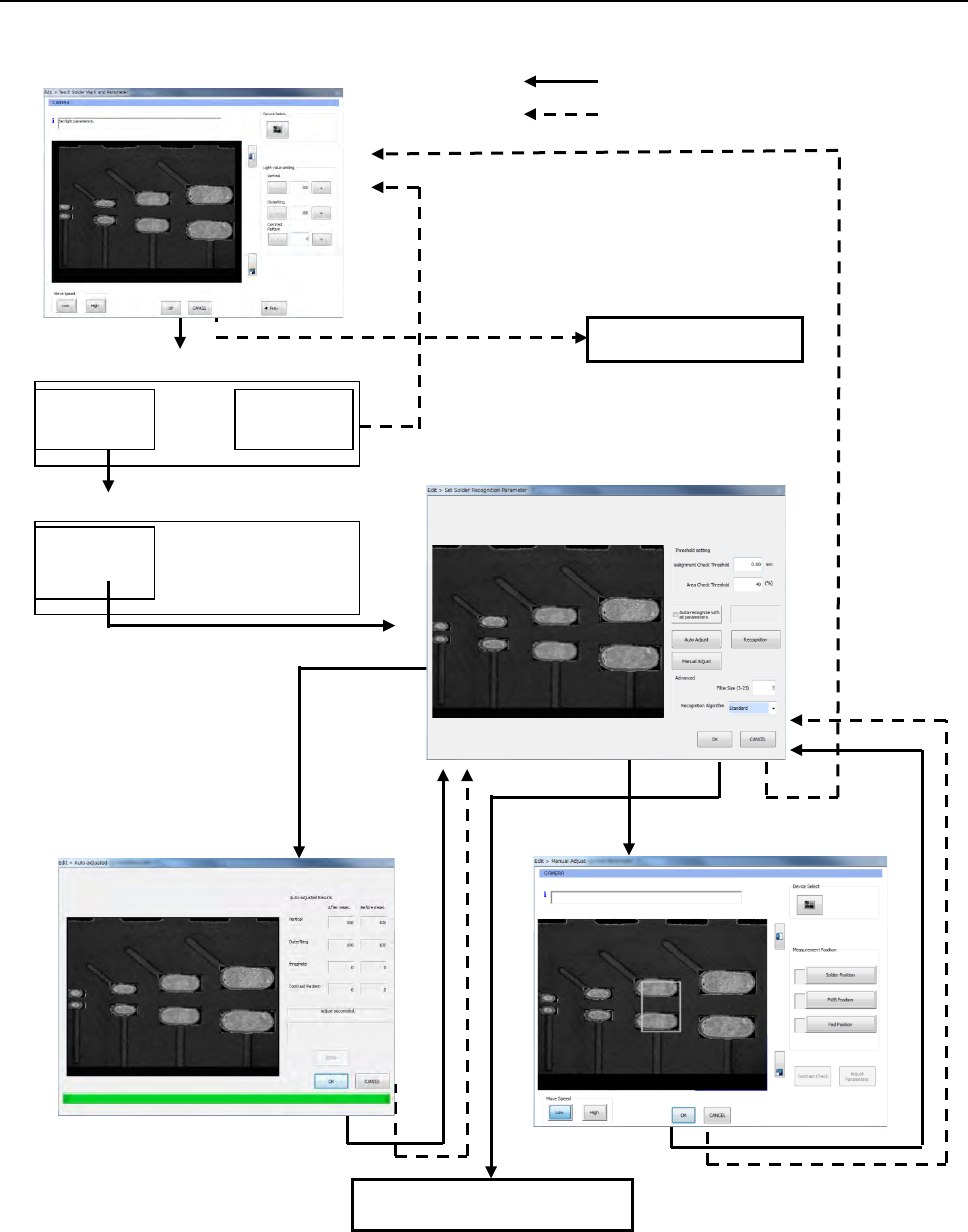
12.11.7.5 Flow for entering data
When you press the ENTER key, you can update the corresponding value(s) and skip to the next
setting screen.
PREVIOUS
Cancel
Setting of a binary threshold value
Outer ring light adjustment
ENTER
OK
Setting of the solder shape
Solder detection threshold value setting
Automatic adjustment of
parameters
End of teaching
Setting a component placement
point to be corrected
Manual adjustment
A value is to be updated.
A value is not to be updated.
ENTER
OK