RS-1_instruction manual.pdf - 第86页
Part 1 B asic O peration Chapter 1 Overv iew of the Machine 1- 68 (2) Function buttons d isplaye d in the Infor m ation area The funct ion butt ons are allocat ed in the Inform ati on area as shown be low, and you c an u…
Part 1 Basic Operation Chapter 1 Overview of the Machine
1-67
Configuration of the function buttons
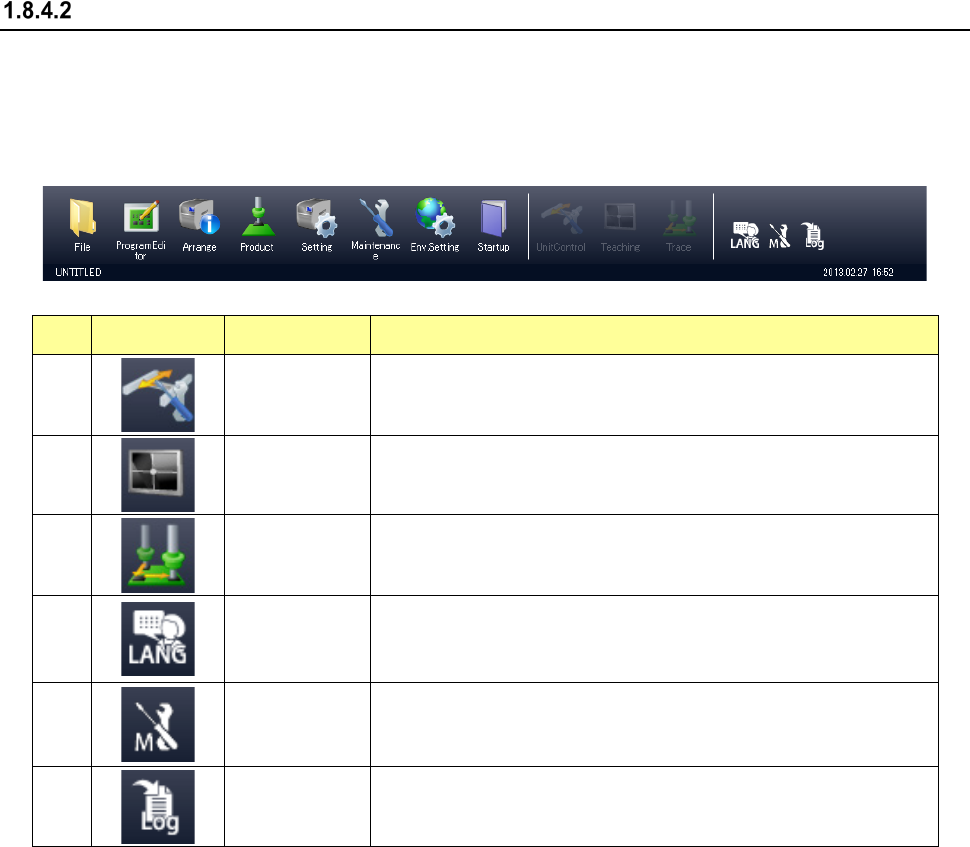
The function buttons as well as the menus are displayed in the Operation area and the Information
area of the RS-1/1R screen.
(1) Function buttons in the Operation area
The function buttons are allocated in the Operation area as shown below.
No. Icon Name Overview
1
Unit control
If the quick control operation can be performed from the application
that is started up at the present, the machine starts the quick control
operation.
2
Teaching
If a teaching operation can be performed from the application that is
stated up at the present, the machine starts teaching.
3
Trace
If a tracking operation can be performed from the application that is
started up at the present, the machine starts trac
king control
operation.
4
LANG
(Language
selection)
This icon switches the displayed languages in real time.
5
M (Maintenance
information)
This icon displays the component replacement information screen.
If the machine has anything to notify an operator, a warning mark is
displayed above the icon.
6
LOG
(Getting a log)
This icon allows you to receive a log.
Some buttons may not be selected depending on the application that is being started up.
Part 1 Basic Operation Chapter 1 Overview of the Machine
1-68
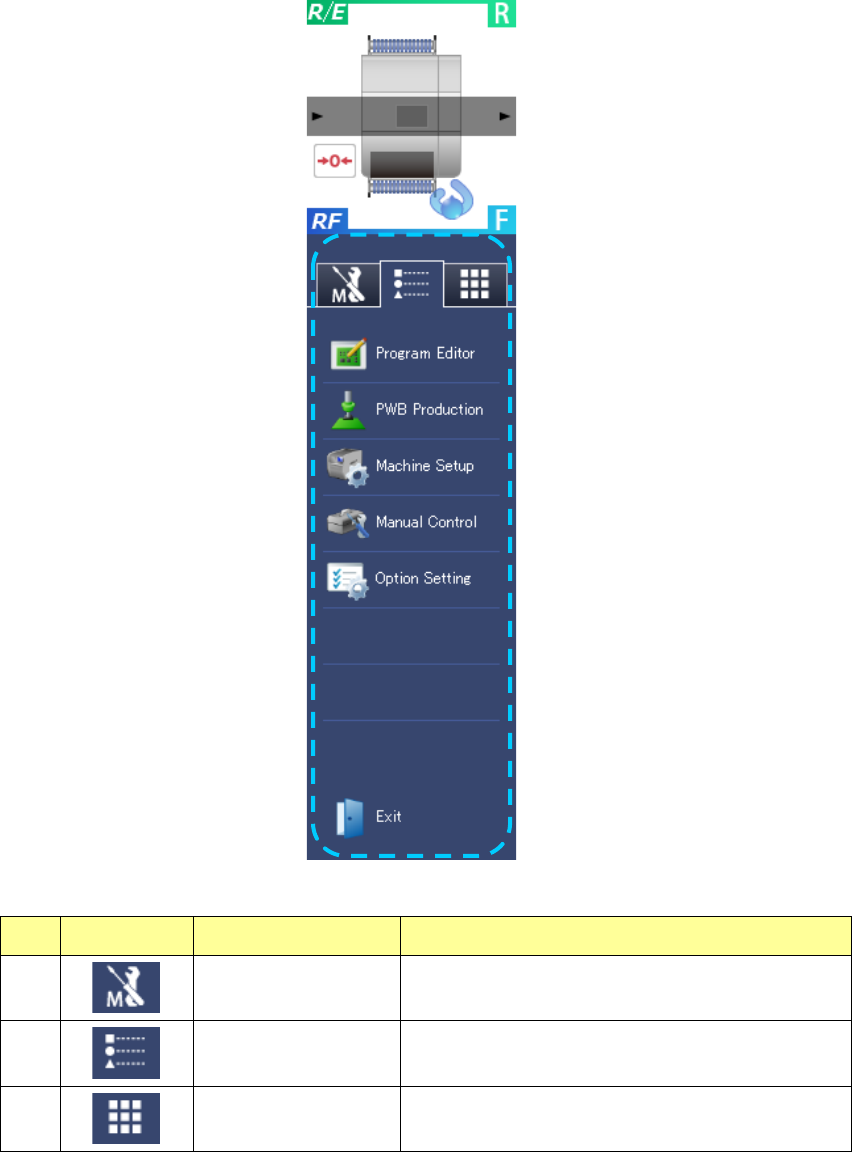
(2) Function buttons displayed in the Information area
The function buttons are allocated in the Information area as shown below, and you can use
them by switching the tab.
No. Icon Name Overview
1
Maintenance tab
Displays the menu showing the various types of
maintenance information.
2
Application shortcut tab Displays the application shortcut keys and the “Exit”
menu.
3
Keyboard tab Displays the software keyboard.
Some tabs may not be selected depending on the application that is being started up.
Part 1 Basic Operation Chapter 1 Overview of the Machine
1-69
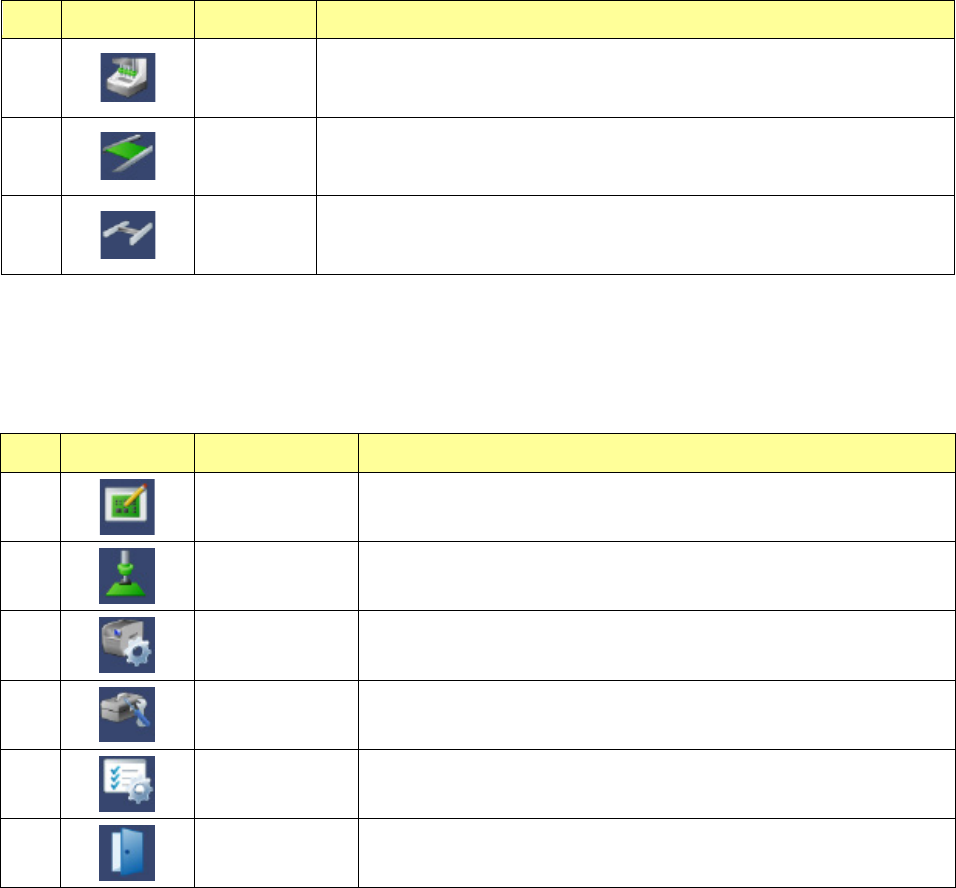
1) Function buttons for the maintenance information
Some menus may not be selected depending on the application that is started up at the
present.
See Chapter 11 “Self Check” for details.
2) Production control, during PWB production
Some menus may not be selected depending on the application program that is started up at
the present.
The menu for starting up the application that is already started up is disabled on the screen.
3) Software keyboard
When you select the software keyboard tab, the software keyboard appears on the screen.
No. Icon Name Overview
1
Head
This icon opens the component replacement information screen where the
head is displayed in preference to other parts.
If the machine has anything to notify an operator, a warning mark is displayed
above the icon.
2
Conveyor
This icon opens the component replacement information screen where the
conveyor is displayed in preference to other parts.
If the machine has anything to notify an operator, a warning mark is displayed
above the icon.
3
XY
This icon opens the component replacement information screen where the
XY-axes are displayed in preference to other parts.
If the machine has anything to notify an operator, a warning mark is displayed
above the icon.
No. Icon Name Overview
1
Program Editor
Quits the application that is started up at the present to start up the
Program Editor.
2
PWB Production
Quits the application that is started up at the present to start up the PWB
Production.
3
Machine Setup
Quits the application that is started up at the present to start up the
Machine Setup.
4
Manual Control
Quits the application that is started up at the present to start up the
Manual Control.
5
Option Setting
Quits the application that is started up at the present to start up the
Operation Options.
6
Exit
Quits the application that is started up at the present.