RS-1_instruction manual.pdf - 第567页
Part 1 B asic O peration Chapter 4 Cr eating a Produc tion Progra m 4- 232 (4) A ctions t aken duri ng mea surement 1) Head used to pick up a c ompone nt The system aut omatically select s a head use d to pick up a comp …
Part 1 Basic Operation Chapter 4 Creating a Production Program
4-231
No Component type
Centering
method
Measurement items
Component
height
Laser
height
Dimensions
of a
component
Vacuum
pressure for
picking up a
component
Lead
information
Vision
○
○
5
SOT
Laser
○
○
○
○
6 SOP
Laser
○
○
△
○
Vision
○
○
*1
○
○
*1
7 SOJ
Laser
○
○
○
Vision
○
○
8 QFP
Laser
○
○
△
○
Vision
○
○
*1
○
○
*1
9 PLCC(QFJ)
Laser
○
○
○
Vision
○
○
10 PQFP(BQFP)
Laser
○
○
△
○
Vision
○
○
*1
○
○
*1
11 TSOP
Laser
○
○
△
○
Vision
○
○
*1
○
○
*1
12 TSOP2
Laser
○
○
△
○
Vision
○
○
*1
○
○
*1
13 BGA
Laser
○
○
○
Vision
○
○
14
Network resistor
Laser
○
○
○
15
Trimmer
Laser
○
○
○
16
Unidirectional
lead connector
Laser
○
○
○
○
*2
Vision
○
○
○
*1, *2
17 J-lead connector
Laser
○
○
○
Vision
○ ○
18 Gull-wing socket
Laser
○
○
○
Vision
○
○
19
Key socket with
bumper
Laser
○
○
○
Vision
○
○
20
Other
components
Laser ○ ○ ○
21
Bidirectional lead
connector
Laser
○
○
△
○
○
*2
Vision
○
○
*1
○
○
*1, *2
22
SOP with heat
sink
Laser
○
○
△
○
Vision
○
○
*1
○
23
FBGA
Vision
○
○
24 Z-lead connector
Laser
○
○
○
Vision
○
○
25
Extended lead
connector
Vision ○ ○
26
General-purpose
vision component
Vision ○ ○
27
Square chip
(LED)
Laser ○ ○ ○ ○
28
QFN
Laser
○
○
○
29
Outline
recognition
component
Vision ○ ○
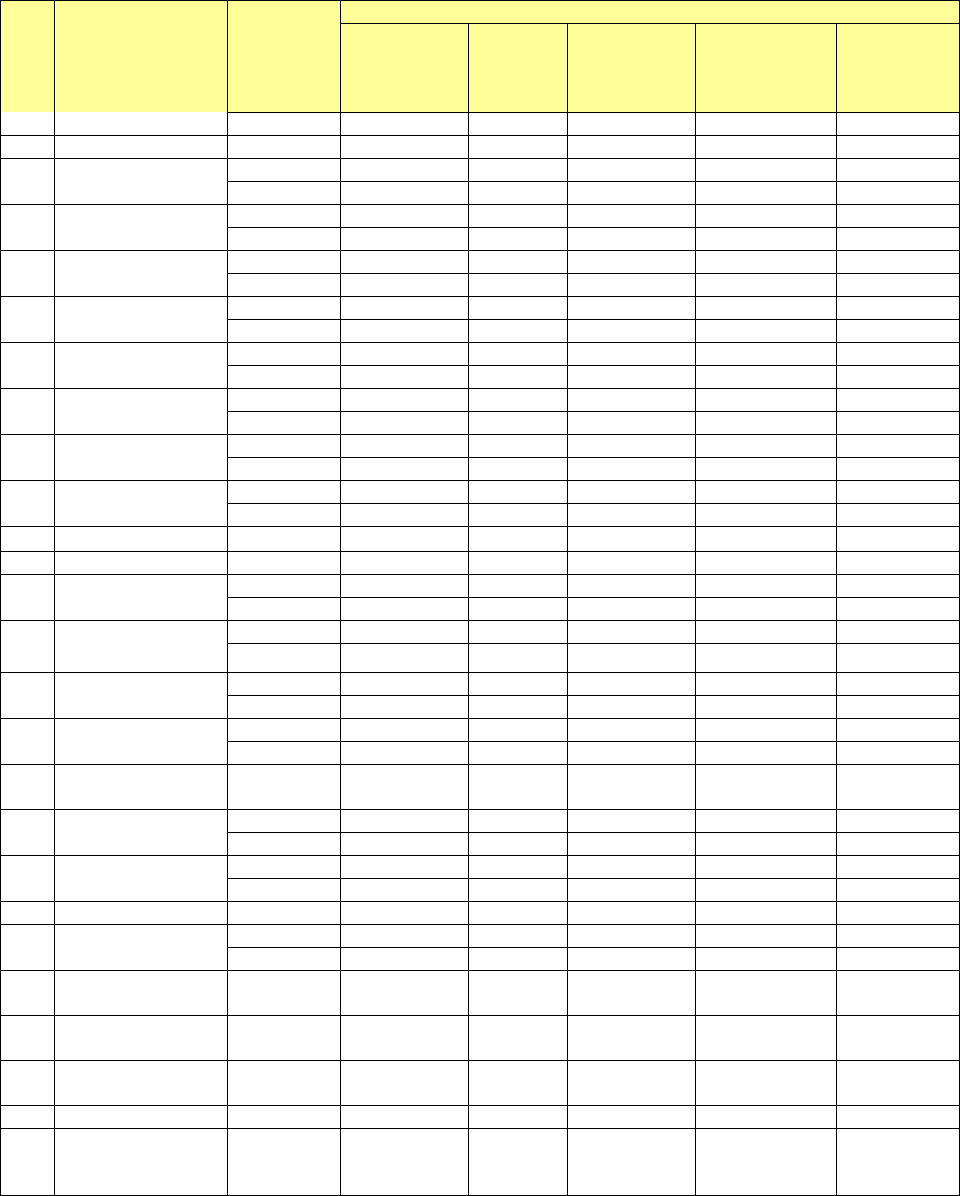
〇: Measurable
△: The measurement result obtained by setting the centering method to "Vision" can be used.
*1 Only components having 7 leads or more per column. (SOP 14-pin can be measured.)
*2 Components composed of the same lead shape and provided with no arm or metal in the lead
both-end section.
The lead information may not be measured depending on the lead conditions of the component to
be measured.
The measurement function is to be executed for components whose outer dimension is 33.5 mm
or less.
Part 1 Basic Operation Chapter 4 Creating a Production Program
4-232
(4) Actions taken during measurement
1) Head used to pick up a component
The system automatically selects a head used to pick up a component so that a nozzle can
be replaced with another one lest frequently by attempting to use a nozzle already attached
on a head. The system may use a different head every time it measures a component
depending on the nozzle attachment conditions.
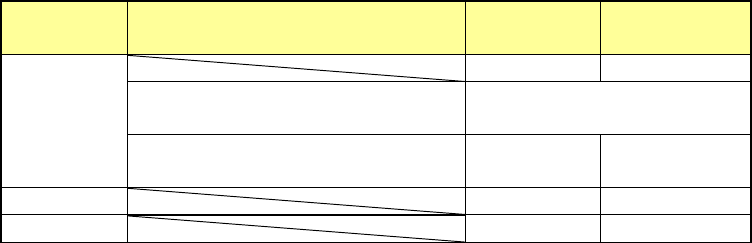
2) Return of a component after measurement
This setting decides whether to return a measured component to the previous position or
discard it. Selection is limited depending on the packaging style of a component (see the
table below).
Since a component whose size is 1 mm or less may be placed on its side or turned upside
down when it is returned, the system displays the message so that you can select how to
handle it.
Packaging
style
Condition 2
Returning a
component
Discarding a
component
Tepe
――
○
The shorter side length of the
outer dimensions is 1 mm or less.
Query * 1
The shorter side length of the
outer dimensions is 1 mm or more.
○ ○ *2
Tray
○
○
*2
Stick
―
○
Where to discard a component is determined according to the setting of the menu item
“Component reject to.”
*1 The system displays the dialog box on which you have to select whether to return a
component or discard it. The system displays this dialog box before it starts continuous
measurement of components in Continuous Measurement mode.
*2 When you select the “IC collection belt” or “Protect” for the menu item “Component reject
to,” the system operates according to the corresponding setting.
3) Selecting a feeder which is used to pick up a component
If there are two or more feeders assigned to the same type of component in Pick data, a
component starts being picked up based on the data you entered first as the default setting.
4) Changing the coordinates of a component pick-up position
If the system cannot pick up a component normally, you can manually input a component
pick-up position or teach the coordinates of the pick-up position to change it.
5) Manual component pick-up
If there is no Pick data created, you can manually attach a component to the nozzle. In this
case, any pick-up coordinates are not entered. You cannot operate a feeder either.
Part 1 Basic Operation Chapter 4 Creating a Production Program
4-233
(5) Single measurement
The system measures only the selected component.
1) Setting the conditions for Single measurement mode
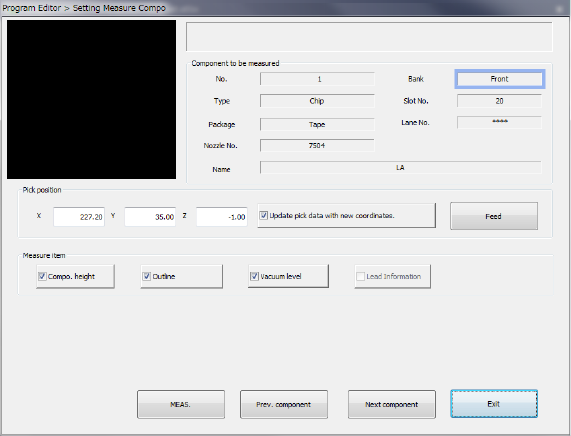
When you select the [Machine operation] command from the Program Editor menu, and
then the [Current component] command, the following screen appears.
① Component to be measured
The descriptions of a component to be measured are displayed here.
② Pick position
The component pick-up position is displayed here. You can change the pick-up position to
the previous or next alternative component. If there is no Pick data created, each menu item
is not displayed. So, you cannot change the component pick-up position, feed the
component, or perform the teaching operation.
• Change of the pick position
If the pick-up position of a component used for measurement is different from the actual
pick-up position, you can teach the coordinates of the component placement position.
You can change the pick-up position by entering it manually without teaching it also.
• Update pick data with new coordinates.
Check this box if you are to save the taught result into Pick data. When unchecked, the
displayed coordinates are used to pick up the current component only.
• <FEED> button
Every time you click this button, the system knocks the feeder once to feed the
component (not available with a 32-mm paper tape).
③ Measure Item
Select the item to be measured. By default, all items that can be measured are selected.
The items that can be measured vary depending on component types.
④ <MEAS.> button
This button measures the current component only.
⑤ <Prev. component> button/<Next component> button
These buttons display the alternate component of the component displayed at the preset if
there is.
⑥ < Exit> button
This button quits measurement of the current component, and returns to the screen from
which you invoked the screen above.