RS-1_instruction manual.pdf - 第638页
Pa r t 2 D et ai l ed Des c r i pt i o n of Ea c h F unc t i o n Chapte r 6 G e neral - Purpose Vision Co mpone nt 6-7 7) Set tin gs o n t he “ Exten ded sett ing o f el em ent gr oup” screen Mak e extend ed data setti n…
Part 2 Detailed Description of Each Function Chapter 6 General-Purpose Vision Component
6-6
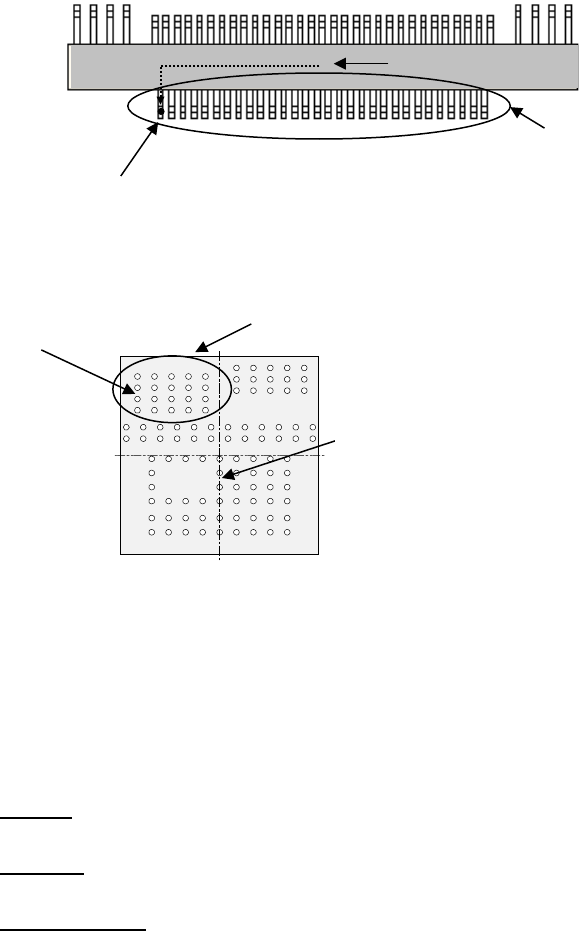
Example 1: Multi-lead component
Example 2: Complex-array component
3) Layout inspection
Set the tolerant range in which the center can be shifted with considering a lead pitch or ball
pitch.
4) Component Size
When you enter data to these fields for a lead component, the system can open the
Component Viewer (see Section 6.3) correctly.
• Outline:
Values entered on the “Component” data screen appears here.
• Moldline:
Enter the dimensions of the molded section of a component.
• Moldline Offset:
When you enter data to the “Moldline” and “Moldline Offset” fields, the system can display
a lead component more correctly. This function is provided for the Component Viewer
only. If you do not enter any value to these fields, the dimensions of a component
appear on the Component Viewer screen.
5) Point, 1D, 2D
• Point : Select this radio button if there is only one element in the element group.
• 1D : Select this radio button for a component such as a lead component whose
elements are placed in a line.
• 2D : Select this radio button for a component such as a BGA whose elements are
placed horizontally and vertically.
6) Column, Row
When you select the radio button “1D” or “2D,” enter the number of leads or balls, and the
pitch.
Bottom View
部品中心位置
(
外形中心位置)
First element position (Θ = 0º)
Element group
Center of a component
to be recognized
First element position
Element group
Center of a component to
be recognized
Part 2 Detailed Description of Each Function Chapter 6 General-Purpose Vision Component
6-7
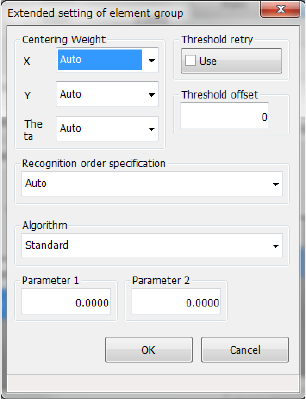
7) Settings on the “Extended setting of element group” screen
Make extended data settings of each element.
Centering Weight
Set weighting of each direction: X, Y and theta.
“Weight” means weighting of an element group for positioning a component. If you set a
smaller value in this field for an element group of a component whose accuracy is low, the
component can be positioned stably.
Set a value from 1 to 100.
Threshold retry
Turn on/off the retry operation activated with a threshold value. For example, if you turn it
on when the contrast is unsatisfactory, a recognition error may be fixed.
Threshold offset
In the same manner as contrast correction for recognizing the outline of a component, you
can set a threshold offset. If a component cannot be recognized stably with a threshold
value automatically calculated, set a threshold offset here.
Recognition order specification
If a component is recognized stably when you specify recognition order, set the recognition
order here. Normally, do not change the setting “Auto.”
Auto: does not specify the recognition order.
Definition order: recognizes components in the defined order.
Algorithm
Set the algorithm for a side, a corner and a lead. For a component whose outline is to be
recognized, coarse positioning of a component is added to the standard algorithm to
improve the response capability for a positioning error and an irregularly-shaped component.
You can select the conventional algorithm also.
Other elements are parameters for expansion in the future.
◇ Standard: uses the standard algorithm.
◇ Conventional algorithm: uses the conventional algorithm.
For other elements, you can select an algorithm to perform the recognition when a part of
the lead component is hidden by sheet metal or the shape base matching (3rd) is used in
addition to the standard algorithm.
◇ Standard: uses the standard algorithm.
◇ Algorithm 1: Performs the recognition with the DOG filter in addition to the coarse
positioning with other elements.
◇ Algorithm 2: Performs the positioning recognition with the DOG filter in addition to the
coarse positioning with the shape base matching (3rd).
Part 2 Detailed Description of Each Function Chapter 6 General-Purpose Vision Component
6-8
Parameter 1 and Parameter 2
You can set an offset amount in the lead length direction of the detection window using
parameter 1 when performing the DOG filter recognition. (The unit is μm.)
The parameter 2 is a parameter for expansion in the future, and not be used now.
8) Missing Elements
If an element group has a missing element, specify the missing element information from a
missing element located nearest the first element sequentially. You can specify up to four
missing elements per column or row.
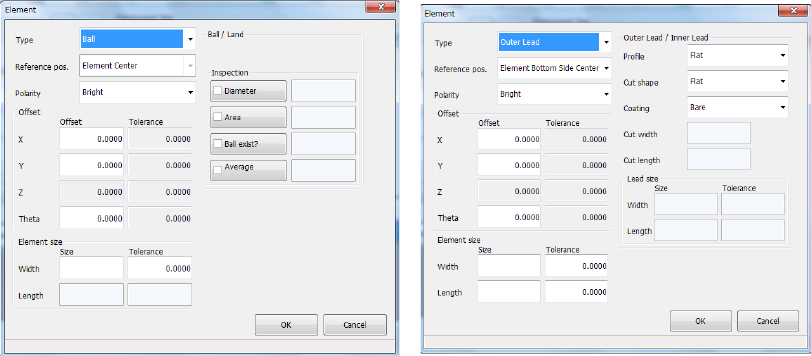
9) Element
Enter the information on an element.
• Type
Select an element type.
The contents of the displayed list vary depending on your entry at 5) (the right screen
appears when you select the “1D” radio button).
- Outer Lead : Gull-wing type lead (such as a QFP)
- Inner Lead : J-lead (such as a QFJ)
- Column : a ball or land whose height can be recognized enough.
- Mark : a component that does not require any inspection because it is not an
electrode such as a mark.
- Side : a component whose element is irregular-shaped, so the system can
recognize its side only.
- Corner : a component whose element is irregular-shaped, so the system can
recognize its corner only.
See the next page for how to specify the “Type.”
• Reference pos. (position)
Specify the first element reference position.
We recommend that you specify the “center of the bottom side (center of the lead tip)”
for a lead component, or “the center of an element (center of a ball)” for a ball
component.
• Polarity
Specify the brightness of an element.
If an element looks brighter than its background, select “Bright.”
• Offset
Specify this field if the “first element position” of an element group should be shifted
further than that already specified.
• Element size
Enter the length and width of an element.