RS-1_instruction manual.pdf - 第580页
Part 1 B asic O peration Chapter 4 Cr eating a Produc tion Progra m 4- 245 (3) Operations for vision re cognition inspec tion When you se lect the [Mea s/Insp] command f rom the Program Editor me nu, and then the [Recogn…
Part 1 Basic Operation Chapter 4 Creating a Production Program
4-244
4.5.7.3 Recognize
This command attaches an actual component on a head to check to see if the component can be
centered with a VCS.
(1) Inspection method for vision recognition inspection
A series of vision centering operation is controlled based on the values set in the Component data
to check to see if any error does not occur.
(2) Various operations at vision recognition inspection
1) Return of component after inspection
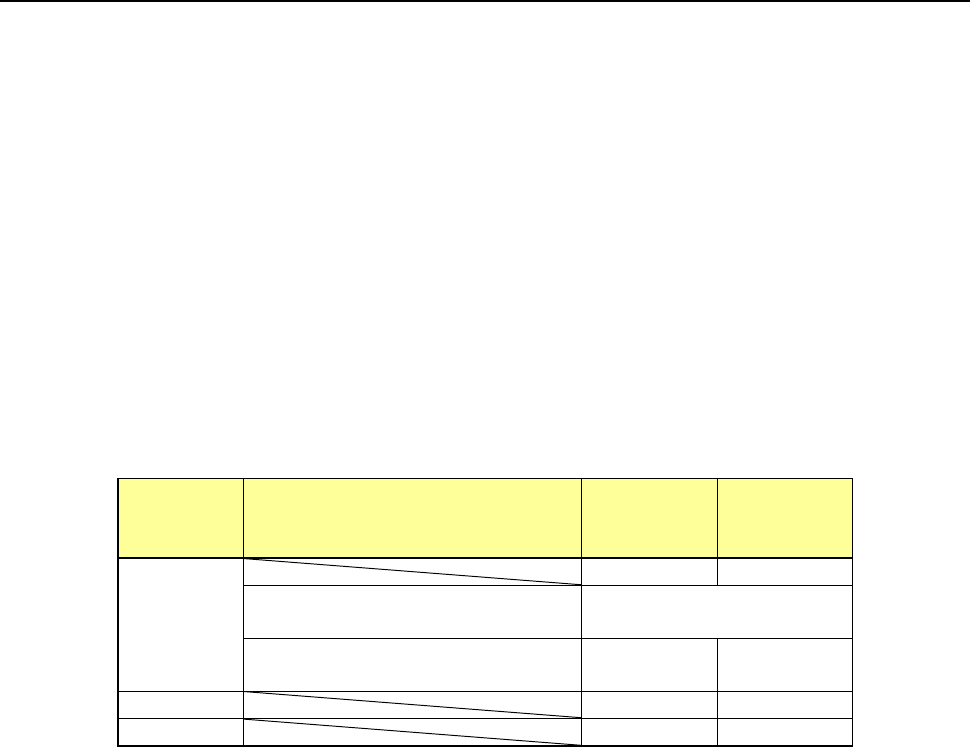
After a component is checked, it may be returned to its original position or discarded
depending on its packaging style as shown in the table below.
Where to discard a component is determined according to the setting of the menu item
“Component reject to.”
Since a component whose size is 1 mm or less may be placed on its side or turned upside
down when it is returned, the system displays the message so that you can select how to
handle it.
Packaging
style
Condition 2
Returning a
component
Discarding
a
component
Tepe
―
○
The shorter side length of the
outer dimensions is 1 mm or less.
Query * 1
The shorter side length of the
outer dimensions is 1 mm or more.
○ ―
Tray
○
―
Stick
―
○
*1 The system displays the dialog box on which you have to select whether to return a
component or discard it. The system displays this dialog box before it starts continuous
measurement of components in Continuous Measurement mode.
2) Selecting a component supply unit
If two or more component supply units are assigned to the same type of component in Pick
data, a component starts being picked up based on the data you entered first by default.
You can change a component supply unit intentionally also.
3) Changing the coordinates of a component pick-up position
If the system cannot pick up a component normally, you can manually enter a component
pick-up position or teach the coordinates of the pick-up position to change it.
4) Manual pick-up of a component
If there is no Pick data created, you can manually attach a component to the nozzle. In this
case, you cannot enter any pick-up coordinates. You cannot operate a feeder either.
When you pick up a component manually, the system cannot discard it if its shorter side
length exceeds 33.5 mm. Therefore, the component is moved to the protection position
after measurement.
Part 1 Basic Operation Chapter 4 Creating a Production Program
4-245
(3) Operations for vision recognition inspection
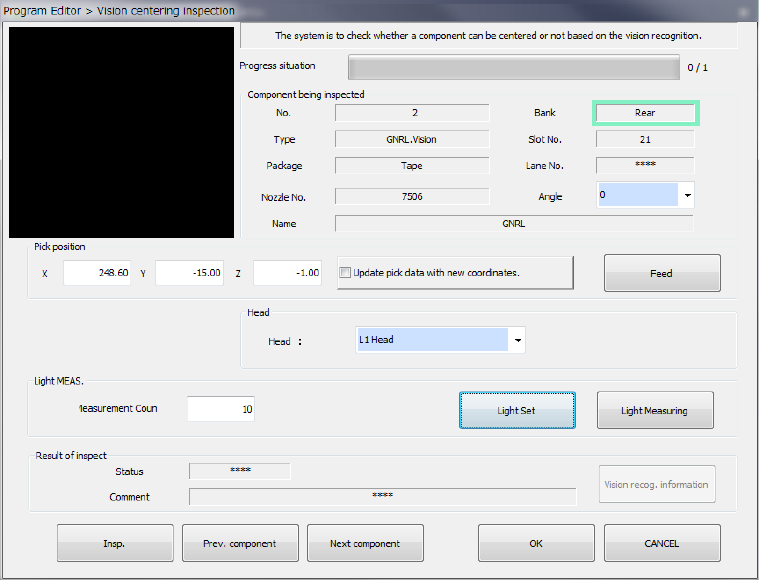
When you select the [Meas/Insp] command from the Program Editor menu, and then the
[Recognize] command, the following screen appears.
1) Component being inspected
Information on a component to be inspected with a VCS is displayed here.
2) Pick position
The component pick-up position is displayed here. You can change the pick-up position to
that of the previous or next alternative component.
If there is no Pick data created, each menu item is not displayed. So, you cannot change
the component pick-up position, feed the component, or perform the teaching operation.
You can enter a component pick-up position manually or by teaching operation.
● Update pick data with new coordinates.
Check off this check box to save the taught result into Pick data.
When unchecked, the displayed coordinates are used to pick up the current component
only.
● <FEED> button
The system knocks the feeder once to feed a component.
3) Head
A head to be used for inspection can be selected.
Select a head to be used in the combo box list.
Part 1 Basic Operation Chapter 4 Creating a Production Program
4-246
4) Light MEAS.
If a component connect be recognized with the default lighting brightness, the optimum
lighting conditions are obtained.
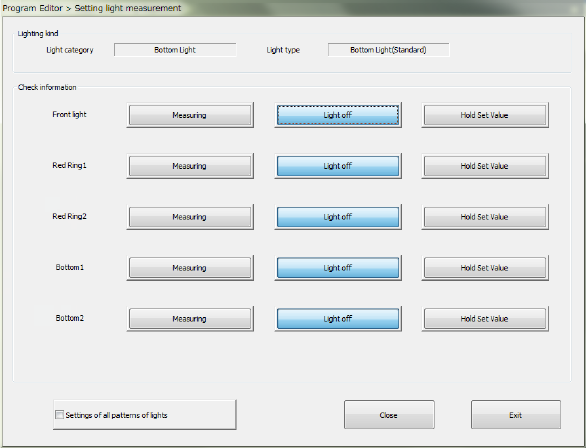
• Light Set
Set the detailed lighting conditions for measurement of the light.
This setting is used to obtain the optimum lighting conditions by setting lighting
individually.
a) Lighting kind
The light category and the light type set in the light data are displayed here.
b) Check information
The list of lights is displayed here.
The buttons <Measuring>, <Light off> and <Hold Set Value> are arranged for each type
of light.
You can select only one of these buttons. The <Measuring> button is enabled by
default.
<Measuring>: Measures the corresponding type of light.
<Light off>:
Turns off the corresponding type of light, and then measures it.
When the system finishes measuring the light normally, the setting for turning off the
light is made in the light data.
<Hold Set
Value>:
Fixes the setting of the light amount of the corresponding type of light to measure the light.
c) Settings of all patterns of lights
When you check off the check box “Setting of all patterns of lights,” the system measures
the light for which the <Measuring> button is set with performing all operations enabled
with the buttons: <Measuring>, <Light off> and <Hold Set Value>.
If the <Light off> button or the <Hold Set Value> button is selected for the light, only the
current setting is enabled without performing the operations described above.
By default, this check box is not checked off.
• Lighting measuring
The optimum lighting conditions for recognizing a component can be automatically
measured.