RS-1_instruction manual.pdf - 第746页
Part 2 D etaile d Descript ion of E ach Functi on Chapter 8 Machine Set up 8- 38 Offset Placement A fter Sol der Screen - Printing Select Sold er Print M isalignm ent Correct i on an d the followin g screen appears. If y…
Part 2 Detailed Description of Each Function Chapter 8 Machine Setup
8-37
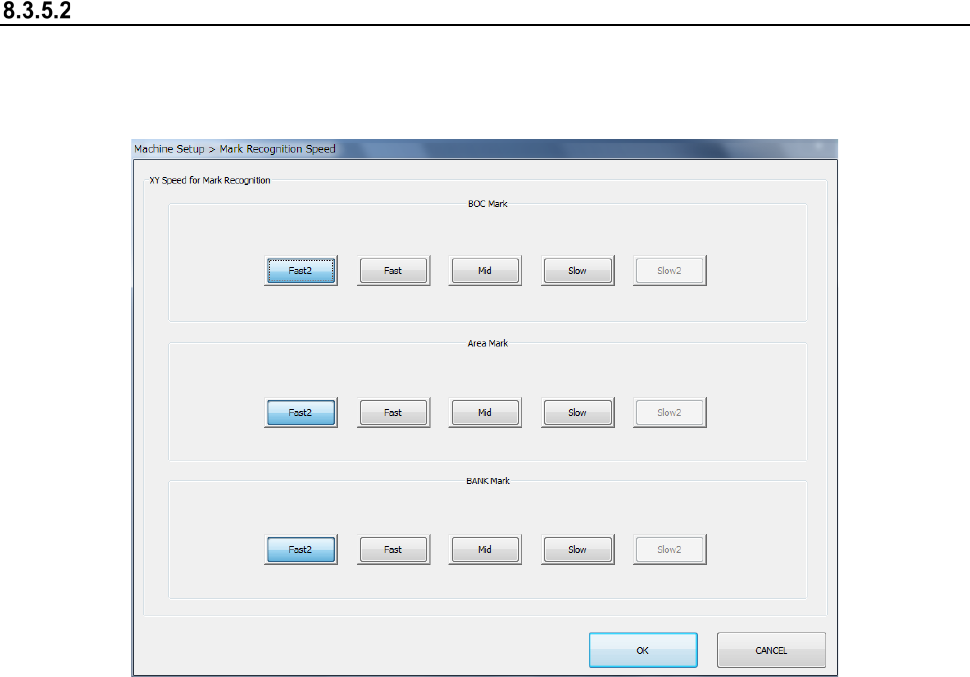
Mark recognition speed setting
When you select [Mark recognition speed setting], the following screen appears.
Perform this setting so as to change the axis speed in the mark recognition operation at
production. Set the XY speed for each recognition of BOC mark, area mark, and BANK mark.
(1) How to set
1) Set the speed by radio button for each mark. “Slow 2” is a particular ordering item.
Part 2 Detailed Description of Each Function Chapter 8 Machine Setup
8-38
Offset Placement After Solder Screen-Printing
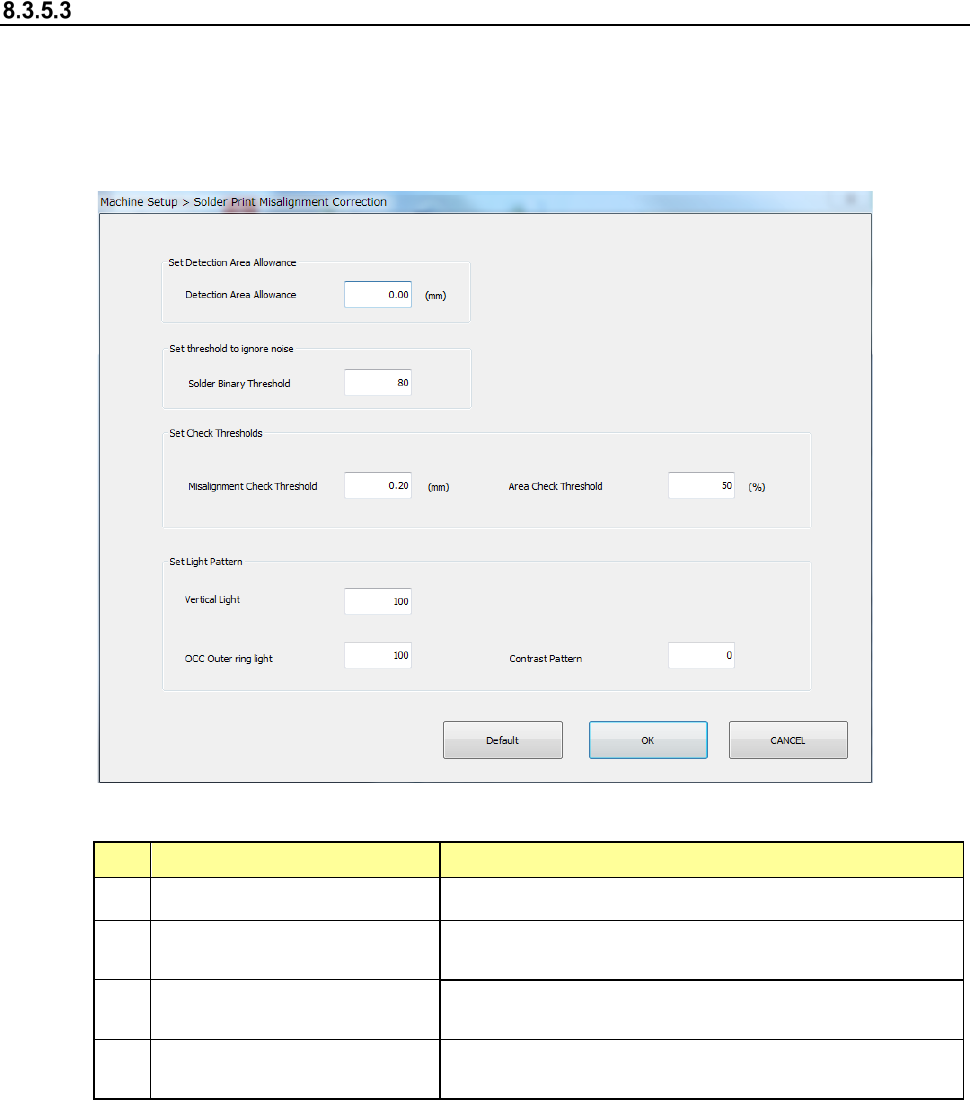
Select Solder Print Misalignment Correction and the following screen appears.
If you enable the “Offset Placement After Solder Screen-Printing” check box on the “Head” tab of
the “Device enable” screen invoked from the “Machine Setup” screen when the optional function,
“Solder printing” is enabled, set the parameters relating to correction of the component placement
position that is applied to solder screen-printing.
(1) Setting items
No. Setting item Description
1
Set Detection Area Allowance Sets the offset value of the detection range.
2 Set threshold to ignore noise
Sets the default value of the binary threshold default
value during solder teaching.
3 Set Check Thresholds
Sets the default value during teaching for solder
misalignment and area threshold used to check.
4 Set Light Pattern
Sets the default value of the light pattern during
teaching.
(2) How to set
1) Use the edit box to set detection area allowance, solder binary threshold, misalignment
threshold, area threshold, vertical light, OCC outer ring light and contrast pattern.
Part 2 Detailed Description of Each Function Chapter 8 Machine Setup
8-39
Pre-pick feed setting
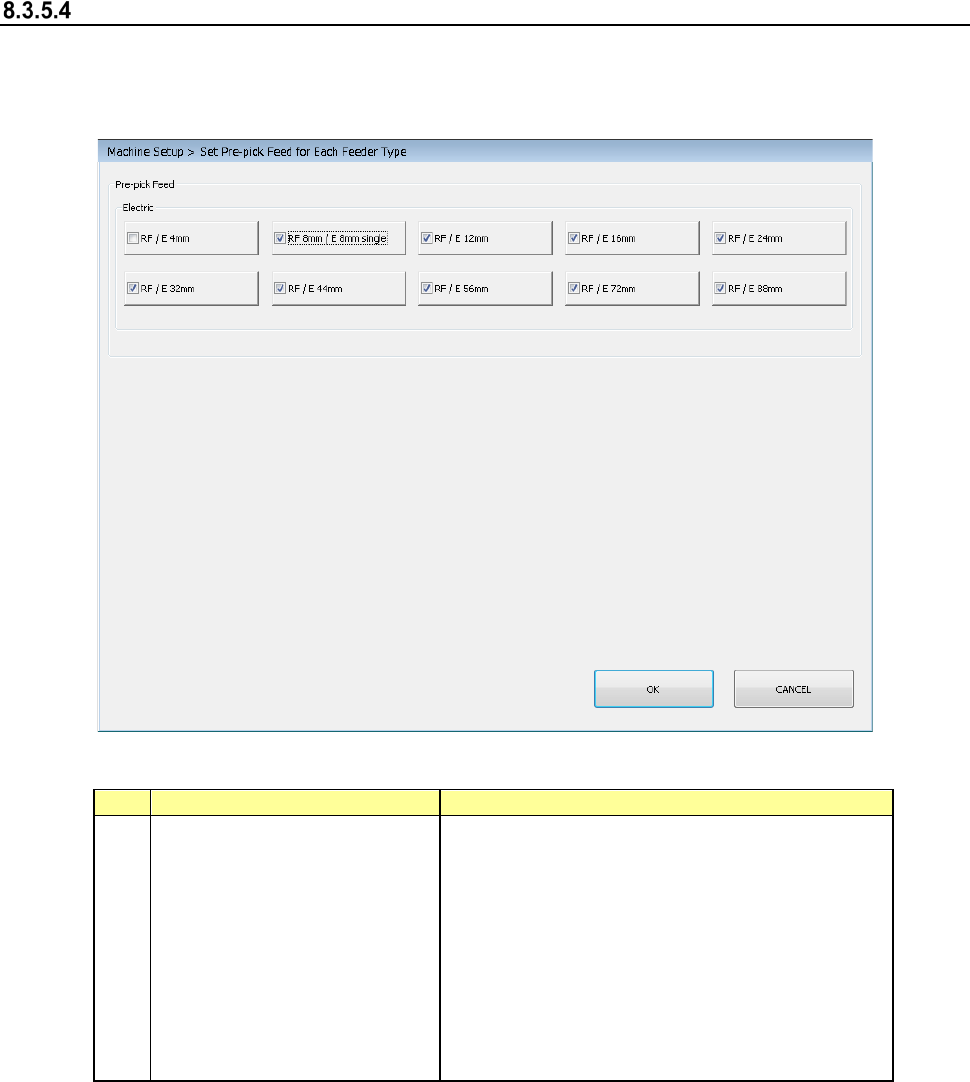
When you select “Pre-pick feed setting”, the following screen appears.
When “Pre-pick feed” of “Production – Others” in operation options is enabled, set the parameters
related to the pre-pick feed setting for each feeder type.
(1) Setting items
No.
Item
Description
1
Electric feeder
- RF 4 mm /
- RF 8 mm / E 8 mm S
- RF / E 12 mm
- RF / E 16 mm
- RF / E 24 mm
- RF / E 32 mm
- RF / E 44 mm
- RF / E 56 mm
- RF / E 72 mm
- RF / E 88 mm
Set a feeder type for a pre-pick feed.
(2) How to set
1) Select a feeder type for a pre-pick feeder by check box.