RS-1_instruction manual.pdf - 第693页
Part 2 D etaile d Descript ion of E ach Functi on Chapter 7 Operation Option 7- 18 7.4.4 Pause When you press th e <Paus e> button, t he scree n for setting the pa use optio ns for PW B production appears. No. Menu…
Part 2 Detailed Description of Each Function Chapter 7 Operation Option
7-17
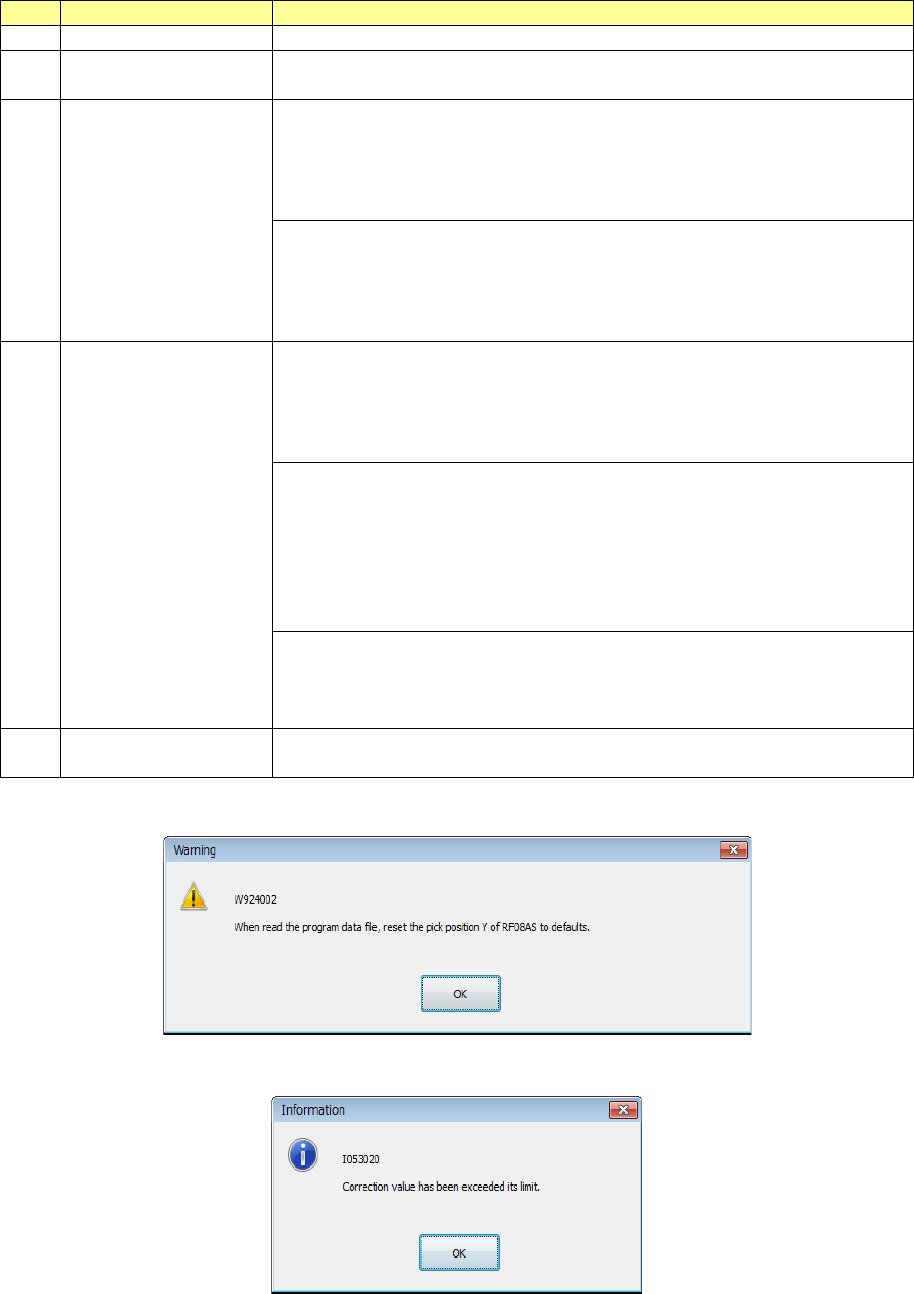
(1) The feed amount is adjusted by teaching
When you select this function, the system does not allow you to change a component pick-up
coordinate Y and adjusts the feeding amount of a feeder by teaching operation.
No.
Menu item
Description
1
Target feeder
RF8mm
2 Program Editor
A component pick-up coordinate Y cannot be changed.
Teaching cannot start from a component pick-up coordinate Y.
3
Read the program
data file
A component pick-up coordinate Y is changed to the default value.
When you load to the system a production program whose component
pick-up coordinate Y is changed by teaching operation, only a
component pick-up coordinate Y of an RF8mm is changed to the
default value.
When the setting of the check box “The feed amount is adjusted by
teaching” is changed from disabling to enabling, the warning 1 is
displayed on the screen.
When you load a production program, any warning is not displayed on
the screen.
4
Teaching the pick-up
position
Change of a component pick-up coordinate in the Y direction
performed with tracking, automatic teaching or teaching is reflected in
not a component pick-up coordinate Y but the feeding amount of a
feeder, so that the system feeds a component to the default
component pick-up coordinate Y.
The system feeds a component by one pitch after reversing it by one
pitch so that at start the position can be located where the feeding
amount is applied before teaching is performed.
When a component pick-up coordinate Y is changed on termination,
the system feeds a component by one pitch after reversing it by one
pitch so that the component pick-up position can be located where the
new feeding amount is applied.
If change of a component pick-up coordinate Y exceeds the feeding
correction value of a feeder, the warning 2 appears on the screen.
In this case, the component pick-up position cannot be the same as
the set one even after teaching.
5 Restrictions
When you restart the main unit, you have to teach component pick-up
coordinates again.
Warning 1
Warning 2
Part 2 Detailed Description of Each Function Chapter 7 Operation Option
7-18
7.4.4 Pause
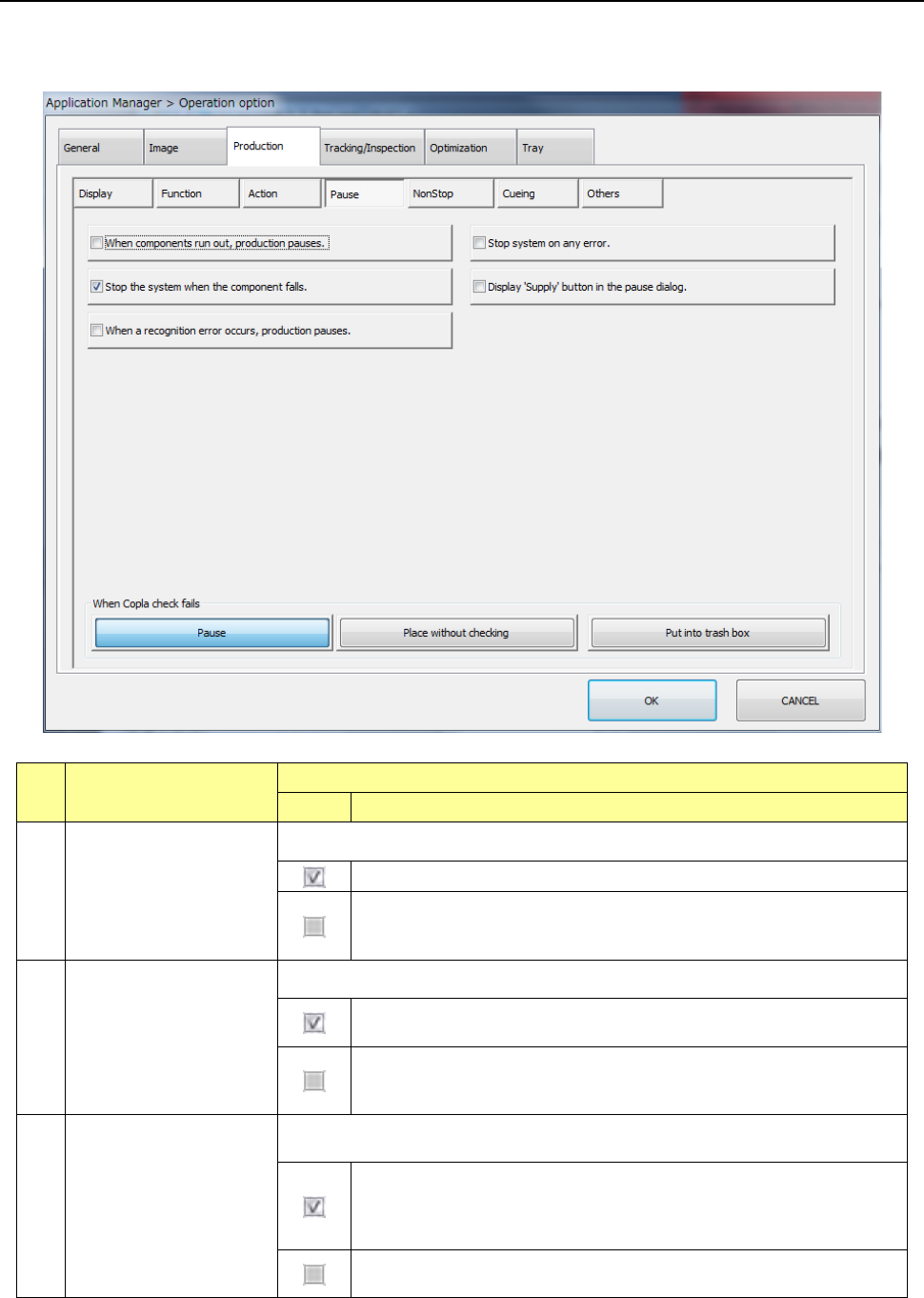
When you press the <Pause> button, the screen for setting the pause options for PWB production
appears.
No. Menu item
Description
Status Operation and detailed explanation
1
Stop system when
components run out.
Set the operation mode when components run out.
The machine temporarily stops production when components runs out.
The machine continues placing components as long as it has
components which can be placed, even when a type of components
run out during production.
2 Stop system on any error.
Set the operation mode that the system enters when an error occurs.
The machine temporarily stops production when a productional error
(including the component run-out error) occurs.
The machine continues placing components as long as it has
components which can be placed, even when a productional error
occurs.
3
Stop the system when
the component falls.
Specify the operation to be performed when the system finds a component to
drop off the machine. This function is effective even during non-stop operation.
When the system finds a component to drop off the machine during
production, it pauses and displays a message indicating that a
component drops off the machine. (The system detects whether a
component drops off or not at end of placement operation.)
The system continues production even though a component drops off
the machine.
Part 2 Detailed Description of Each Function Chapter 7 Operation Option
7-19
No. Menu item
Description
Status Operation and detailed explanation
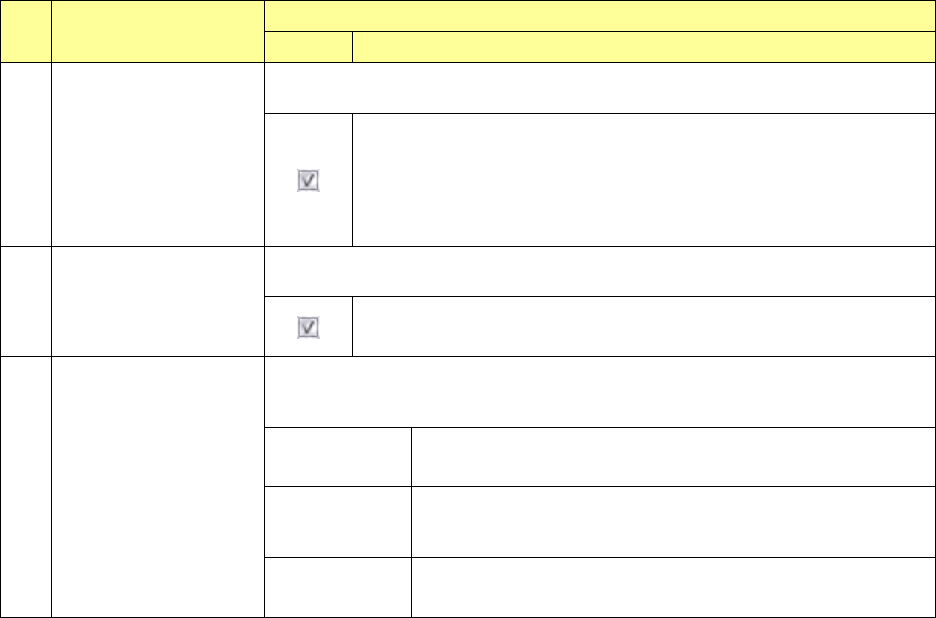
4
Add the “Replenish at
no components” button
to the temporary stop
screen.
Specify a function to fully replenish because of no components at a temporary
stop of production.
The <Component replenish> button is added to the pause dialog at a
temporary stop of production. To the pause dialog at occurrence of
no components and at occurrence of a mark recognition error, the
<Component replenish> button is not attached. When you press the
<Component replenish> button, feeder components are fully
replenished to terminate no components.
5
Temporary stop at
occurrence of a
recognition error
Specify a temporary stop function for the case where an image recognition error
occurs.
The system operation is temporarily stopped when an image
recognition error occurs.
6 When Copla check fails
Specify what to do if an error is detected with a coplanarity check. You can set
this menu item only when the coplanarity unit is enabled with the MS Parameter
utility.
Pause
If an error is detected with a coplanarity check, the machine
pauses temporarily.
Place without
checking
If an error is detected with a coplanarity check, the machine
places a component on a board without checking the
component.
Put into trash
box
If an error is detected with a coplanarity check, the machine
discards the component.