RS-1_instruction manual.pdf - 第656页
Pa r t 2 D et ai l ed Des c r i pt i o n of Ea c h F unc t i o n Chapte r 6 G e neral - Purpose Vision Co mpone nt 6- 25 How to cr eat e data on an ou tline r ecogniti o n com p onen t 6.4.4 Y o u c an ent er dat a on an…
Part 2 Detailed Description of Each Function Chapter 6 General-Purpose Vision Component
6-24
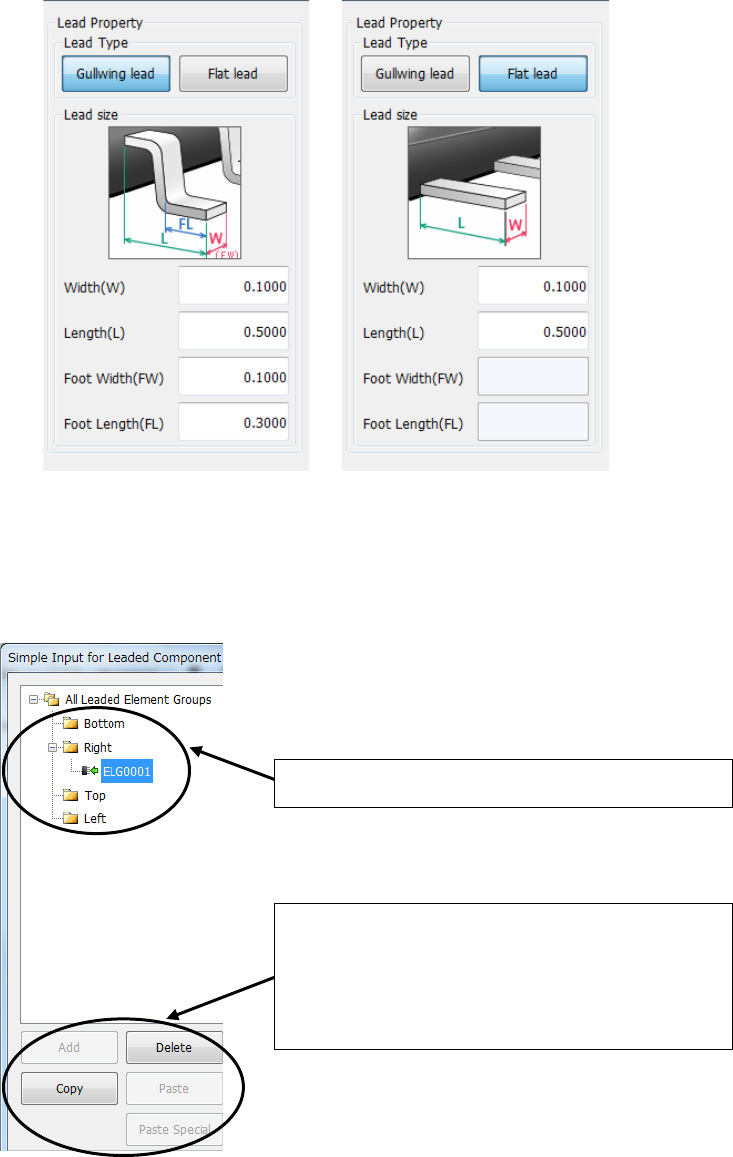
(3) Lead Property
Select the lead type, and enter the dimensions of a lead.
(4) Editing an element group
You can add, delete and/or copy an element group on the “All Leaded Element Groups” list.
Each operation is similar with that of Windows Explorer.
① Select a folder to be added, deleted or copied.
② Click the corresponding button: <Add>, <Delete>
and <Copy> to add, delete or copy an element
group.
When you click the <Copy> button, you have to
click the <Paste> or <Paste Special> button also.
Part 2 Detailed Description of Each Function Chapter 6 General-Purpose Vision Component
6-25
How to create data on an outline recognition component 6.4.4
You can enter data on an outline recognition component (only “corner” or “side” element) with
Simple Input.
Note that all element groups should be at a corner or side, and the maximum number of element
groups is “4.”
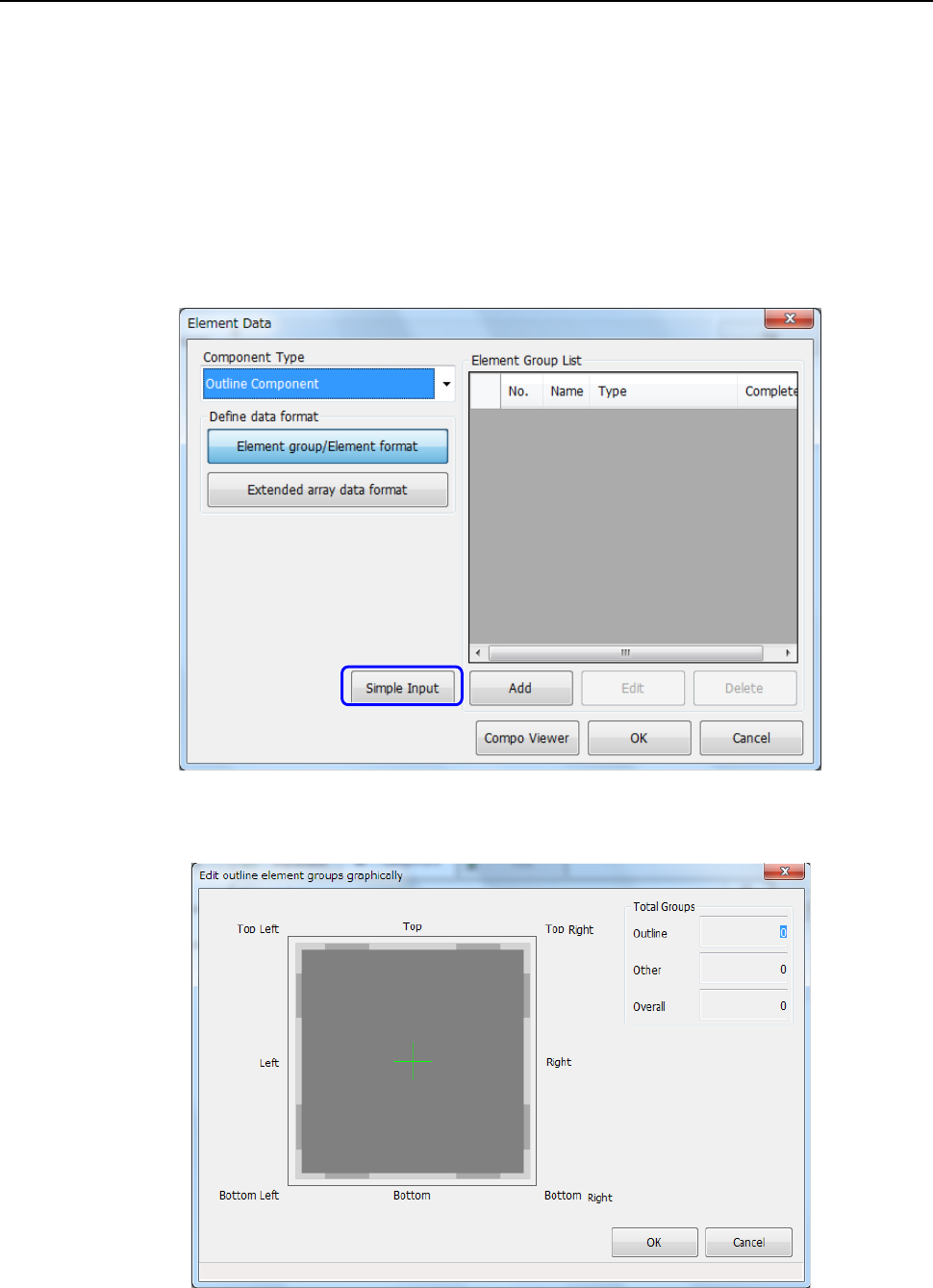
(1) Starting up the “Edit outline element groups graphically” dialog box
① Select “Outline component” in the “Component Type” field on the “Element Data” screen,
and click the <Simple Input> button.
② The “Edit outline element groups graphically” dialog box appears on the screen.
Part 2 Detailed Description of Each Function Chapter 6 General-Purpose Vision Component
6-26
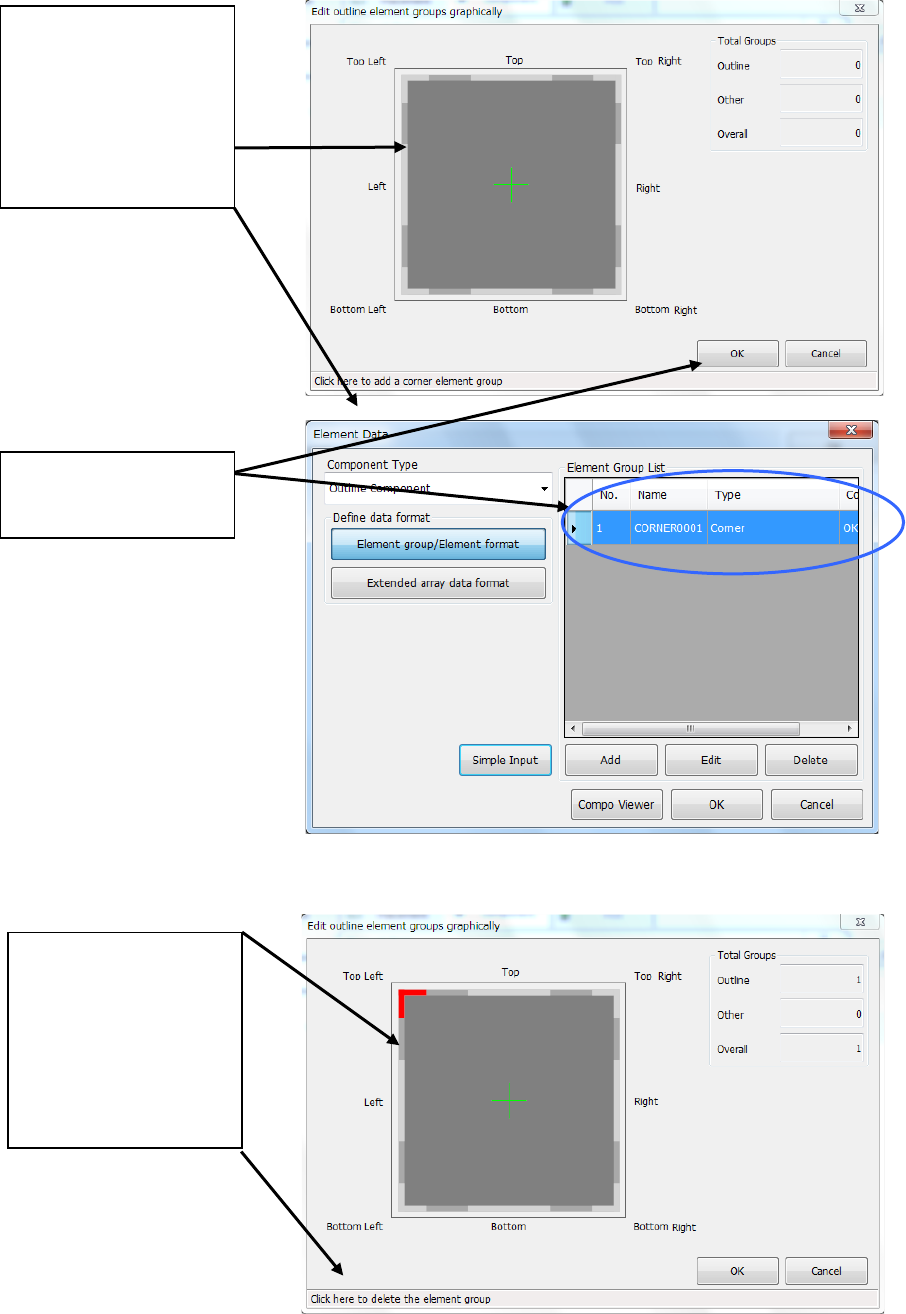
(2) Adding an element group
(3) Deleting an element group
When you touch the <OK>
button, the system creates
an element group.
When you place the mouse
pointer at the position
around the corner or side
where you can delete an
element group, the mouse
pointer changes to the
hand-shaped cursor and the
message appears on the
bottom of the dialog box.
Touch this position.
When you place the mouse
pointer at the position
around the corner or side
where you can add an
element group, the mouse
pointer changes to the
hand-shaped cursor and the
message appears on the
bottom of the dialog box.
Touch this position.