RS-1_instruction manual.pdf - 第668页
Pa r t 2 D et ai l ed Des c r i pt i o n of Ea c h F unc t i o n Chapte r 6 G e neral - Purpose Vision Co mpone nt 6- 37 ⑤ Lay out ins pec tion This item is not us ed by the cur rent v ersion. ⑥ Missi ng E lem ent s In t…
Part 2 Detailed Description of Each Function Chapter 6 General-Purpose Vision Component
6-36
③
When the end position of the first ball is (-6.0 mm, -5.0 mm) in the example in “First
element arrangement.”
Offset X : - 6.0
Offset Y : - 5.0
Offset Z : 0 (not used)
Offset Theta: 0
- Normally, enter “0” to each field of the setting item “Tolerance.”
• Next, set the element group arrangement.
To set the arrangement, the setting items “Dimension”(Point, 1D, 2D), and “Count” and
“Pitch” of the “Column” and “Row” are provided.
④
Dimension (Point, 1D, 2D),
For a ball/land element, the dimension is two. Select “2D.”
Note: For arrangement of only one column and one row, specify “2D” also.
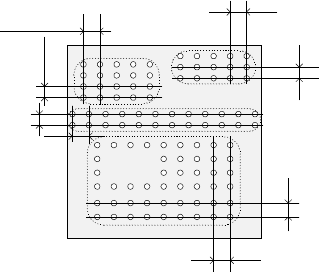
◆ The figure shows the pitch of each element group.
- In the example, the number of lead columns located in the first element group is nine.
Enter “9” to the “Count” field displayed under the setting item “Column.”
Note: For arrangement of only one line, enter “1.”
- When the pitch is 1.5 mm, enter “1.5” to the “Pitch” of the “Column” field.
Note: For arrangement of only one line, enter “1.5” also.
- Normally, enter “0” to the “Tolerance” field.
- Since the number of lead rows located in the first element group is six, enter “6” to the
“Count” field of the “Row” setting item.
Note: For arrangement of only one row, enter “1” to the “Count” field.
- When the pitch is 1.27 mm, enter “1.27” to the “Pitch” field of the “Row” setting item.
Note: For an arrangement of one row only, enter “1.27” to the “Pitch” field too.
- Normally, set “0” to the “Tolerance” field.
Bottom View
Pitch of the “Column” of the third
element group
Pitch of the “Row” of the third
element group
Pitch of the “Row” of the second
element group
Pitch of the “Column” of the
second element group
Pitch of the “Column” of the
fourth element group
Pitch of the “Row” of the fourth element
group
Pitch of the “Row” of the
first element group
Pitch of the “Column” of
the first element group

Part 2 Detailed Description of Each Function Chapter 6 General-Purpose Vision Component
6-37
⑤
Layout inspection
This item is not used by the current version.
⑥
Missing Elements
In the example, there is missing balls (lands) on the first element group. If there is/are a
missing ball(s)/land(s), specify this setting item also in the same manner as that of a
BGA/FBGA.
Up to four blocks of missing balls/lands can be specified per element group.
To specify a block, set the first missing ball/land position of the column and row respectively
and the number of lines having missing balls/lands located continuously in the same manner
when you set those of a BGA/FBGA component.
- If there is no ball/land on three columns from the second column and no balls/lands on
two rows from the fourth row, enter values as shown below:
“Start” of the “Column” field : 2
“Count” of the “Column” field : 3
“Start” of the “Row” field : 4
“Count” of the “Row” field : 2
Note: If there is no ball/land at five or more portions, divide the element group further, then
define those divided element groups.
●
Here, you have finished setting an element group.
● Next, define a recognition element of this element group.
Only one element can be defined per element group.
Even though you define two or more elements, they are handled as “invalid”.
Click the <Add> button in the “Element” setting field.
Part 2 Detailed Description of Each Function Chapter 6 General-Purpose Vision Component
6-38
3. Operation on the “Element” screen
①
Type
You can specify a ball or land as an element type of ball components.
This version does not support a column.
When you specify a land as an element, you can select a circular land or rectangular land.
For a bump, specify “Ball” as an element type from the “Type” combo box.
For an electrode that is flat entirely, specify “Land.”
- In the example, a ball is used. Select “Ball” from the “Type” combo box.
②
Reference pos. (position)
The reference position of a ball/land element is the center of an element.
- Select “Center of an element” from the “Reference pos.” combo box.
③
Polarity
This item specifies the brightness of the shot image of an element.
- Normally, the light that illuminates a ball/land element brightly is used for ball
components. Select “Bright” from the “Polarity” combo box.
Note: Since a CBGA illuminates the surroundings of a ball, select “Dark.”
④
Offset
Normally, this setting item is not used. Enter “0” to each field of this item.
⑤
Element size
Enter the size of an element.
Since the shape of a rectangular land is still a square, enter the same value to both the
“Width” and “Length” fields.
- In the example, the diameter is assumed to be 0.5 mm.
Enter the following values.
Width: 0.5
Length: 0.5
- Normally, the “Tolerance” setting item is not used.
Do not change this field setting “0”.
⑥
Ball/Land
For a land, you can select a circular land or rectangular land.
Touch the corresponding check box.
- In the example, a ball element is used, so these check boxes do not appear on the
screen.
⑦
Inspection
To u c h the check box of the item to be inspected.
The check items “Diameter” and “Area” are the same as those for a BGA/FBGA. Specify
the corresponding check level in %. The default value for each check level is 50 %.
Specify the check level of the “Ball exist?” check in %. also However, the percentage
indicates the internal evaluated characteristics. Normally use the default value, “30 %.”
For a land element, this item is handled as “invalid” even though you specify this item, and
the machine does not perform the check to see if a ball exists on a component.
- Normally, the setting item “Average diameter” is not used.
- If you perform the “Diameter,” “Area” and “Ball exist?” checks with specifying the default
value respectively, the following values are used for each check:
Inspection √ Area : 50 % (default)
√ Diameter : 50 % (default)
√ Ball exist : 30 % (default)
Average diameter:
You have to click each check box only.
• Here, you have finished entering data on an element. When you click the <OK> button
at the lower right corner, the “Element Group” screen reappears.
You have finished defining the first element group. When you click the <OK> button at