RS-1_instruction manual.pdf - 第711页
Part 2 D etaile d Descript ion of E ach Functi on Chapter 8 Machine S etup 8-3 8.2.2 Exit When you clic k the Clos e button [x] in the upper r ight part of the screen, pre ss the End but ton in the infor mation area, or …
Part 2 Detailed Description of Each Function Chapter 8 Machine Setup
8-2
8.2 Starting Up or Exiting the Machine Setup Utility
8.2.1 Starting up the Machine setup utility
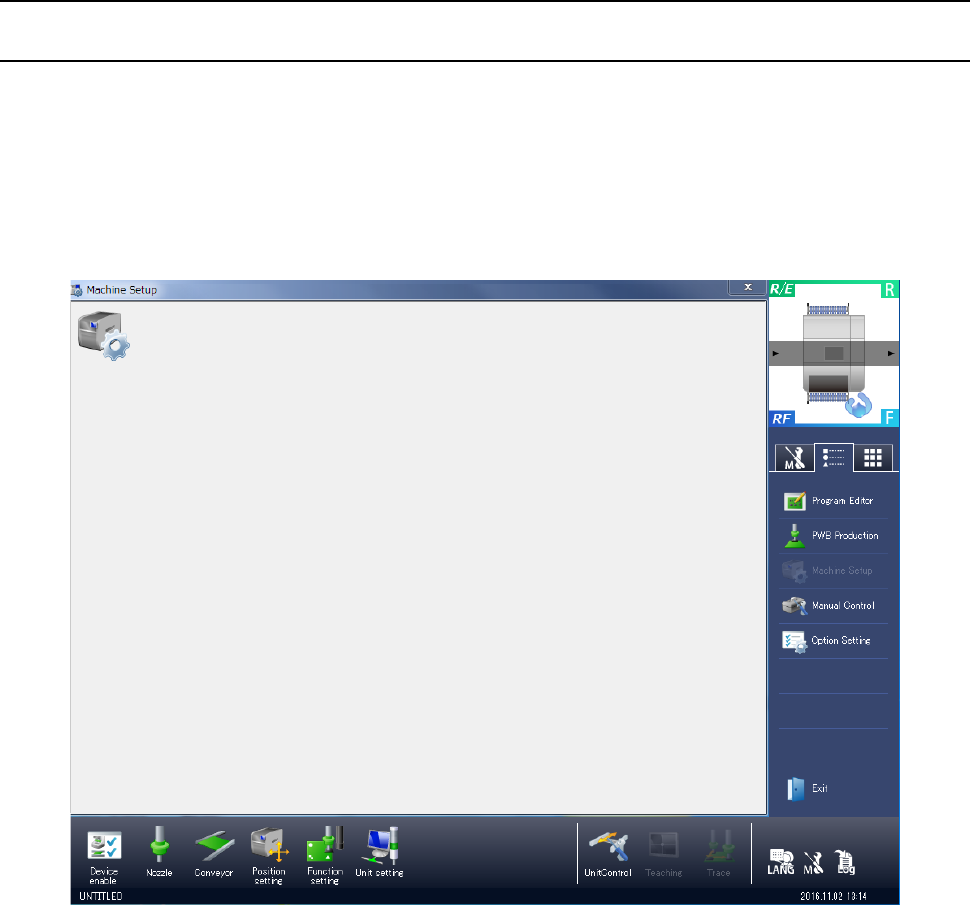
When you select “Machine setting” from the operation area in the lower part of the screen and
then [Machine setup], or when you select “Machine setup” in the information area at the right of
the screen, the following “Machine Setup” initial screen appears.
In the initial screen for machine setup, the shortcut keys are displayed on the right side.
In the shortcut keys, functions to be frequently used are registered.
When you press each of them, the screen corresponding to each key can be displayed.
In the initial screen, the icons for machine setup are displayed.
When you press a shortcut key in the information area on the right side, the screen of “Program
editing”, “PWB production”, “Manual control”, or “Operation option” can be displayed. To display
a screen, terminate Machine setup and then call the selected function.
In the lower operation area, a table of items that can be set in the machine setup is displayed.
Furthermore, simple control call, language changeover, self-diagnostic display, and maintenance
log output are enabled.
The setting items are classified into “Device enable”, “Nozzle”, “Conveyor”, “Position setting”,
“Function setting”, and Unit setting.” For details, refer to “8.3. Setting Items.”
Part 2 Detailed Description of Each Function Chapter 8 Machine Setup
8-3
8.2.2 Exit
When you click the Close button [x] in the upper right part of the screen, press the End button in
the information area, or press the shortcut key, Machine setup is finished.
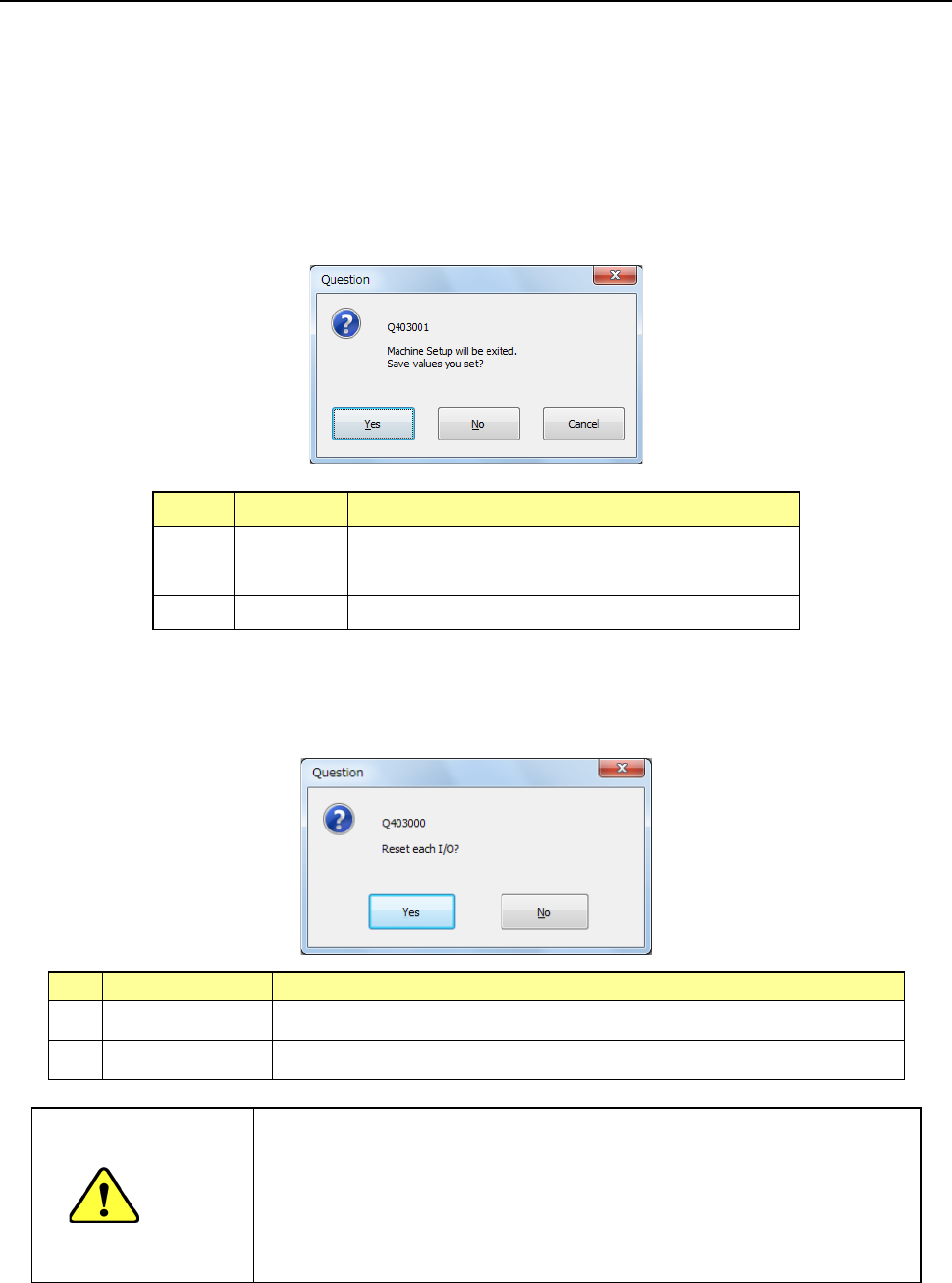
(1) Saving the setting values
Each screen of the setting groups is equipped with the push buttons <OK> and <CANCEL>.
Even though you press the <OK> button, the system does not save any data on the SSD at
this time. The system displays the “Question” dialog box that asks you whether to save the
setting values or not if you change any of the setting values on the “Machine Setup” screen.
When you select the <Yes> button, the changed values are saved on the SSD.
No. Button Action
1 Ye s Saves the setting data onto the SSD.
2 No Cancels the setting data.
3 Cancel Cancels the Exiting Application command.
(2) Setting the safety direction of each I/O
After you select the process for quitting the Machine Setup utility, the system displays the
“Question” screen for setting the safety direction of each I/O on the screen.
No.
Button selection
Process
1 Ye s Sets the safety direction of each I/O and quits the Machine Setup utility.
2 No The system returns to the “Machine Setup” screen.
CAUTION
When you click the <Yes> button, the axes move, and the system
starts setting each I/O safety direction.
Before clicking the <Yes> button, be sure to check to see if there is
no one who operates the inside of the machine. To avoid a risk of
injury, do not put your hands inside the machine nor move your face
or head close the machine while the machine is operating.
Part 2 Detailed Description of Each Function Chapter 8 Machine Setup
8-4
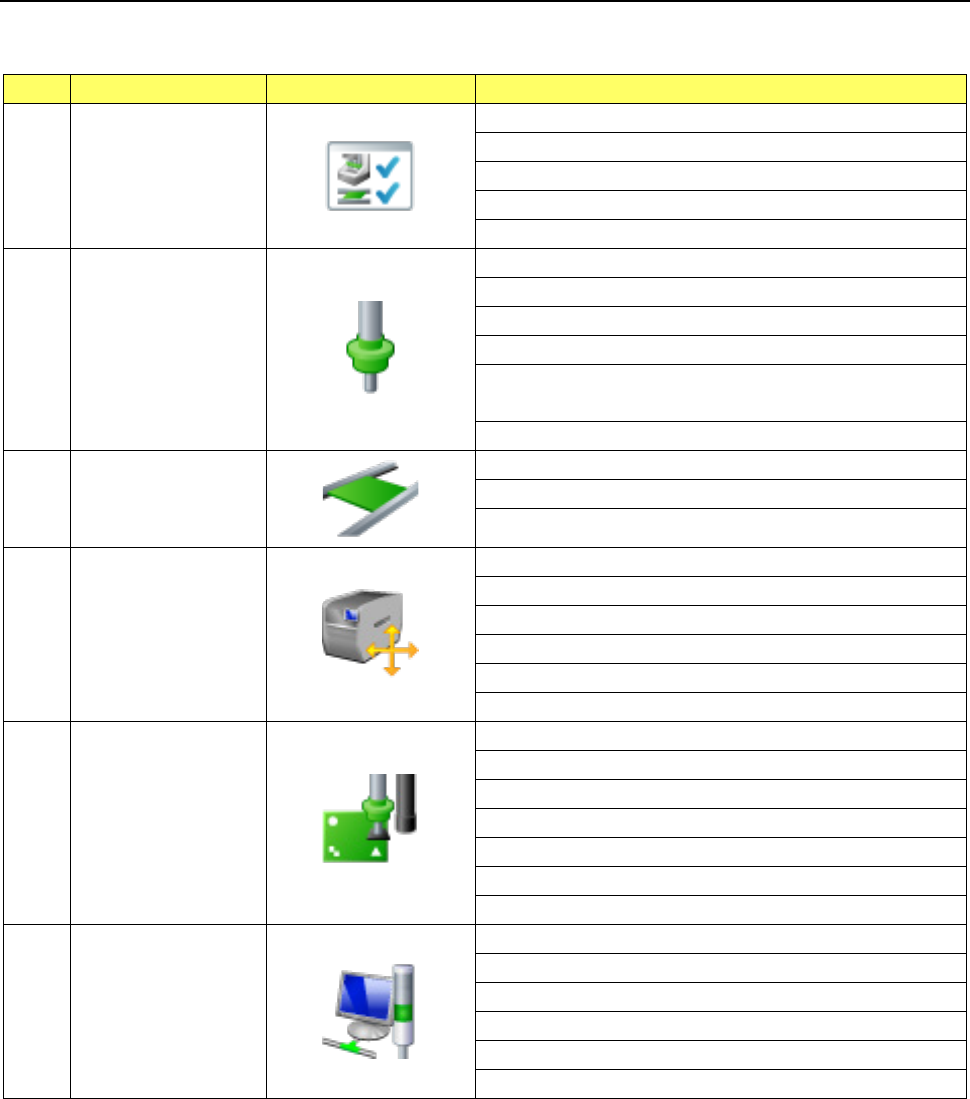
8.3 Setting Items
The setting items for Machine setup are divided into the following groups.
No.
Operation group
Indicated button
Setting item (operation)
1 Device enable
Head
Base
Conveyor
MTC/MTS
VCS
2 Nozzle
Registered nzl. No. table
Read nzl. data
ATC nozzle setup
Vacuum value without nozzle
Vacuum value without nozzle
* Available with an RS-1R only.
ATC Setting * Available with an RS-1R only.
3 Conveyor
Conveyor setting
Support table
Shape clamp position adjustment
4 Position setting
Component
reject position
IC collection belt position
Head wait position
MTS position offset
MTC shuttle pick position
5 Function setting
Pick error condition setting
Mark recognition speed setting
Solder Print Misalignment Correction
Pre-pick feed setting
Head height setting
Nozzle sliding fail check
Splicing setup
6 Unit setting
Signal light
Bad mark teaching
Superimpose setting
Line connection
Coplanarity
Verification