RS-1_instruction manual.pdf - 第480页
Part 1 B asic O peration Chapter 4 Cr eating a Produc tion Progra m 4- 145 2) Component pic k - up infor mation Informat ion on the selec ted feeder is display ed here . As information on a f eeder , the component p ick …
Part 1 Basic Operation Chapter 4 Creating a Production Program
4-144
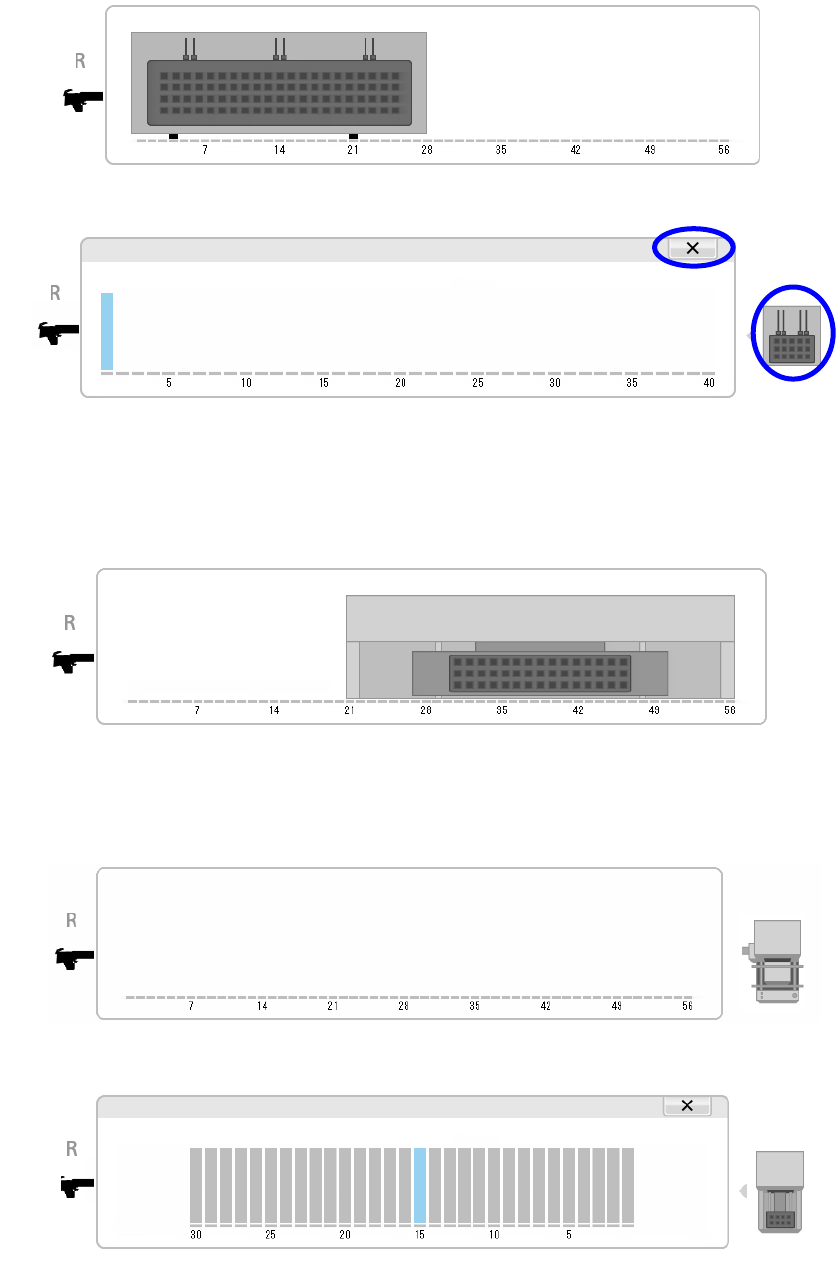
When a holder is selected as a component supply unit, an image of a tray is displayed as
shown below.
When you touch the displayed image of a tray, its enlarged image is displayed on the
screen.
To return to the original image display, touch the [×] button or the tray image displayed on
the right side of the screen.
See “(3) Copying/moving/deleting a feeder” of "4.4.2.3 Feeder layout" for how to operate it.
When a TR8SR is selected as a component supply device, the feeder layout is displayed
with the image of the TR8SR as shown below.
When you touch the displayed TR8SR image, the enlarged TR8SR image is displayed on
the screen.
When a MTC is selected as a component supply device, the feeder layout is displayed with
the image of the MTC as shown below.
When you touch the displayed MTC image, the enlarged MTC image is displayed on the
screen.
To return to the original TR8SR image screen, touch “×” or the MTC/MTS image displayed
on the right side of the screen.
Part 1 Basic Operation Chapter 4 Creating a Production Program
4-145
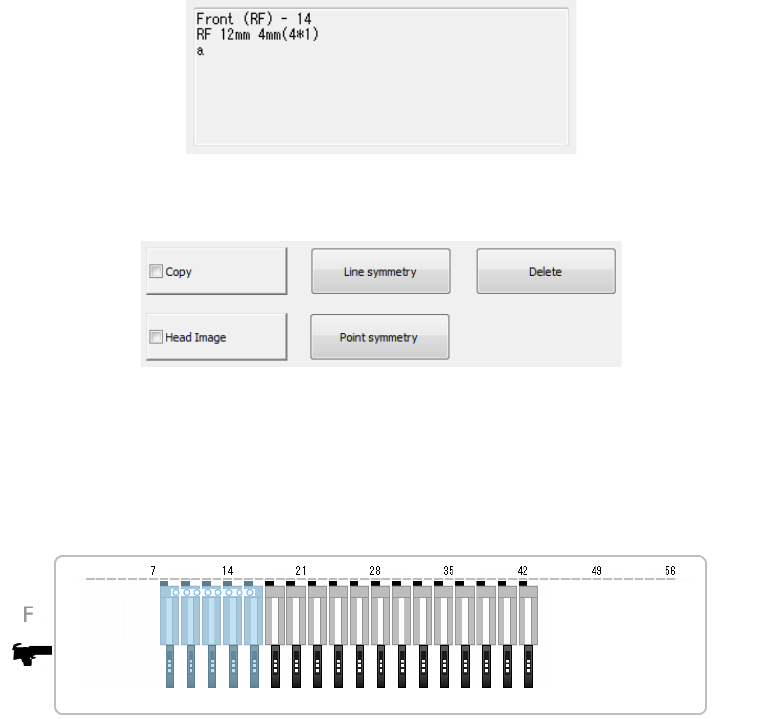
2) Component pick-up information
Information on the selected feeder is displayed here. As information on a feeder, the
component pick-up position, the supply unit and the component name are displayed.
For the feeder or the tray holder, the bank type is displayed at the pick-up position.
3) Operation buttons
The buttons used on the “Feeder Layout” screen are shown below.
(2) Display of an image of heads
If you check the <Head Image> button of the operation buttons, the head image appears on
the screen when you touch the “Feeder Layout” screen. Feeders from which the system
may be able to pick up components at the same time are displayed in light blue.
(3) Copying/moving/deleting a feeder
You can change the feeder layout by copying/moving/deleting a feeder on the bank image
screen.
1) Selecting a feeder
To copy/move/delete a feeder on the bank image screen, select the desired feeder. You
can select a feeder from only one bank. You cannot select any feeder from two or more
banks. The selected feeder is displayed in orange.
Part 1 Basic Operation Chapter 4 Creating a Production Program
4-146
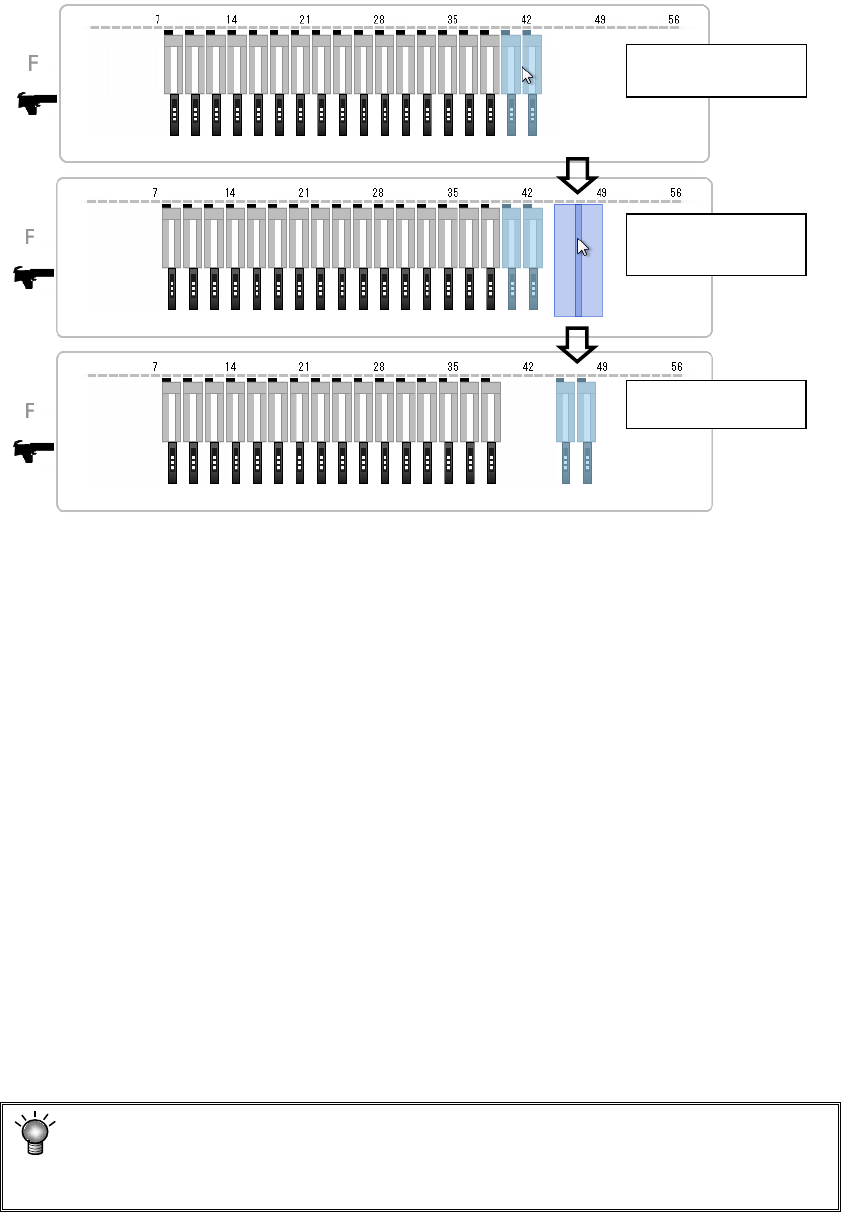
2) Moving/copying a feeder
After selecting a feeder to be moved, drag it to the desired location and drop it (that is, leave
your hand from the panel). The feeder is moved to the mounting position nearest that
position.
When you check the <Copy> button in this case, the selected feeder is copied to that
position.
3) Moving/copying a feeder symmetrically with respect to a line or a point
If you press the <Line symmetry> button or the <Point symmetry> button when a feeder is
selected, the system moves the feeder.
If the <Copy> button is checked in this case, the feeder is copied.
When a feeder on the front is selected, it is moved/copied to the rear side. When a feeder
on the rear side is selected, it is moved/copied to the front side.
If any feeder is already assigned to the copy destination, the system does not copy the
feeder.
● Line symmetry
The system moves/copies a feeder to the position on the opposite side that the current
hole number faces.
As for an electric 8-mm double-lane feeder, the system copies a feeder with respect to a
line without changing the lane.
● Point symmetry
The system moves/copies a feeder to the hole position symmetrical to the current
position so that both feeder exchange trollies on the front/rear sides can use.
4) Deleting a feeder
If you press the <Delete> button when a feeder is selected, the system deletes the feeder.
When a “rear component supply device” option is disabled, any feeder cannot be
moved or copied from the front to the rear.
In addition, you can select neither the <Line symmetry> button nor the <Point
symmetry> button.
Touch a feeder.
Drag the feeder.
Drop the feeder.