RS-1_instruction manual.pdf - 第475页
Part 1 B asic O peration Chapter 4 Cr eating a Produc tion Progra m 4- 140 4.4.2 Executi ng the Optimization func tion When you se lect the < Run> butt on on the “ Optim option ” (Opt i mizat i on opt ion) dial og …
Part 1 Basic Operation Chapter 4 Creating a Production Program
4-139
1) Feeder (Non-stop production)
a) No
When you select this button, the system does not perform Non-stop operation, so it makes a
different feeder arrangement on the rear side from that of the front side.
b) Pri. tact
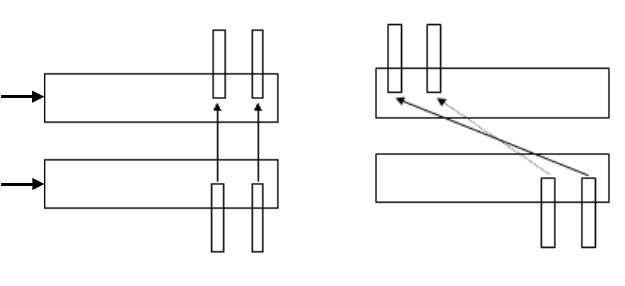
The system assigns feeders on the front and rear banks so that the feeder layout on the
front side can be copied to the rear side symmetrically with respect to a line in order to
perform Non-stop operation.
c) Pri. plan
The system assigns feeders on the front and rear banks so that the feeder layout on the
front side can be copied to the rear side symmetrically with respect to each hole point in
order to perform Non-stop operation.
<Pri. tact> <Pri. plan>
R-52 R-56 R-1 R-5
F-52 F-56 F-52 F-56
2) Primary/Secondary
Specify which bank should be used mainly (as the main bank) during Non-stop production,
the front bank or the rear bank.
a) F -> R
The system produces a PWB with regarding the front bank as the reference bank, and
produces a PWB with using the rear bank when components are replaced.
b) R -> F
The system produces a PWB with regarding the rear bank as the reference bank, and
produces a PWB with using the front bank when components are replaced.
3) Non-Stop settings for the MTC/MTS
Specify whether to perform Non-stop operation when an MTC (TR6D) or an MTS (TR5D)
that supports Non-stop operation is used.
Rear
Front
Part 1 Basic Operation Chapter 4 Creating a Production Program
4-140
4.4.2 Executing the Optimization function
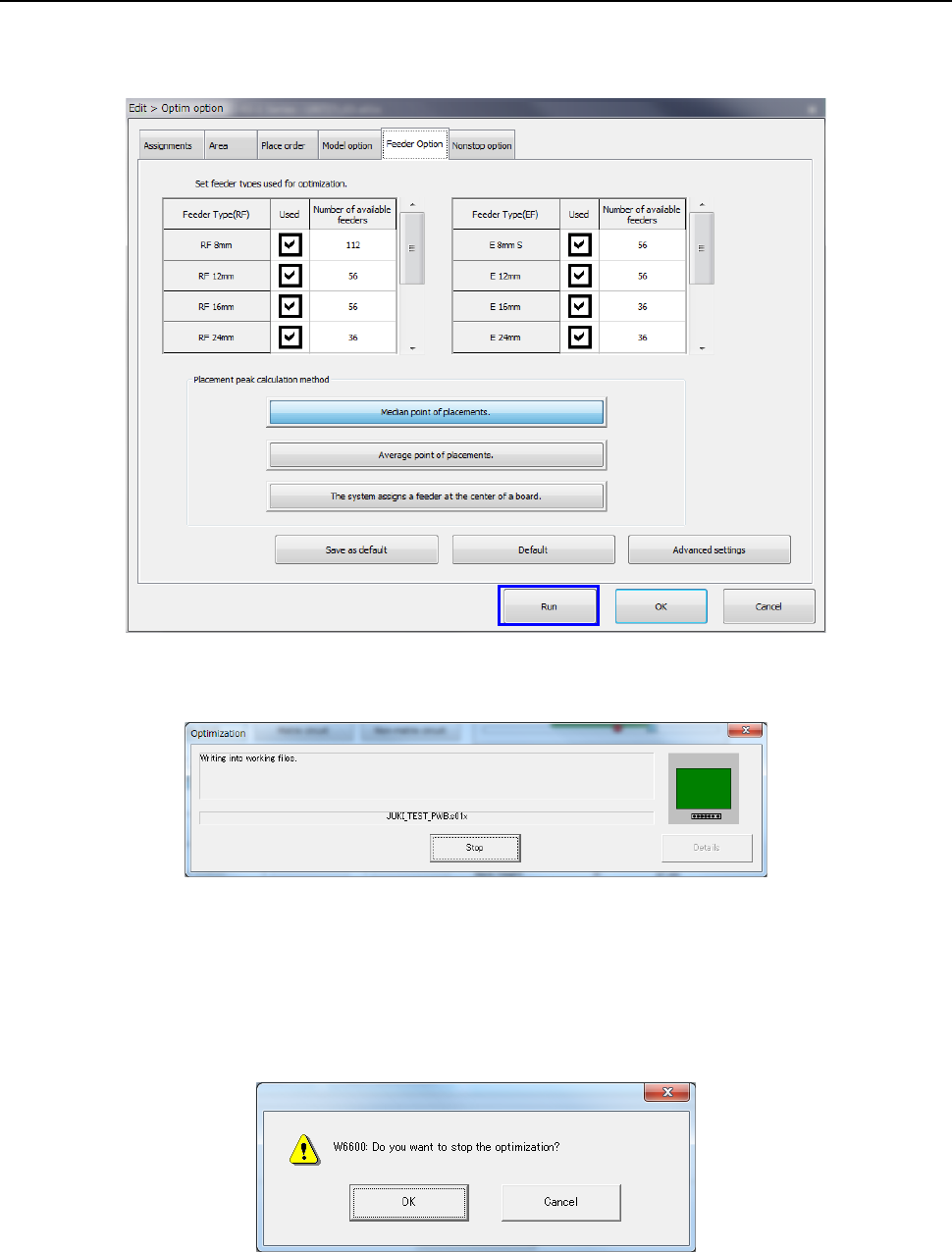
When you select the <Run> button on the “Optim option” (Optimization option) dialog box, the
optimization processing starts.
The following screen is displayed while optimization is executed.
When the system finishes the Optimization function normally, the “Optimization” screen
disappears.
If an error occurs during optimization, the corresponding error message appears on the screen.
When you select the <Stop> button during optimization, you can stop the optimization.
When you select the <Stop> button, the following confirmation message appears on the screen.
Part 1 Basic Operation Chapter 4 Creating a Production Program
4-141
4.4.2.1 Checking the divided component placement data
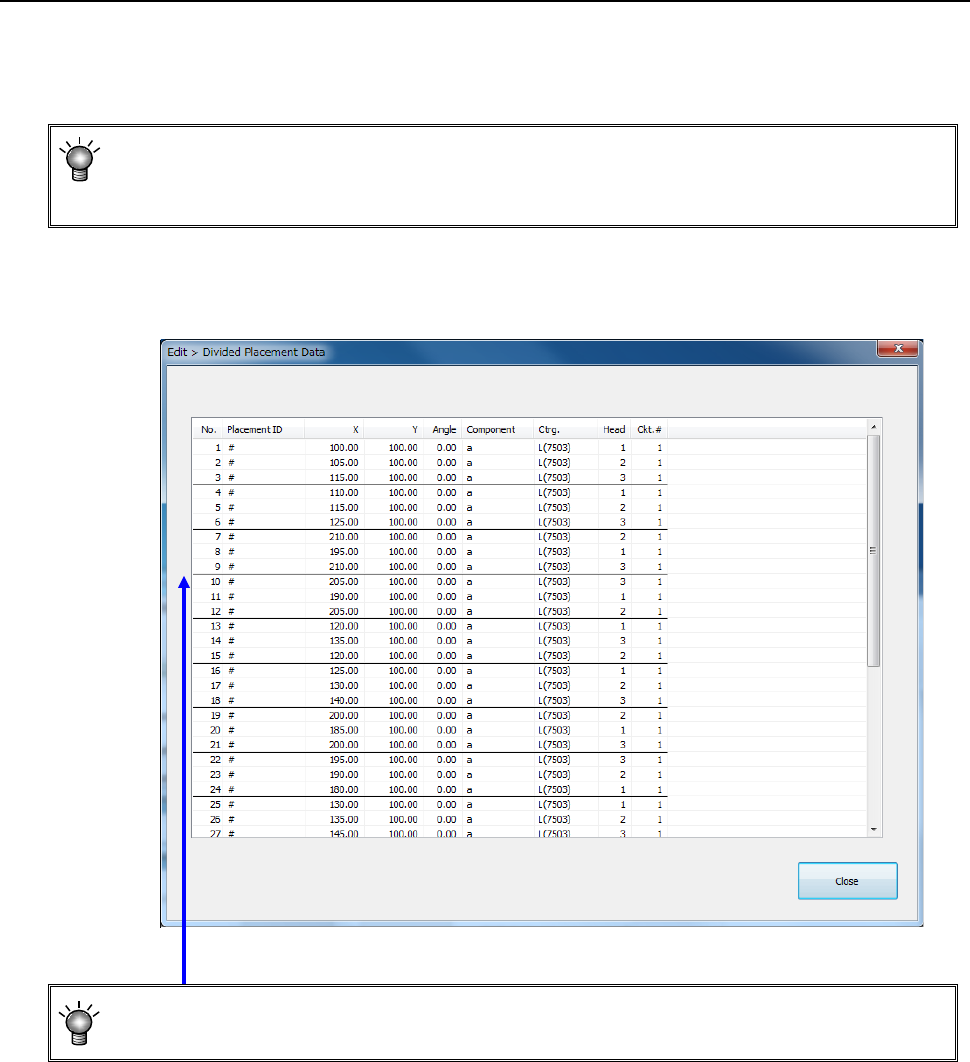
This section describes how to display the placement data divided with the Optimization function.
Select the [Optimization] command from the menu, and then the [Divided placement data]
command from the “Optimization” menu.
• You cannot select this command if you have not performed the Optimization function
(that is, there is no divided placement data file), or if you edit a production program after
executing the Optimization function.
The “Divided Placement Data” dialog box appears on the screen.
• A bold line on the “Divided Placement Data” screen in the optimized order indicates a
delimiter of data paired during one component pick-up and placement cycle.