RS-1_instruction manual.pdf - 第203页
Part 1 B asic O peration Chapter 2 Pr oduction 2- 92 2.12 Support This comma nd perf orms var ious types of ch ecking operations bef ore the sys tem st arts PWB production. Plan suppor t Overview When you se lect the [Su…
Part 1 Basic Operation Chapter 2 Production
2-91
(3) Execution of tracking of a component pick-up position
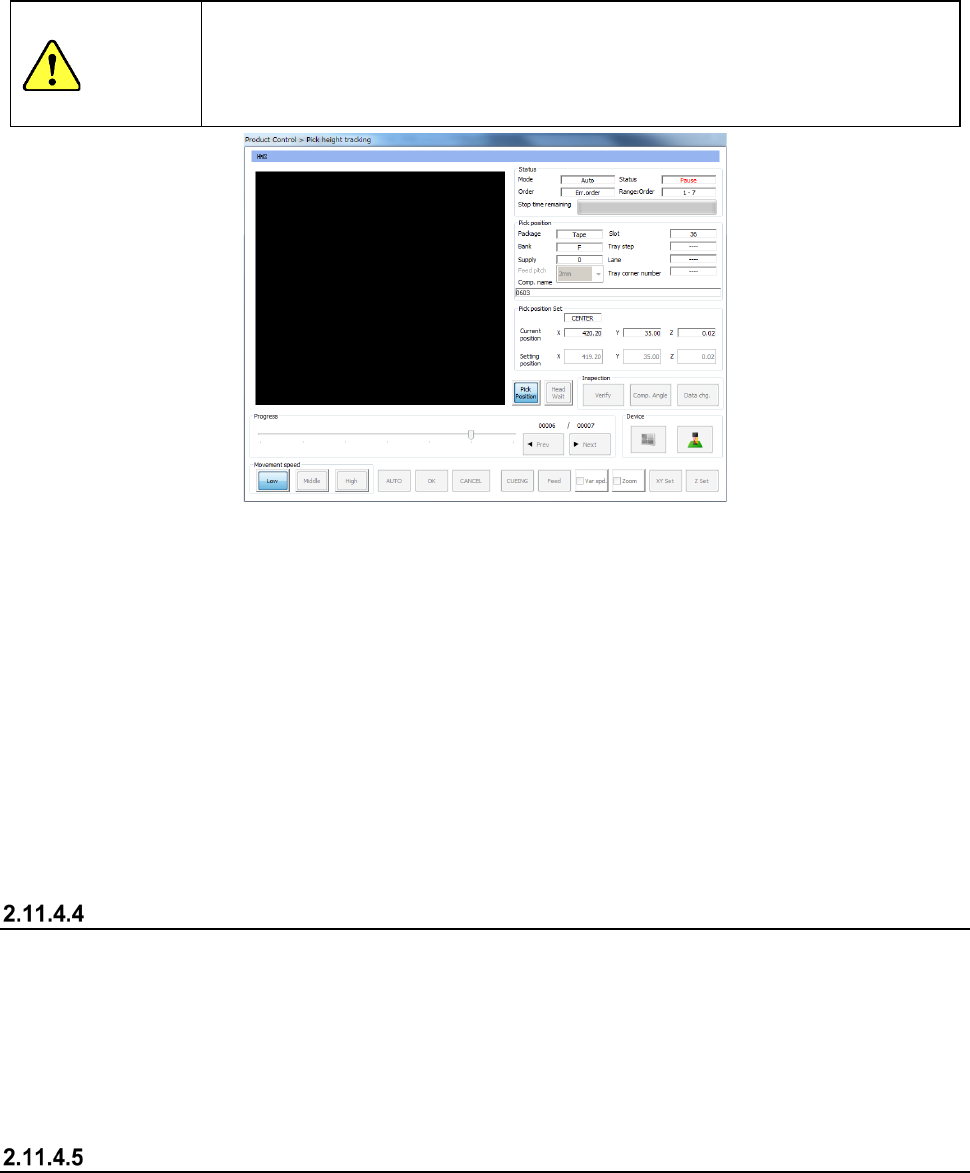
When you press the <OK> button to start correcting a component pick-up position, the “Pick
position tracking” dialog box appears on the screen.
See Section 4.5.6.5 “Pick position/Pick height” of Chapter 4 “Creating a Production Program” or
Section 2.14.6 “Tracking a component pick-up position with a camera” for details of the
displayed data.
CAUTION
If the feeder bank is never recognized (for example, immediately after the devices of the
machine return to their home positions or the bank moves down then up), the feeder may be
recognized automatically before the machine moves to the pick-up position. Since the
head moves across the feeder bank while the feeder is being recognized, do not place your
hand or head in the machine, nor move your hand or face close to the machine.
1) When you select <Automatic> of the “Tracking” buttons
Before the system starts placing a component on a board, the camera moves to the first
component pick-up position, and displays the monitored image on the screen.
The camera stops at this position for the time specified in the “Tracking” field, and then
automatically moves to the next pick-up position.
To quit this automatic tracking operation for correcting a component pick-up position, press the
<STOP> switch of the operation panel. If you press the <STOP> button when the system
pauses, the camera stops at the current pick-up position. If you do when the camera is moving
to the next pick-up position, it stops at the next pick-up position.
2) When you select <Manual> of the “Tracking” buttons
After the system corrects the first pick-up position, it finishes tracking a pick-up position.
When you press the <START> button on Pick-up Position Correction mode, the system corrects
the next component pick-up position.
Teaching during tracking of a component pick-up position
If the tracked component pick-up position is found to be different from the actual pick-up position as
result of tracking described in the previous section, you can teach the component pick-up position
also.
When you press the displayed image on the touch panel: the upper, lower, left or right position,
you can change the current pick-up position. When you teach the coordinates and validate the
position, you can change the pick-up position set in the Pick data. Perform auto-teaching to
recognize the cavity for a component to be taught automatically.
Teaching the pick-up position
Select a feeder whose component pick-up position you want to teach when the “Retry list (Supplier)
is displayed on the screen, and then press the <Teaching> button displayed in the Operation area.
The system teaches the component pick-up position also.
Part 1 Basic Operation Chapter 2 Production
2-92
2.12 Support
This command performs various types of checking operations before the system starts PWB
production.
Plan support
Overview
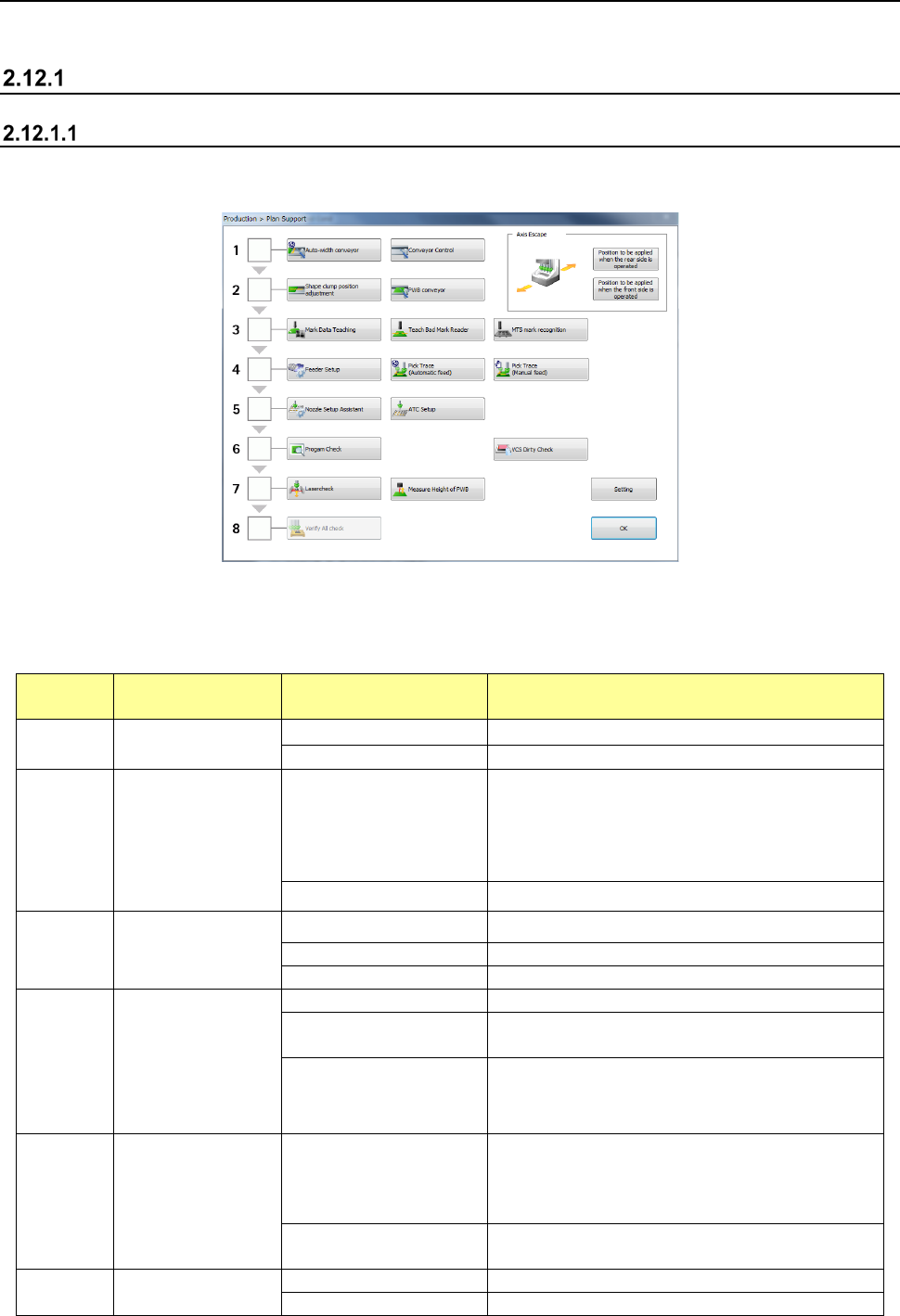
When you select the [Support] command from the “Product” menu, and then the [Plan support]
command, the “Plan Support” screen appears.
(1) Planning
When you perform the operation steps shown below from “1. Adjustment of the conveyor
width” to “8. Check of component supply” sequentially to finish all preparations, the system
gets ready for PWB production completely.
Operation
step
What to prepare Detailed operation Description
1
Adjustment of the
conveyor width
Auto-width conveyor
Adjusts the conveyor width.
Conveyor Control
Controls board transport operation.
2 Board transport
Shape clamp position
Teaches the board stop position.
When the machine transports a board without any
stopper, it adjusts the board stop position. When
the machine transports a board with the stopper, it
adjusts the shape clamp reference position.
PWB conveyor
Transports a board.
3 Teaching of a mark
Mark Data Teaching Sets a BOC mark and an area fiducial mark.
Teach Bad Mark Reader
Teaches a bad mark.
MTS mark recognition
Recognizes an MTS mark.
4 Feeder Setup
Feeder Setup
Teaches a feeder attached on each bank.
Pick Trace
(Automatic feed)
Tracks a component pick-up position (with feeding
automatically).
Pick Trace (Manual feed)
Tracks a component pick-up position (with feeding
manually).
5 Nozzle setup
Nozzle Setup Assistant
Compares the nozzle assignment of the ATC
specified in a production program with the actual
assignment, and if there is any difference between
them, displays it.
ATC Setup
Automatically assigns a nozzle from the ATC to the
selected hole number.
6
Check before start
of PWB production
Program Check
Performs a production program check.
VCS Dirty Check
Perform VCS dirt check and display the result.
Part 1 Basic Operation Chapter 2 Production
2-93
Operation
step
What to prepare Detailed operation Description
7 Data check
Laser check
Checks to see if the laser height for a component is
appropriate or not.
Measure Height of PWB
Measure the placement position height of the PWB
surface with HMS.
8
Check of
component supply
GNRL. Vision All Check
Makes a general-purpose vision component
direction continuous inspection.
(2) Axis Escape
These buttons allow you to move the head to the position appropriate for preparation.
Menu item
Button
Description
Axis Escape
Position to be applied when the rear side
is operated
Axially moves the head unit to the position set at
“Position to be applied when the rear side is operated”.
For the setting of “Position to be applied when the rear
side is operated”, see Section 8.3.4.3 “Head Wait
Position” in Chapter 8 “Machine Setup”.
Position to be applied when the front side
is operated
Axially moves the head unit to the position set at
“Position to be applied when the front side is operated”.
For the setting of “Position to be applied when the front
side is operated”, see Section 8.3.4.3 “Head Wait
Position” in Chapter 8 “Machine Setup”.
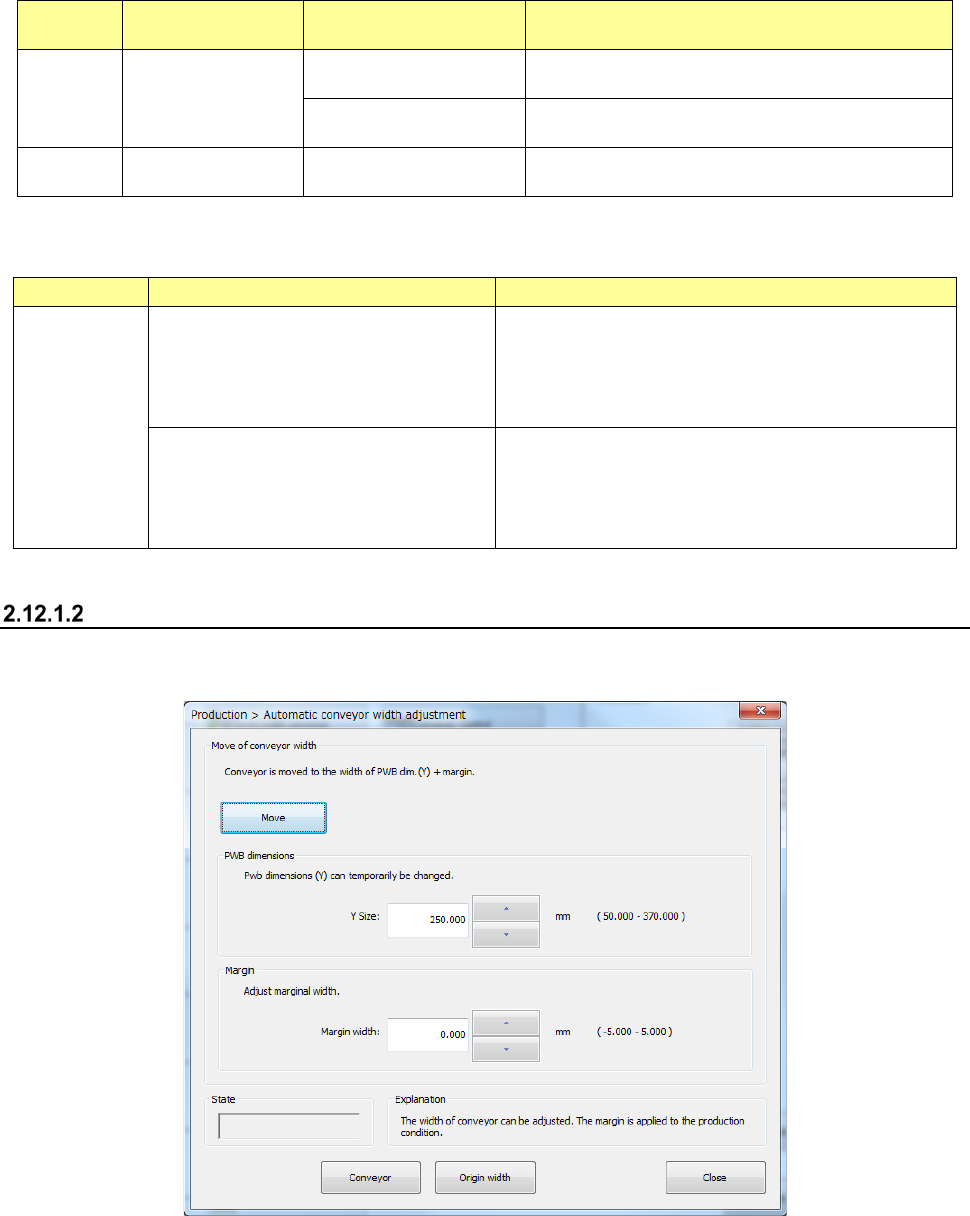
Automatic PWB width adjustment
The system allows you to adjust the PWB transport width.
- Automatic PWB width adjustment
See Section 4.5.2.6 “Automatic board width adjustment” of Chapter 4 “Creating a Production
Program” for details.