RS-1_instruction manual.pdf - 第542页
Part 1 B asic O peration Chapter 4 Cr eating a Produc tion Progra m 4- 207 4.5.6 .2 Area ma rk This functi on allows y ou to check edite d data of a production program. The system m emorize s the measured value s of the …
Part 1 Basic Operation Chapter 4 Creating a Production Program
4-206
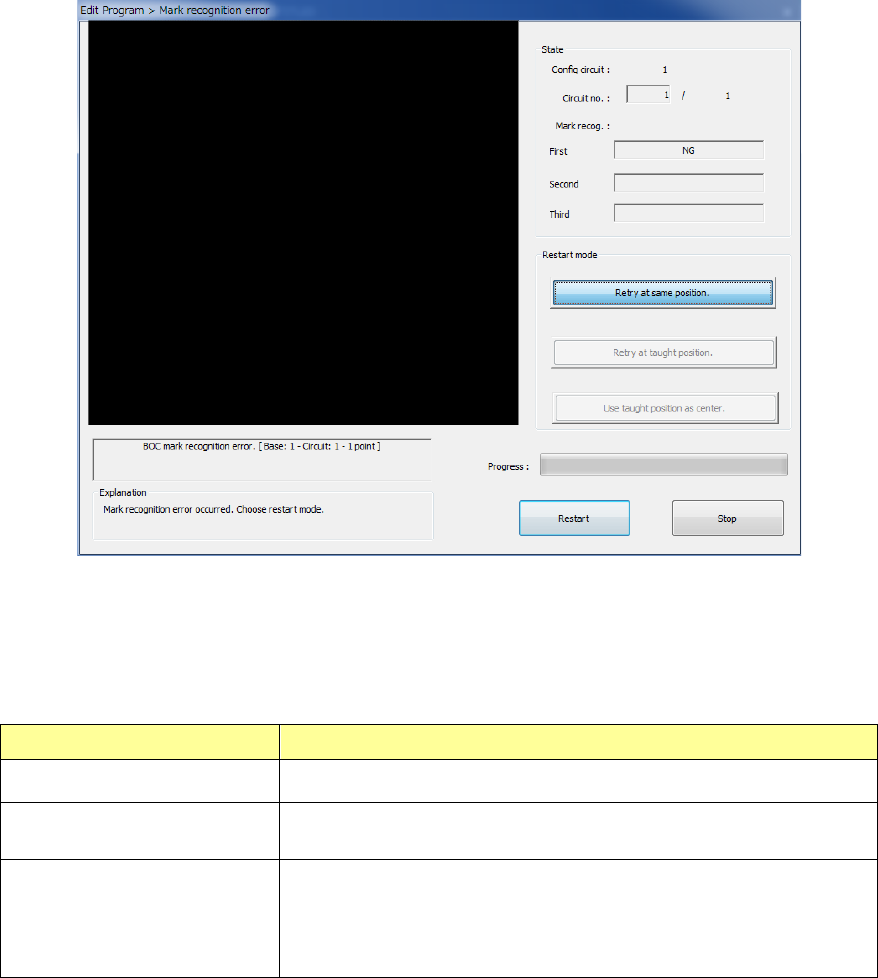
To restart recognizing a BOC mark, select the “Restart mode.”
At this point, you can press the <Teaching> button of the function bar to teach the coordinates.
Until you teach the coordinates, neither the button <Retry at taught position.> nor the button <Use
taught position as center.> can be selected in the “Restart mode” column.
Restart mode Description
Retry at same position. The system recognizes the BOC mark at the current position.
Retry at taught position.
You can select this button only after you teach the coordinates.
The system recognizes a mark at the taught coordinates again.
Use taught position as
center.
You can select this button only after you teach the coordinates.
The system saves the taught position as the coordinates at which
a mark is recognized. The system does not recognize a mark.
To restart the BOC mark recognition operation after selecting one of the above buttons,
button the <Restart> button.
When you press the <Stop> button, the system quits the “BOC mark Recognize” screen, and
then returns to the Program Editor screen.
Part 1 Basic Operation Chapter 4 Creating a Production Program
4-207
4.5.6.2 Area mark
This function allows you to check edited data of a production program.
The system memorizes the measured values of the coordinates at which the system recognized
an area mark, and uses them to correct the coordinates when it teaches the placement data.
CAUTION
To prevent any accident causing injuries, never put your hands or head
inside the machine while the machine is operating.
(1) Recognizing an area mark
Select the [Machine operation] command from the menu bar, and the [Area mark] command from
the “Machine operation” menu. To recognize a mark on the left station, select the [Left] command
from the “Area mark” menu. To recognize a mark on the right station, select the [Right] command
in the same manner. The confirmation screen appears.
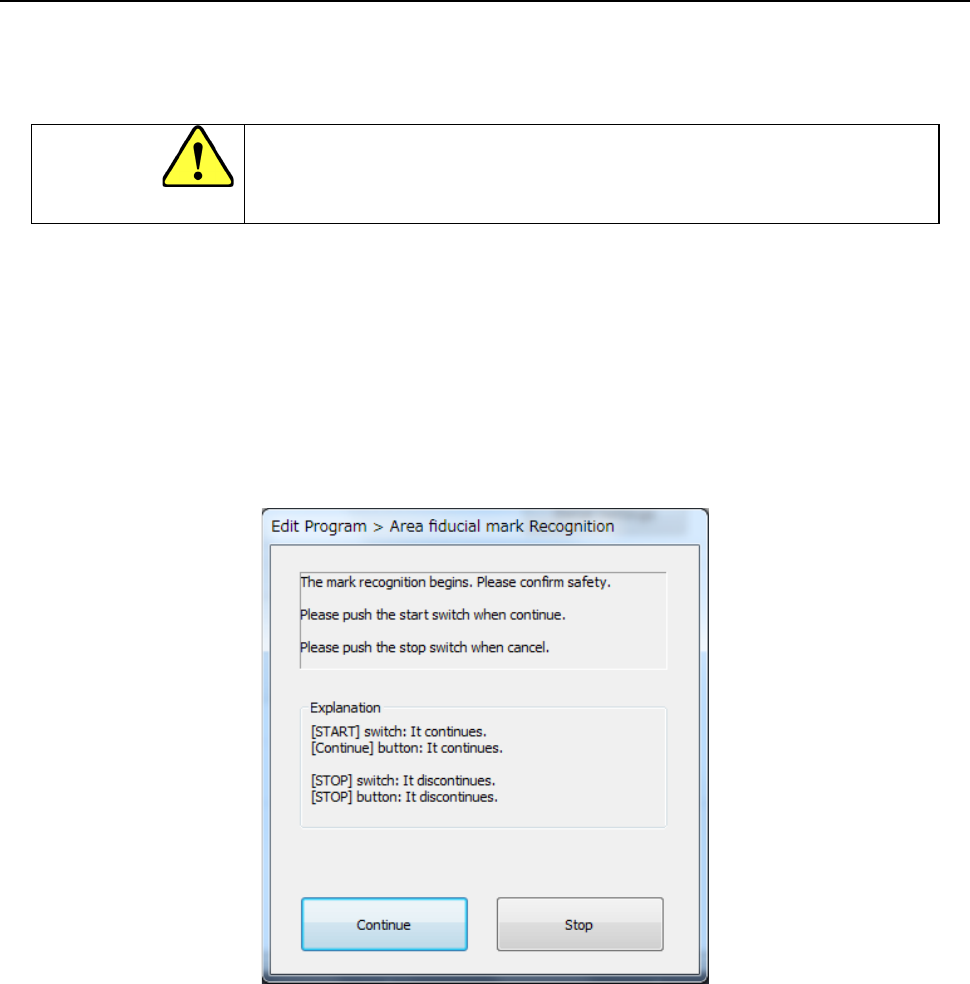
If the safety cover opens at this point, the following message appears on the screen because this
function moves the axis.
Only after checking the safety, press the <START> switch or the <Continue> button.
Part 1 Basic Operation Chapter 4 Creating a Production Program
4-208
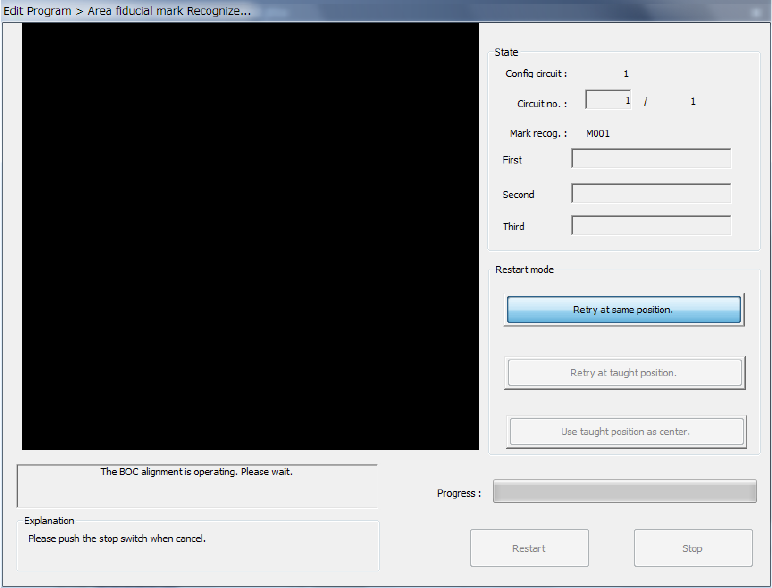
While the system is recognizing an area mark, the screen like the one shown below appears.
The image shot with the OCC is displayed at the upper left corner of the screen.
When you select the “Align placement position with BOC” operation option on the “Operation
option” screen, the system recognizes a BOC mark.
To abort recognition of an area mark for some reason even though the system is recognizing it,
press the <STOP> switch.
After the system stops recognizing a mark, it displays the start screen again.
1) State
• Circuit no.
The system displays the number of a circuit that is being recognized here. (Normally,
the system recognizes only an Area mark on the reference circuit.)
• Mark recog.
The system displays the area name and the operation condition at a position being
processed.
2) Progress
The progress bar displays the ratio of the number of area marks already recognized to the
total number of marks.