RS-1_instruction manual.pdf - 第247页
Part 1 B asic O peration Chapter 2 Pr oduction 2- 136 (2) C ontinu ance prod uction Select whet her to per form contin uous PW B product i on or not . If there is not any continuous PWB prod uction data, you can select n…
Part 1 Basic Operation Chapter 2 Production
2-135
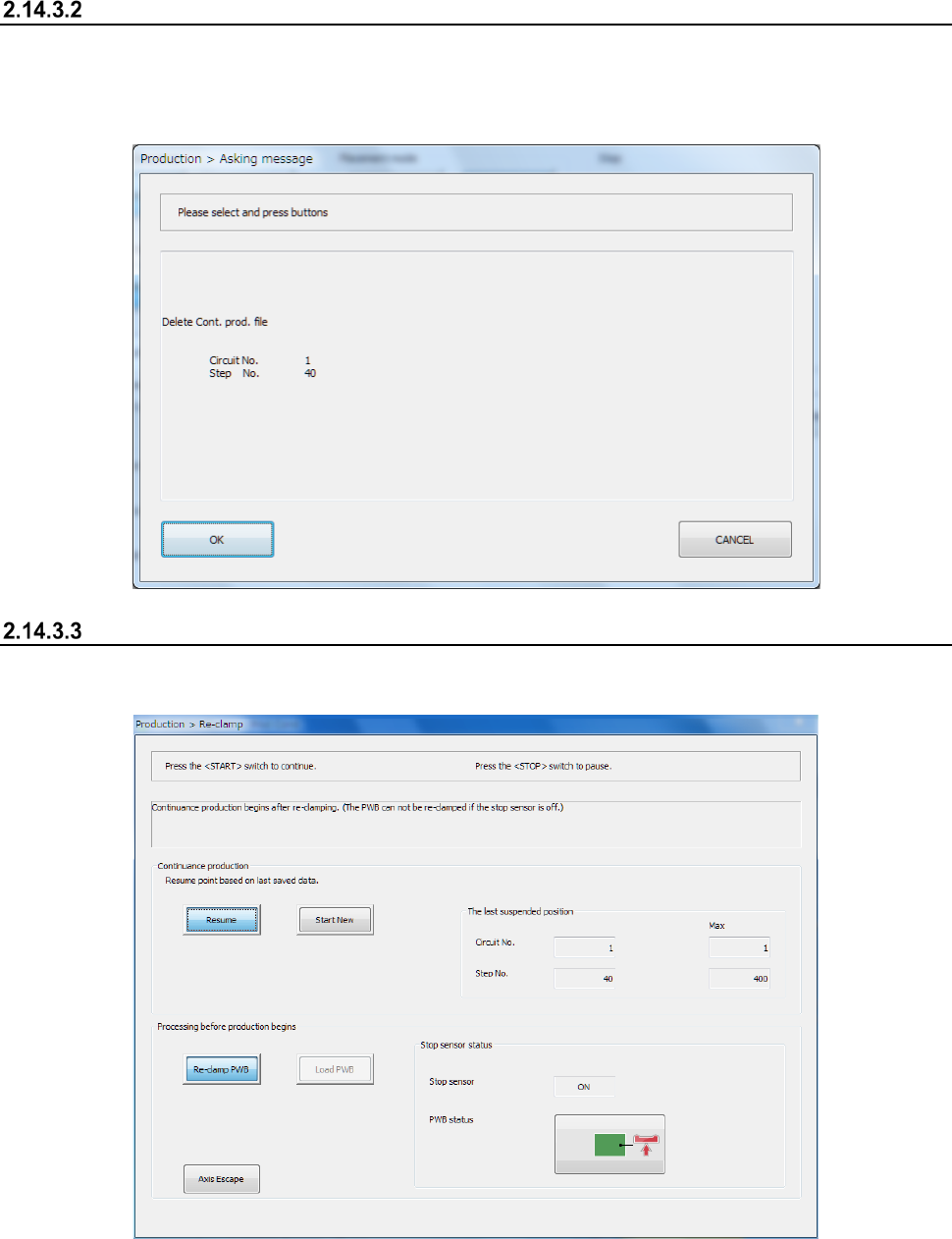
Deleting a continuous production file
If there is a continuous production file, the [Cont. prod. file Delete] command on the “File” menu
invoked from the “Product” menu become active.
When you select this item, the confirmation message for deleting a continuous production file
appears on the screen.
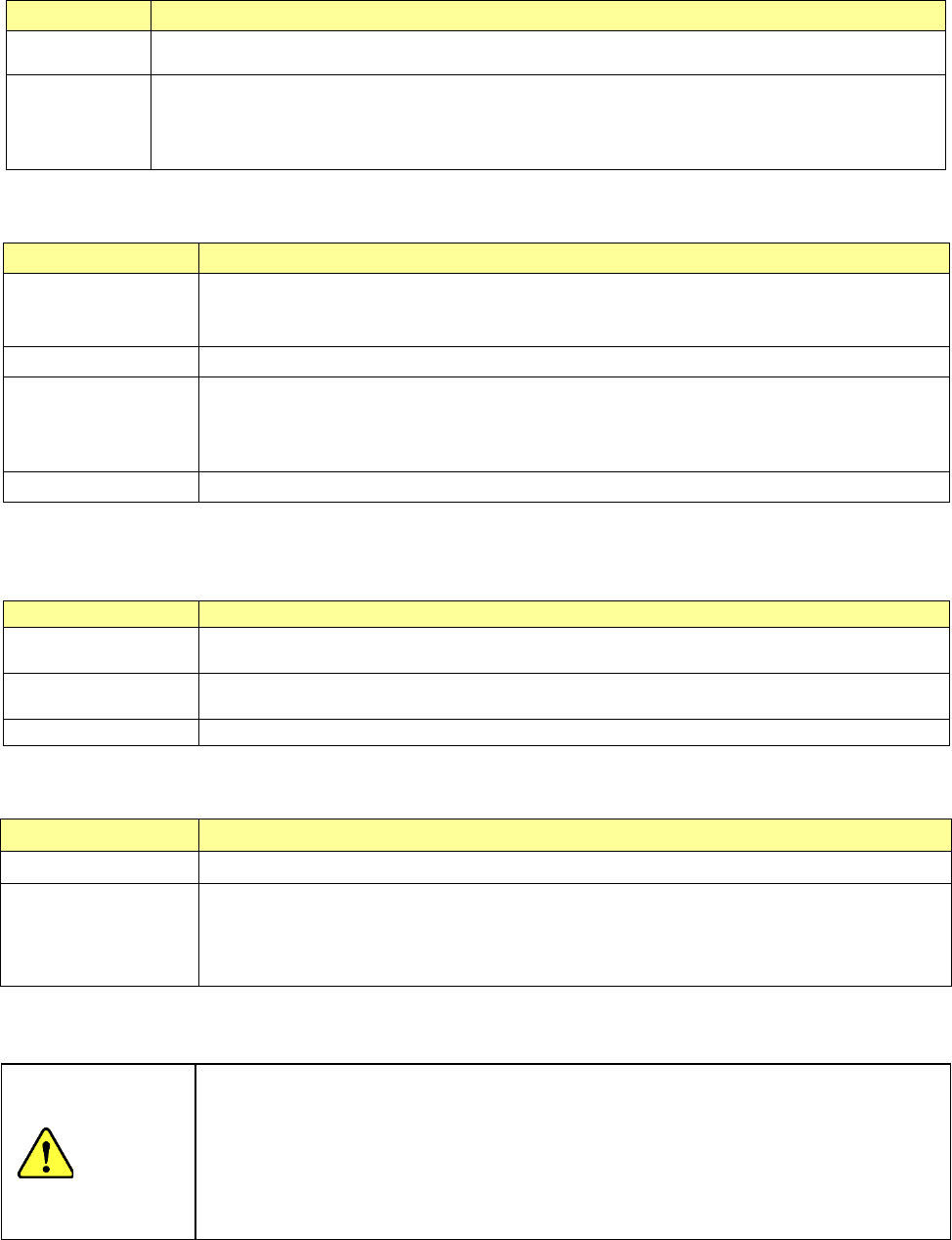
Re-clamping a board
If there is any board on the transport path of the conveyor before start of continuous PWB
production, the “Re-clamp” screen for re-clamping a board appears on the screen.
(1) Message
This screen shows you the condition of the conveyor, notes on re-clamping/loading of a board,
operation to be performed after continuous production and so on for each station.
Part 1 Basic Operation Chapter 2 Production
2-136
(2) Continuance production
Select whether to perform continuous PWB production or not. If there is not any continuous
PWB production data, you can select neither of these buttons.
Menu item Description
Resume The system performs continuous production.
Start New
The system does not perform continuous production. It starts new PWB production from the
position shown in “The last suspended position” field. However, if “0” is set in either the “Circuit
No.” field or the “Step No.” field, the system starts placing a component from the first placement
operation of the station.
(3) The last suspended position
The component placement position for starting PWB production is displayed here.
Menu item Description
Circuit No.
Shows the circuit number from which the system starts production. The circuit number on the
front side and that on the rear side are displayed separately in Simultaneous Production mode.
The maximum value of the circuit number is displayed also.
Circuit No. Max Shows the maximum circuit number.
Step No.
Shows the component placement step number from which the system starts production. The
production step number on the front side and that on the rear side are displayed separately in
Simultaneous Production mode. The maximum value of the production step number is
displayed also.
Step No. Max Shows the maximum component placement step number.
(4) Processing before production begins
Select whether to re-clamp a board located on the conveyor or load a new board into the
machine.
Menu item
Description
Re-clamp PWB
Clamps a board located on the conveyor without loading a new board into the machine at start
of PWB production.
Load PWB
Ejects a board located on the conveyor from the machine, and loads a new board at start of
PWB production.
Axis Escape
Moves the axis to the waiting position.
(5) Stop sensor status
The condition of the board transport path of the conveyor is displayed here.
Item Description
Stop sensor Displays whether a board is located at the stop sensor position or not.
<PWB status> button
Displays the condition of a board on the transport path of the conveyor detected with the stop
sensor as its image.
If you press this button when the stop sensor does not detect a board like a board with a slit,
the machine automatically sets the board on the sensor ON position.
When you press the <START> switch of the operation panel, the system performs the selected
operation.
When you press the <STOP> switch, the system returns to Idle mode.
CAUTION
1. When you select re-clamping of a board without loading a new board into the
machine, the system does not obtain information on how the conveyor was
when the production was aborted if you load a production file to the machine
before restart of production and then quit the production screen. Therefore,
some components may be missing or placed at wrong positions.
2. If the size of a board is too big or too heavy when the system resumes
production without loading a new board, the system may fail to re-clamp the
board.
Part 1 Basic Operation Chapter 2 Production
2-137
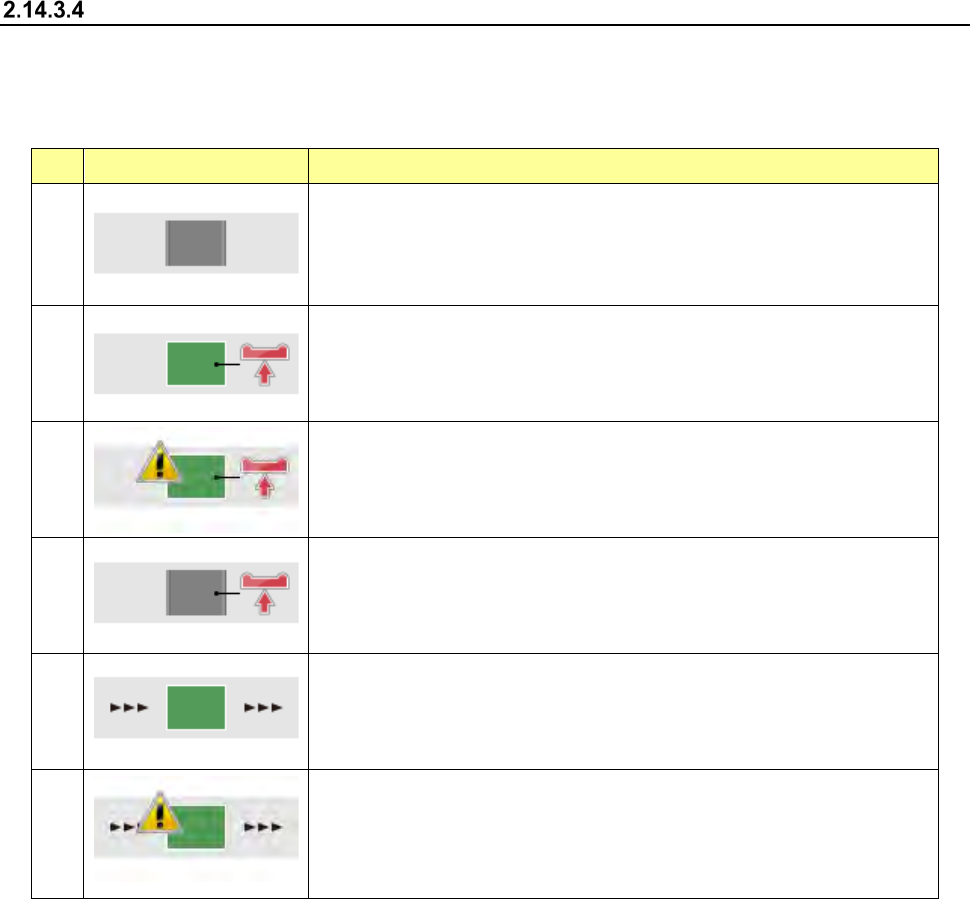
Condition of a board on the conveyor and what each image means
The image indicating the condition of a board changes depending on your selection of continuous
production, selection of a production operation, or the condition of a board located on the conveyor.
When you press each image, the system re-clamps a board or ejects a board.
No. Menu item Description
①
There is no board on the conveyor.
②
The system re-clamps a board located on the conveyor. (When you select
the<Re-clamp PWB> button as “Processing before production begins”)
③
The system re-clamps a board located on the conveyor. (When you select
the <Re-clamp PWB> button as “Processing before production begins.”)
Some components may be missing or the system may malfunction.
④
The system re-clamps a board located on the conveyor. (When you select
the <Re-clamp PWB> button as “Processing before production begins”)
There is not any board on the conveyor.
⑤
The system ejects a board from the conveyor. (When you select the <Load
PWB> button as “Processing before production begins”)
Although there is a board on the conveyor, all components have been placed
on a board already. Therefore, you have to eject the board.
⑥
The system ejects a board from the conveyor. (When you select the <Load
PWB> button as “Processing before production begins”)
Since the system ejects a board on which all components have not been
placed, some component may be missing or the system may malfunction.
Whether a board can be re-clamped or transported and/or which board condition is displayed are
(is) decided according to selection of the continuous production, information on the transport path of
the conveyor and/or continuous production data. The relation among these factors is summarized
on the next page.