RS-1_instruction manual.pdf - 第852页
Pa r t 2 Det ai l ed Des c r i pti on o f Ea c h Fu nc ti on Chapter 10 M ach i ne Manage m e nt Infor m ation 10 - 39 10.4.4 VCS Usage Inf orma ti on W hen you sel ect [R ecog nit ion/i nsp ecti on] – [VCS us age i nf o…
Part 2 Detailed Description of Each Function Chapter 10 Machine Management Information
10-38
(2) <Reset> button
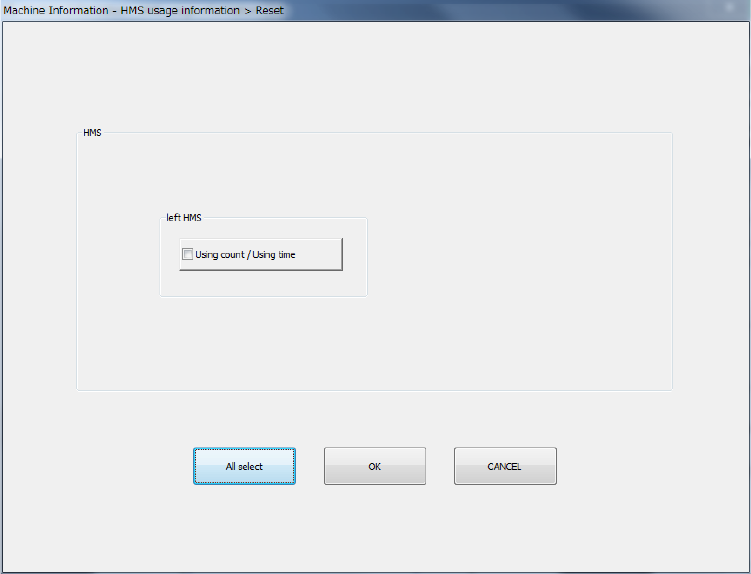
When you press the <Reset> button or press [Initialize] - [Reset] in the main menu, the
following screen appears.
In the table, specific contents or all contents can be cleared.
- All the check boxes can be selected by the <All select> button.
- After pressing the check box of an item to be reset, press the <OK> button.
Then, a question message is displayed. When you press the <OK> button, the target item
is reset and the screen is closed.
- When you press the <Cancel> button, the original data remains as it is without resetting the
data.
Part 2 Detailed Description of Each Function Chapter 10 Machine Management Information
10-39
10.4.4 VCS Usage Information
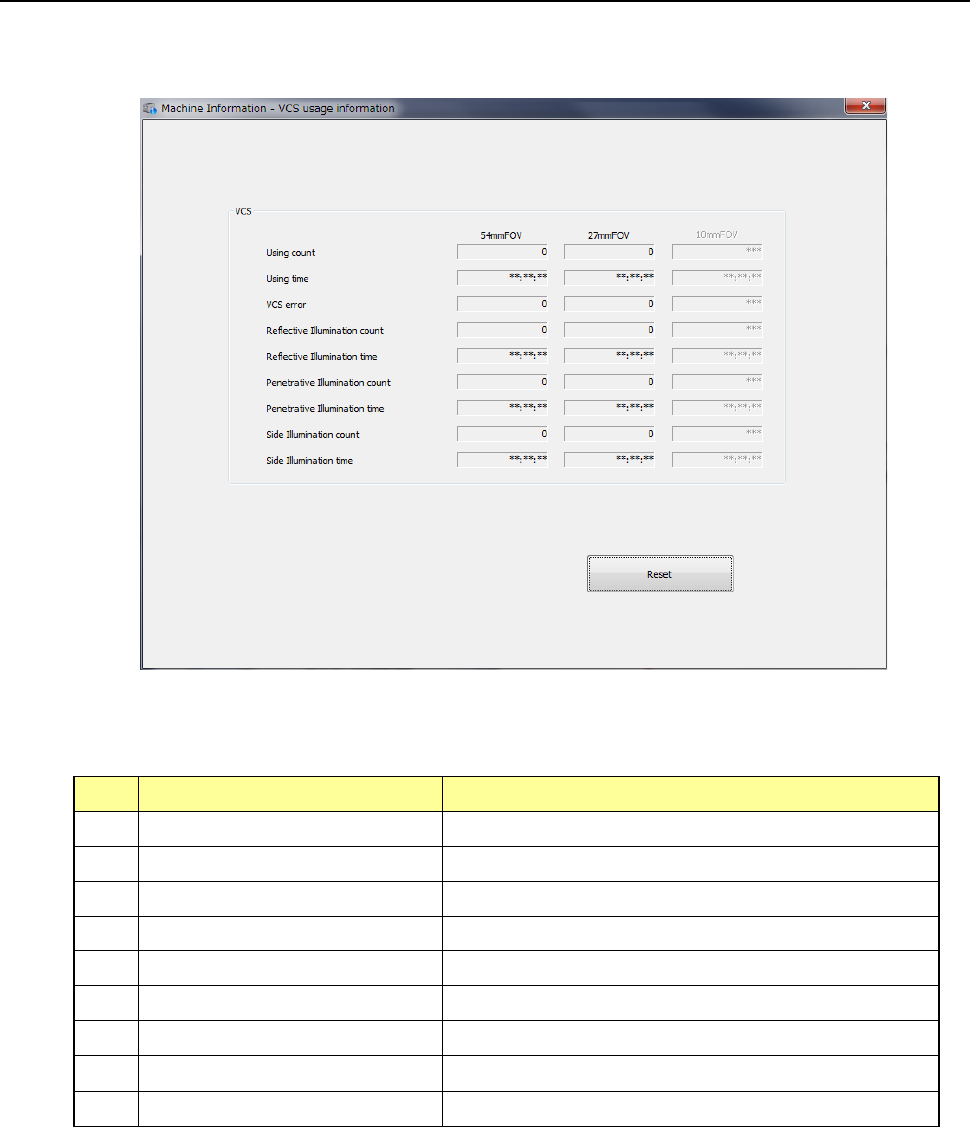
When you select [Recognition/inspection] – [VCS usage information] in the main menu, the VCS
usage information screen appears.
(1) VCS
No.
Item
Description
1 Using count Total of times VCS has been used
2 Using time Total time VCS has been used
3 VCS error count Total of times VCS has made an error
4 Reflective illumination count Total of times reflective illumination has been used
5 Reflective illumination time Total time reflective illumination has been used
6 Penetrative illumination count Total of times penetrative illumination has been used
7 Penetrative illumination time Total time penetrative illumination has been used
8 Side illumination count Total of times side illumination has been used
9 Side illumination time Total time side illumination has been used
Part 2 Detailed Description of Each Function Chapter 10 Machine Management Information
10-40
(2) <Reset> button
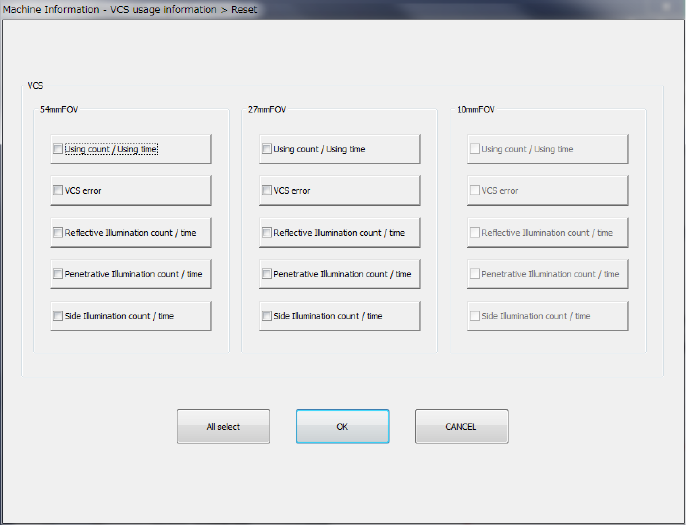
When you press the <Reset> button or press [Initialize] – [Reset] in the main menu, the
following screen appears.
This may be used as an overview of specifics or to clear all contents.
- All check boxes can be selected with <All select>.
- After marking the check boxes of items you wish to reset, press the <OK> button and a
question message appears (Refer to Figure 10-4-3-4-2). Press <OK> and the
designated items are reset and the screen closes.
Press the <CANCEL> button and the data remains as originally displayed without any
reset.