RS-1_instruction manual.pdf - 第210页
Part 1 B asic O peration Chapter 2 Pr oduction 2- 99 (1) Feeder lay out The system di splays the layout of the feeder that i s to be used wi th a pr oducti on program y ou select on the t op of the sc reen. When a TR8S R…
Part 1 Basic Operation Chapter 2 Production
2-98
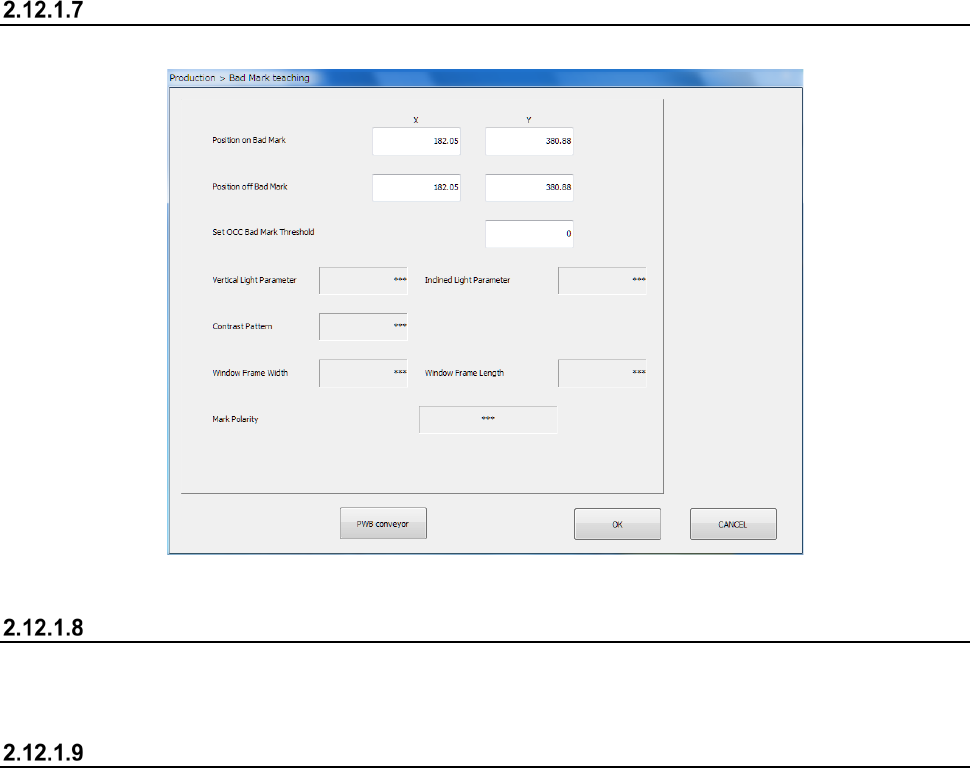
Teach Bad Mark Reader
This button allows you to make settings of recognition of a bad mark with the OCC.
See Section 8.3.6.2 “Bad mark sensor threshold” of Chapter 8 “Machine Setup” for details.
MTS mark recognition
This button causes the machine to recognize a mark of the MTS automatically.
See Section 4.5.6.3 “Feeder bank mark” of Chapter 4 “Creating a Production Program” for details.
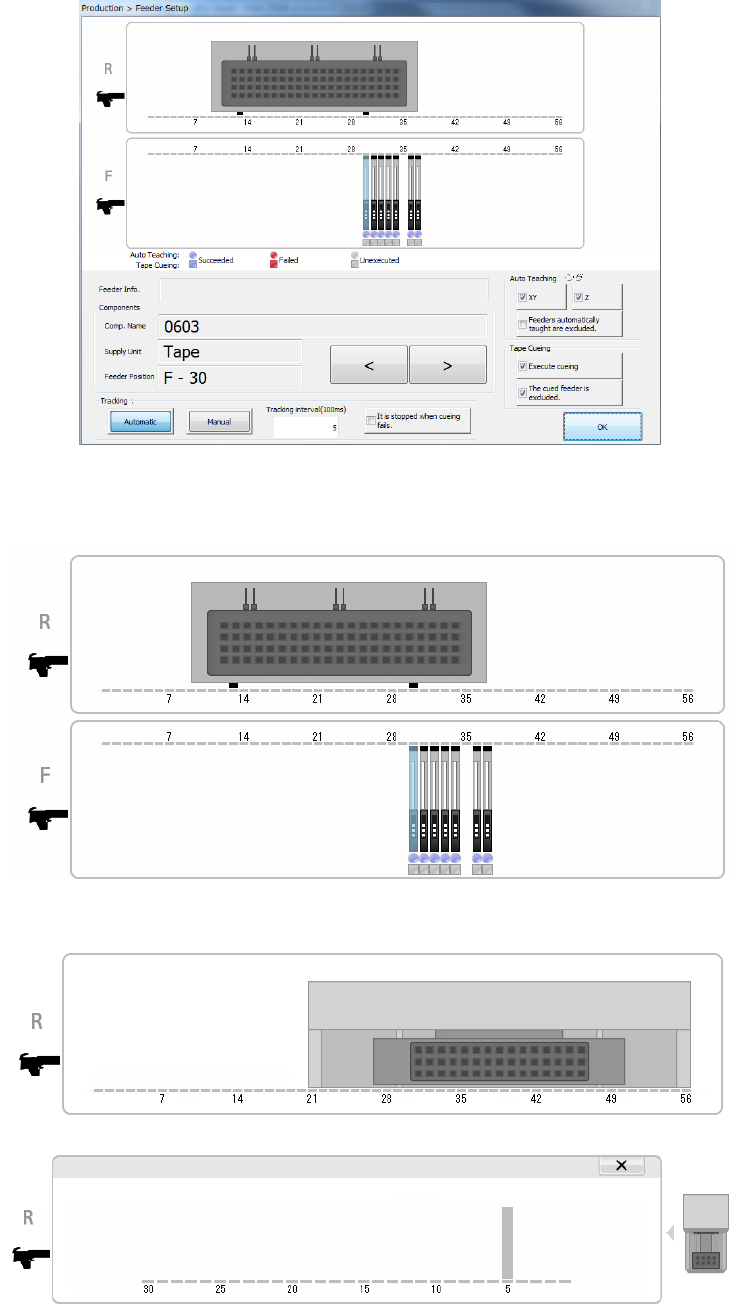
Feeder Setup
This button displays the feeder layout of each bank to allow you to teach and/or track the
component pick-up position.
Only feeders specified with the menu item “Tracking order” on the “Pick position tracking” screen
(see Section 4.5.6.5 “Pick position/Pick height”) are to be traced.
When you press the “Teaching” button displayed in the Operation area, it allows the system to teach
the pick-up position of the selected component.
When you press the “Trace” button displayed in the Operation area, it allows the system to track a
component pick-up operation on the selected bank in the manner selected with the “Tracking”
button, <Automatic> or <Manual>.
Part 1 Basic Operation Chapter 2 Production
2-99
(1) Feeder layout
The system displays the layout of the feeder that is to be used with a production program you
select on the top of the screen.
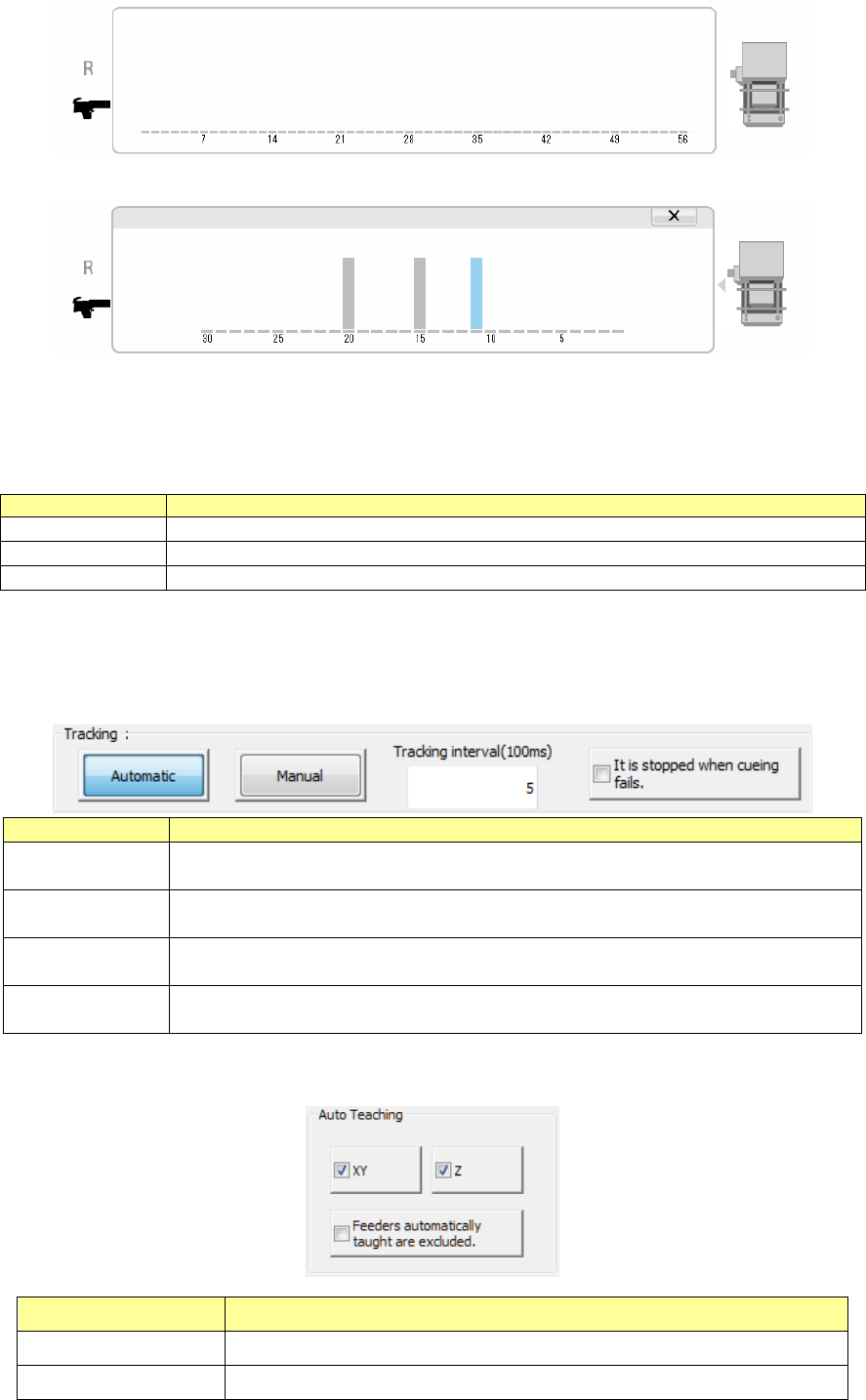
When a TR8SR is used as a component supply device, the feeder layout is displayed with the
image of a TR8SR as shown below.
When you touch the displayed TR8SR image, the enlarged TR8SR image is displayed.
To return to the original TR8SR image screen, touch “×” or the TR8SR image displayed on
the right side of the screen.
When a component supply device is a TR6S/6D, an image of an MTS is shown on the right
side of the image of the bank.
Part 1 Basic Operation Chapter 2 Production
2-100
When you touch the displayed MTC image, the enlarged MTC image is displayed.
To return to the original bank image screen, touch “×” or the MTC image displayed on the right
side of the screen.
(2) Components (detailed information on the target component)
Information on the feeder of the selected bank is displayed here.
Menu item
Description
Comp. Name
Displays the name of a target component in large characters.
Supply Unit
Displays the type of a target component in large characters.
Feeder Position
Displays the supply position of a target component in large characters.
When you press the < < > button or < > > button, another target component is selected, and
the detailed information is updated.
(3) Tracking
Select how to move to a component pick-up position to be tracked.
Tracking
Description
Automatic
Automatically tracks the next pick-up position after tracking the component pick-up
position and then pauses.
Manual
The system tracks a component pick-up position, and then pauses.
The system tracks the next pick-up position in response to the operator’s input.
Tracking
Set the time period the system pauses at each component pick-up position if it tracks
pick-up points automatically.
It is stopped when
cueing fails.
Stops automatic feeding if cueing fails to cue (head) a component.
(4) Auto Teaching
Set the auto teaching operation to track a component pick-up position.
Auto Teaching Description
XY Automatically teaches the XY.
Z Automatically teaches the Z.