RS-1_instruction manual.pdf - 第848页
Pa r t 2 Det ai l ed Des c r i pti on o f Ea c h Fu nc ti on Chapter 10 M ach i ne Manage m e nt Infor m ation 10- 35 10.4.2 Laser u sage inf o rm at ion W hen you sel ect [R ecog nit ion/Ins p ecti on] – [Las er u sag e…
Part 2 Detailed Description of Each Function Chapter 10 Machine Management Information
10-34
(2) <Reset> button
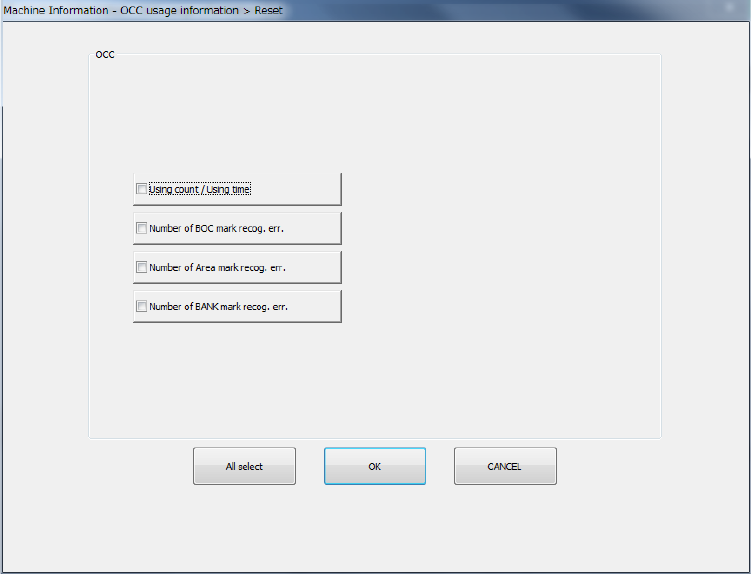
When you press the <Reset> button or press [Initialize] – [Reset] in the main menu, the
following screen appears.
- The <All select> button allows you to select all check boxes displayed on the screen.
- When you press the check box of the item whose data you want to reset, and press the
<OK> button, the “Question” dialog box for asking you whether to reset data appears on
the screen. When you press the <OK> button on this “Question” message, the system
resets the checked items of data, and closes the screen.
- When you press the <CANCEL> button, the system does not reset any data and the
current data is still displayed.
Part 2 Detailed Description of Each Function Chapter 10 Machine Management Information
10-35
10.4.2 Laser usage information
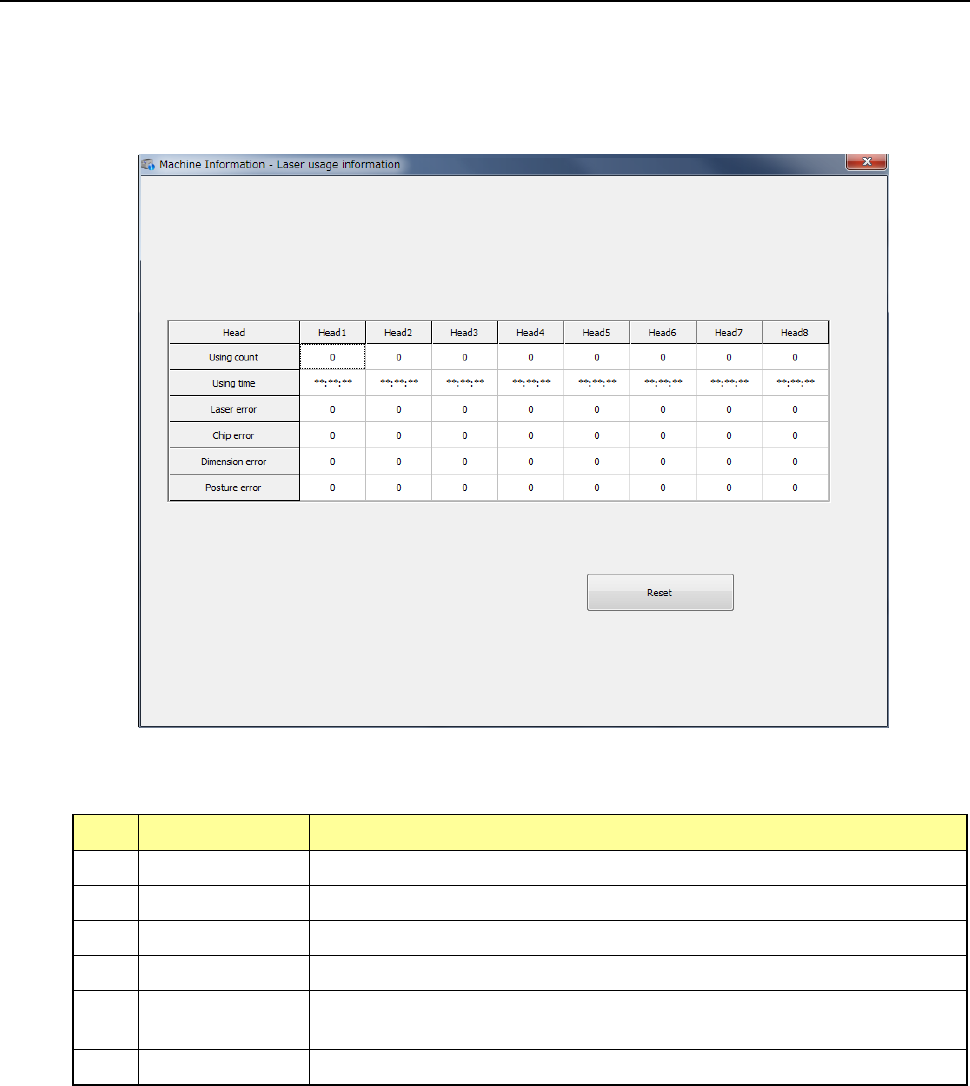
When you select [Recognition/Inspection] – [Laser usage information] in the main menu, the
laser usage information screen appears.
This screen is changed over to the information on each head unit by pressing the device select
button.
(1) Laser usage information
No. Item Description
1 Using count Displays how many times laser was used totally.
2 Using time Displays the total time laser was used.
3 Laser error Displays how many times a laser error occurred totally.
4 Chip error Displays how many times a tombstone error occurred totally.
5 Dimension
error
Displays how many times an irregular-shaped component error
occurred totally.
6 Posture error Displays how many times a component posture error occurred totally.
Part 2 Detailed Description of Each Function Chapter 10 Machine Management Information
10-36
(2) <Reset> button
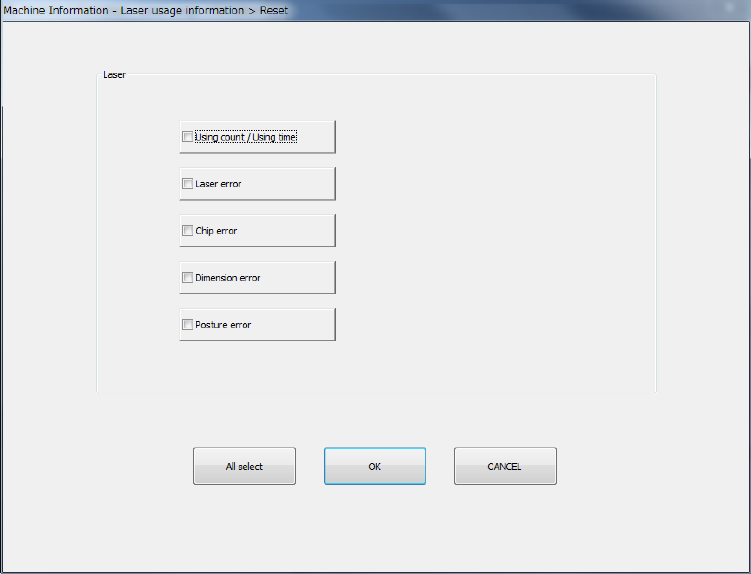
When you press the <Reset> button or press [Initialize] – [Reset] in the main menu, the
following screen appears.
This operation allows you to clear the certain data or all data displayed in the list.
- The <All select> button allows you to select all check boxes displayed on the screen.
- When you press the check box of the item whose data you want to reset, and press the
<OK> button, the “Question” dialog box for asking you whether to reset data appears on
the screen. When you press the <OK> button on this “Question” message, the system
resets the checked items of data, and closes the screen.
- When you press the <CANCEL> button, the system does not reset any data and the
current data is still displayed.