RS-1_instruction manual.pdf - 第490页
Part 1 B asic O peration Chapter 4 Cr eating a Produc tion Progra m 4- 155 When you ch eck off the “ Inqu iry for repla ce ” check box, the conf irmation dialo g box like one shown below appe ars on the scr een every t i…
Part 1 Basic Operation Chapter 4 Creating a Production Program
4-154
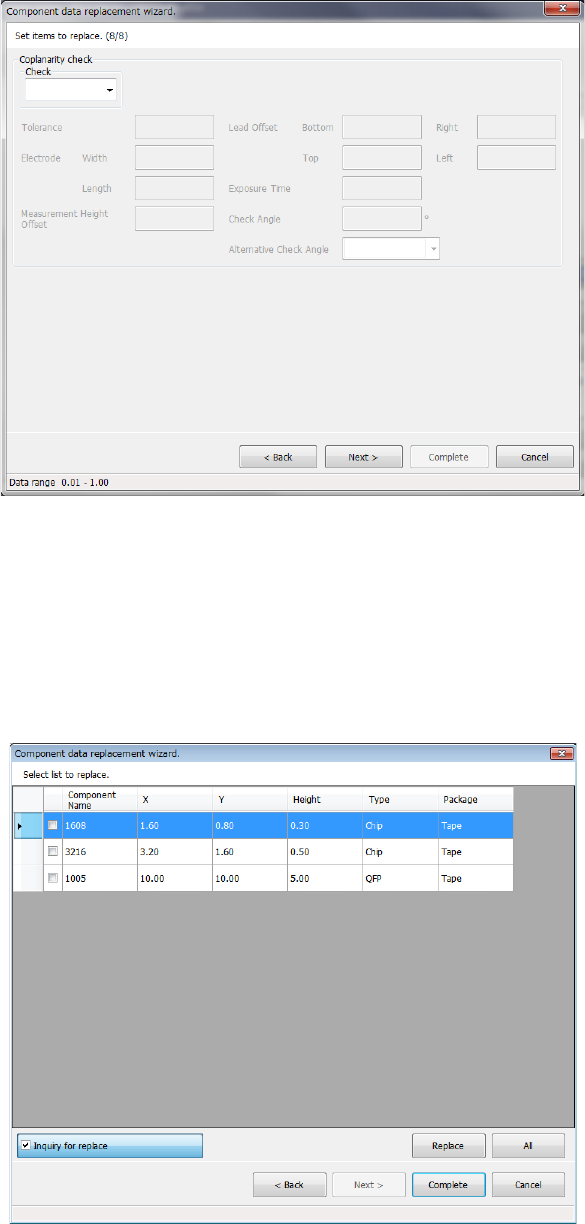
Data entered on the “Inspection 4” tab of the “Component” data screen is displayed on the screen.
Enter the desired value for each item.
The input range is displayed on the bottom of the dialog box.
When you select the <Back> button, the screen is switched back to the previous screen.
When you select the <Next> button, the screen is switched back to the next screen.
When you select the <Cancel> button, the system aborts the current processing, and then closes
the dialog box.
Data you have entered appears on the screen.
The <Replace> button replaces the specified data items of the selected record one by one.
The <All> button replaces the specified data items of all data records.
Part 1 Basic Operation Chapter 4 Creating a Production Program
4-155
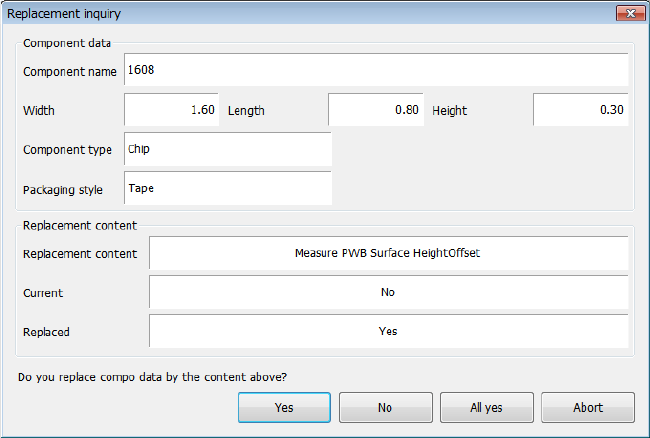
When you check off the “Inquiry for replace” check box, the confirmation dialog box like one shown
below appears on the screen every time the system is to replace one data item before replacing
data actually.
Part 1 Basic Operation Chapter 4 Creating a Production Program
4-156
4.5.1.2 Change Component Name
This command changes the specified component name stored in the Component data.
Screen Function
PWB data
Basic setting screen
This command cannot be used.
Dimension setup screen
Circuit Layout screen
Ex. Bad Mark screen
PWB Conveyor screen
Placement data
List screen You can change a component name.
Area Mark screen
This command cannot be used.
Area Bad Mark screen
Component data
List screen
You can change a component name.
Form screen
Pick data
List screen
Form screen
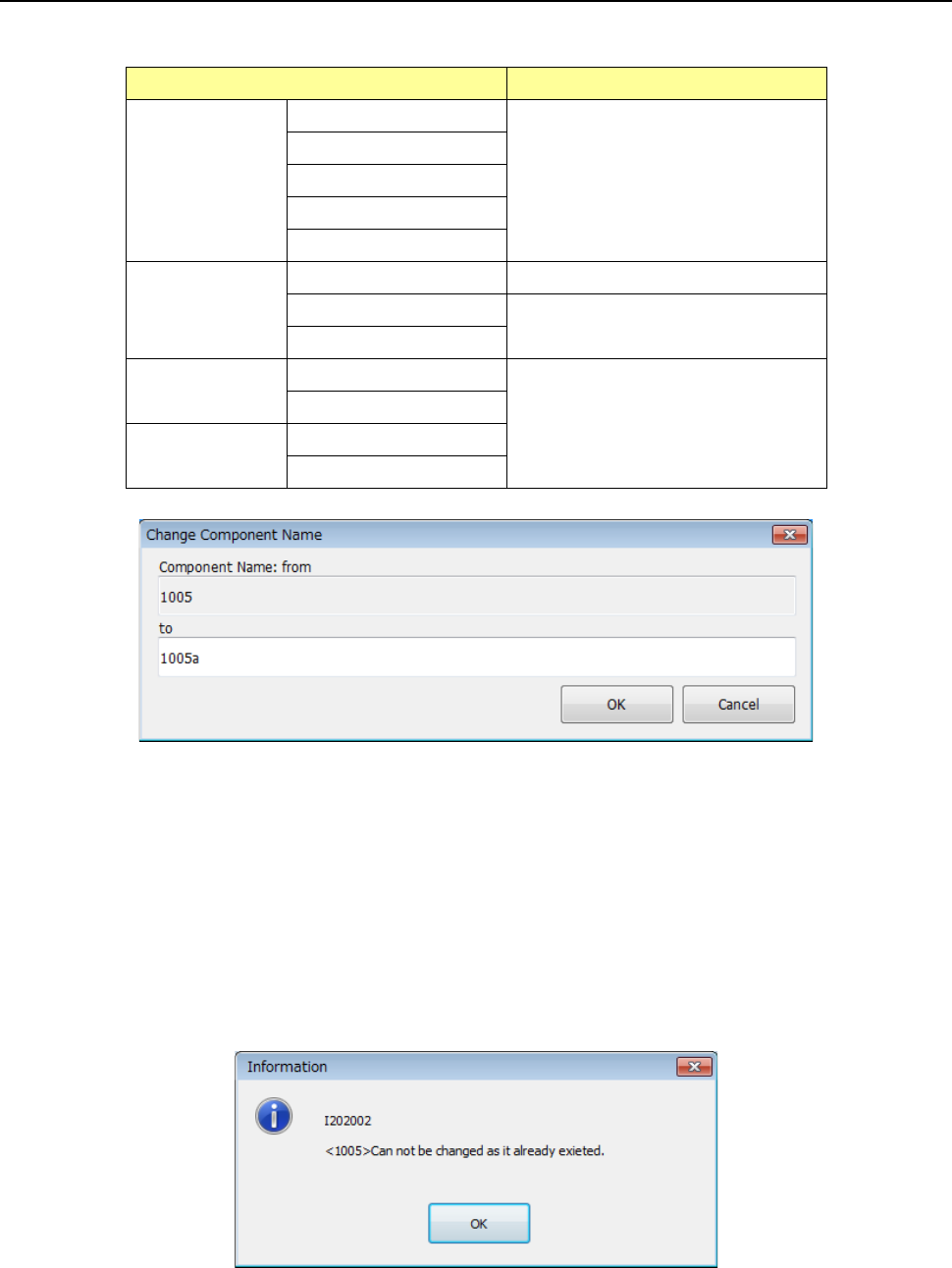
The system changes a component name only, and any other data does not change.
A component name specified before changing is displayed in the “Component Name: from” area.
A component name specified before changing is highlighted in the “To” edit box.
Enter a new name in this “To” edit box.
When you press the <OK> button, the component name is changed to the new name you entered.
When you press the <Cancel> button, the component name does not change, and the previous
screen reappears.
If the entered new name is already used in another component, the dialog box like one shown
below appears on the screen.