RS-1_instruction manual.pdf - 第233页
Part 1 B asic O peration Chapter 2 Pr oduction 2- 122 coordinate, align the f ocus to t he “Z” edit field, and t hen press the <T each> butt on displayed o n the functi on bar . ② <Insp.> button F or the spec…
Part 1 Basic Operation Chapter 2 Production
2-121
to.”
2) Returns every time
The system returns a component to its original position.
3) Inquires every time
The “Question” screen appears every time the system finishes checking one SOT
component.
(3) < Continuous inspection > button
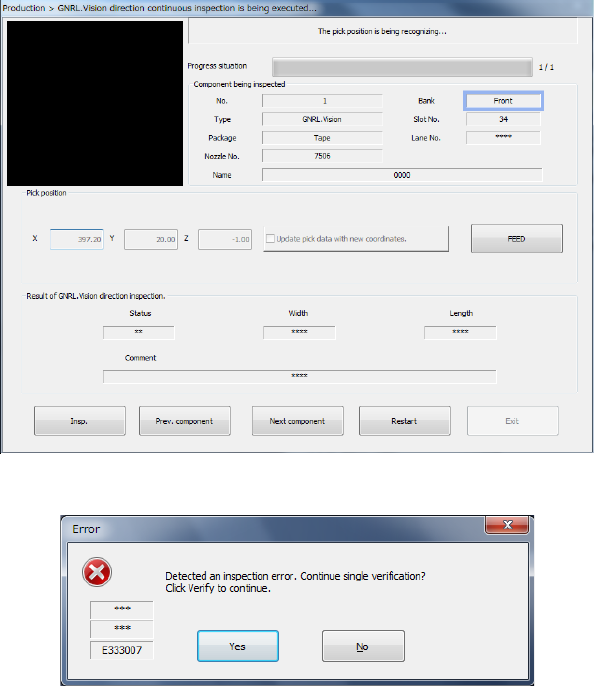
When you press this button, the following screen appears on the screen, and the system
starts inspecting SOT components continuously.
Data displayed on the screen is the same as that on the “SOT direction single inspection”
dialog box.
1) If an error occurs
If an error occurs during continuous inspection, the following message is output.
To check the next component, press the <No> button.
The system restarts checking SOT components continuously.
To separately check an SOT component at which an error has occurred, press the <Yes>
button.
You can separately check a component that caused a check error.
(See the previous section.)
When you press the <Yes> button on the continuous check error screen, each button on the
“SOT direction continuous inspection is being executed” screen is enabled, and you can
operate it.
① Pick position
The coordinates from which a component is to be picked up are displayed here. If
teaching operation is possible and you check the check box “Update pick data with new
coordinates,” the teaching coordinates are loaded into the Pick data. If you do not
check this check box, only the component pick-up coordinates for this operation are to
be inspected.
To teach the XY coordinates, align the focus to either the “X” edit field or the “Y” field,
and then press the <Teach> button displayed on the function bar. To teach the Z
Part 1 Basic Operation Chapter 2 Production
2-122
coordinate, align the focus to the “Z” edit field, and then press the <Teach> button
displayed on the function bar.
② <Insp.> button
For the specified component, SOT/general-purpose vision component direction
inspection is executed independently.
③ Prev. component/Next component
These buttons change the component to be inspected to the alternative component.
④ <FEED> button
This button instructs the system to feed the pick-up position of a component to be
inspected.
⑤ <Restart> button
This button allows the system to restart continuous inspection from the component next
to the component whose inspection was aborted due to an error.
⑥ <Stop> button
Press this button when you do not want to restart continuous inspection. The previous
screen (“GNRL. Vision direction continuous inspection” screen) reappears.
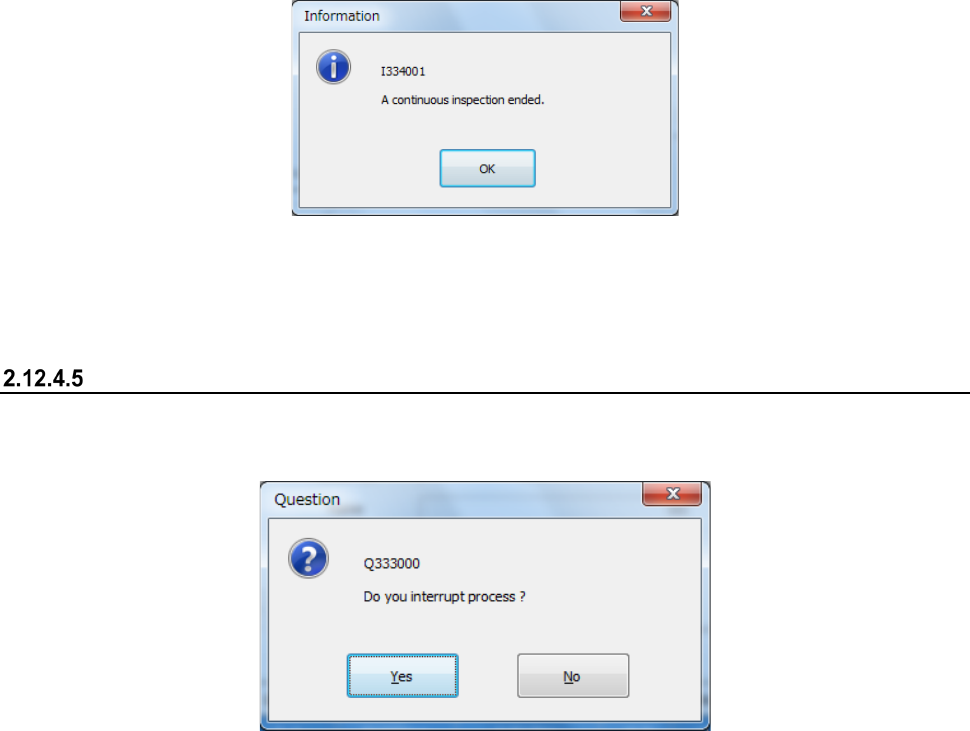
2) End of inspection
When the system finishes checking SOT components continuously, it outputs the following
message, and then returns to the previous screen (“GNRL. Vision direction continuous
inspection” screen).
(4) <Exit> button
When you press this button if a nozzle is attached on the head, the system returns the nozzle
and each unit moves to the waiting position.
Then, the previous screen appears.
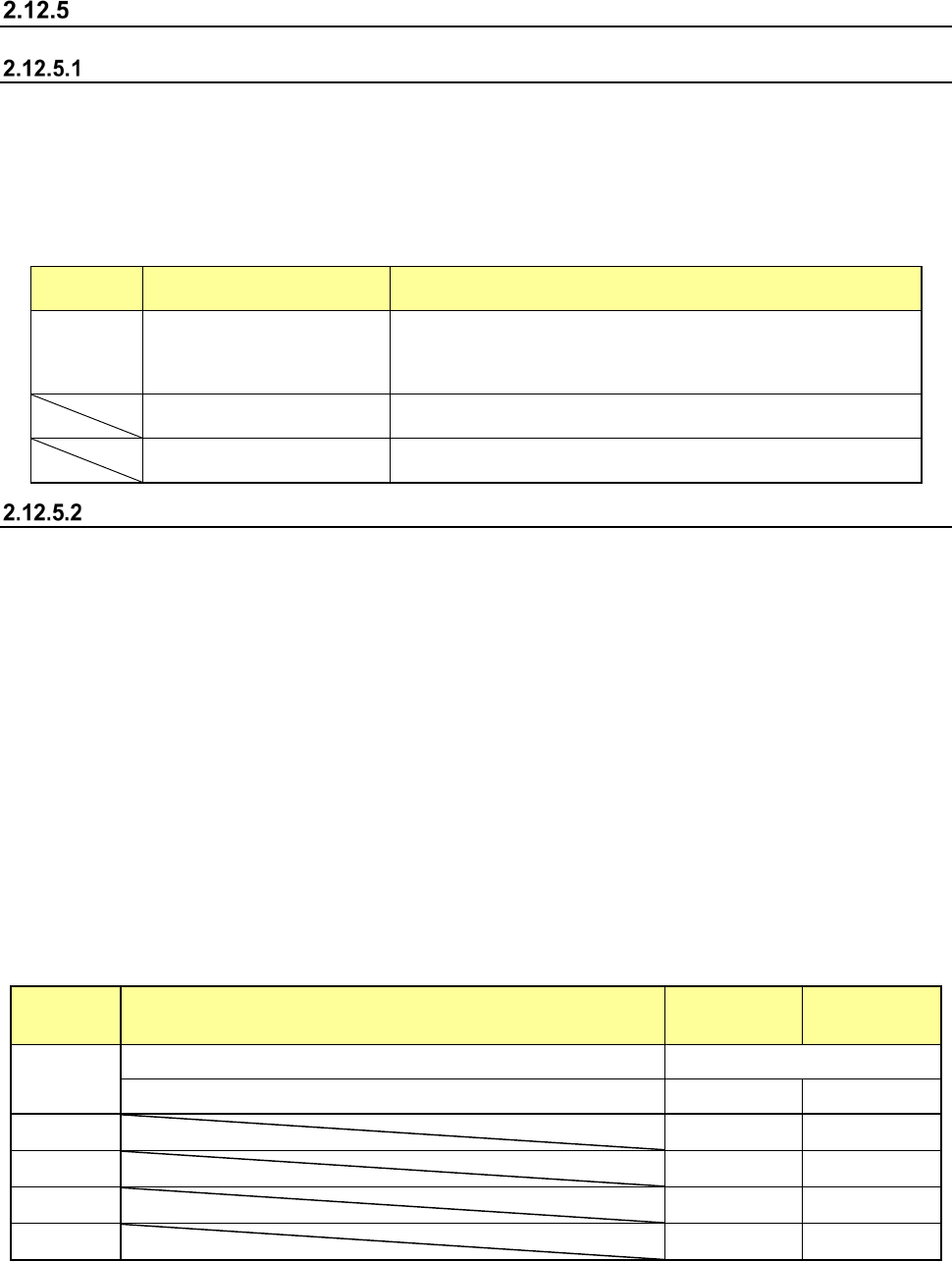
Aborting a check
To stop a check forcibly, press the <STOP> button. The following message appears on the screen.
To finish the current check, select the <Yes> button.
Part 1 Basic Operation Chapter 2 Production
2-123
Laser height check
Overview
Select the [Laser check] command from the “Support” menu invoked from the “Product” menu. This
command allows you to take a series of control over laser centering based on the laser height
specified in Component data of a production program, and check to see if any error does not occur.
In Single Check mode, you can check the height of only one component with laser or with specifying
the desired or measured laser height.
The laser check has three functions: “Continuous inspection,” “Single inspection” and “Single
measurement.”
Pull-down
menu
Menu command (displayed
on the menu)
Function
Laser
check
Continuous laser position
inspection
The system checks all components or components that satisfy
the specified requirements in a production program.
In “Laser position inspection,” you can check a component that
failed to pass this check for some reason.
Laser position inspection
Separately inspects components that caused an error as a result
of the “Continuous laser position inspection.”
Laser position measurement
Measures the laser position if the system could not recognize a
component with the “Laser position inspection.”
Operations
(1) Head used to pick up a component
The system automatically selects a head that is used to pick up a component. The system
selects a nozzle already attached on a head rather than one not attached so that the frequency
of nozzle replacement can be reduced as much as possible. However, the system may use a
different head every time it measures laser height depending on the nozzle attachment
condition.
(2) Conditions for returning/discarding a component after checking the laser height
After checking the laser height, the system returns some components to their original positions
and discards other ones depending on their packaging styles as shown in Table below. The
system discards a component at a position set according to the setting of the menu item
"Compo Reject to" on the Component data screen. When “IC Collection Belt” or “Protect” is
set for the menu item “Compo Reject to,” the system discards a component according to this
setting.
For a component whose size is 1 mm or less, it may be placed on its side or be turned upside
down when it is returned to the original position. Therefore, the system displays the “Question”
screen to ask you how to handle it.
Note that you cannot pick up a component manually.
Packaging
style
Condition
Returning a
component
Discarding a
component
Tape The shorter side length of the external dimensions is 1 mm or less. Question screen *1
The shorter side length of the external dimensions is 1 mm or more. ○ ○ *2
Holder
○ ○ *2
Stick
― ○
MTC
○
○ *2
MTS
○
○ *2
*1 The system displays the screen to ask you whether to return a component or discard it. When the system
measures the laser height of components continuously, it displays this “Question” screen before starting
measurement.
*2 The system discards a component when you select “IC Collection Belt” or “Protect” for the menu item
“Comp reject to.”
(3) Selecting a feeder used to pick up a component
If two or more feeders are assigned to the same type of components in the Pick data, the