RS-1_instruction manual.pdf - 第178页
Part 1 B asic O peration Chapter 2 Pr oduction 2- 67 3 Feeder Replenish es compo nents that are sele c ted on t he “Parts no. setup” scr een. (5) <OK>/< CANCEL> bu ttons No. Button Description 1 OK Updates y …
Part 1 Basic Operation Chapter 2 Production
2-66
3 Component name Shows the component name.
4 Warning
Shows the component supply error.
*: Indicates that the number of remaining components becomes less than the number
specified at “W.Level.”
E: Indicates that a component pick-up retry over error occurs, and the system stops
picking up a component.
To recover the system from an error: Enter the number of the remaining components
or replenish the feeder with components fully.
2) Items to be set
No.
Item
Description
1 Initial
Enter the number of components supplied in the package specified with “Package” before the system
starts using it. When you enter or change the initial value, the changed value is copied to the field of
the item “Remain.”
When you enter the initial value, the corresponding value is set in the “Remain” field.
- When you set “0”as this “Initial” value for a feeder, the system does not control the number of the
remaining components by subtracting the number of used components from this value and
continues producing PWBs until a retry over error occurs at the feeder. Otherwise, the value you set
here is entered to the field of the item “Remain” when you click the <Replenish Comp.> button.
2 Remain
- Shows the number of remaining components when the system checks the number of components.
This value decrements every time the system picks up a component during production.
- When “0” is set to “Initial,” the value shown here does not decrement.
- If you change the value of “Initial,” the value shown here is changed in the same manner. You can
also change this value only according to components to be supplied.
- When a tape feeder, stick feeder is used as a component supply unit, the system stops subtracting
the number of used components from the “Initial” value if this value reaches “0,” but continues
producing PWBs. When “0” is set in this “Remain” field, the system does not stop producing
PWBs either. In these cases, the feeder continues placing components on boards until a retry
over error occurs.
- The number of the remaining components becomes a smaller number than the value set in the
“Level” field, the signal light warns an operator.
3 W.Level
Sets the warning level.
When the number of remaining components becomes less than the value displayed here, the signal
tower warns you by flashing its yellow lamp.
If “0” is set to “Initial,” this function does not operate.
When you enter a value to “Initial,” this value is initialized.
(2) Device
No. Menu item Description
1
Tot al
Shows all components set on the machine.
2
Front
Shows only components set on the front bank.
3
Rear
Shows only components set on the rear bank.
4
Holder
Shows only components set on the holder or the DTS.
5
MTC/MTS
Shows only components set on the MTC or the MTS.
(3) DTS Change
When you press the <DTS Change> button, the system replaces a tray of the DTS with another
one. You cannot select this button if any DTS component is not specified in the production
program.
(4) Supply
When you press one of the < Supply> buttons, the system replenishes the specified component
supply unit with components fully.
When the system replenishes the unit with components, it resets the number of the remaining
components specified in the “Remain” field to the value specified in the “Initial” field, and
cancels the warning.
No.
Menu item
Description
1
Replenish all comp
Replenishes all types of components set on the machine fully.
2
Replenish Comp
Replenishes components whose type(s) is (are) displayed with the
<Device> button fully.
Part 1 Basic Operation Chapter 2 Production
2-67
3
Feeder
Replenishes components that are selected on the “Parts no.
setup” screen.
(5) <OK>/<CANCEL> buttons
No.
Button
Description
1
OK
Updates your change and quits the “Parts no. setup” screen to return to
the previous screen.
2
CANCEL
Discards your change and quits the “Parts no. setup” screen to return to
the previous screen.
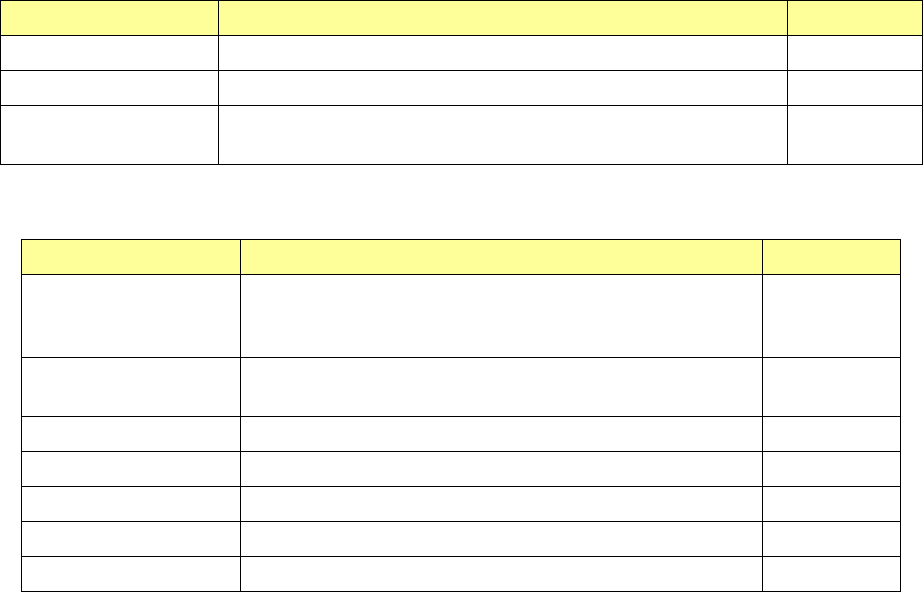
Edit Data
Select the [Program] command on the “Product” menu, and then the [Change data] command, or
select the <Edit Data> button of the “Edit Data” group displayed on the “Retry list.” The “Change
Data” screen appears.
If an error such as a laser recognition error occurs during PWB production, this screen allows you to
change or recheck data on the “PWB” data screen, “Placement” data screen, “Component” data
screen or “Pick” data screen.
PWB data
Select the “PWB” tab displayed on the top of the screen.
(1) Basic settings
The basic settings are performed on the upper left section of the screen.
Menu item Description User level
PWB ID Displays the comment on the board. -
Scale type Allows you to select the gray scale pattern of the recognized mark image. Programmer
Global Bad mark Displays the detecting operation of a global bad mark. -
Bad mark Displays which bad mark type is used, Standard or Extended, and bad
mark is detecting operation.
-
(2) Dimension setup
Menu item Description User level
PWB dimensions Displays the outside dimensions of a board. −
PWB layout offset Displays the board layout offset. −
PWB height. Enter the height of a board Programmer
Part 1 Basic Operation Chapter 2 Production
2-68
Menu item Description User level
PWB thickness Enter the thickness of a board. Programmer
Back height Enter the height of the rear side of a board. Programmer
Head height at
production start
Displays the head height at the time of production start. −
(3) PWB surface
The following table shows the contents of PWB surface settings on dimension settings.
Menu item Description User level
BOC type Displays the BOC mark type.
(“Not Used,” “PWB marks/ref. ckt marks are used,” or “Circuit
marks are used”)
−
PWB configuration Displays the circuit configuration of a board. (Single PWB,
Matrix circuit and so on)
−
Circuit dimensions Displays the outside dimensions of a circuit. −
Circuit layout offset Displays the circuit layout offset. −
First circuit position Displays the position of the first circuit on a board. −
Circuit divide No. Displays the number of circuits on a board. −
Circuit pitch Displays the distance between two consecutive circuits. −