RS-1_instruction manual.pdf - 第654页
Pa r t 2 D et ai l ed Des c r i pt i o n of Ea c h F unc t i o n Chapte r 6 G e neral - Purpose Vision Co mpone nt 6- 23 (1) “ Al l Leaded El em ent G roup s ” list Y o u c an p er f orm an oper ati on sim ilar w it h th…
Part 2 Detailed Description of Each Function Chapter 6 General-Purpose Vision Component
6-22
6.4.3.2 “Simple Input for Leaded Component” dialog box
When you touch the <OK> button on the “Define leaded element groups” screen, the “Simple
Input for Leaded Component” dialog box appears on the screen that allows you to enter or edit
data on a lead element group. This dialog box allows you to add, copy, paste and/or delete an
element group also.
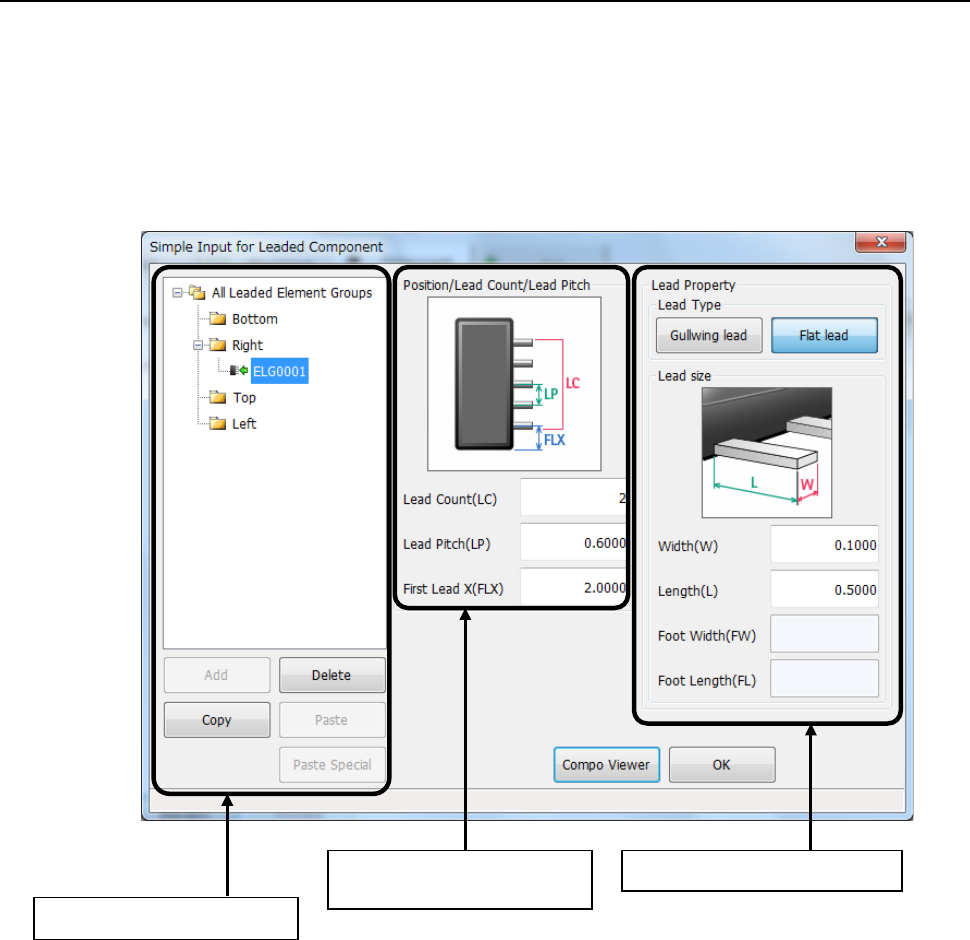
The “Simple Input for Leaded Component” dialog box consists of three menu item groups: “All
Leaded Element Groups” list, “Position/Lead Count/Lead Pitch” and “Lead Property.”
“All Leaded Element Groups” list
“Lead Property” menu item group “Position/Lead Count/Lead
Pitch” menu item group
Part 2 Detailed Description of Each Function Chapter 6 General-Purpose Vision Component
6-23
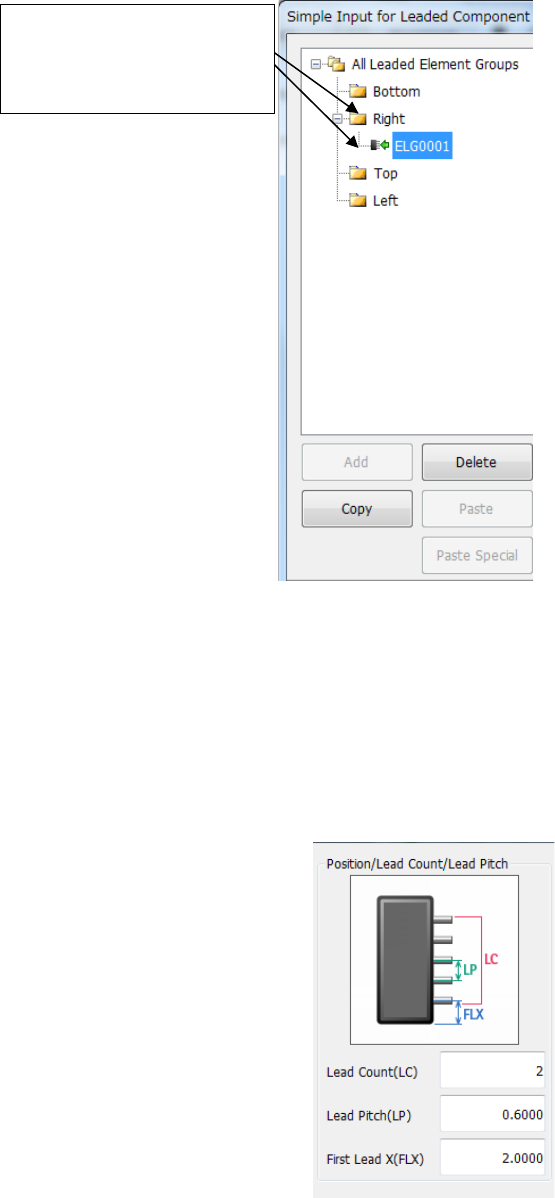
(1) “All Leaded Element Groups” list
You can perform an operation similar with that of Windows Explorer on the “All Leaded
Element Groups” list.
(2) Position/Lead Count/Lead Pitch
• Lead Count (LC) : Number of leads in the group
• Lead Pitch (LP) : Distance from the center of one lead to that of the next lead
• First Lead X (FLX) : Distance from a corner (in the farthest outer region) to the first
element
When you click [+], [+]
changes to [-] and the defined
element groups are displayed
at the lead positions.
Part 2 Detailed Description of Each Function Chapter 6 General-Purpose Vision Component
6-24
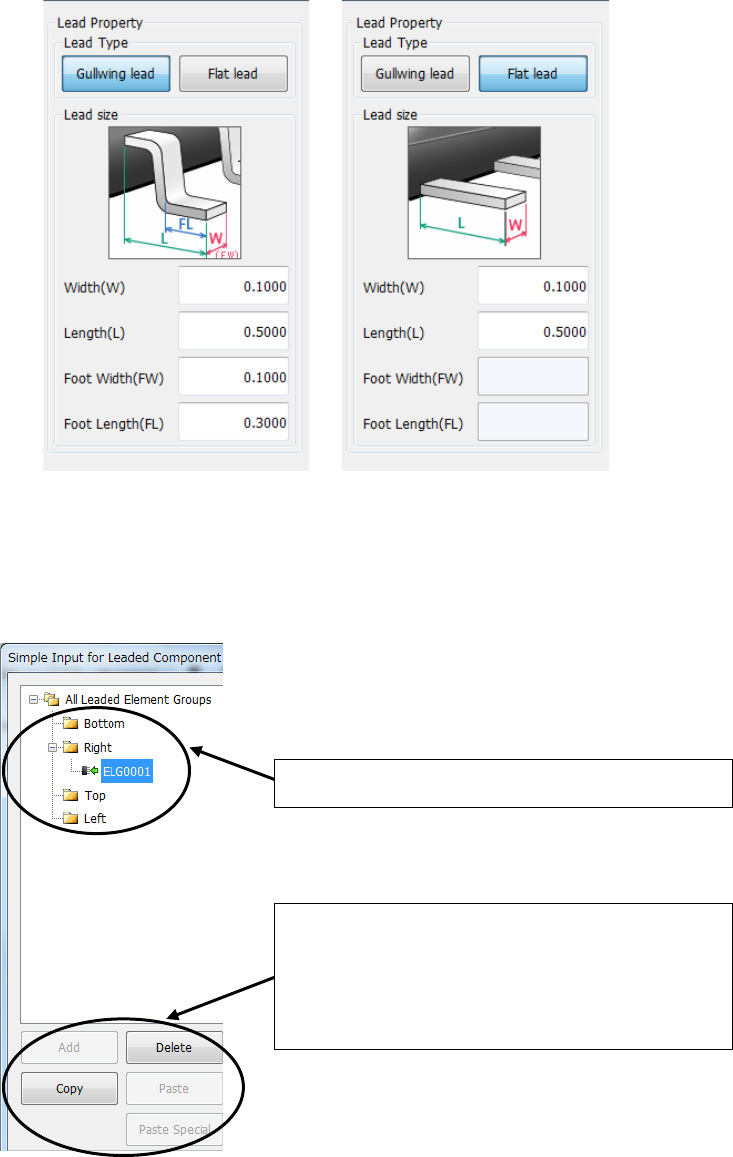
(3) Lead Property
Select the lead type, and enter the dimensions of a lead.
(4) Editing an element group
You can add, delete and/or copy an element group on the “All Leaded Element Groups” list.
Each operation is similar with that of Windows Explorer.
① Select a folder to be added, deleted or copied.
② Click the corresponding button: <Add>, <Delete>
and <Copy> to add, delete or copy an element
group.
When you click the <Copy> button, you have to
click the <Paste> or <Paste Special> button also.