RS-1_instruction manual.pdf - 第599页
Part 1 B asic O peration Chapter 4 Cr eating a Produc tion Progra m 4- 264 ③ Displayed cursor typ e Select a curs or type to be used for positi on specif ication. • Cross cursor Select a sing l e point by op erating the …
Part 1 Basic Operation Chapter 4 Creating a Production Program
4-263
2) Execution of component teaching
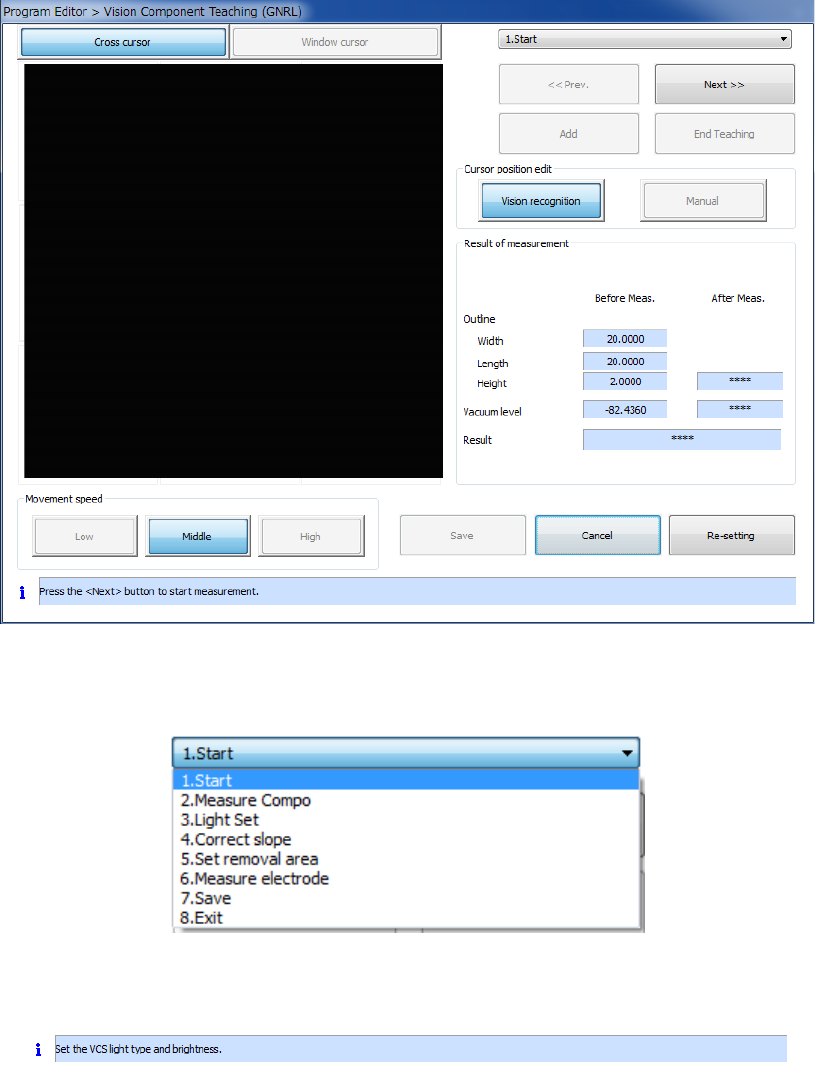
While a component is being taught, the following screen is displayed.
The results prior and subsequent to measurement and information on the processing in
sequential execution are displayed.
① Teaching progress dialog box
The dialog box indicating the progress of teaching is displayed on the left side of the screen.
The color of the item indicating the operation being performed changes.
② Information on the running process
Information on the current process is displayed on the bottom of the dialog box.
Part 1 Basic Operation Chapter 4 Creating a Production Program
4-264
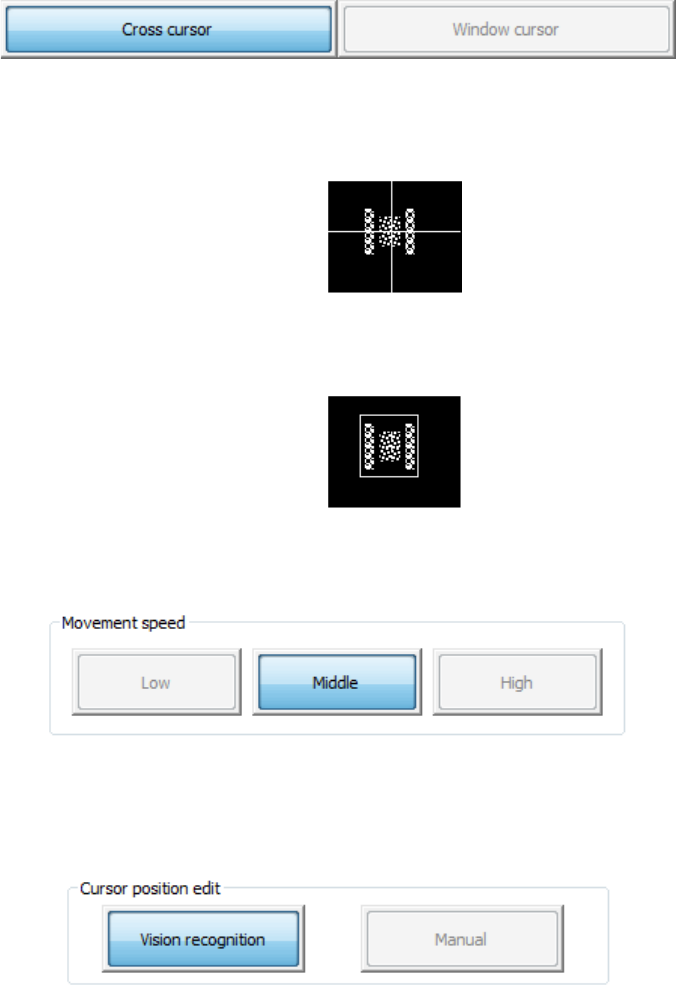
③ Displayed cursor type
Select a cursor type to be used for position specification.
• Cross cursor
Select a single point by operating the cross point between vertical and horizontal
lines.
• Window cursor
Select an area by operating the upper left, upper right, and lower right of a
rectangle.
④ Movement speed (Cursor moving speed)
Select a speed to move the cursor (cross/window type). The moving distance by pressing
the moving button becomes long at high speed or short at low speed.
⑤ Cursor position edit
Select processing for the cursor position at pole detection. Select whether vision
recognition is performed or the cursor position is used as it is without performing vision
recognition
Part 1 Basic Operation Chapter 4 Creating a Production Program
4-265
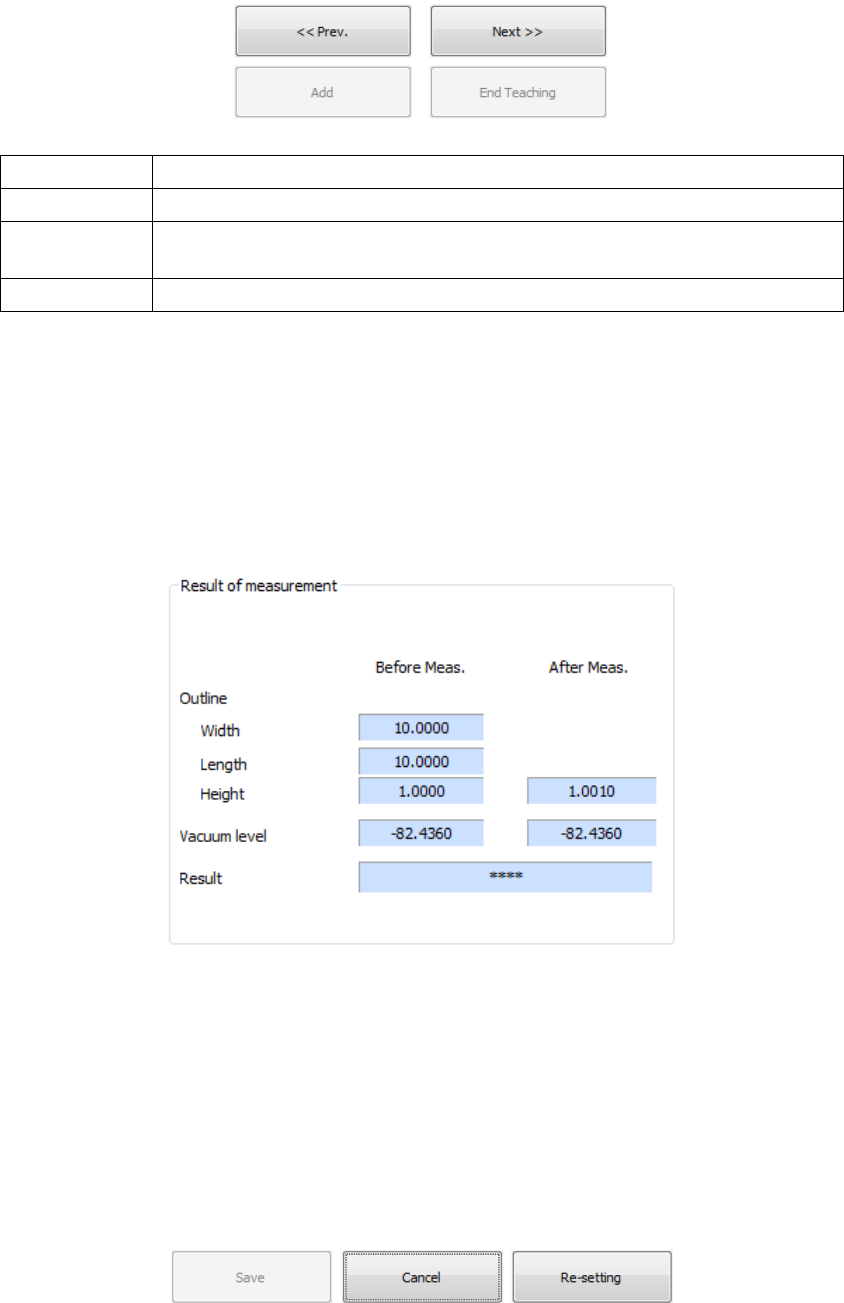
⑥ Processing changeover button
This button is used for a changeover, retrial, and termination of the contents of processing.
Prev. The processing preceding the current processing is performed once again.
Next The current processing is finished, proceeding to the next processing.
Add
An exclusion area is added (BGA/FBGA component only) or a pole area is added
(general-purpose component only).
End Teaching The teaching processing is completed and recognition is executed.
⑦ Result of measurement
The outer dimensions (length, width, and height) prior and subsequent to measurement,
vacuum pressure, and recognition result are displayed.
The post-measurement values of the items, which were not measured, are not displayed.
("****" is indicated.)
To save a measurement result, the recognition result must be "OK."
When "****" or "NG" is displayed, the measurement result cannot be saved.
⑧ Save
The measurement result is saved and the execution screen is closed. This key can be
executed only when the recognition result is "OK."
⑨ Cancel
During or after execution, the result is discarded and the execution dialog box is closed.
⑩ Re-setting
During or after execution, the result is discarded and teaching is executed from the
beginning.