RS-1_instruction manual.pdf - 第516页
Part 1 B asic O peration Chapter 4 Cr eating a Produc tion Progra m 4- 181 4) Light value settin g Y ou can chang e the brightness of the l ight instal led on the camer a that is being used currently with the light set t…
Part 1 Basic Operation Chapter 4 Creating a Production Program
4-180
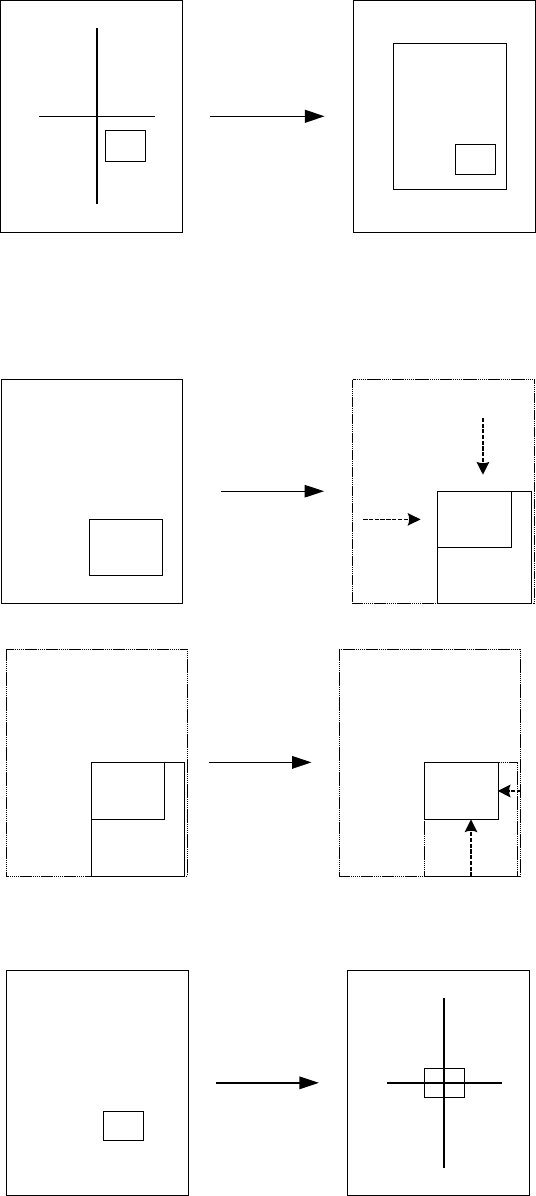
② Teaching with WINDOW
When you obtain the coordinates with the box window, select the <WINDOW> button.
The cross hair cursor is switched to the window cursor.
Normally, the crosshair cursor is displayed. Window cursor
Move the top side, left side, bottom side and right side of the window frame with the axis
drive keys for the X- and Y-axes. First of all, move the top side and the left side, and press
the <OK> button.
Next, move the bottom side and the right side, and press the <OK> button.
When you press the <OK> button after moving the bottom side and right side, the camera
moves so that the center of the box window can be aligned with that of the previous
crosshair cursor, and then, the cursor changes from the box window to the crosshair cursor.
The coordinates of the current position to which the camera moved are displayed in the “X”
and “Y” text boxes.
When you press the <OK> button at this point, the coordinate values are obtained.
Select the
<WINDOW>
button.
Part 1 Basic Operation Chapter 4 Creating a Production Program
4-181
4) Light value setting
You can change the brightness of the light installed on the camera that is being used
currently with the light setting.
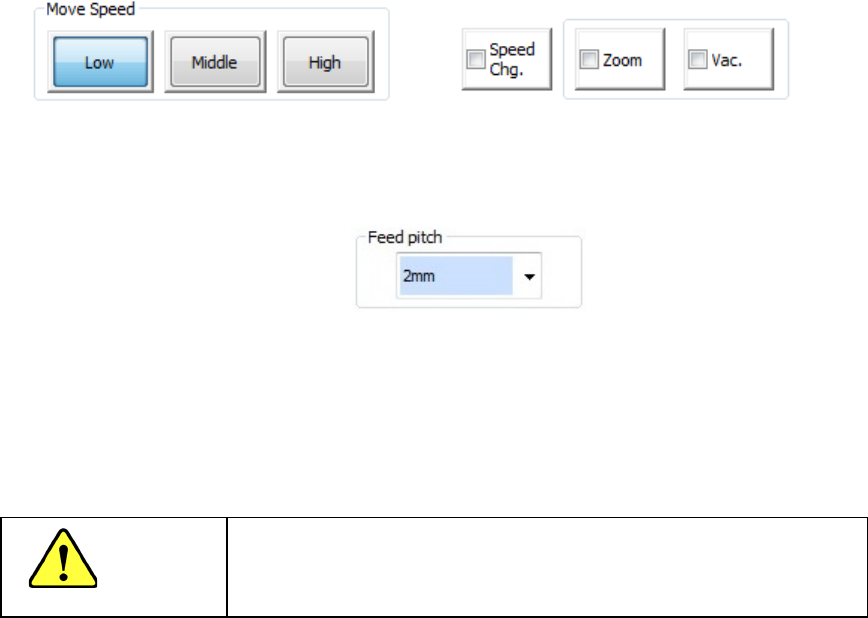
5) Move Speed
You can select the speed at which the axes move among the low speed, the middle speed
and the high speed with selecting the corresponding button: <Low>, <Middle> or <High>.
When you check off the “Speed Chg.” check box, the axis moving speed is accelerated after
it continues to move for a certain period of time.
6) Feed pitch
Set a value when you want to change the feed pitch of the electric feeder. You can select
the feed pitch that can be set for the electric feeder during teaching.
The image shot with the selected camera is displayed on the teaching screen for a camera.
When you touch the frame of the image shot with the camera, the XY axes move in one of
eight directions depending on which frame you touch. The color of the screen frame you
touch changes to light blue, and the axes continue to move while you are touching the frame.
The current coordinates, X and Y, of the camera are displayed in the “X” and “Y” text boxes.
CAUTION
To avoid a risk of injury, do not put your hands inside the machine
or move your face or head close the machine while the system is
teaching data.
Part 1 Basic Operation Chapter 4 Creating a Production Program
4-182
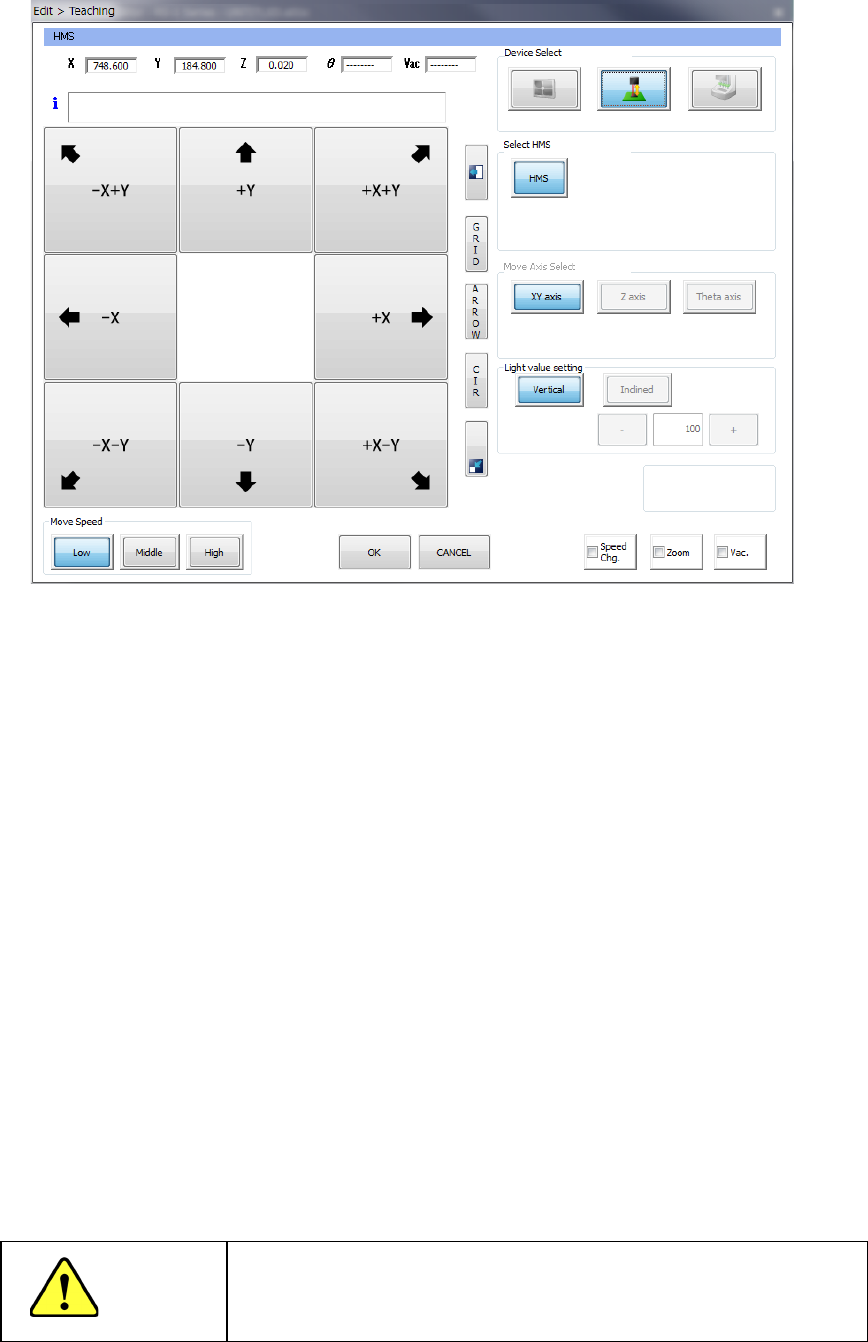
(2) Teaching with an HMS
1) Device Select
These buttons switch a device used to perform teaching to another one.
2) Select HMS
These buttons specify an HMS to be used to perform teaching.
3) Teaching Point
Any of these buttons cannot be used with the HMS to perform teaching.
4) Light value setting
Any of these buttons cannot be used with the HMS to perform teaching.
5) Move Speed
Operate these buttons in the same manner as teaching with a camera.
6) Feed pitch
Set a value when you want to change the feed pitch of the electric feeder.
When you select an HMS device, the selected HMS lights up. When you press one of eight
arrow keys on the left side of the screen, the XY axes move, and the axes continue to move
while you are touching the button. The current coordinates X, Y and Z (values measured
with the HMS) to which the HMS has moved are displayed in the text boxes displayed on the
upper section of the screen.
CAUTION
To avoid a risk of injury, do not put your hands inside the machine
or move your face or head close the machine while the system is
teaching data.