RS-1_instruction manual.pdf - 第597页
Part 1 B asic O peration Chapter 4 Cr eating a Produc tion Progra m 4- 262 (1) C ompon ent teaching oper ation 1) Component teac hing sett ing When you se lect the [Mea s/Insp] command f rom the menu, and then t he [V is…
Part 1 Basic Operation Chapter 4 Creating a Production Program
4-261
3) Operations during teaching of a component
① Head to be used for pickup
Regarding selection of a head to be used for pickup, the head is automatically selected.
The existing mounted nozzle has priority so that the frequency of nozzle replacement
may be reduced.
A different head may be used for each measurement in some nozzle mounting
conditions.
When the MNVC function is effective and inspection components are assigned to the
left head, it is possible to select a head for inspection.
② Return of components after inspection
After inspection, components may be returned to the original position or discarded.
This depends on the packaging style as shown in the following table.
For discarding, components are discarded according to the "Component reject to"
setting in the component data.
Since a component whose size is 1 mm or less may be placed on its side or turned
upside down when it is returned, the system displays the message so that you can
select how to handle it.
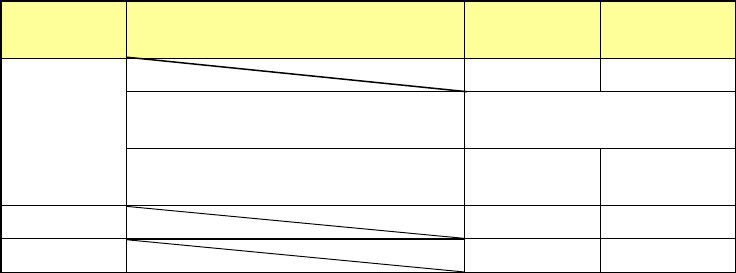
Packaging
style
Condition 2
Returning a
component
Discarding a
component
Tepe
― ○
The shorter side length of the outer
dimensions is 1 mm or less.
Query * 1
The shorter side length of the outer
dimensions is 1 mm or more.
○ ―
Tray ○ ―
Stick ― ○
*1 The system displays the message that asks you whether to return a component or
discard it. The system displays this message before it starts continuous measurement
of components in Continuous Measurement mode.
③ Selection of component supply unit for pickup
If two or more component supply units are assigned to the same type of component in Pick
data, you can change the supply unit. A component starts being picked up based on the
data you entered first by default.
④ Change of pick coordinates
In case pickup cannot be performed satisfactorily, change the pick coordinates by manual
input or coordinate teaching.
⑤ Manual pickup
When there is no pickup data, a component can be attached manually onto the nozzle. In
this case, the pick coordinates cannot be input. The feeder cannot be operated either.
Part 1 Basic Operation Chapter 4 Creating a Production Program
4-262
(1) Component teaching operation
1) Component teaching setting
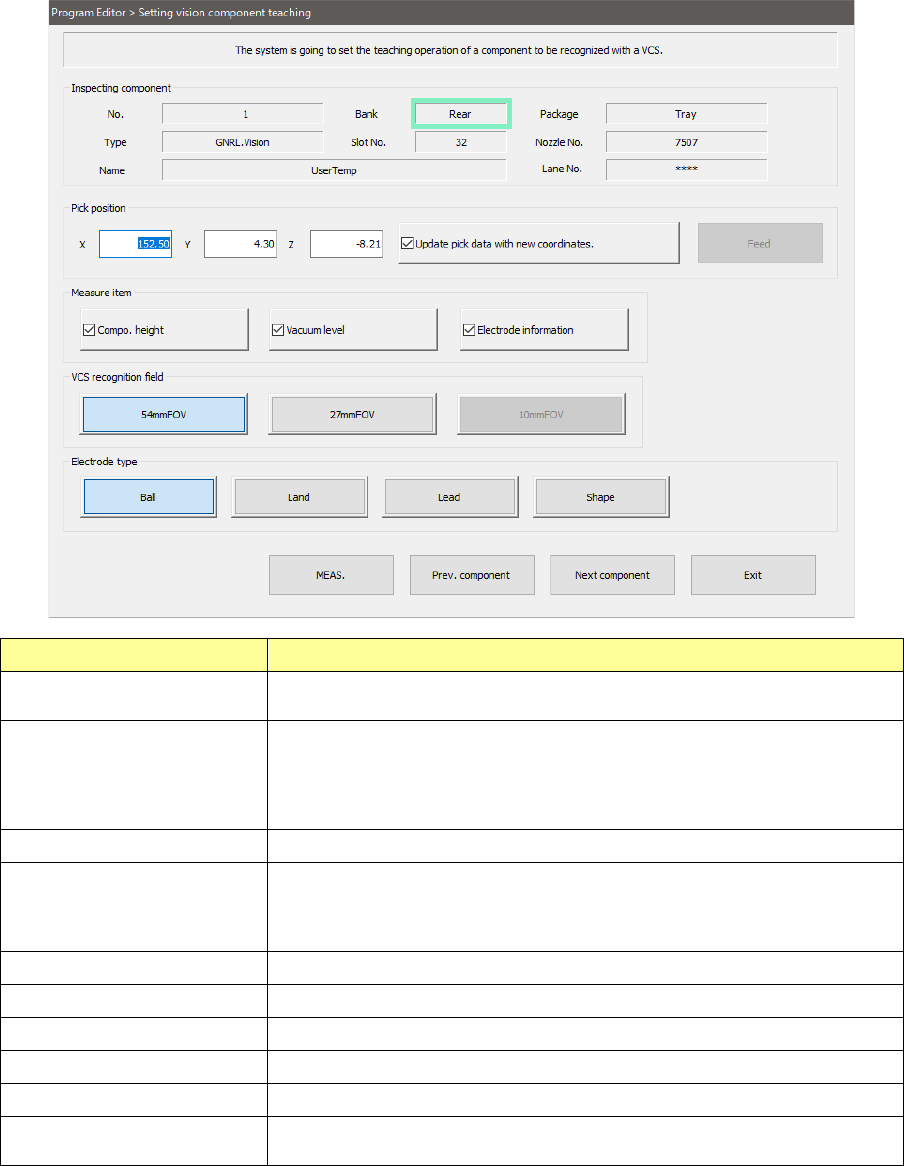
When you select the [Meas/Insp] command from the menu, and then the [Vision teaching]
command, the following screen appears.
Menu item Overview
Component under inspection
The contents of a component required for component teaching are
displayed.
Pick position
The contents of the pickup position to pick up a component are displayed.
It is also possible to change the pick position to the previous component or
next component. When there are no pick data at manual pickup or in the
case of MTC, each item is put to a non-display status, so that pick position
change, feed knock, and teaching are disabled.
<FEED> button
This button feeds a component.
Measure item
Select an item for measurement. At the default, all the measurable items
are selected. The measurement items may be put to a gray-out status
depending on the component type, and cannot be selected.
If no item is selected, measurement is not performed.
VCS recognition field
Specify the VCS type to be measured.
Electrode type
Specify the electrode type of the component to be measured.
<MEAS.> button
This button is used to display the measurement execution screen.
<Prev. component> button
This button displays an alternative component.
<Next component> button
This button displays an alternative component.
<Exit> button
This button is used to go back to the original screen after completing
teaching settings.
Part 1 Basic Operation Chapter 4 Creating a Production Program
4-263
2) Execution of component teaching
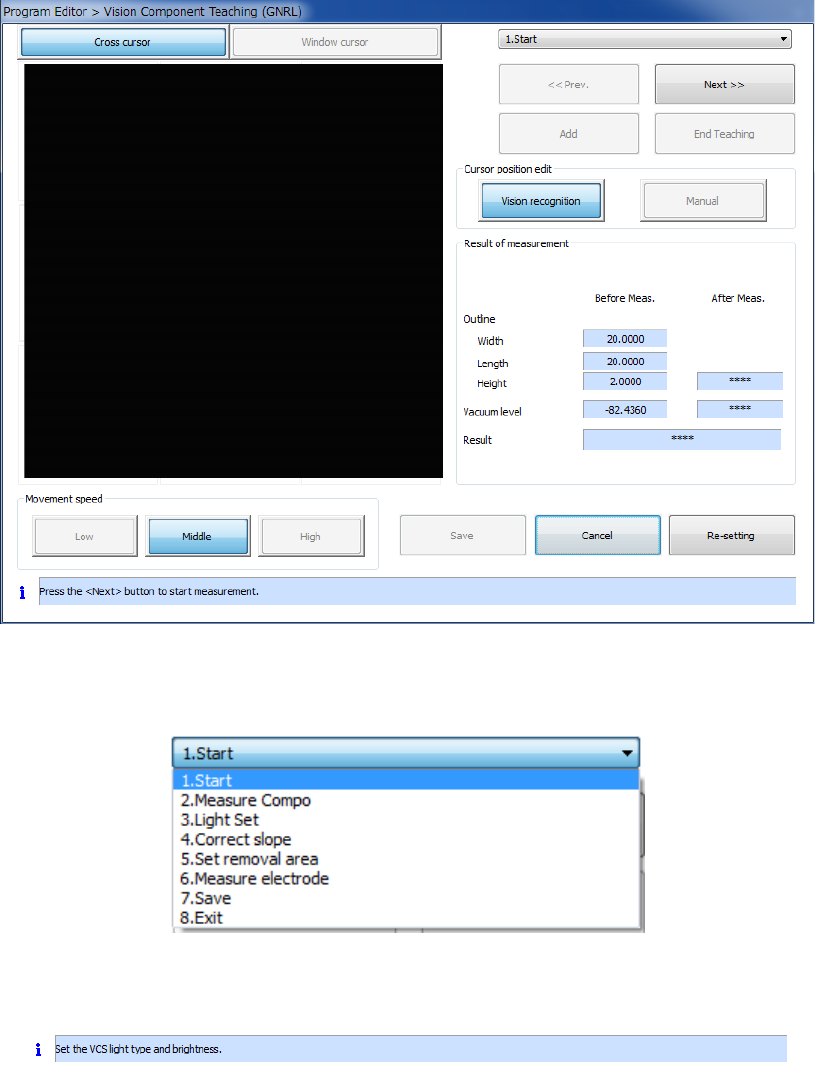
While a component is being taught, the following screen is displayed.
The results prior and subsequent to measurement and information on the processing in
sequential execution are displayed.
① Teaching progress dialog box
The dialog box indicating the progress of teaching is displayed on the left side of the screen.
The color of the item indicating the operation being performed changes.
② Information on the running process
Information on the current process is displayed on the bottom of the dialog box.