RS-1_instruction manual.pdf - 第591页
Part 1 B asic O peration Chapter 4 Cr eating a Produc tion Progra m 4- 256 When the syst em finish es the ins pection, t he followi ng result screen appe ars on t he screen . 1) Component be ing inspect ed Data on a comp…
Part 1 Basic Operation Chapter 4 Creating a Production Program
4-255
5) <Insp.> button
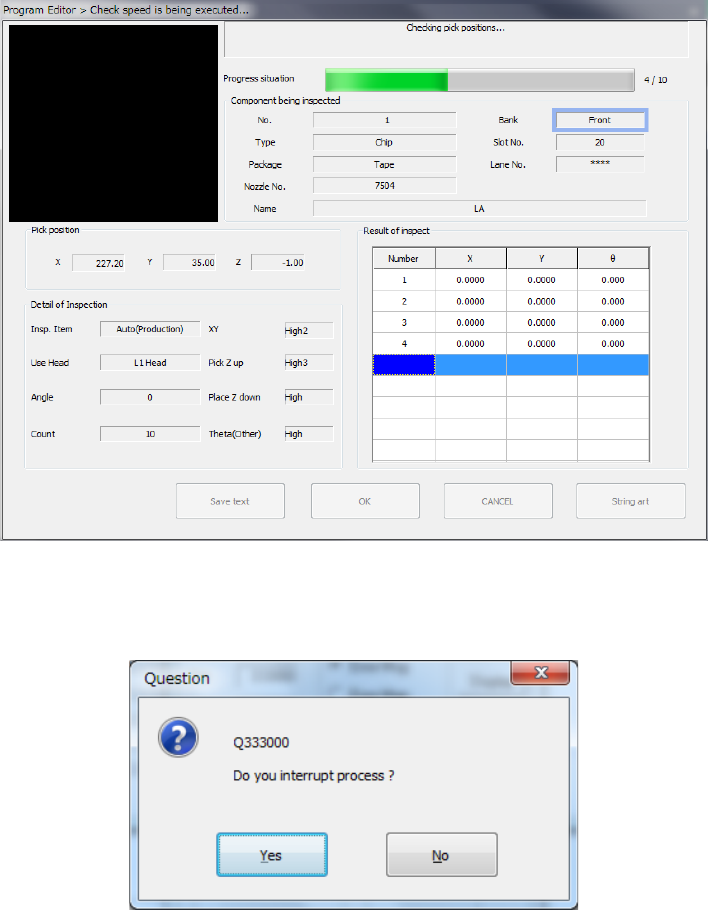
This button executes an inspection.
The following dialog box is displayed while the system is checking the speed, and it shows
that the processing being executed is updated sequentially.
To stop the inspection forcibly, press the <STOP> switch. The following message appears
on the screen. Select whether to finish the current measurement or not.
Part 1 Basic Operation Chapter 4 Creating a Production Program
4-256
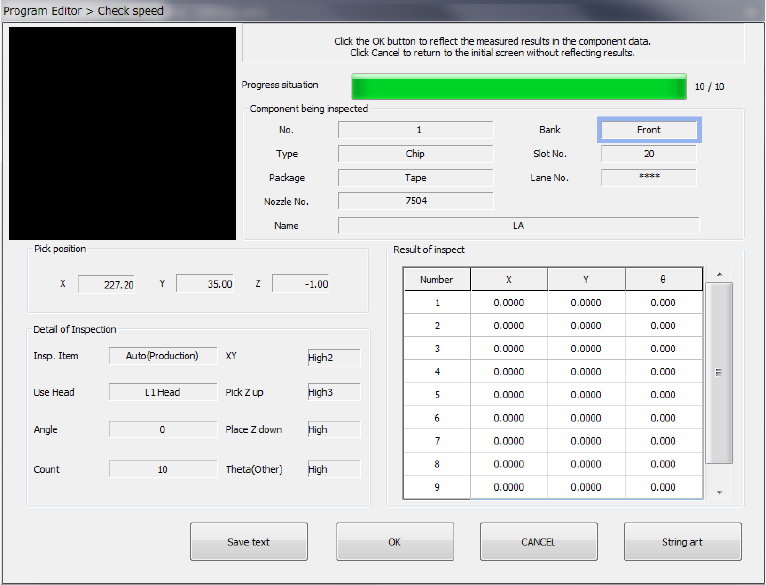
When the system finishes the inspection, the following result screen appears on the screen.
1) Component being inspected
Data on a component and its pick-up position appear here.
2) Pick position
The coordinates of a component pick-up position appear here.
3) Detail of Inspection
Data on the speed check the system has done appears on the screen.
4) Result of inspect
The result values obtained with the speed check appear here. An error of each axis, X, Y
and θ is displayed.
When you select “Pick Z up,” whether a component was picked up successfully or not is
displayed.
5) <Save text> button
This button saves the inspection result as a text.
6) <OK> button
This button validates the inspection result, and stores the obtained values in the Component
data. Then, the “Check speed” dialog box reappears on the screen.
(The data to be updated is the speed of the axis displayed in the “Detail of Inspection”
column.)
7) <CANCEL> button
This button cancels the inspection result, and displays the “Check speed” dialog box again.
Part 1 Basic Operation Chapter 4 Creating a Production Program
4-257
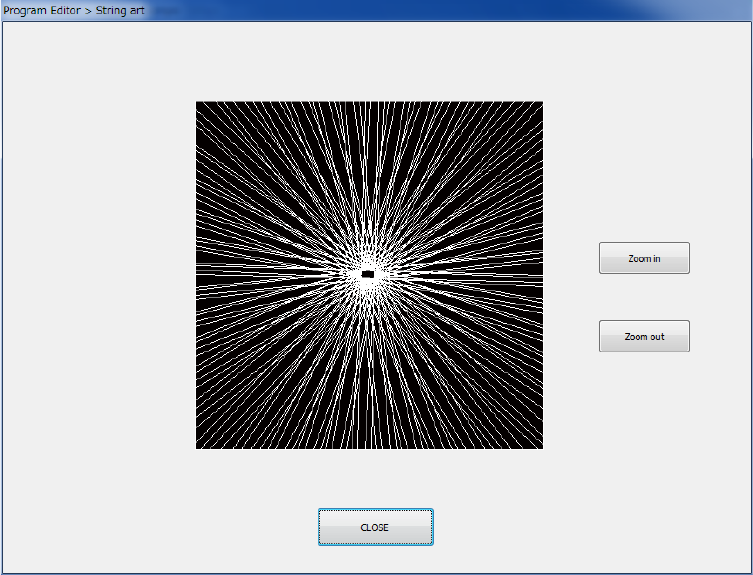
8) <String art> button ([F7] key)
This button displays the sting art based on the result of the “SWEEP” operation performed
during measurement.
9) <Prev. component> button and <Next component> button
These buttons are displayed when there is any alternative component for the currently
displayed component.
10) <Exit> button
The inspection is terminated and the previous screen reappears.