RS-1_instruction manual.pdf - 第694页
Part 2 D etaile d Descript ion of E ach Functi on Chapter 7 Operation Option 7- 19 No. Menu item Description Status Operation and det ailed explanation 4 Add the “R eplenish a t no components” butt on to the temporary st…
Part 2 Detailed Description of Each Function Chapter 7 Operation Option
7-18
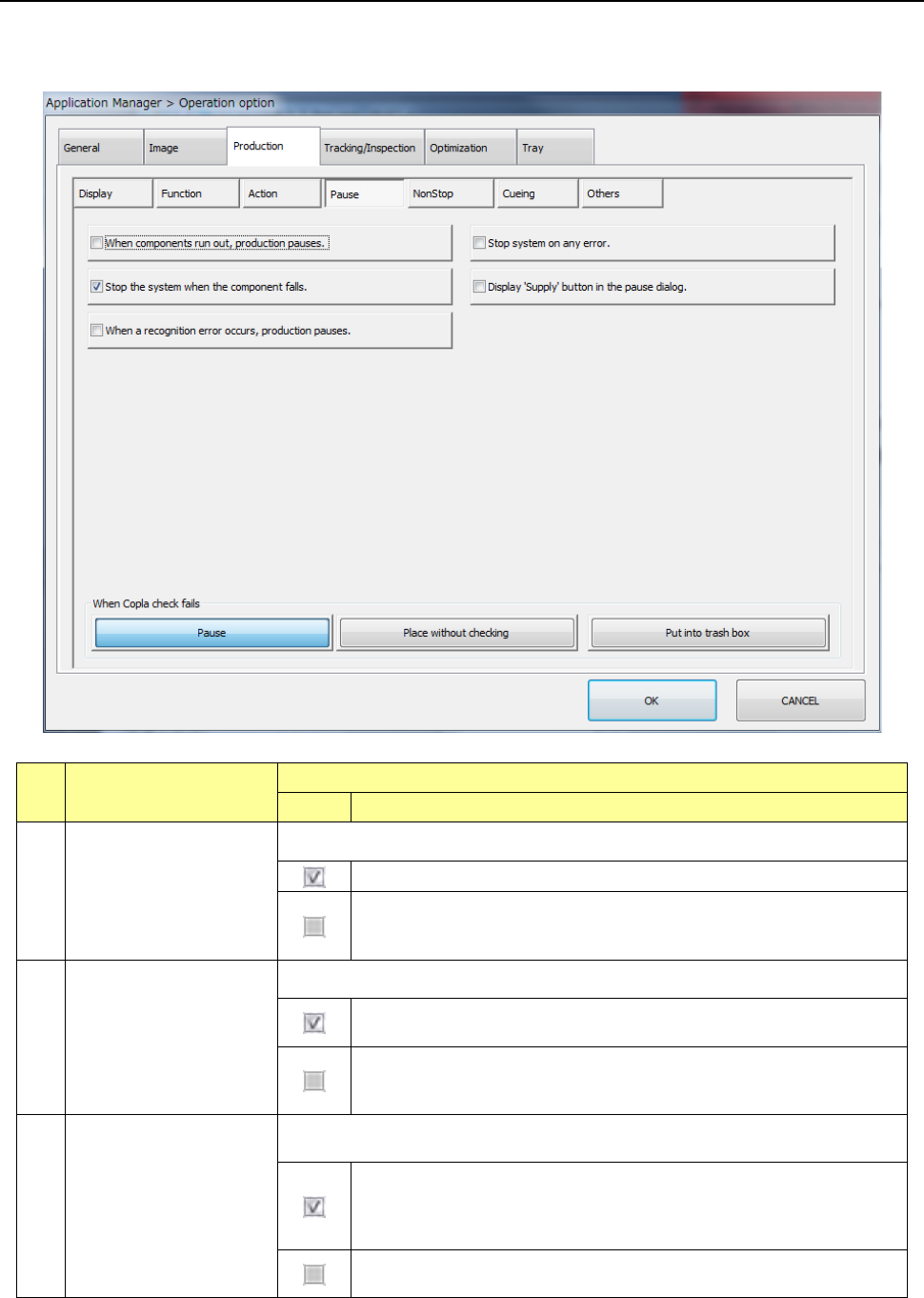
7.4.4 Pause
When you press the <Pause> button, the screen for setting the pause options for PWB production
appears.
No. Menu item
Description
Status Operation and detailed explanation
1
Stop system when
components run out.
Set the operation mode when components run out.
The machine temporarily stops production when components runs out.
The machine continues placing components as long as it has
components which can be placed, even when a type of components
run out during production.
2 Stop system on any error.
Set the operation mode that the system enters when an error occurs.
The machine temporarily stops production when a productional error
(including the component run-out error) occurs.
The machine continues placing components as long as it has
components which can be placed, even when a productional error
occurs.
3
Stop the system when
the component falls.
Specify the operation to be performed when the system finds a component to
drop off the machine. This function is effective even during non-stop operation.
When the system finds a component to drop off the machine during
production, it pauses and displays a message indicating that a
component drops off the machine. (The system detects whether a
component drops off or not at end of placement operation.)
The system continues production even though a component drops off
the machine.
Part 2 Detailed Description of Each Function Chapter 7 Operation Option
7-19
No. Menu item
Description
Status Operation and detailed explanation
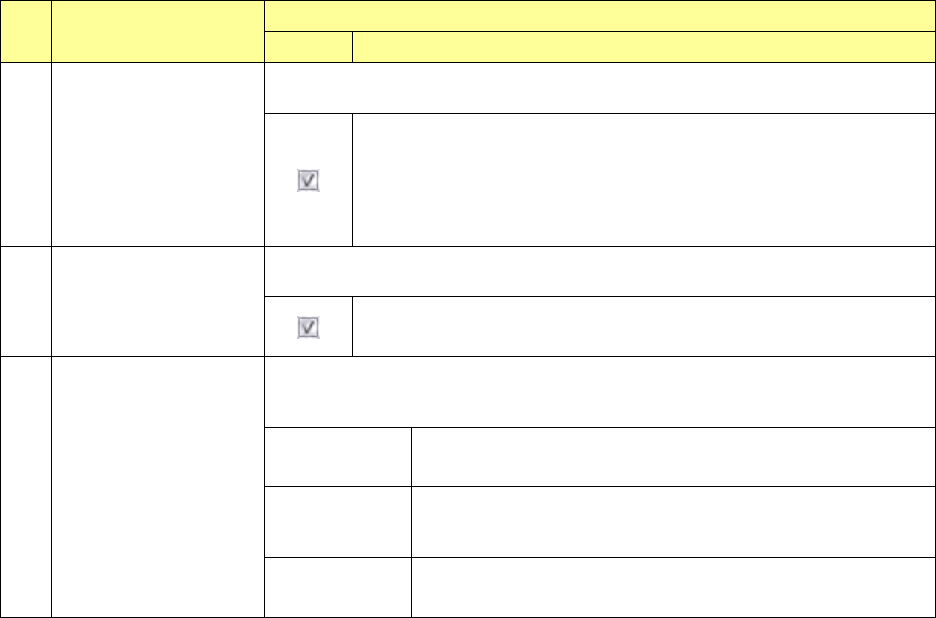
4
Add the “Replenish at
no components” button
to the temporary stop
screen.
Specify a function to fully replenish because of no components at a temporary
stop of production.
The <Component replenish> button is added to the pause dialog at a
temporary stop of production. To the pause dialog at occurrence of
no components and at occurrence of a mark recognition error, the
<Component replenish> button is not attached. When you press the
<Component replenish> button, feeder components are fully
replenished to terminate no components.
5
Temporary stop at
occurrence of a
recognition error
Specify a temporary stop function for the case where an image recognition error
occurs.
The system operation is temporarily stopped when an image
recognition error occurs.
6 When Copla check fails
Specify what to do if an error is detected with a coplanarity check. You can set
this menu item only when the coplanarity unit is enabled with the MS Parameter
utility.
Pause
If an error is detected with a coplanarity check, the machine
pauses temporarily.
Place without
checking
If an error is detected with a coplanarity check, the machine
places a component on a board without checking the
component.
Put into trash
box
If an error is detected with a coplanarity check, the machine
discards the component.
Part 2 Detailed Description of Each Function Chapter 7 Operation Option
7-20
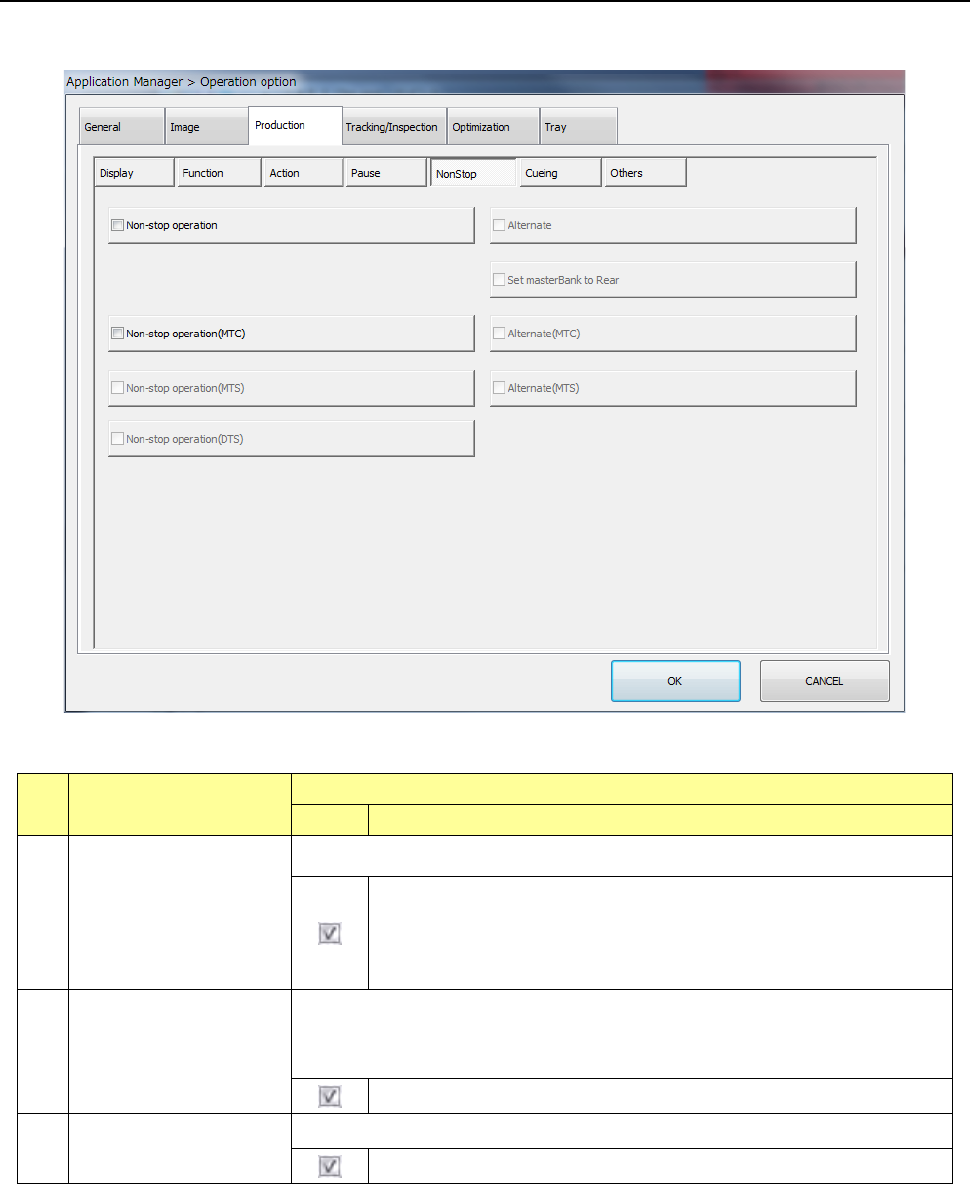
7.4.5 Non-stop
When you press the [Non-stop] button, the “production non-stop option setting screen” appears.
No. Menu item
Description
Status Operation and detailed explanation
1
Non-stop operation
Specify the execution of the non-stop operation function.
The Non-stop operation function is enabled.
When you execute the “Line symmetry” copy of the feeder layout on
the front/rear with the Program Editor, the Non-stop operation can be
performed.
2
Alternate
Make settings of the alternate production mode function to be executed during
Non-stop operation.
When you enable the Non-stop operation function, you can set this menu item.
The alternate production function is enabled.
3 Set masterBank to Rear
Specify whether to set the rear side as the master bank.
The rear side is to be set as the master bank.