RS-1_instruction manual.pdf - 第79页
Part 1 B asic O peration Chapter 1 Overv iew of the Machine 1- 61 Menus and Functi on Butt ons Y ou can oper ate the oper ation screen w ith menus o r function buttons. Menu organization T wo ty pes of menus are d isplay…
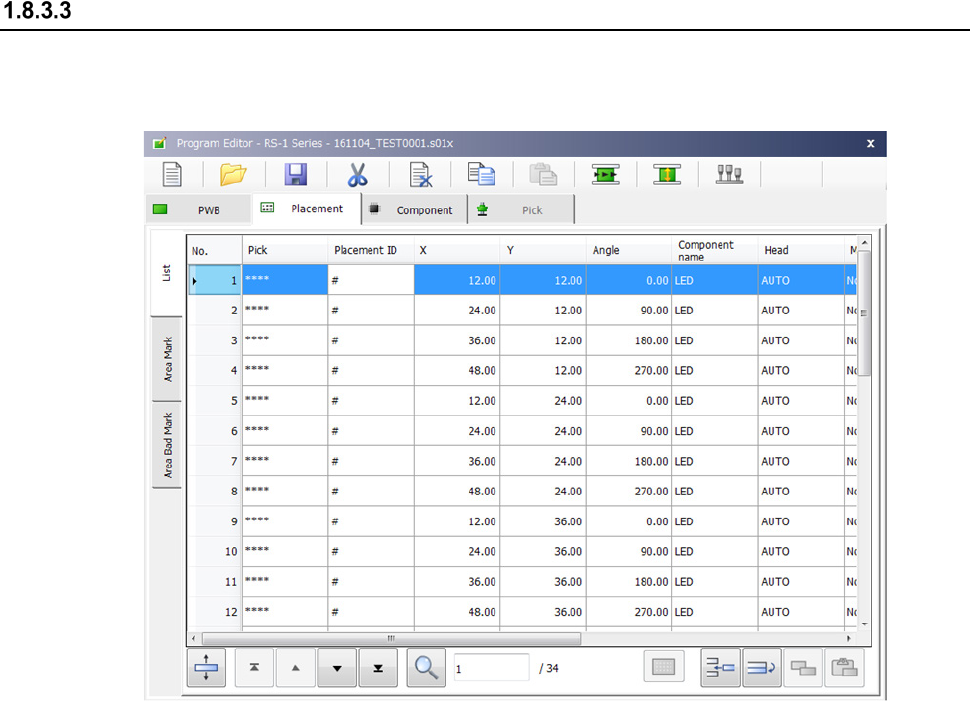
Part 1 Basic Operation Chapter 1 Overview of the Machine
1-60
Editing
This section describes the keyboard operations ([Page Up]/ [Page Down], [Home]/ [End] and
[|←] / [→|] keys operation).
① [Pg Up], [Pg Dn]
When data are displayed over two or more screens, the [Pg Up] key allows you to display
the next screen, while the [Pg Dn] key allows you to display the previous screen.
② [Home], [End]
When the information covers two or more screen pages, the [Home] key moves the cursor
to the beginning of the line and [End] key does to the end of the line.
③ Scroll ([↑], [↓], [←], [→] )
- If the [↑] key is pressed when you are on the top line of a screen page and if there is
more information vertically before it, the key scrolls the information down one line.
- If the [↓] key is pressed when you are on the bottom line of a screen page and if there
is more information vertically after it, the key scrolls the information up one line.
- If the [←] key is pressed when you are at the beginning of the line and if there is more
information to the left, the key scrolls the information one field to the left.
- If the [→] key is pressed when you are at the end of the line and if there is more
information to the right, the key scrolls the information one field to the right.
Part 1 Basic Operation Chapter 1 Overview of the Machine
1-61
Menus and Function Buttons
You can operate the operation screen with menus or function buttons.
Menu organization
Two types of menus are displayed with the system: the main menu that can be operated on the
desktop screen displayed at start-up of the system, and local menus that are invoked from the main
menu.
Totally, the system displays the following menus:
1 Desktop screen (main menu)
2 Program Editor
3 Production
4 Machine Setup
5 Manual Control
6 Machine Management Info.
7 Self Check Function
The organization of each menu above is described below.
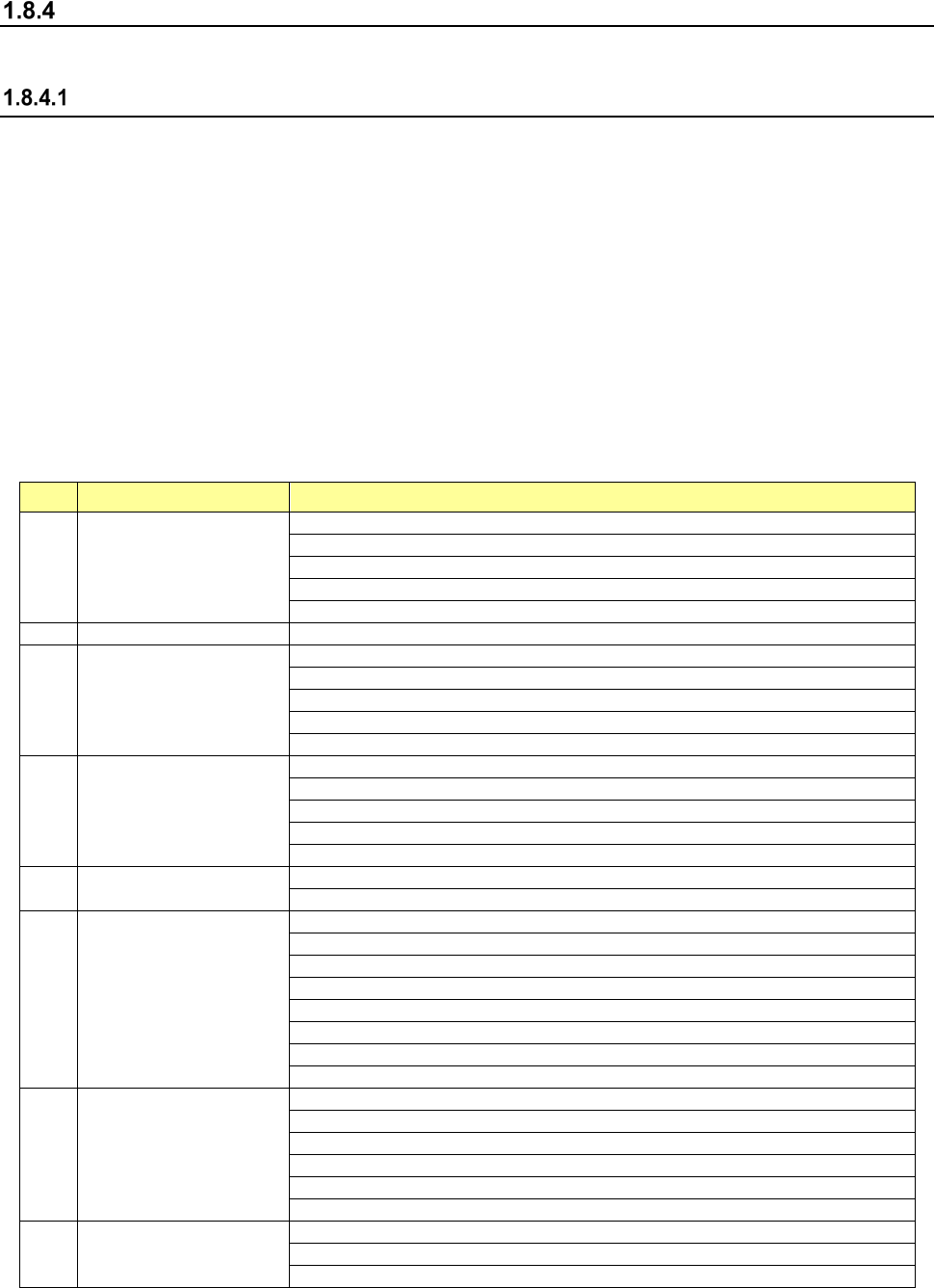
(1) Menu organization of the desktop screen
No. Operation area Sub menu
1 File
New
Open
Save
Save as
Save to file
2
Program Editor
Program Editor
3 Arrange
Control Data Management
Get and Save Machine Data
Save Image data
Machine Management Info.
Originating
4 Product
Pwb Production
Trial Run
Dry Run
Path-Thru Mode
Warm-Up
5 Setting
Machine Setup
Option Setting
6 Maintenance
Manual Control
Mech. Ctrl. Parameter Setting
MS-Parameter Setting
Maintenance Log
Self-Check
FCS
X axis Correct of curve
Y axis Correct of curve
7 Env. Setting
Change User Group/Environmental Setting
Default Folder
Language Selection
Area Setting
Operation Environment Setting
About Programs
8 Startup
File Management (Explorer)
Safely Remove Hardware
Date and Time Setting

Part 1 Basic Operation Chapter 1 Overview of the Machine
1-62
(2) Menu organization of the Program Editor screen
No.
Operation area
Sub menu
1 File
New
Open
Save
Save as
Save to file
Environment Setting
2 Edit
Replacement
Change component name
Update layers (All component)
Update layers (Current component)
Update pick offset
Mark copy
Mark paste
Mark database
Matrix Copy
Production program copy
3 Data
Data completion status
Data coherence check
4 Optimization
Optimization
Divided placement data
Nozzle layout
Component supply count
5 View
Feeder layout
All displays List Items
Select List Items
6 Machine operation
BOC mark
Area mark
Feeder bank mark (Front)
Feeder bank mark (Rear)
Place
Pick position
Pick height
7 Meas/Insp
Current component
All component
PWB Height
Vision Recognize
Coplanarity Inspection
Verify speed
Vision teaching
Bad mark teaching
Single Verification
Continuous Verification
8 Database
Register
Call List
Collective recall