RS-1_instruction manual.pdf - 第454页
Part 1 B asic O peration Chapter 4 Cr eating a Produc tion Progra m 4- 119 4.3.6 .1 “ Pick ” data screen d isplay When you d isplay the “ Pi ck ” data, the “List” screen o pens at fi rst. When a feeder type is an electri…
Part 1 Basic Operation Chapter 4 Creating a Production Program
4-118
4.3.6 Pick data
The “Pick” data screen allows you to specify where a component is supplied and where it is picked
up.
A component supply unit that can be attached on the feeder bank are a tape feeder, a stick feeder,
a tray holder, a DTS, an MTC and an MTS.
In the RS-1/1R, there are 56 rails on one feeder bank regardless of whether it is an RF bank or an
RF/EF bank, and the number of a rail, onto which a feeder is mounted, becomes the number
assigned to the Pick data.
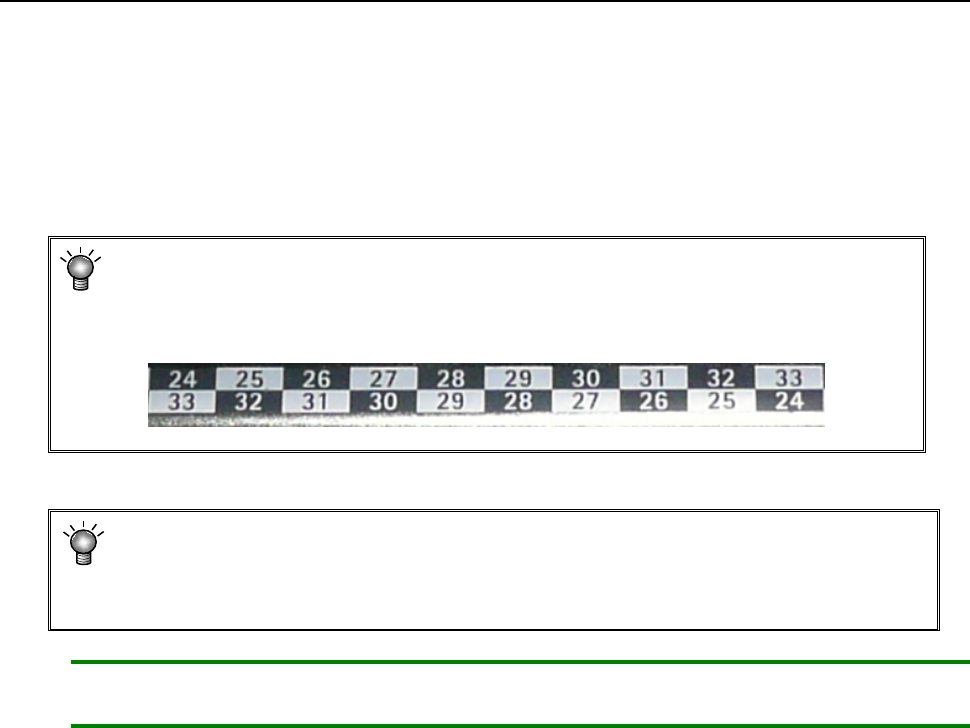
* In the feeder bank, numbers are expressed in two upper and lower rows.
The numbers of the upper row indicate the numbers on which a feeder is set on the
front side, while those of the lower row indicate the number on which a feeder is set
on the rear side.
* The component pick-up position is automatically assigned with the Optimization
function, but you have to manually assign the pick-up position in the following cases
• when the feeder layout is fixed, or
• when you change the feeder layout after optimization.
Note: If you load a production program file created with another model, the system may clear
the Pick data mainly because the number of rails of the bank different from the old one.
Part 1 Basic Operation Chapter 4 Creating a Production Program
4-119
4.3.6.1 “Pick” data screen display
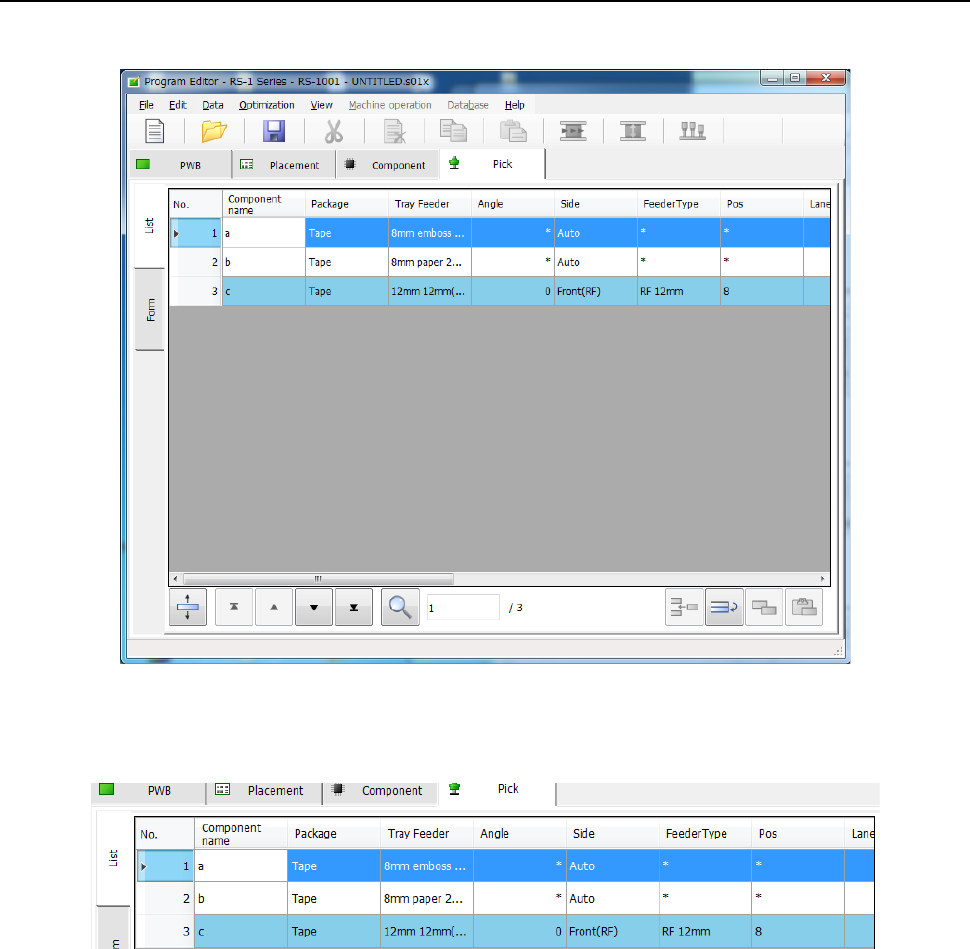
When you display the “Pick” data, the “List” screen opens at first.
When a feeder type is an electric feeder, an electric stick or an electric tray holder, their columns
are displayed in light blue on the “List” screen.
For Pick data that is to be taught automatically, you can check whether it has been already taught
automatically or not in the menu item “Auto teaching.”
Part 1 Basic Operation Chapter 4 Creating a Production Program
4-120
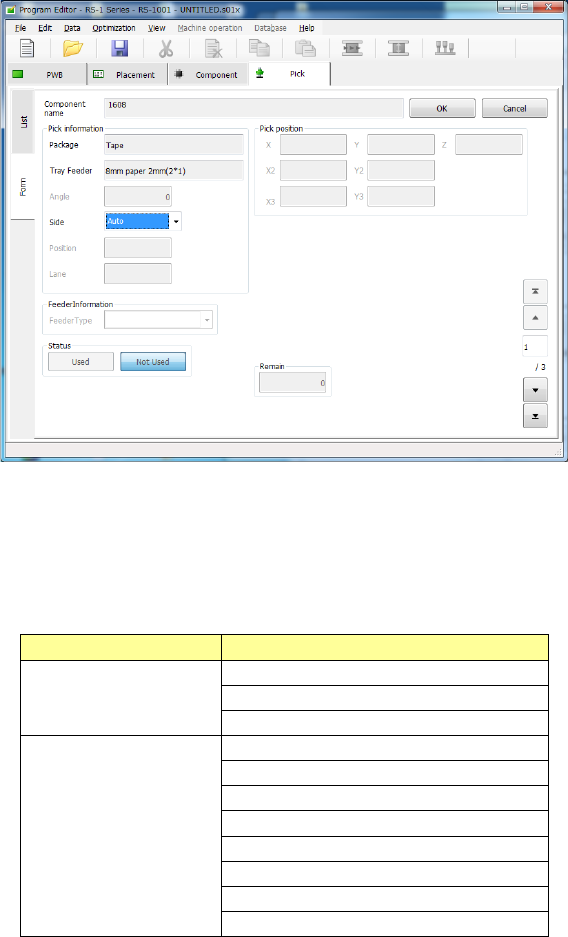
When you select the “Form” tab on the “List” screen or when you double-touch the “List” screen,
the “Form” screen opens showing the corresponding data about the line where the focus is
located.
Values you entered on the “Placement” and “Component” data screens are displayed in the fields
of “Component name,” “Package” and “Tray Feeder” respectively.
You can edit the eight items, “Angle,” “Side,” “Position,” “Lane,” “Feeder Type,” “Status,” “Pick
position,” and “Remain” on the “Form” screen.
Editable or not
Menu item
Not editable
Component name
Package
Tray Feeder
Editable
Angle
Side
Position
Lane
Feeder Type
Status
Pick position
Remain