RS-1_instruction manual.pdf - 第443页
Part 1 B asic O peration Chapter 4 Cr eating a Produc tion Progra m 4- 108 12) Aluminum elect rolytic c apacitor The “V ision 2” tab allows you t o set inform ation o n leads only . Menu item Overvie w Length Enter the l…
Part 1 Basic Operation Chapter 4 Creating a Production Program
4-107
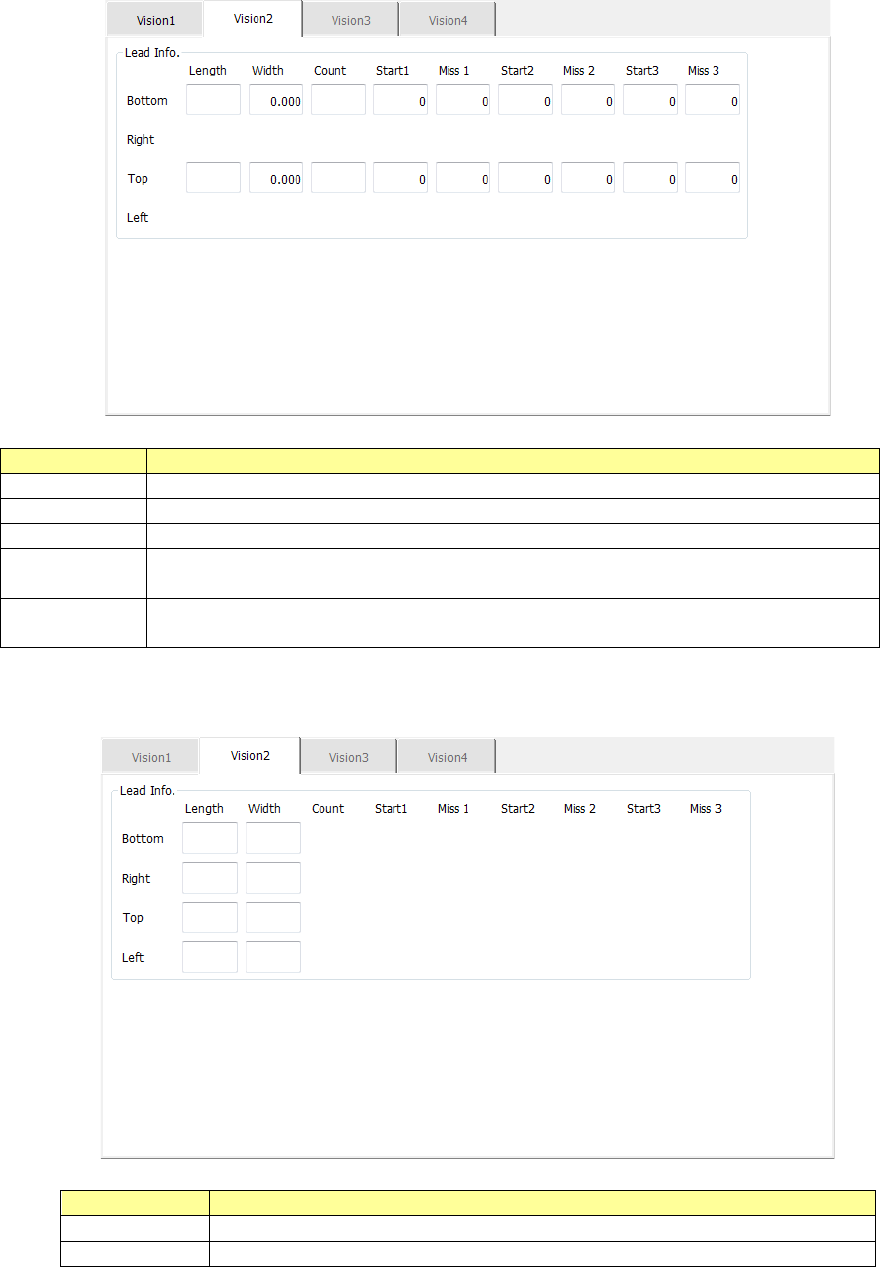
The “Vision 2” tab allows you to set information on leads.
Menu item
Overview
Length
Enter the length of a section of a lead that is in contact with a board.
Width
Enter the width of a lead.
Count
Enter the number of leads when a component type is a lead component.
Start 1 to 3
Enter the position of a missing lead.
The input range is from 0 to the number of leads (default: 0).
Miss 1 to 3
Enter the number of missing leads.
The input range is from 0 to the number of leads (default: 0).
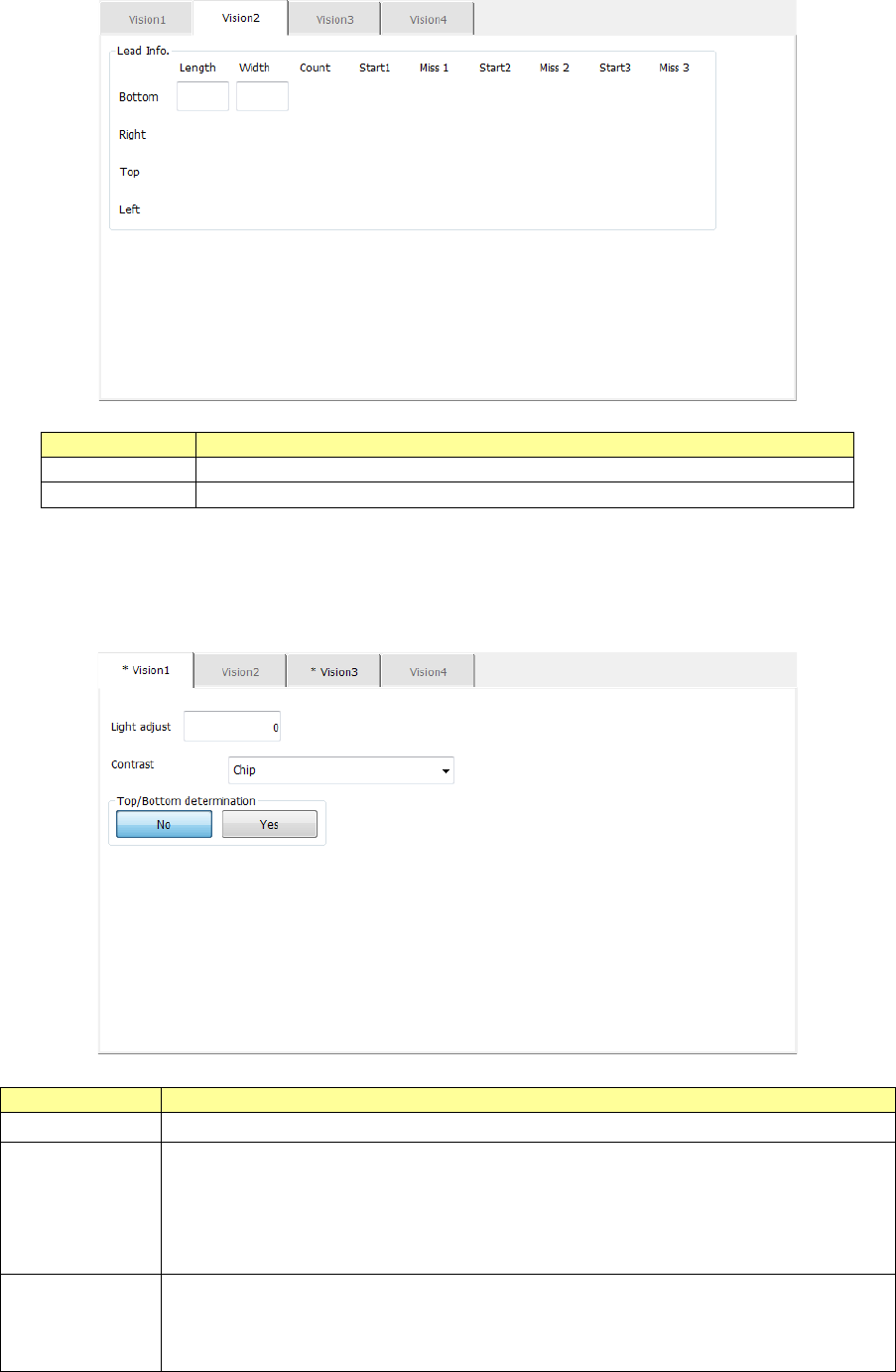
11) GaAsFET
The “Vision 2” tab allows you to set information on leads only.
Menu item
Overview
Length
Enter the length of a section of a lead that is in contact with a board.
Width
Enter the width of a lead.
Part 1 Basic Operation Chapter 4 Creating a Production Program
4-108
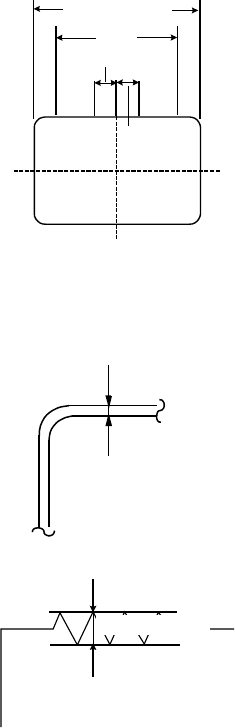
12) Aluminum electrolytic capacitor
The “Vision 2” tab allows you to set information on leads only.
Menu item
Overview
Length
Enter the length of a section of a lead that is in contact with a board.
Width
Enter the width of a lead.
13) Square chip and outline-recognized component
Specify the brightness correction with the menu item “Light adjust,” the recognition type with
the menu item “Contrast” and whether to determine the side, the top or the bottom with the
menu item “Top/Bottom detection.”
Menu item
Overview
Light adjust
Enter the correction value for the contrast when a component is irradiated.
Contrast
Select one of the following recognition patterns from the combo box: “4
sides,” “4 corners”, “Square chip” and “Center.”
“4 sides” is selected by default.
Note that you can select only “Chip” (square chip) here when the component
type is “Chip.”
Top/Bottom
determination
Only when the component type is “Chip” (square chip), select whether to
determine the side of a component, the top or the bottom.
When you select the <Yes> button, the “Vision 4” tab is enabled, and you can
make the detailed settings for determining the side, the top or the bottom.
Part 1 Basic Operation Chapter 4 Creating a Production Program
4-109
* Recognizing conditions for outline recognition components
• Side recognition
① Component whose shape is rectangular or square
② Component whose linear part of sides corresponds to 1/2 or more of the outer dimension
and yet whose straight line part (linear part) is 3 mm or more
③ Component in which the center part of sides is linear in the range of ±1.5 mm from the
center
Line
segmen
t
1.5mm
1.5mm
Dimension of a
component
④ Component whose component angle is 90° ± 5°
⑤ Component provided with a side part of 0.3 mm or more when the inside of the
component is imaged darkly at photographing (The inner part of the sides may be a
cavity.)
0.3mm以上
⑥ Component in which the roughness of the sides forming a linear part is 0.1 mm or less
0.1mm以下
⑦ Component whose shape is not convex
0.3 mm or more
0.1 mm or less