RS-1_instruction manual.pdf - 第464页
Part 1 B asic O peration Chapter 4 Cr eating a Produc tion Progra m 4- 129 (1) <Initialize> button Set the supply c ount of the feeder for al l compone nts to "Auto" or "Minimum. " Setting item …
Part 1 Basic Operation Chapter 4 Creating a Production Program
4-128
4.4 Optimization
The Optimization function executes the following tasks for a production program created with the
Editor:
① Optimization of feeder layout
② Optimization of component picking and placement order
4.4.1 Conditions setting for optimization
Optimization is affected by various factors.
Those factors include items that are set depending on the machine (machine setup/operation
option) and items you can specify
This section describes those items you can specify.
4.4.1.1 Component supply count
When the number of the placement positions for one type of component is outstanding, production
with one feeder may result in the bad cycle time balance. In this case, production efficiency may
be improved by supplying the identical type of components with two or more feeders if the number
of feeders (trays) and components of your system allows.
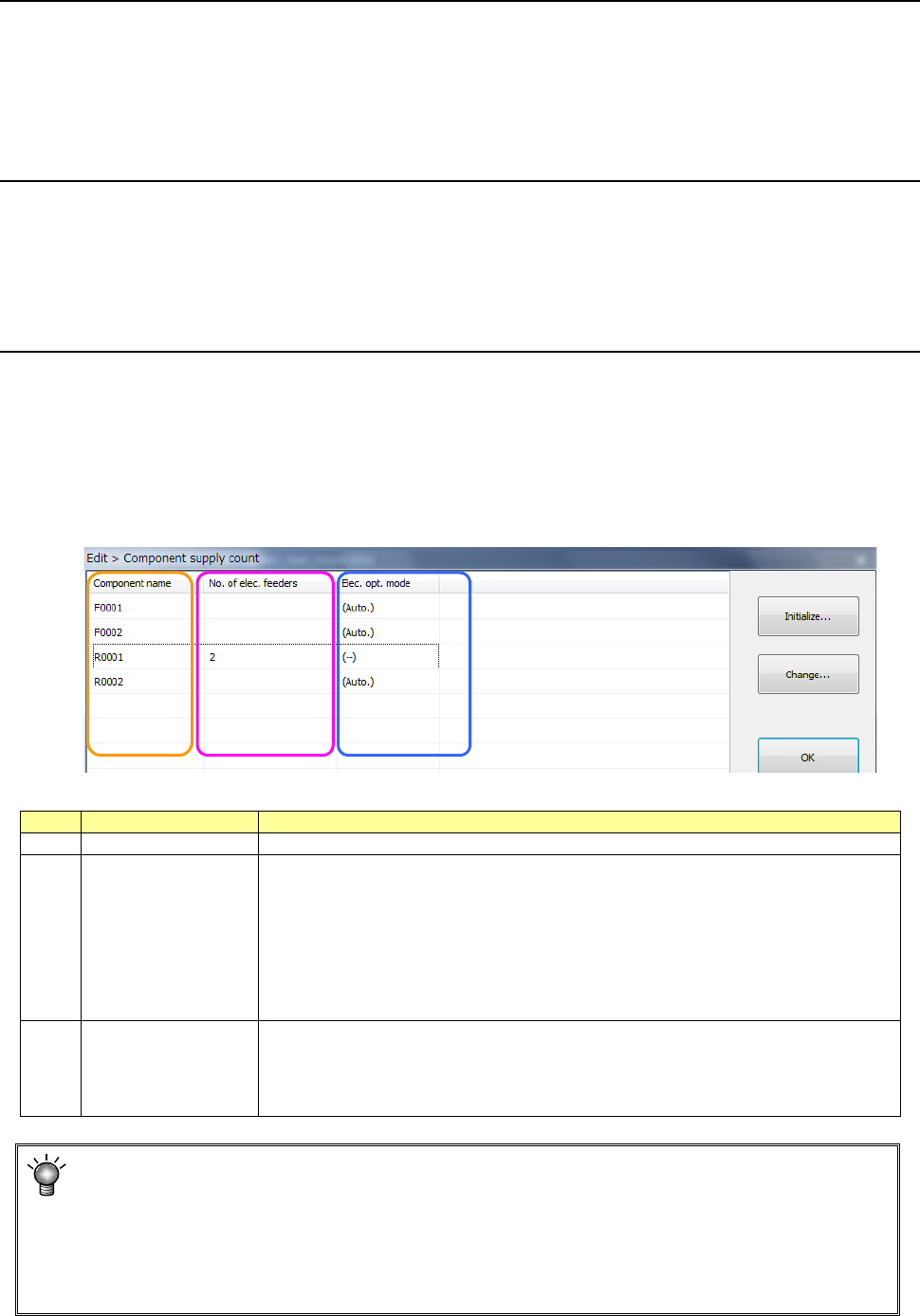
When you select the [Optimization] – [Component supply count] commands from the menu, the
“Component supply count” dialog box appears on the screen.
No.
Item
Contents
1
Component name
Component name of component data
2
No. of elec. Feeders
The determined supply quantity is displayed.
・Supply quantity after optimization: Optimization is executed by (automatic)
distribution and its display is given.
・Manually set supply quantity:
- When “Initialization/minimum supply” is selected, the supply quantity
created in the pickup data is displayed. (If line duplexing is executed, the
quantity becomes two or more.)
- When “Change/manual” is selected, the manually set supply quantity is
displayed
3
Elec. opt. mode
“Automatic” or “manual” distribution is displayed in setting the number of feeders.
- (Auto.): “Initialization/Automatic” is selected.
- (-): “Initialization/minimum supply quantity” is selected or “Change/manual” is
selected.
- (Unused): “Change/unused” is selected.
The initial value of the “Elec. opt. mode” field is “Auto.” In this case, the number of feeders
(trays) is set to “1” basically. However, when the number of the certain type of components is
far greater than that of other types of components (3 times or more of the average of the number
of each component), the system automatically increases the number of this type of co
mponents.
Therefore, if the system increases the number of feeders although there is one feeder, or if you
want to increase the number of feeders, you have to set this item manually.
①
②
③
Part 1 Basic Operation Chapter 4 Creating a Production Program
4-129
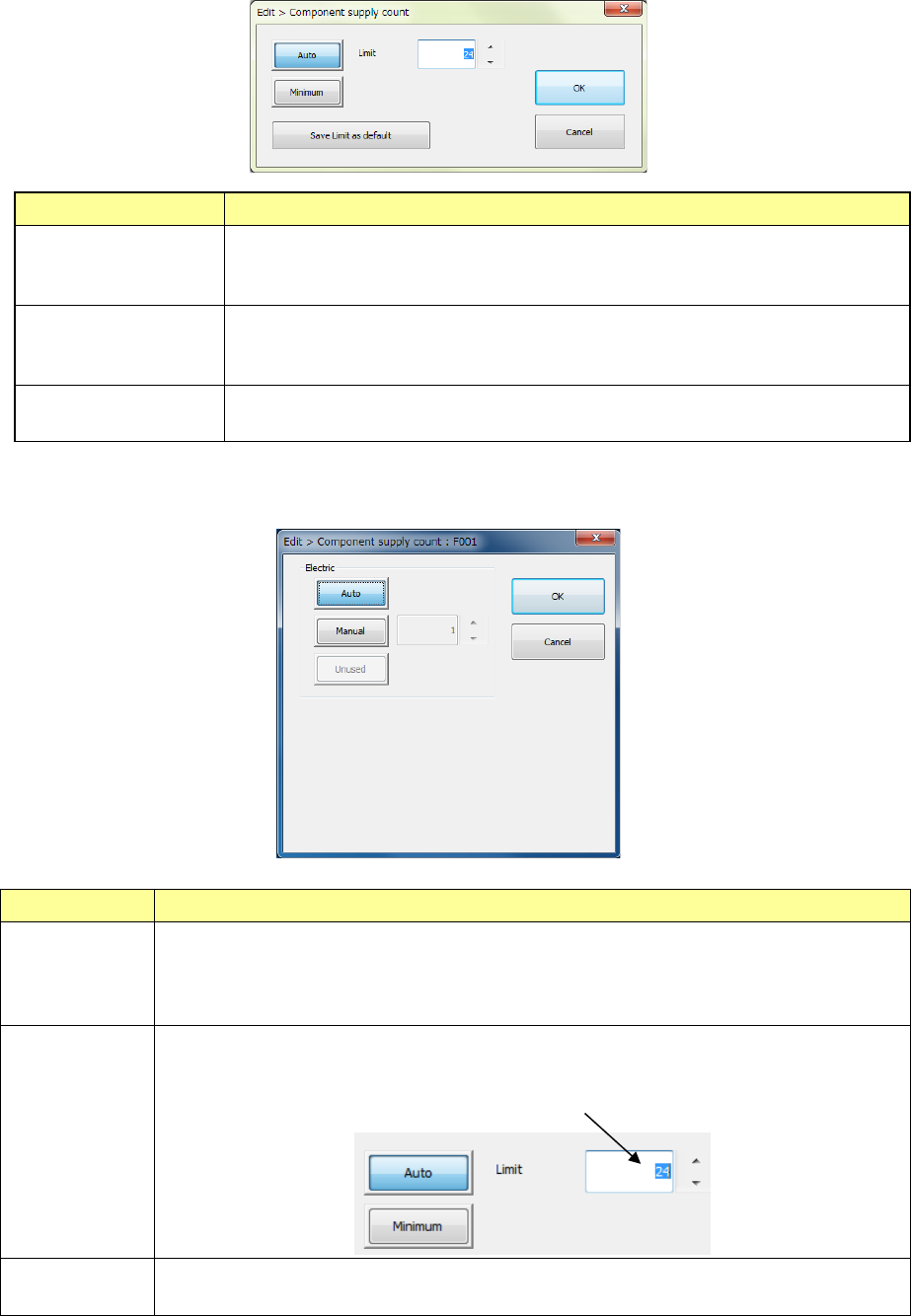
(1) <Initialize> button
Set the supply count of the feeder for all components to "Auto" or "Minimum."
Setting item Description
Auto
The system automatically initializes the numbers of all types of components.
When you select this <Auto> button, you have to specify the “Limit” field also (the
default: 24).
Minimum The system initializes the numbers of all types of components to the total
number of pick data records of the corresponding type of component
respectively.
Save Limit as default
The system registers the value you specified in the “Limit” field as the default value.
When you create a new program, this value is applied as the initial value.
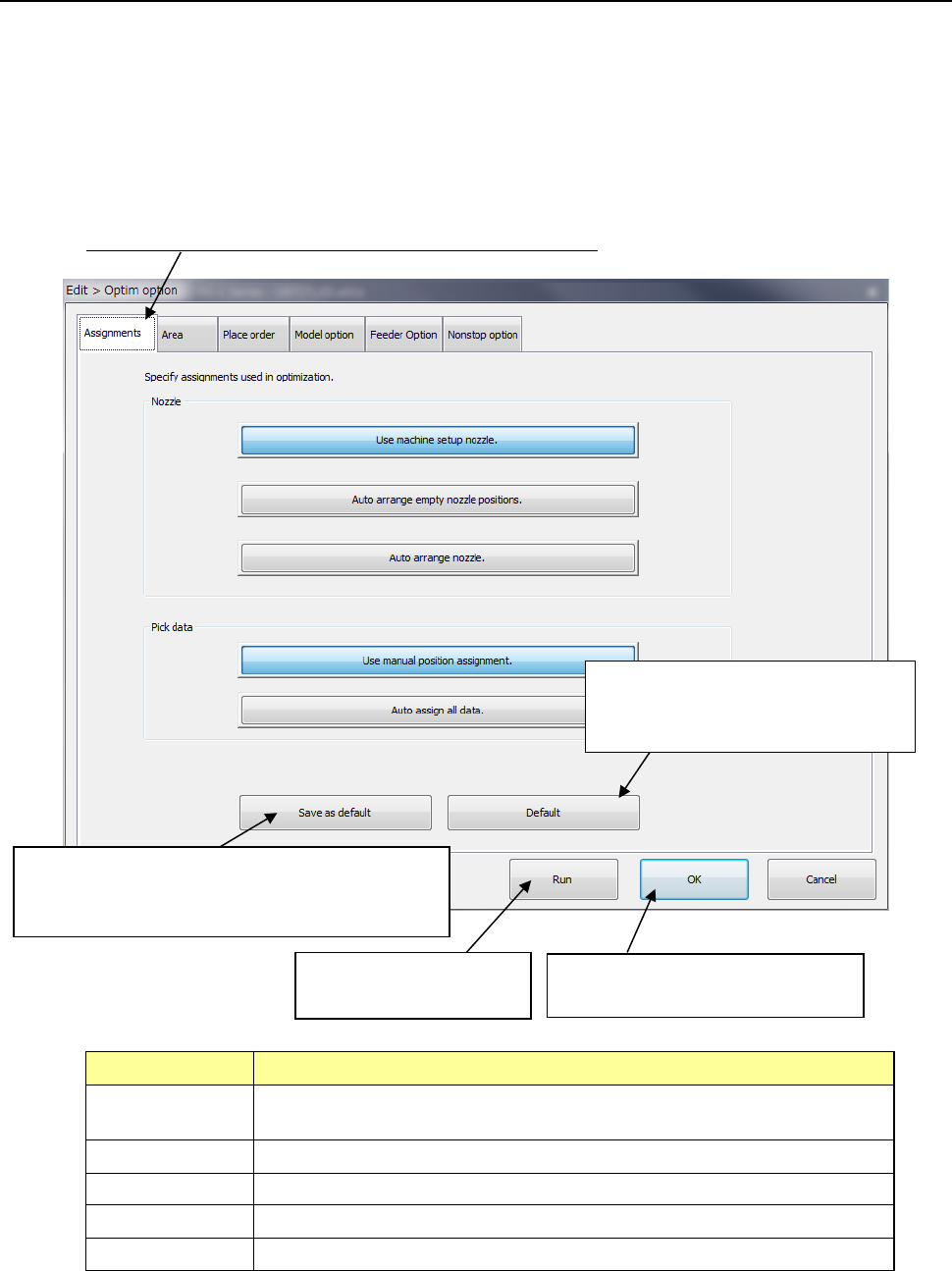
(2) <Change> button
Set the supply count of the feeder for each component.
Menu item Description
Auto The system automatically sets the number of components that are specified to be supplied.
The number of feeders is optimized within the upper limit set at initialization.
It is regarded that the available number of reels for components and the available number of
trays are not limited.
Manual
This radio button allows you to change the number of components to be supplied manually.
The “Optimization” utility assigns the feeders and trays according to the number of components
that are specified to be supplied.
Enter the number of feeders
Unused The system sets the number of components to be supplied to “0”.
The “Optimization” utility does not use specified components for relevant type feeder and tray.
Part 1 Basic Operation Chapter 4 Creating a Production Program
4-130
4.4.1.2 Setting the optimization conditions
The optimization result may vary depending on the settings on the “Component supply count”
dialog box described above and those on the “Optimization” dialog box described below. Set
the optimization conditions of a production program only after understanding the descriptions
below well.
When you select the [Optimization] – [Optimization] commands, the “Optim option”
(optimization option) dialog box appears on the screen.
Set the six categories of conditions including the “Assignments” option.
Select this tag to change the screen for the corresponding option.
Option Description
Assignments Specifies the option to be checked with the Optimization utility when it assigns a
nozzle or Pick data.
Area Specifies the area to which a feeder can be assigned.
Place order Specifies the option to be used for changing the component placement order.
Model option Specifies the option unique to the model.
Feeder option Specify the options related to the feeder layout.
This button registers new settings as the initial values.
The new settings will be displayed in the beginning
when the system is booted the next time.
This button invalidates your registered
settings and restores the standard
settings (initial values of the machine).
This buttons executes the
optimization function.
This button stores your settings, and
closes this screen.