RS-1_instruction manual.pdf - 第684页
Part 2 D etaile d Descript ion of E ach Functi on Chapter 7 Operation Option 7-9 7.4 Produ ction Specify op eration opti ons for production . 7.4.1 Display When you pres s the < Display > b utton, the “ product ion…
Part 2 Detailed Description of Each Function Chapter 7 Operation Option
7-8
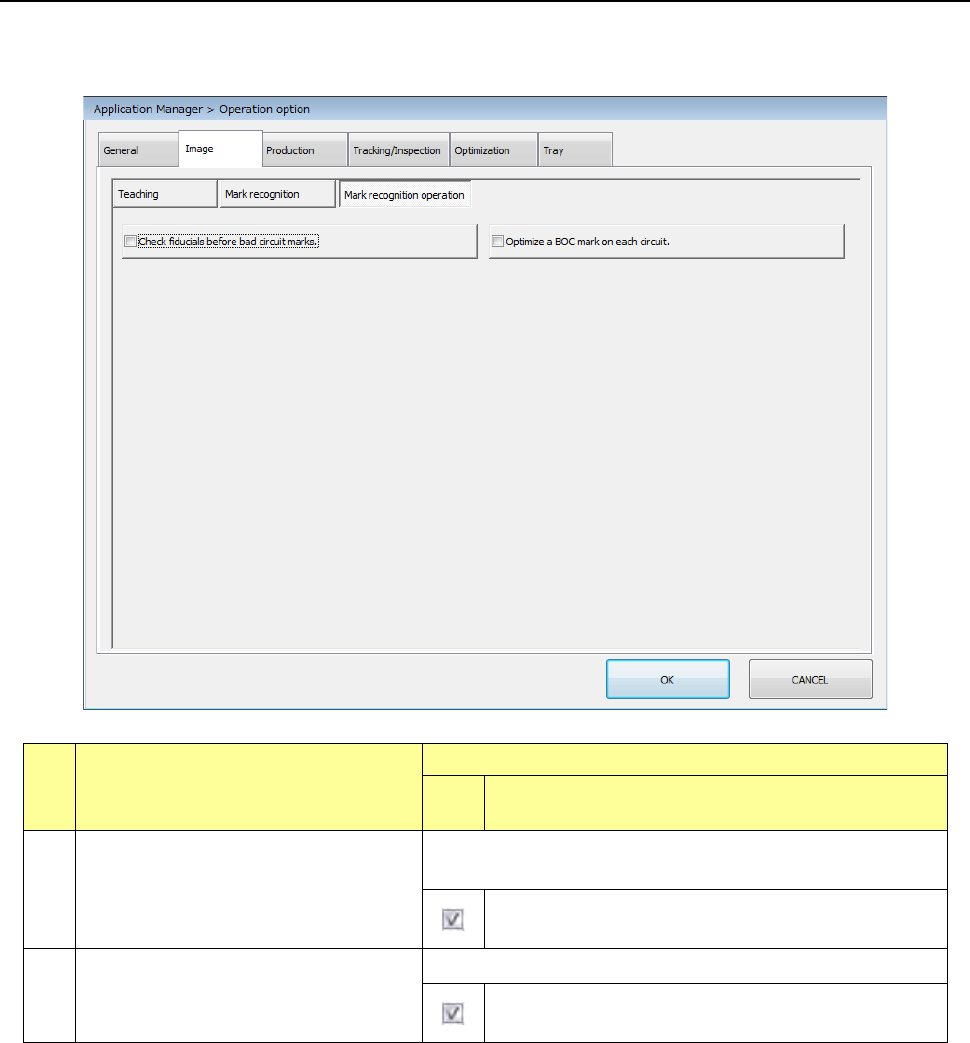
7.3.3 Mark recognizing operation
When you press the <Mark recognition> button, the “mark recognizing operation option setting
screen” appears.
No.
Menu item
Description
Statu
s
Operation and detailed explanation
1
Check fiducials before bad circuit marks.
Specify which of the BOC mark and bad mark is recognized with
priority.
The BOC mark is recognized with priority instead of the
bad mark.
2
Optimize a BOC mark on each circuit.
Change the BOC mark recognition order during production.
The BOC mark recognition order of each circuit is
optimized.
Part 2 Detailed Description of Each Function Chapter 7 Operation Option
7-9
7.4 Production
Specify operation options for production.
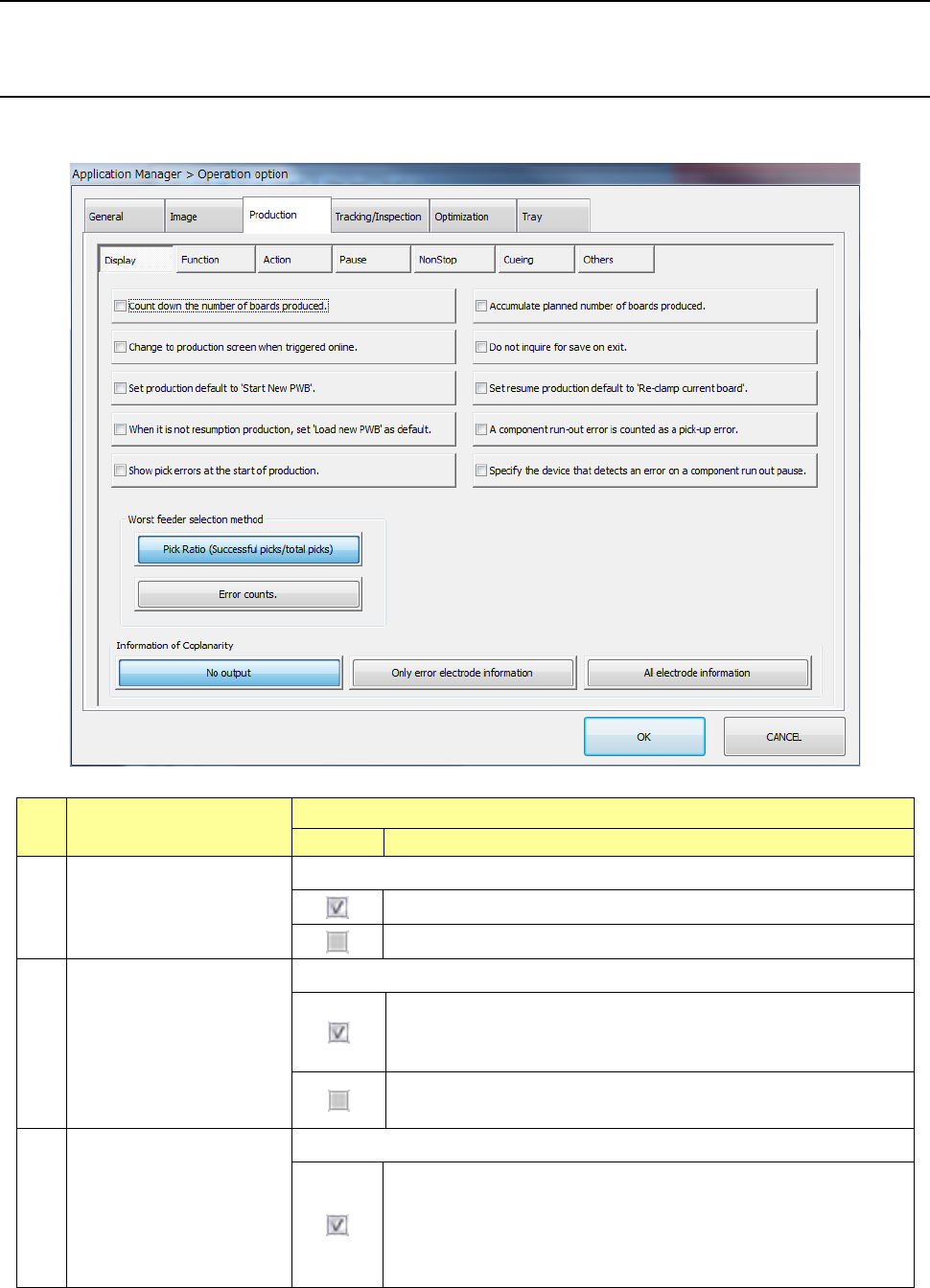
7.4.1 Display
When you press the <Display> button, the “production display option setting screen” appears.
No.
Menu item
Description
Status
Operation and detailed explanation
1
Subtract the number of
production PWBs.
Specify the method of displaying the number of production PWBs.
The scheduled residual number of production PWBs is displayed.
The number of produced PWBs is displayed.
2
Add the number of
production PWBs.
Specify the method of updating the number of production PWBs
The number of produced PWBs is added unless the production
management information is cleared. (The added number of PWBs
is displayed.)
The number of produced PWBs is cleared to zero by pressing the
<START> switch.
3
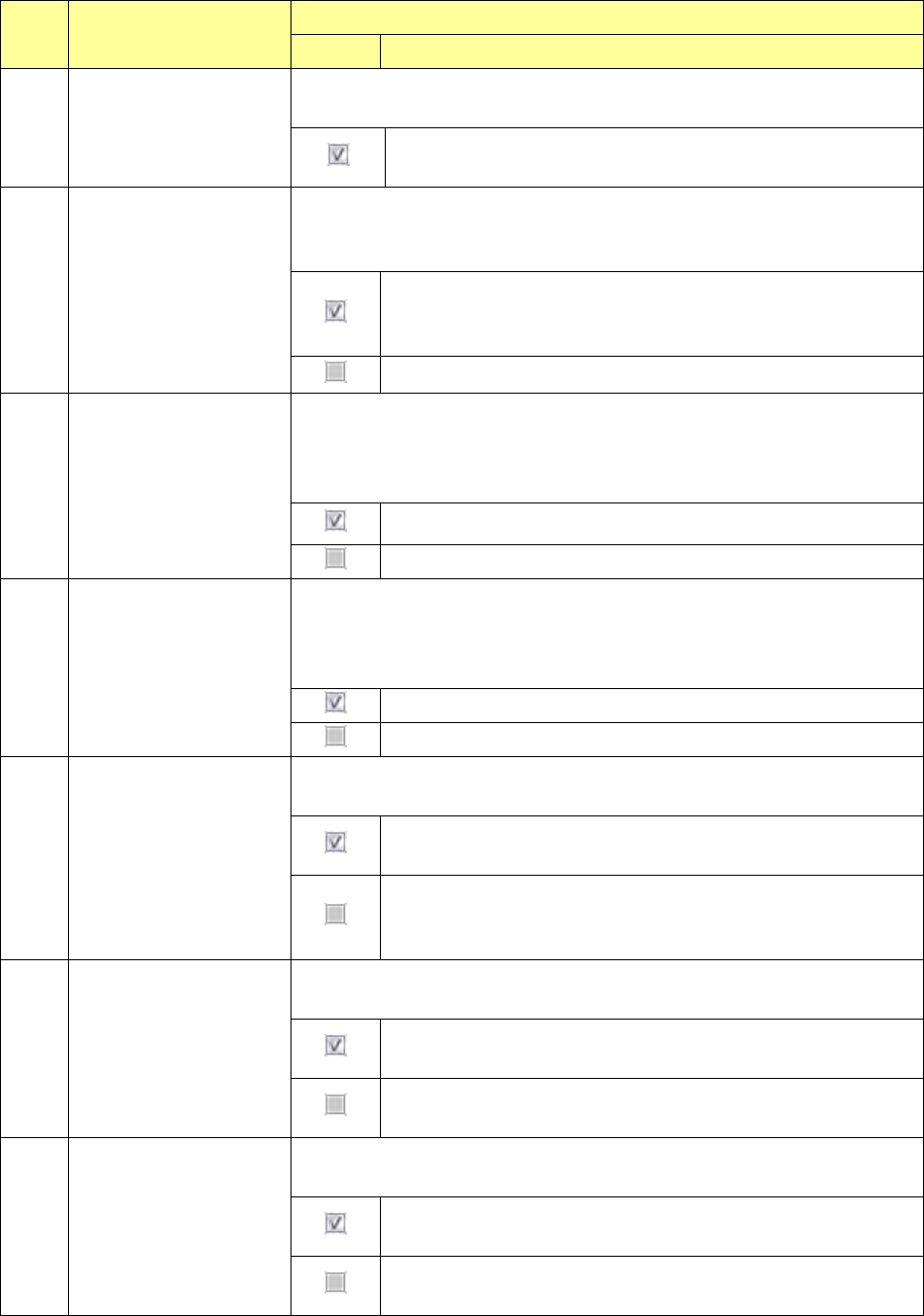
Change over to the
production screen when
Production start (ONLINE) is
selection.
Specify automatic screen changeover at a start of production by ONLINE.
Specify automatic screen changeover at a start of production by
ONLINE. When the PWB production is started by ONLINE in the
initial (desktop) status, the production condition (PWB production)
screen appears automatically after the end of production program
data download.
Part 2 Detailed Description of Each Function Chapter 7 Operation Option
7-10
No. Menu item
Description
Status Operation and detailed explanation
4
Make no inquiry about
saving at the end of
production.
Specify the execution of the inquiry about production program saving at the end
of the production condition screen.
The saving check dialog does not appear at the end of the production
condition screen.
5
Specify “No non-stop
production” at non-stop
production as the default.
In the production start pre-processing dialog displayed by pressing the
<START> switch (when there is a non-stop production file), specify the default
of the “Non-stop production”/”No non-stop production” radio button.
In the production start pre-process dialog (when there is a non-stop
production file), the default of the “Non-stop production”/”No
non-stop production” radio button is set to “No non-stop production”.
“Non-stop production” is set.
6
Specify “Production after
re-clamp” at non-stop
production as the default.
Specify the default of production operation when there is a non-stop production
file and production operation (“Production after PWB carrying-in”/”Production
after re-clamp” can be initially selected when the PWB pre-start dialog is
displayed.
“Production after re-clamp” is selected.
“Production after PWB carrying-in” is selected.
7
Specify “Production after
PWB carrying-in” at
non-non-stop production
as the default.
Specify the default of production operation when the production operation
(“Production after PWB carrying-in”/”Production after re-clamp”) can be initially
selected at no- non-stop production when the production pre-start dialog is
displayed.
“Production after PWB carrying-in” is selected.
“Production after re-clamp” is selected.
8
Include “no components”
in the number of pick
errors.
Specify whether “no components” is included in the number of pick errors or
pick ratio.
The number of pick errors of production management information is
displayed by adding the number of no components (pick retry over).
The number of pick errors of production management information is
displayed without adding the number of no components (pick retry
over).
9
Display a pick error at a
start of production.
Specify whether a check dialog is displayed when there is a feeder with a lower
pick ratio at a start of production.
A check dialog is displayed if there is a feeder with a lower pick ratio
than the set value at a start of production.
A check dialog is not displayed if there is a feeder with a lower pick
ratio than the set value at a start of production.
10
Subdivide a temporary
stop error due to “no
components.”
Regarding a head resulting in an error in the temporary stop dialog due to “no
components”, display whether it is laser head or vacuum head.
The “judgment” item is displayed in the temporary stop dialog due to
“no components” and the no component judgment is displayed.
The “judgment” item is not displayed in the temporary stop dialog
due to “no components”